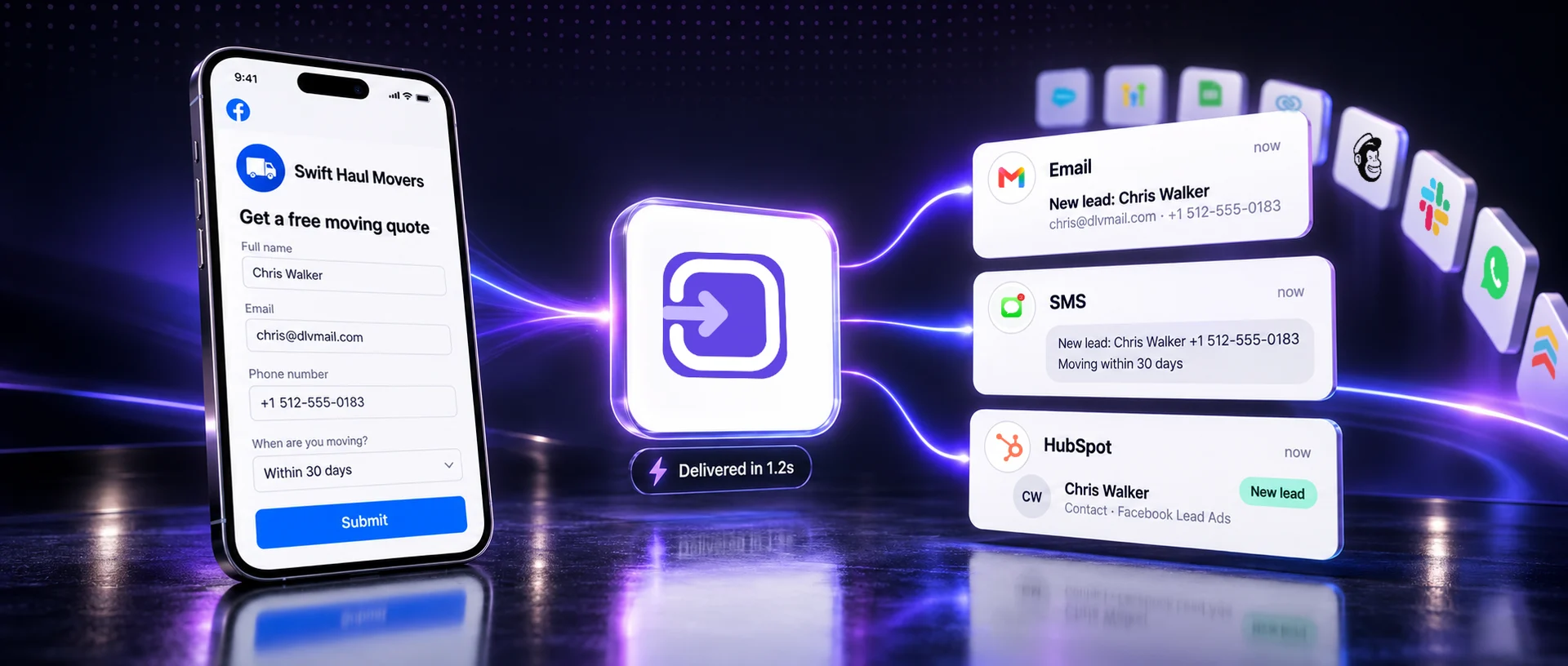
Every Facebook lead ad ends the same way: someone taps Submit on your Instant Form, and their details land in Meta's Leads Center. Not in your CRM, not in your email list, not on your sales team's phone. Getting them there is the job of a Facebook lead ads integration.
This guide explains how an integration actually works, the five ways to set one up (from free CSV downloads to custom code), what each costs, and how to test it before you spend a dollar on ads. Everything is shown with real screenshots, and every app has its own step-by-step guide linked below.
A Facebook lead ads integration sends each new lead from your Instant Form to another app, automatically. You can download leads by hand, use your CRM's own connection, build a Zap in Zapier or Make, use a lead delivery tool like LeadSender, or code it yourself on Meta's API. For most businesses a lead delivery tool is the fastest route: about 3 minutes to set up, and every lead arrives within seconds.
How a Facebook lead ads integration works
Every integration, whatever tool you use, follows the same four steps. Knowing them makes it much easier to choose a tool and to find the problem when leads go missing.
- Someone submits your Instant FormOn Facebook or Instagram. Meta stores the lead in Leads Center.
- Meta sends a notificationA
leadgenwebhook to every app subscribed to your Page. It carries IDs, not answers. - The integration fetches the leadIt reads the answers from Meta's Graph API, with permission to read your leads.
- The lead lands in your appEach answer goes into the field you matched it to: your email, phone, CRM, list or sheet.
 Submit
 LeadSender
Steps 2 and 3 are where integrations differ. A tool that listens for Meta's webhook gets each lead within seconds. A tool that checks for new leads on a schedule can take minutes. And a tool that has lost its permission to read your leads gets nothing at all, which is the most common reason leads go missing.
Webhook vs polling: why some integrations are slow
There are two ways a tool can find out about a new lead. With Meta's webhook, Meta tells the tool the moment a form is submitted. With polling, the tool asks Meta for new leads on a timer, every few minutes or even every hour on some free plans, so a lead can sit unseen until the next check:
Ask any tool you're considering which one it uses. LeadSender subscribes your Page to Meta's webhook, so each lead is delivered within seconds of the form being submitted.
Why Leads Center isn't enough
Meta does keep every lead for you in Leads Center (in Meta Business Suite) and in Ads Manager. You can filter them, mark their stage and download them as a CSV. But Leads Center isn't a CRM, and it has two real limits:
- Nobody is told a lead arrived. Someone has to remember to check, and by then the lead has often filled in two other businesses' forms.
- Leads don't last. Meta keeps leads for 90 days. After that they can't be downloaded or recovered.
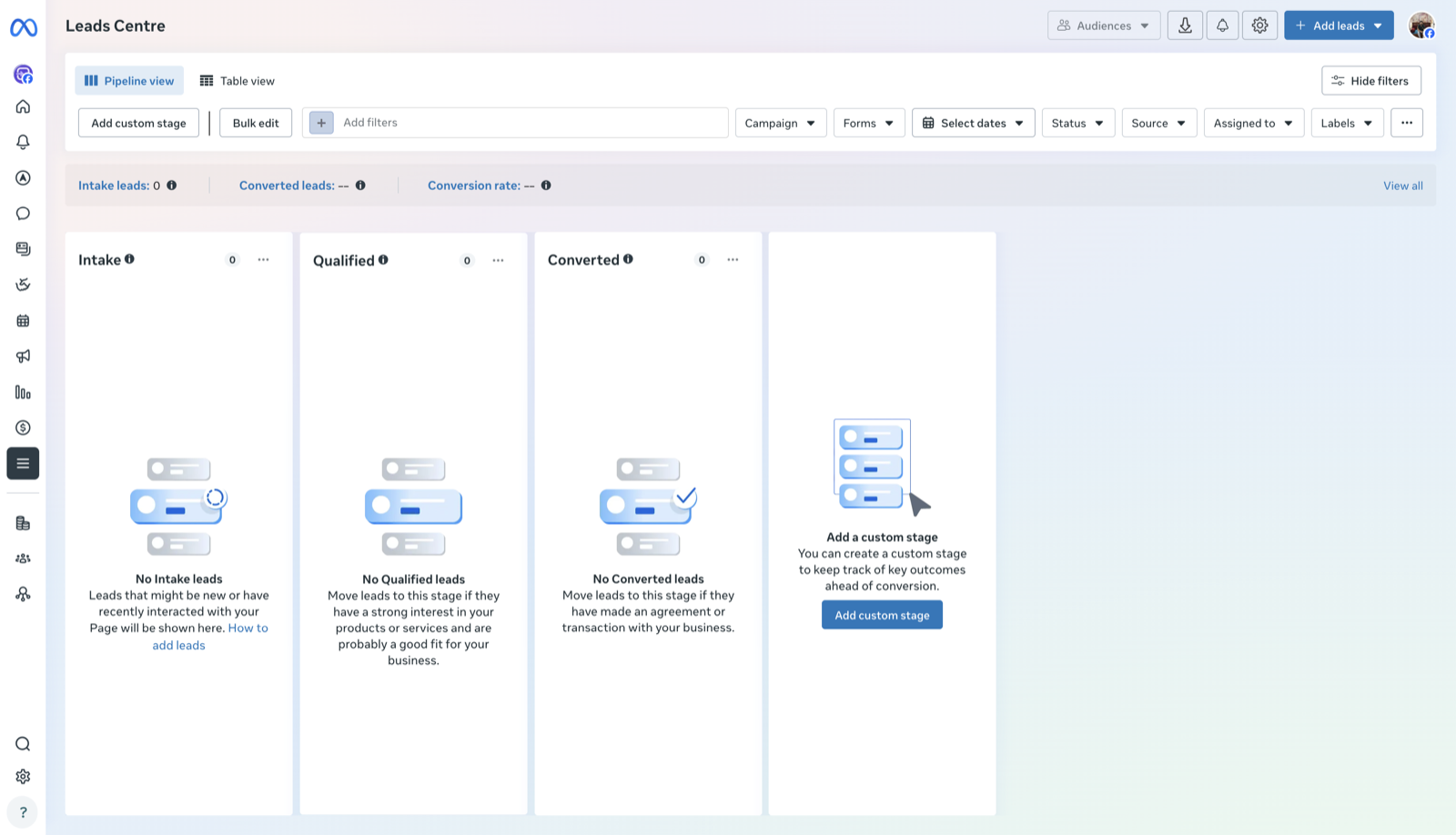 Filter, then download
Speed matters more than most advertisers expect. In a study of more than 2,000 US companies published in the Harvard Business Review, firms that contacted a lead within an hour were nearly seven times as likely to qualify them as firms that waited even one hour more. An integration turns “whenever someone checks” into seconds.
The 5 ways to integrate Facebook lead ads
1. Download your leads as a CSV
In Leads Center or Ads Manager, filter by form and date, click download, then import the file into your CRM or email platform. It's free and needs no setup, but it's manual every time, and leads wait until someone does it. Fine for a handful of leads a week; see how to download your Facebook leads.
2. Your CRM's own Facebook connection
Some CRMs and email platforms have a built-in Facebook lead ads connection that you set up inside the CRM. When it's good, it's the cheapest option, because it's included in what you already pay. Before you rely on one, check three things: does it map your custom questions or only name and email, can it set an owner, source or tag, and does it show you failed leads. Many only cover the basics.
3. Zapier or Make
General automation tools connect Facebook Lead Ads to thousands of apps. You build a workflow (a Zap or a scenario): a new lead triggers it, and you map each form field to the next app by hand. They're flexible, but Facebook Lead Ads is a premium app on Zapier, so it needs a paid plan, and every field and every form is yours to map and maintain. Worth it if you already pay for them and build multi-step workflows. More in LeadSender vs Zapier.
4. A lead delivery tool like LeadSender
A dedicated tool does one job: get Facebook and Instagram leads into the app your team uses, within seconds. LeadSender listens for Meta's webhook, reads the real fields from your connected account (custom fields included) and matches the obvious ones for you, so setup takes about three minutes. Every lead is logged in Run history, and a failed one shows the reason and can be resent. It connects to 33 apps, shown below, and starts at $9.99 a month after a 7-day free trial.
5. Custom code on Meta's webhook and Graph API
Developers can build their own: subscribe a Meta app to your Page's leadgen webhook, then fetch each lead with the Graph API. Meta only gives an app the leads_retrieval permission after App Review. The notification carries IDs only:
{
  "object": "page",
  "entry": [{
    "id": "PAGE_ID",
    "time": 1761465600,
    "changes": [{
      "field": "leadgen",
      "value": {
        "leadgen_id": "LEAD_ID",
        "page_id": "PAGE_ID",
        "form_id": "FORM_ID",
        "ad_id": "AD_ID",
        "adgroup_id": "AD_SET_ID",
        "created_time": 1761465600
      }
    }]
  }]
}
Your code then asks the Graph API for the answers, using the leadgen_id:
GET https://graph.facebook.com/{API_VERSION}/{LEAD_ID}?access_token={PAGE_ACCESS_TOKEN}

{
  "id": "LEAD_ID",
  "created_time": "2026-10-26T09:20:00+0000",
  "field_data": [
    { "name": "full_name",    "values": ["Derek Lawson"] },
    { "name": "email",        "values": ["derek@dlwmail.com"] },
    { "name": "phone_number", "values": ["+15125550147"] }
  ]
}
That's the easy part. The real work is everything around it: keeping Page tokens valid when people change passwords or leave, retrying when your CRM is down, logging every lead, and mapping each new form. Meta's lead retrieval docs cover the API itself.
All 5 methods compared
| CSV download | CRM's own connection | Zapier or Make | LeadSender | Custom code | |
|---|---|---|---|---|---|
| Cost | Free | Usually included | Zapier needs a paid plan (premium app) | From $9.99/mo, 7-day free trial | Developer time + App Review |
| Lead arrives | ✗ When someone downloads | Depends on the CRM | Depends on the plan | ✓ Within seconds | ✓ Within seconds |
| Setup | None, but every time by hand | Inside your CRM | ⚠ Build and test a workflow | ✓ About 3 minutes, guided | ✗ Days to weeks |
| Custom questions | ⚠ Match columns on import | ⚠ Often only name and email | ⚠ Mapped one by one | ✓ Your real fields, matched for you | Whatever you build |
| Failed leads | None | Varies | Task history | ✓ Reason and resend in Run history | Whatever you build |
| Best for | A few leads a week | Teams whose CRM does it well | Multi-step workflows | Leads in your apps fast, no building | Developers with custom needs |
Which method fits you?
Pick the line that sounds most like you:
Connect Facebook, pick the app, match your fields, send a test lead and turn it on. Every lead is logged, and a failed one can be resent.
How it works →- I get a few leads a week and call them myself
- Download your leads as a CSV. Free, and nothing to set up. Check Leads Center every day and download new leads before they go cold. Meta keeps leads for 90 days, so don't leave it longer than that.
- My CRM already has a Facebook lead ads connection
- Try your CRM's own connection first. Usually included in what you already pay. Check what it maps and how fast it syncs. If it only fills name and email, drops your custom questions, or can't assign an owner, use a dedicated tool instead.
- I already pay for Zapier or Make and build multi-step workflows
- Use Zapier or Make. One place for every automation you run. Facebook Lead Ads is a premium app on Zapier, so it needs a paid plan. Map every field by hand, and check your task history when a lead goes missing.
- I want leads in my CRM within seconds, without building anything
- Use a lead delivery tool like LeadSender. Set up in about 3 minutes, with your real fields matched for you. Connect Facebook, pick the app, match your fields, send a test lead and turn it on. Every lead is logged, and a failed one can be resent.
- I have developers and need custom logic
- Build on Meta's webhook and Graph API. Full control over what happens to every lead. Plan for Meta App Review (the leads_retrieval permission), token renewal, retries and monitoring. It's a project, not an afternoon.
How to connect Facebook lead ads to your CRM, step by step
Here's the whole setup in LeadSender, shown with Google Sheets. The steps are the same for every CRM or app; only step 3 changes. For your exact app, open its guide in Find your app.
Start a free trial and connect Facebook
Start your 7-day free trial of LeadSender (no card needed) and sign in with the Facebook account that manages your Page. LeadSender subscribes your Page to Meta's webhook, so it hears about each lead the moment it's submitted.
Pick your Page and lead form
Choose the Page you advertise on and the Instant Form whose leads you want to send.
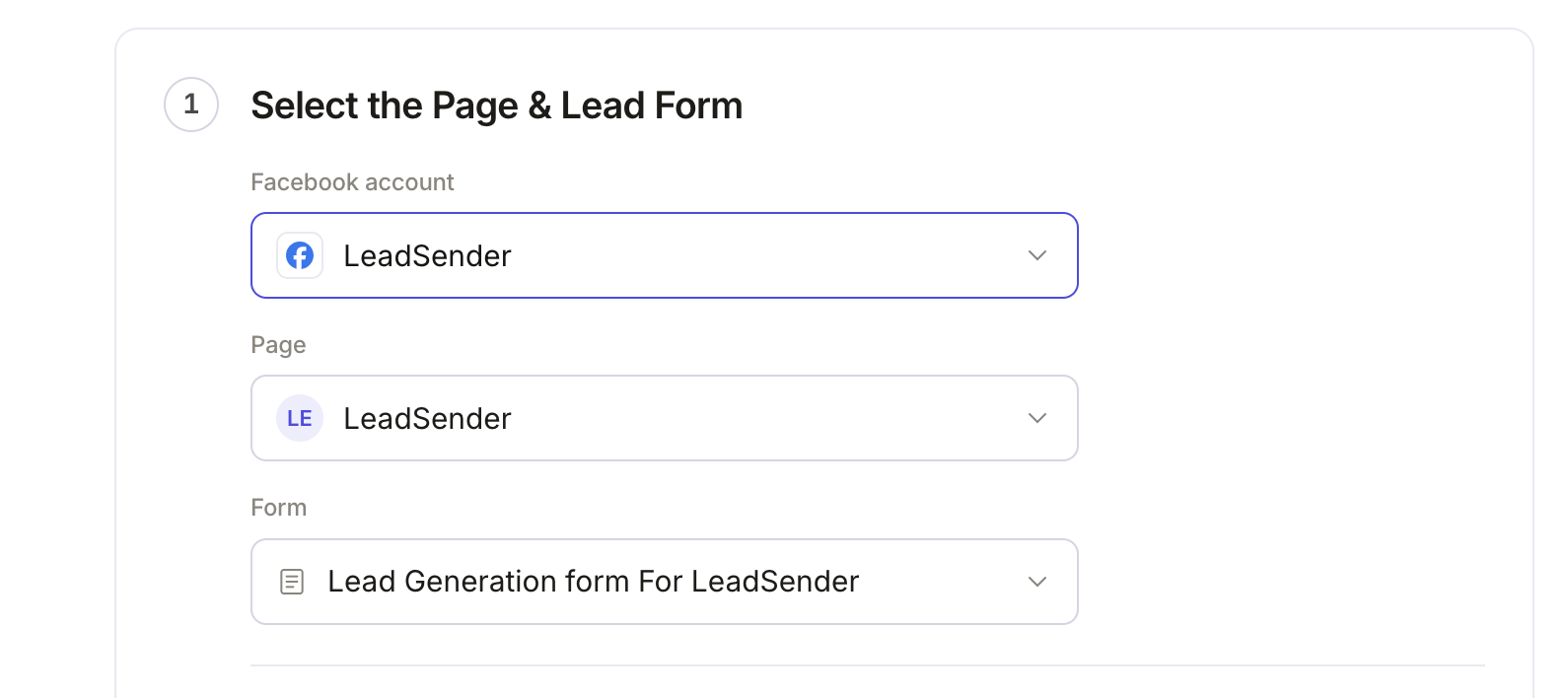 Select your Page
and lead form
Connect the app your leads should go to
Pick your CRM, email platform, spreadsheet or alert channel and connect your account. Depending on the app that's a sign-in, an API key or a webhook link; each guide shows exactly where to find it.
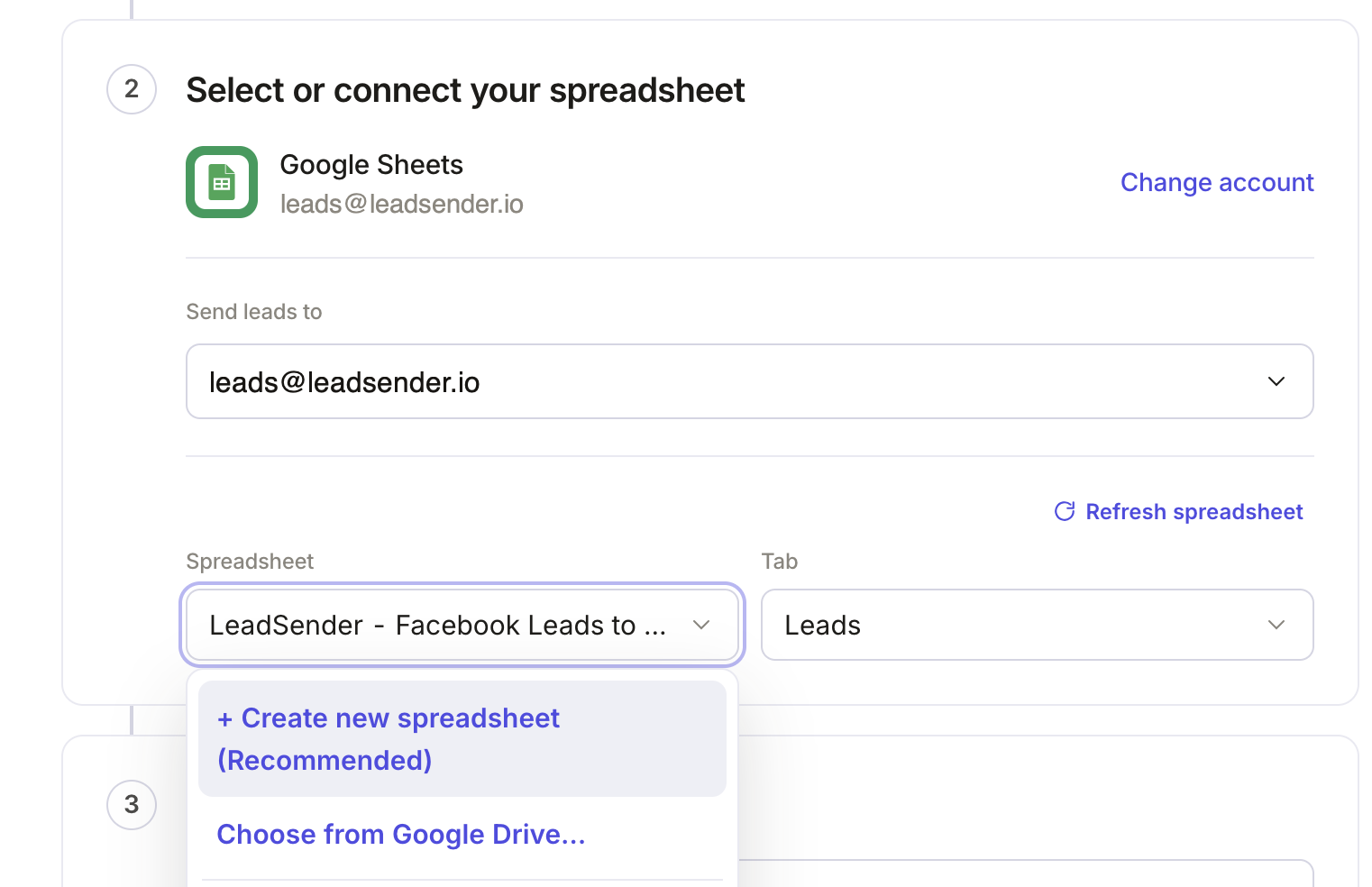 Your connected account
Match your fields
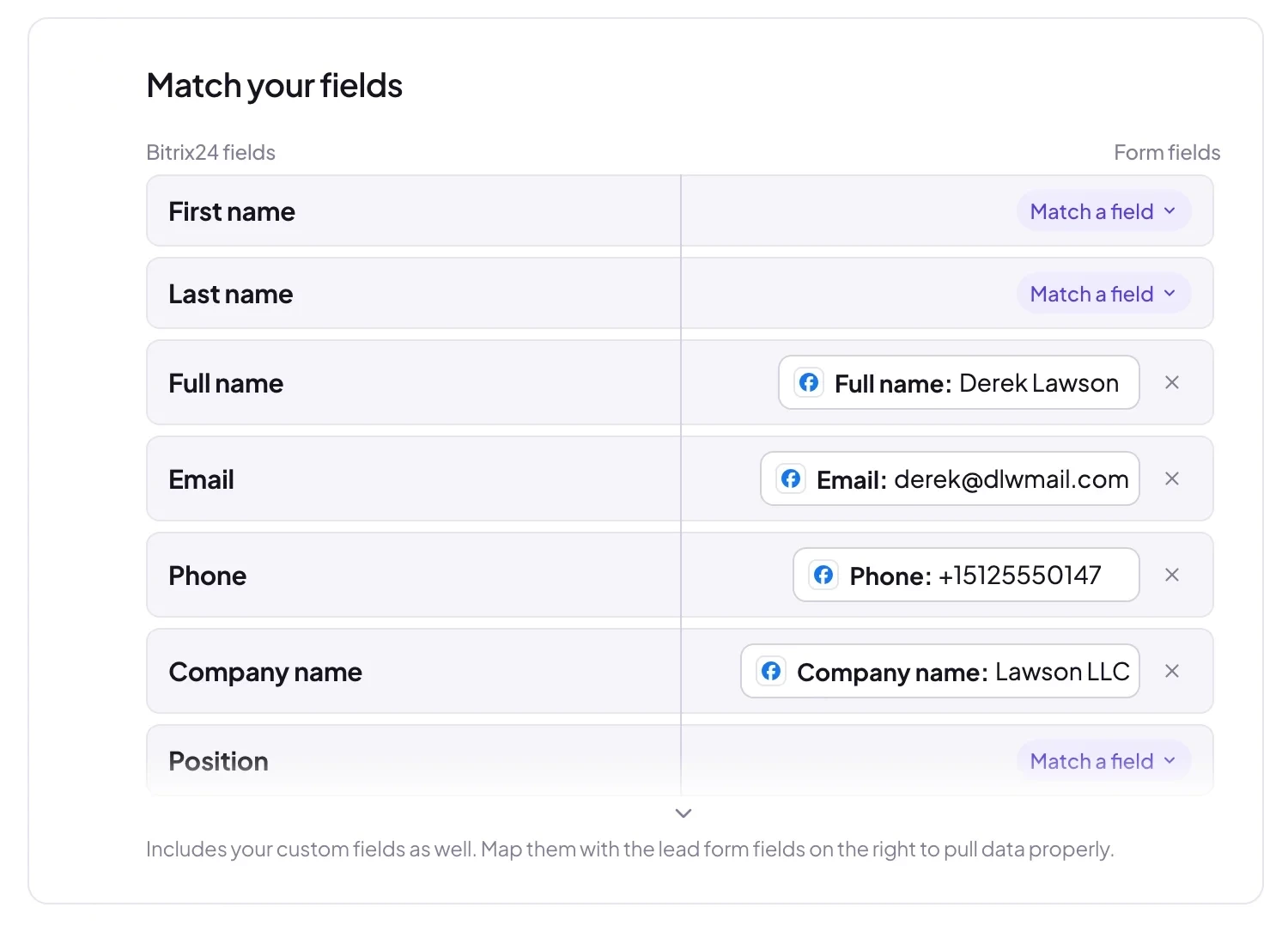
Name, email and phone are matched for you. Match each custom question on your form (budget, timeline, service) to a field in your app, so every answer lands somewhere you can sort and filter.
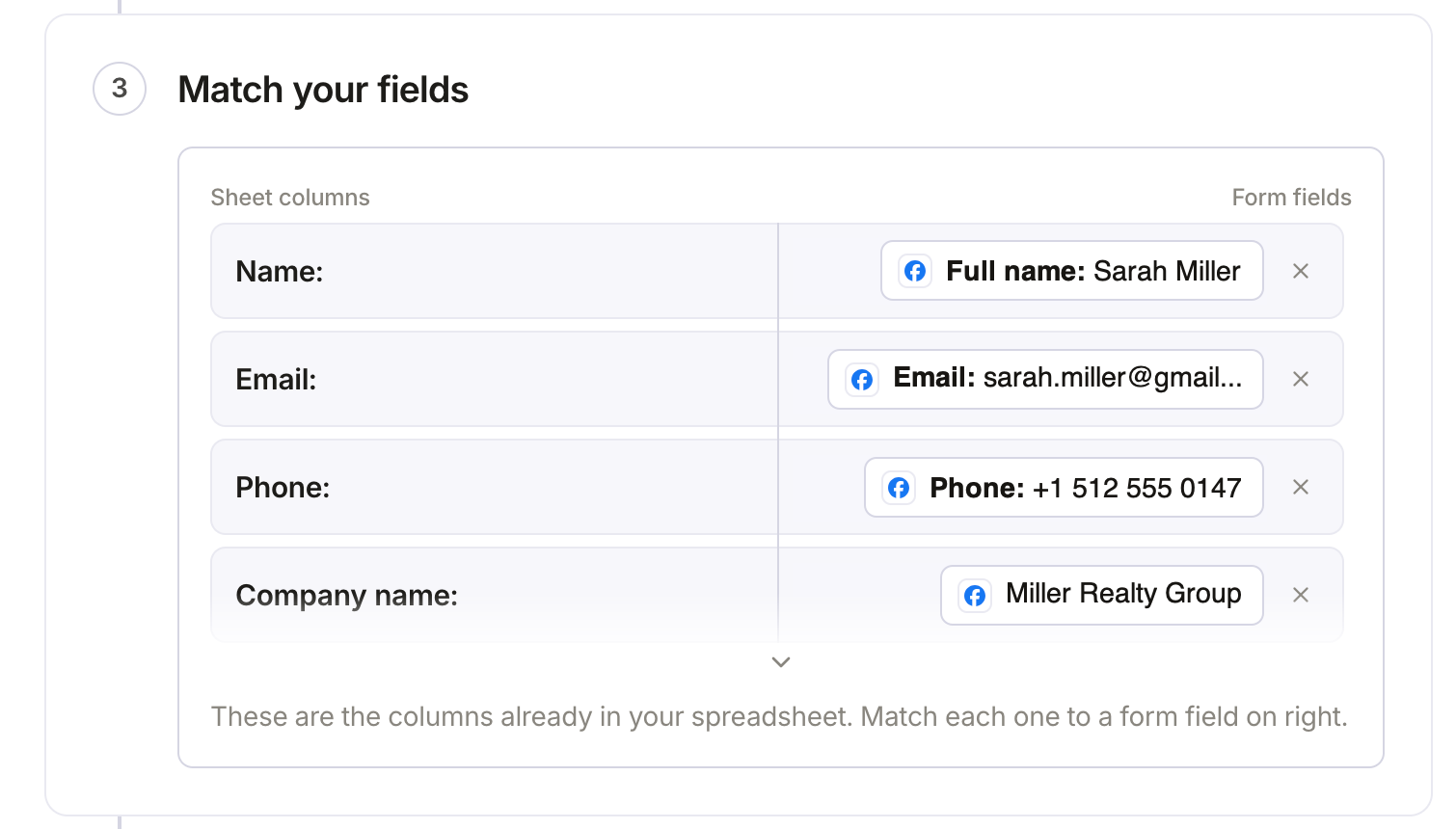 Matched for you
Send a test lead
Click Send a test lead and check what arrived, field by field. Want a brand new lead to test with? Create one with our free Meta Lead Ads Testing Tool.
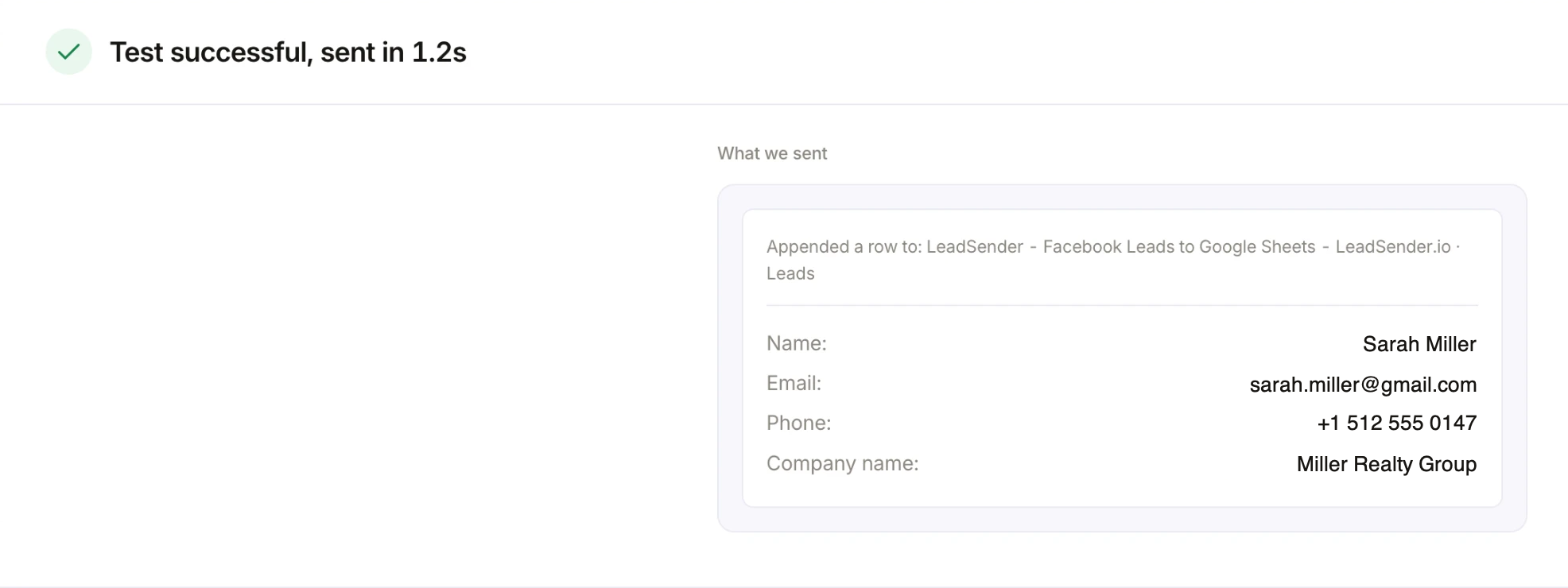 Exactly what arrived
Turn it on
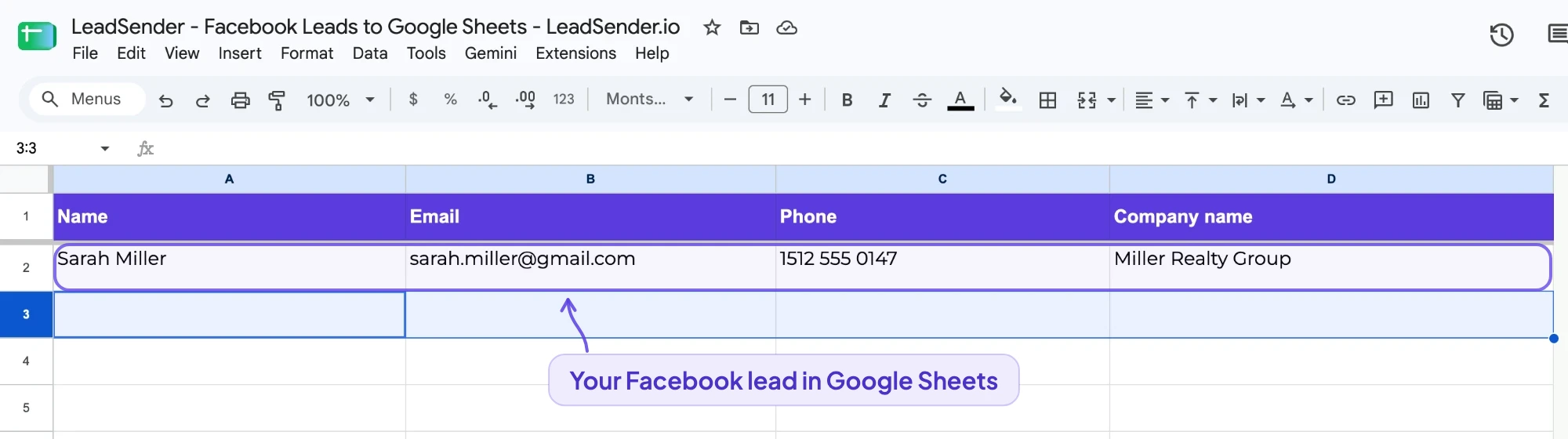
Click Turn on. From now on every new lead from that form, on Facebook or Instagram, arrives within seconds. The full Google Sheets walkthrough is in how to send Facebook leads to Google Sheets.
Find your app: Facebook lead ads integrations by app
LeadSender connects Facebook and Instagram lead ads to 33 apps. Search for yours, then open its integration page or its step-by-step setup guide. You can also browse all Facebook Lead Ads integrations by type.
 EmailSetup guide →
- SMSSMSSetup guide →
 WhatsAppSetup guide →
 TelegramSetup guide →
 SlackSetup guide →
 Google SheetsSetup guide →
 AirtableSetup guide →
 GoHighLevelSetup guide →
 HubSpotSetup guide →
 Salesforce
 PipedriveSetup guide →
 Close CRMSetup guide →
 FreshsalesSetup guide →
 Bitrix24Setup guide →
 Zoho CRMSetup guide →
 MondaySetup guide →
 Follow Up BossSetup guide →
 BoldTrail (kvCORE)
 Lofty
 Wise AgentSetup guide →
 Real Geeks
 CINCSetup guide →
 Dealer CRM (ADF/XML)Setup guide →
 MailchimpSetup guide →
 ActiveCampaignSetup guide →
 BrevoSetup guide →
 MailerLiteSetup guide →
 Constant ContactSetup guide →
 KlaviyoSetup guide →
 GetResponseSetup guide →
 AWeberSetup guide →
 Kit (ConvertKit)
- APIWebhook
| If your team works in | Send leads to | Why |
|---|---|---|
| A sales CRM | HubSpot, Salesforce, Pipedrive, GoHighLevel | Each lead becomes a contact or deal with an owner, ready to call |
| Real estate | Follow Up Boss, CINC, Lofty | Leads go straight to your agents' follow-up |
| Email marketing | Mailchimp, Klaviyo, ActiveCampaign | New leads join your list and your welcome email goes out while they still care |
| A spreadsheet | Google Sheets, Airtable | A running record anyone can sort and share |
| Your phone | Email, SMS, WhatsApp, Slack | Whoever should call is told the second a lead arrives |
Still choosing a CRM? See the best CRM for Facebook lead ads, with what a Facebook lead becomes in 12 of them.
Field mapping: what to send where
Field mapping decides whether a lead arrives clean or as a mess. Your Instant Form has standard questions (which Meta can pre-fill from the person's profile) and your own custom questions. Here's where each should go:
| Form field | Send it to | Watch out for |
|---|---|---|
| Full name | First name and last name | Most CRMs want them separate. A good integration splits a full name for you |
| It's how most CRMs spot a repeat lead, so always map it | ||
| Phone number | Phone or mobile | Some apps only accept numbers with a country code, like +15125550147 |
| Company, job title, city | The matching standard fields | Only if your form asks for them |
| Custom questions | A custom field of the right type | A dropdown answer into a dropdown field must match one of its options exactly |
| Every answer | A note or comment on the record | So nothing is lost, even a question you didn't map |
 Matched for you
The fields on the left come live from the connected account, custom fields included, so you map to the fields your team actually uses rather than a generic list.
Test your integration before you spend on ads
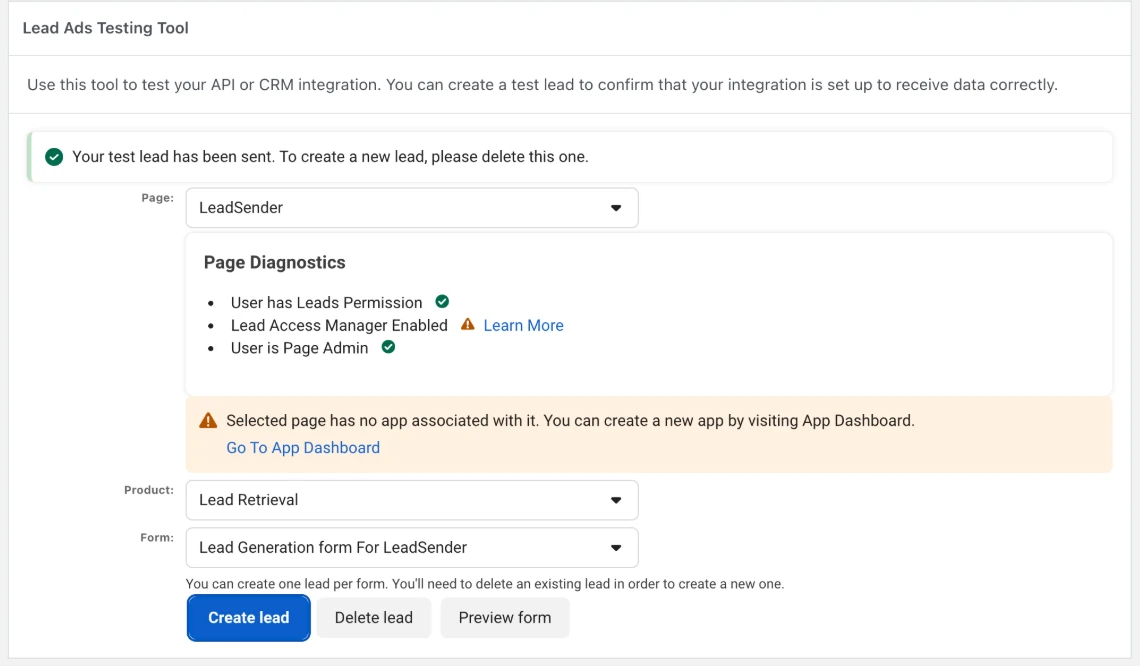
Never switch on an ad with an untested integration. Create a test lead and follow it all the way into your app. Meta's own Lead Ads Testing Tool does this, and our free Facebook Lead Ads Testing Tool walks you through it step by step, including what to do when Meta says a test lead already exists.
 Check these first
- A test lead has no ad or campaign, so automations that only run for a specific campaign won't start. That's expected.
- Meta allows one test lead per form at a time. Delete it in the testing tool before creating another.
- Check every field, not just the name. A custom question that lands empty means its mapping is missing.
Leads access: the setting that silently breaks integrations
In Meta's business settings, Leads access controls which people and which tools can read a Page's leads. By default everyone with the right Page access can. But once anyone customizes it, only the people and CRMs on the list get leads, and any tool not listed is silently locked out, even if it was working yesterday. Meta's testing tool then reports that CRM access has been revoked.
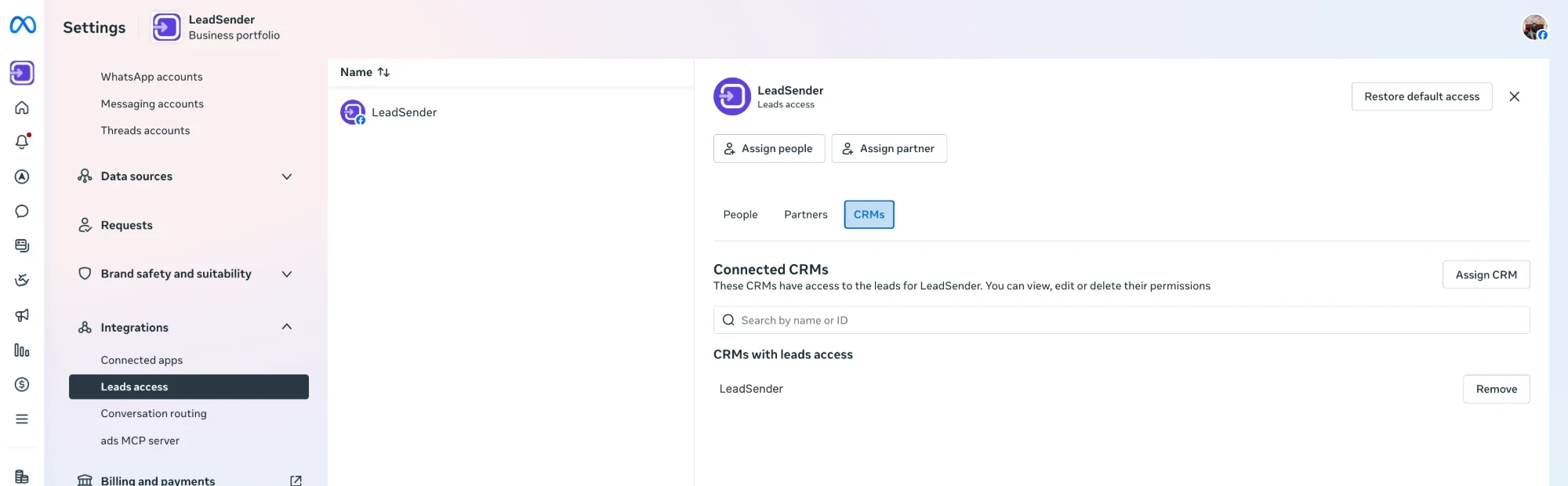 Your tool goes here
The fix: in Business settings, open Integrations, then Leads access, pick the Page, and on the CRMs tab click Assign CRM to add your integration. Then send another test lead. For every other cause of missing leads, see Facebook leads not coming through.
An integration sends new leads from the moment it's turned on. Download anything older from Leads Center and import it, within 90 days, before Meta deletes it.
Facebook lead ads integration launch checklist
Copy this into your notes and tick it off before your ad goes live:
Facebook lead ads integration launch checklist

[ ] Facebook connected with an account that is admin of the Page
[ ] Integration set to the right Page and Instant Form
[ ] Name, email and phone matched
[ ] Every custom question matched to a field (or saved in a note)
[ ] Owner, source, list or tag set, so the lead is assigned
[ ] Test lead sent and checked field by field in the app
[ ] Leads access: your tool listed under CRMs (if access is customized)
[ ] Instant alert (SMS, email or Slack) for whoever calls first
[ ] Older leads downloaded from Leads Center and imported (under 90 days old)
[ ] Integration turned on before the ad goes live
[ ] First real lead checked in the app and in Run history
Send every Facebook lead to Email, SMS or your CRM in seconds
Connect your Facebook Page, pick where leads should go and turn it on. Most people are live in about three minutes.
- 33 apps, from Email and SMS to HubSpot, GoHighLevel and Google Sheets
- Your real fields, custom ones included, matched for you
- Every lead logged, with an alert and a one-click resend if one ever fails