















A Facebook lead is most likely to open your email or reply to your SMS in the first hour after they submit your form. If your marketing runs on Brevo, the best way to catch that moment is to have every Facebook lead added to your Brevo lists automatically, so your welcome email or text goes out while they still remember your ad.
This guide shows how to connect Facebook lead ads to Brevo step by step, in about three minutes, with no CSV exports and no Zapier. It also covers what most guides skip: the safe way to create a Brevo API key now that Brevo offers Restricted keys, which attributes carry over, how lists and segments work, and the IP setting that quietly blocks integrations.
Facebook keeps instant-form leads in Leads Center, so you need a connector to send them to Brevo. In LeadSender: connect Facebook, choose Facebook Leads to Brevo, pick your Page and form, paste a Restricted Brevo API key with Contacts access, tick your lists, then turn it on. Every new lead becomes a Brevo contact within seconds.
How to connect Facebook lead ads to Brevo with LeadSender
Start a free trial and connect Facebook
Start your 7-day free trial of LeadSender (no card needed) and sign in with the Facebook account that manages your Page. That lets LeadSender hear about each new lead the moment it's submitted.
Choose the Brevo template
From Integrations, pick Facebook Leads to Brevo. Then select your Facebook Page and the lead form you want to send.
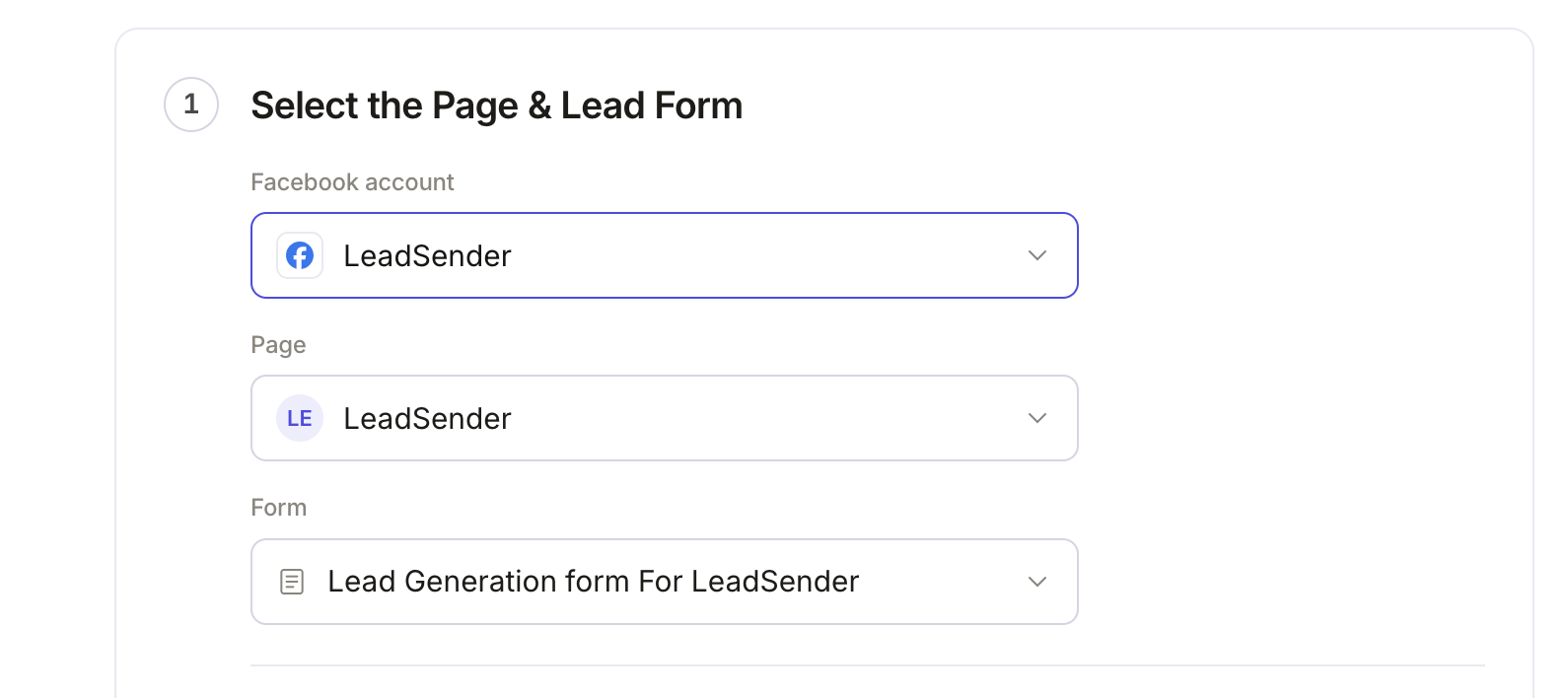 Select your Page
and lead form
Create a Restricted Brevo API key
In Brevo, click Settings, then SMTP & API, and open the API keys tab. Click Generate API key.
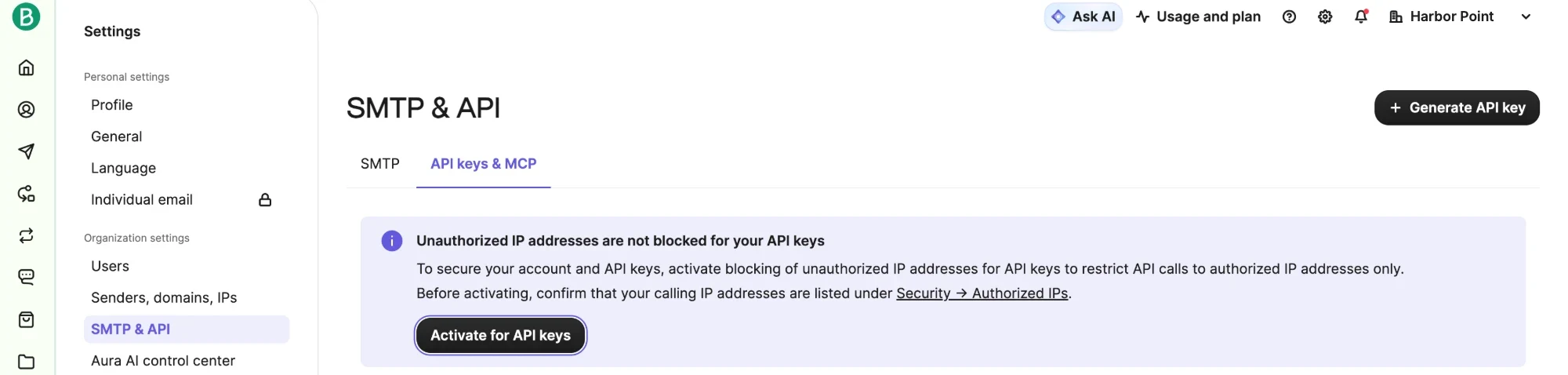 Click Generate API keyLeave this off (see below)
Name the key LeadSender, then choose Restricted, the option Brevo recommends. Set Contacts to All and, optionally, Account to Read so LeadSender can show which Brevo account is connected. Leave every other permission at None, then generate the key and copy it. Brevo only shows the full key once.
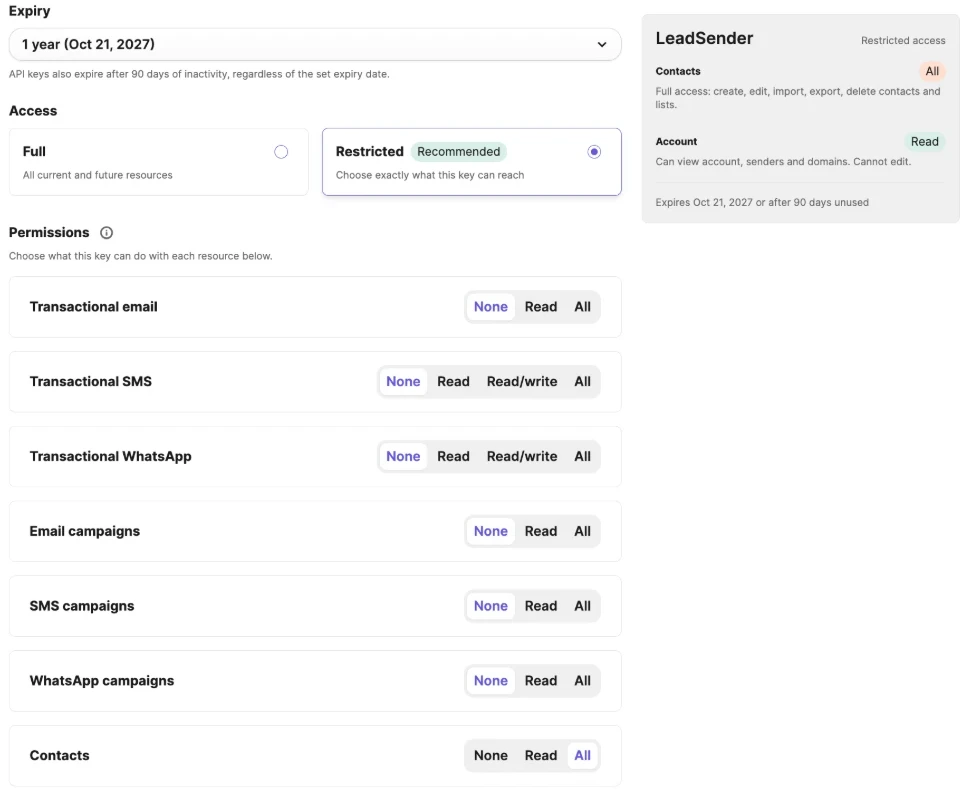 Choose RestrictedContacts: All
Connect Brevo
Back in LeadSender, click Connect next to Brevo, paste the key and click Connect. The key stays on LeadSender's servers.
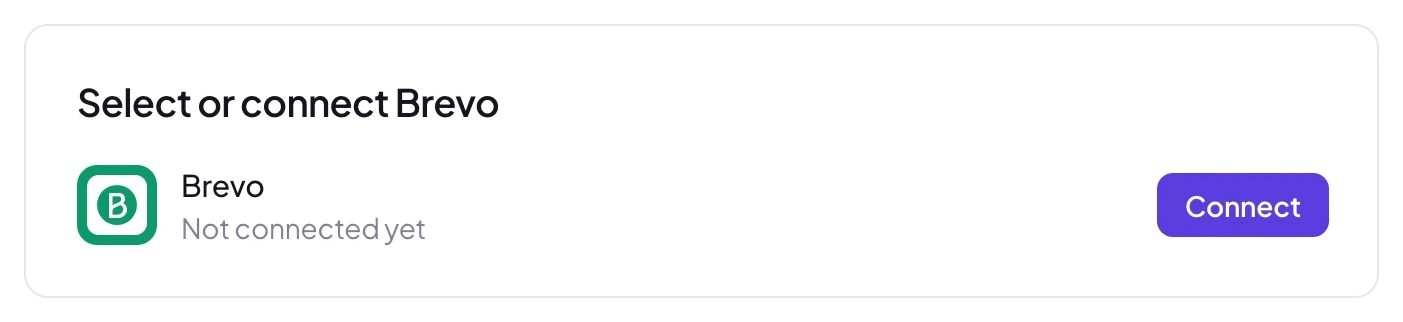 Click Connect
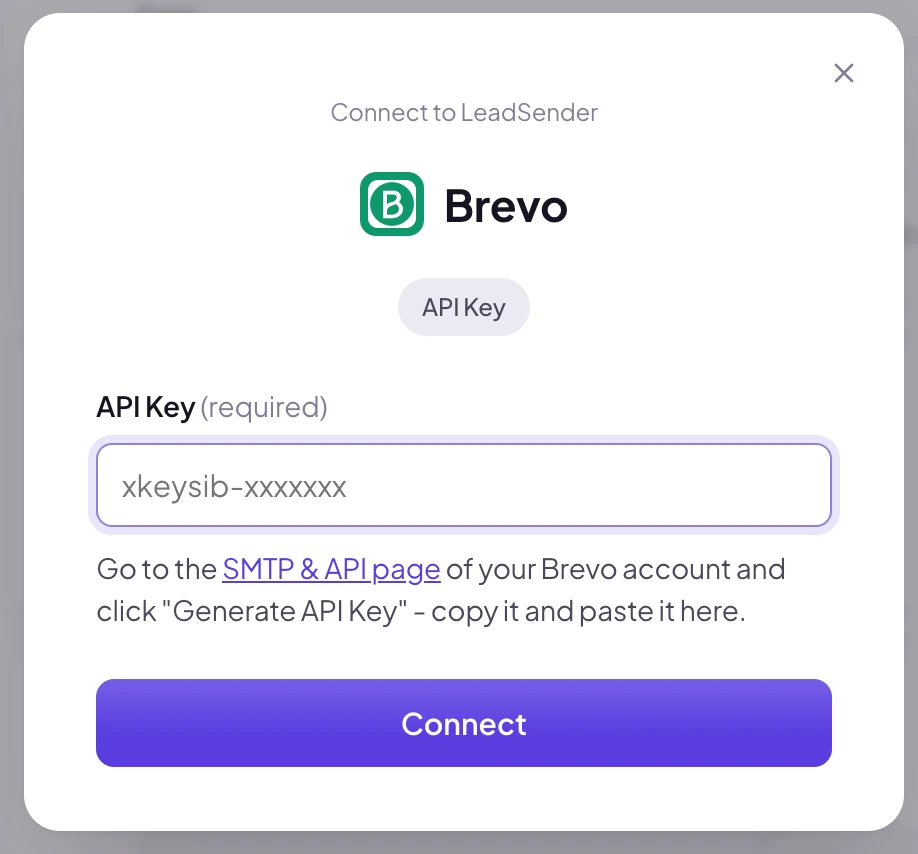 Paste your key here
Pick your lists
Under Add new contacts to these lists, tick every Brevo list new leads should join. A lead can join several lists at once, and your lists come live from your Brevo account.
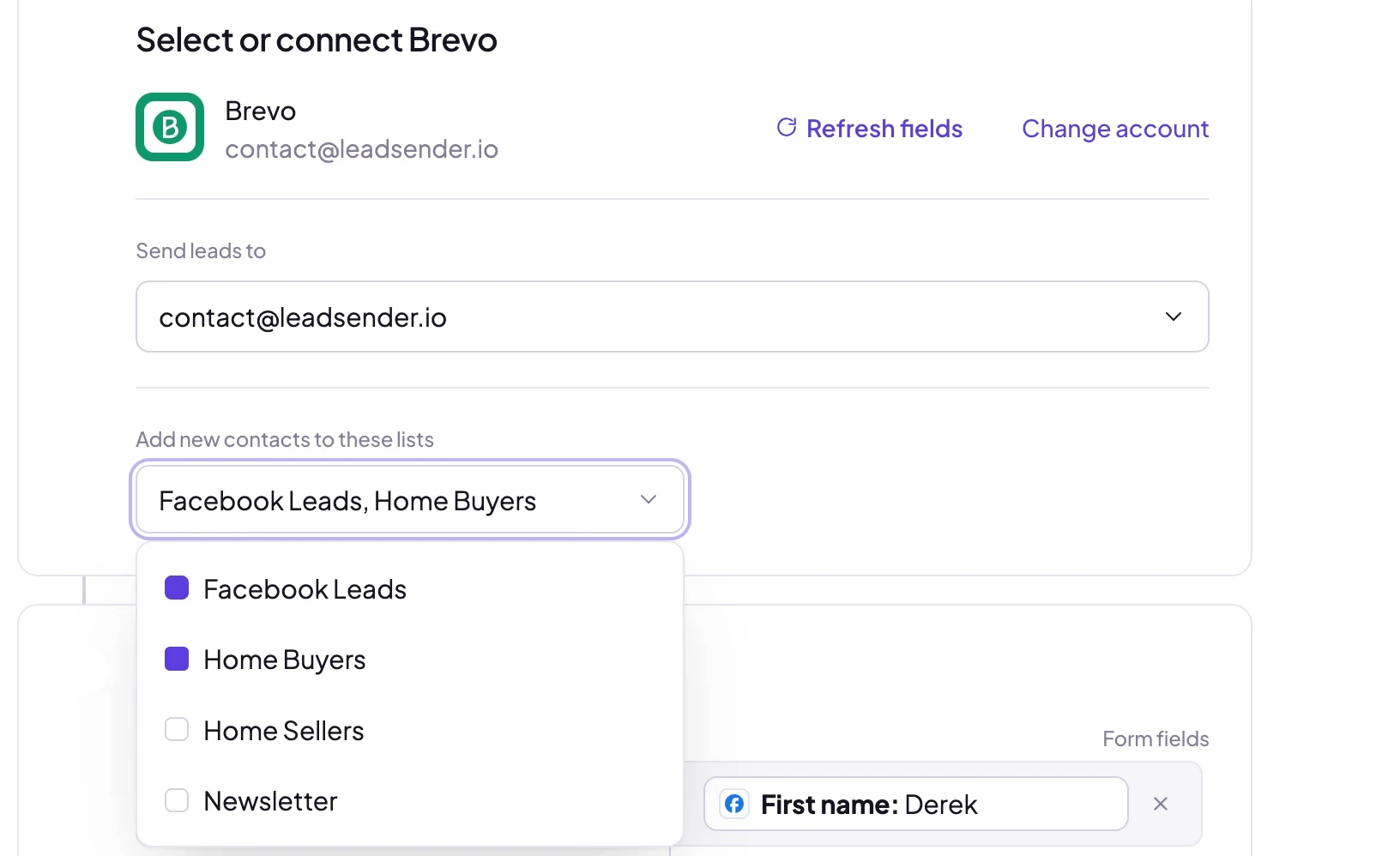 Tick one or more lists
Match your fields, test and turn on
In Match your fields, your account's real Brevo attributes are listed, and name, email and phone are matched for you. Pick a form answer for any other attribute, then click Send a test lead. Need a fresh lead to test with? Create one with our free Meta Lead Ads Testing Tool.
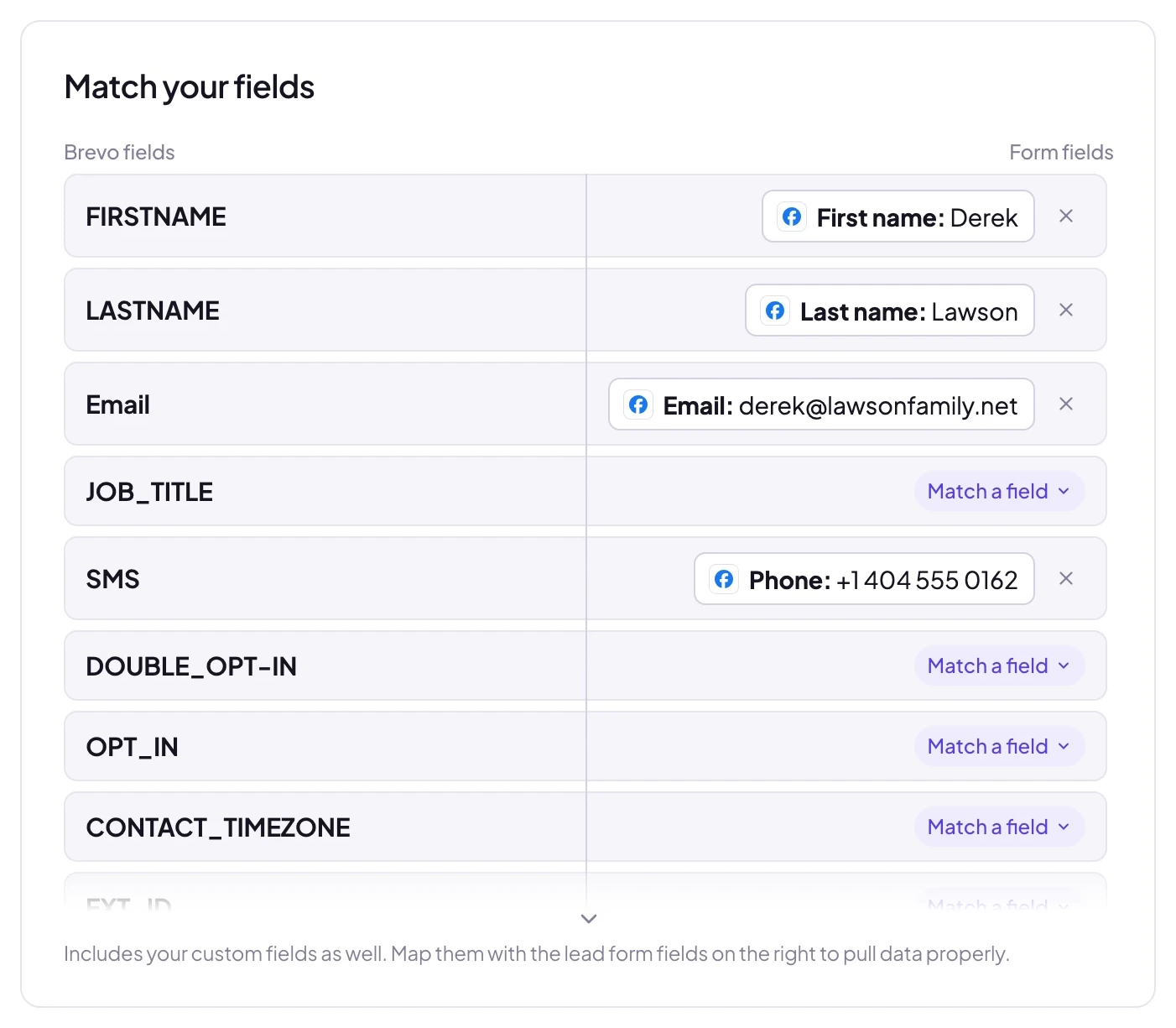 Matched for you
The test result shows exactly what was sent to Brevo, usually in about a second:
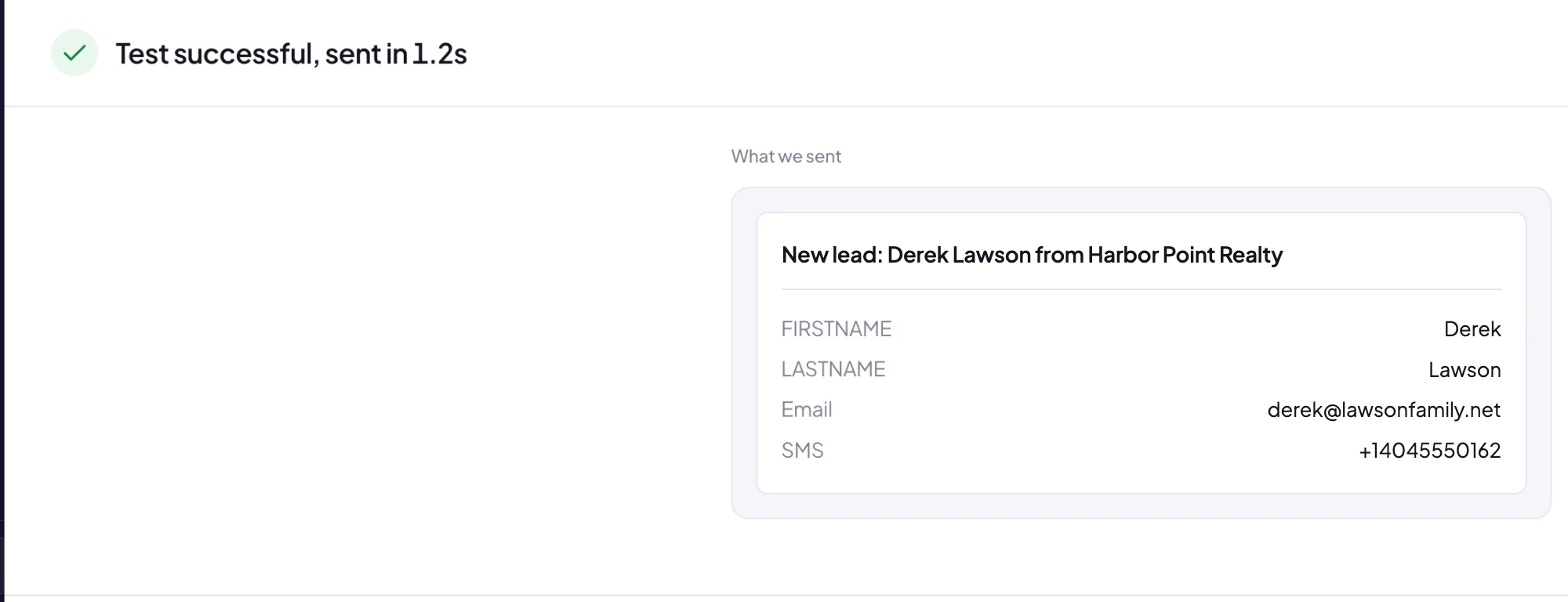 Sent to Brevo in about a second
Open Contacts in Brevo and the test lead is already there. When it looks right, click Turn on. From then on every new lead from that form, on Facebook or Instagram, is added to Brevo within seconds.
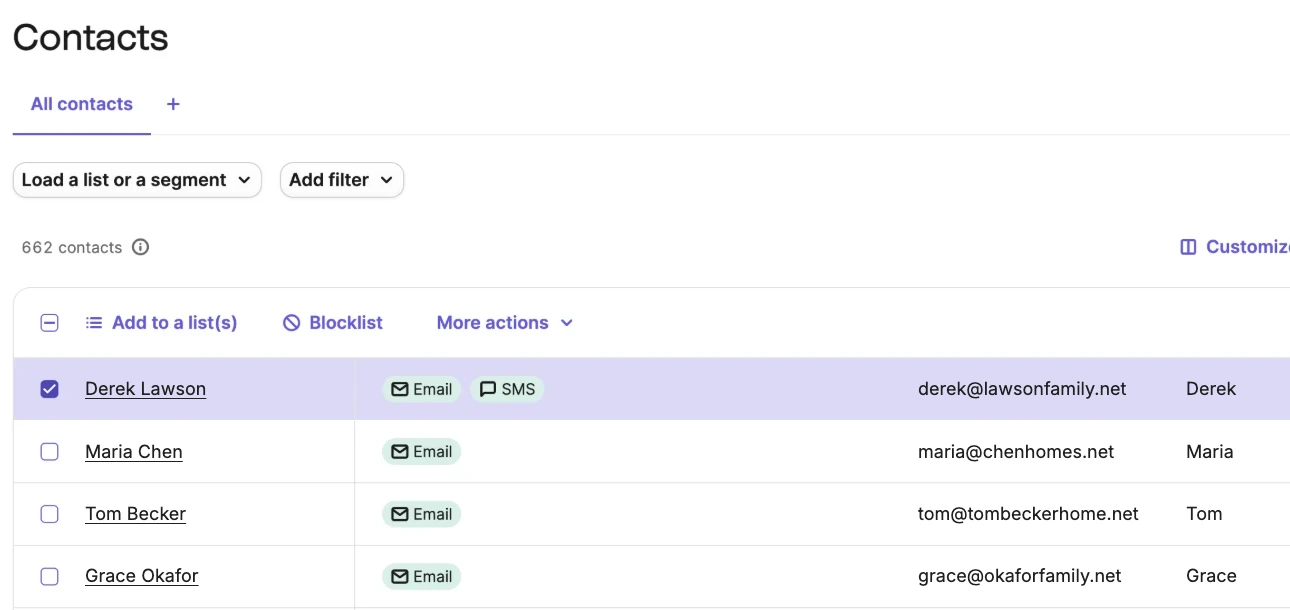 Added by LeadSender in seconds
The safe Brevo API key: Restricted, Contacts only
Brevo now lets you choose exactly what an API key can reach. A Full key can send campaigns, read your transactional email and change account settings. LeadSender needs none of that, so give it the smallest key that works:
| Permission | Set to | Why |
|---|---|---|
| Contacts | ✓ All | Creates and updates contacts, and reads your lists and attributes for matching |
| Account | Read (optional) | Shows which Brevo account is connected. LeadSender works without it |
| Everything else | None | Campaigns, transactional email, SMS, WhatsApp, deals and conversations aren't used |
Read on Contacts isn't enough: LeadSender can load your lists, but Brevo refuses to create the contact. Choose All.
Brevo's API keys page offers to block unauthorized IP addresses. LeadSender runs on cloud servers whose IP addresses change, so with this on, Brevo rejects every lead. If you already turned it on, go to Settings, Security, Authorized IPs and deactivate it for API keys.
Brevo also expires a key after 90 days without use, whatever expiry you picked. A form that gets leads regularly keeps it active. If a form goes quiet for months and the key expires, create a new one and paste it with Change account.
Which fields reach Brevo
Brevo stores contact details as attributes, and LeadSender reads your account's real attributes, so you only ever see fields that exist.
- Email identifies the contact. Brevo can't add a lead without one, so make sure your form asks for it.
- FIRSTNAME, LASTNAME and SMS are matched for you.
- SMS needs the number with its country code, like +1 404 555 0162. Facebook usually sends phone numbers that way, which is what lets you text the lead from Brevo.
- Your own attributes, such as budget, timeframe or interest, can be matched to any form answer.
- Attributes Brevo fills itself, like BLACKLIST, READERS, CLICKERS and detected language, aren't listed. A form answer landing in BLACKLIST could even block the lead from your emails.
Added an attribute in Brevo after setting up the integration? Click Refresh fields and it appears in the list.
Lists, segments and existing contacts
- Lists: every new lead joins all the lists you ticked. Use one list per offer, or one shared Facebook Leads list plus a list for each offer.
- Segments are saved filters in Brevo, not lists, so nothing can be added to them directly. Leads appear in any segment whose conditions they match, for example “on Facebook Leads and has an SMS number”.
- People already in Brevo are updated with the new answers and added to your chosen lists. Nothing is duplicated, because Brevo matches contacts by email.
- Unsubscribed contacts stay unsubscribed. LeadSender never changes a contact's blocklist status.
Leads go straight onto your lists, so say in your lead form's intro or privacy policy that you'll follow up by email or SMS.
Send a welcome email the moment a lead arrives
Getting leads into Brevo is half the job; the other half is replying while they're still interested. Lists make this easy:
- In Brevo, open Automations and create an automation.
- Start it when a contact is added to a list, and pick the list you ticked in LeadSender, for example Facebook Leads.
- Add a Send an email step with your welcome message, and an SMS step if you text leads too. Then activate it.
Every Facebook lead now gets your welcome message within minutes of submitting the form.
Running several ads? Give each form its own list, like FB Free Valuation or FB Open House, and start a different automation on each. Every lead gets the follow-up that matches the ad they answered.
LeadSender vs Zapier vs CSV imports
| LeadSender | Zapier | CSV import | |
|---|---|---|---|
| Price | From $9.99/mo | From $29.99/mo (Facebook Lead Ads is a premium app) | Free |
| Speed | ✓ Seconds | Depends on plan | ✗ Whenever you remember |
| Setup | ✓ About 3 minutes, guided | ⚠ Build and test a Zap | ⚠ Every time, by hand |
| Several lists | ✓ Tick as many as you need | ⚠ Set in the Zap | ⚠ Per import |
| Attributes | ✓ Your account's real attributes | ✓ Mapped in the Zap | ⚠ Matched on each import |
| Failed leads | ✓ Reason and resend in Run history | Zap history | None |
Short version: CSV imports are fine for a one-off list, but every hour of delay costs you opens and replies. Zapier works if you already pay for a premium Zapier plan. LeadSender is the simplest way to get every Facebook lead into Brevo the moment it comes in. More in LeadSender vs Zapier.
When a Facebook lead doesn't show up in Brevo
- “Brevo rejected that key” when connecting: check the key was copied in full. For a Restricted key, set Contacts to All.
- “Only allows API calls from IP addresses you've approved”: IP blocking is on. Deactivate it for API keys under Settings, Security, Authorized IPs.
- The key expired: keys expire on their set date or after 90 days unused. Create a new one and paste it with Change account.
- No email on the lead: Brevo needs one. Make sure your form asks for it and Email is matched.
- An attribute rejected the value: for example, text in a number or date attribute. Run history shows Brevo's exact reason; unmatch that attribute or change the question.
- Nothing at all: check the integration is turned on, then send a test lead and read the result. Every attempt is listed in Run history.
Comparing options? See how Facebook lead ads integration works, with the 5 ways to send leads to Email, SMS or your CRM compared.