How do I send Facebook leads to Google Sheets?
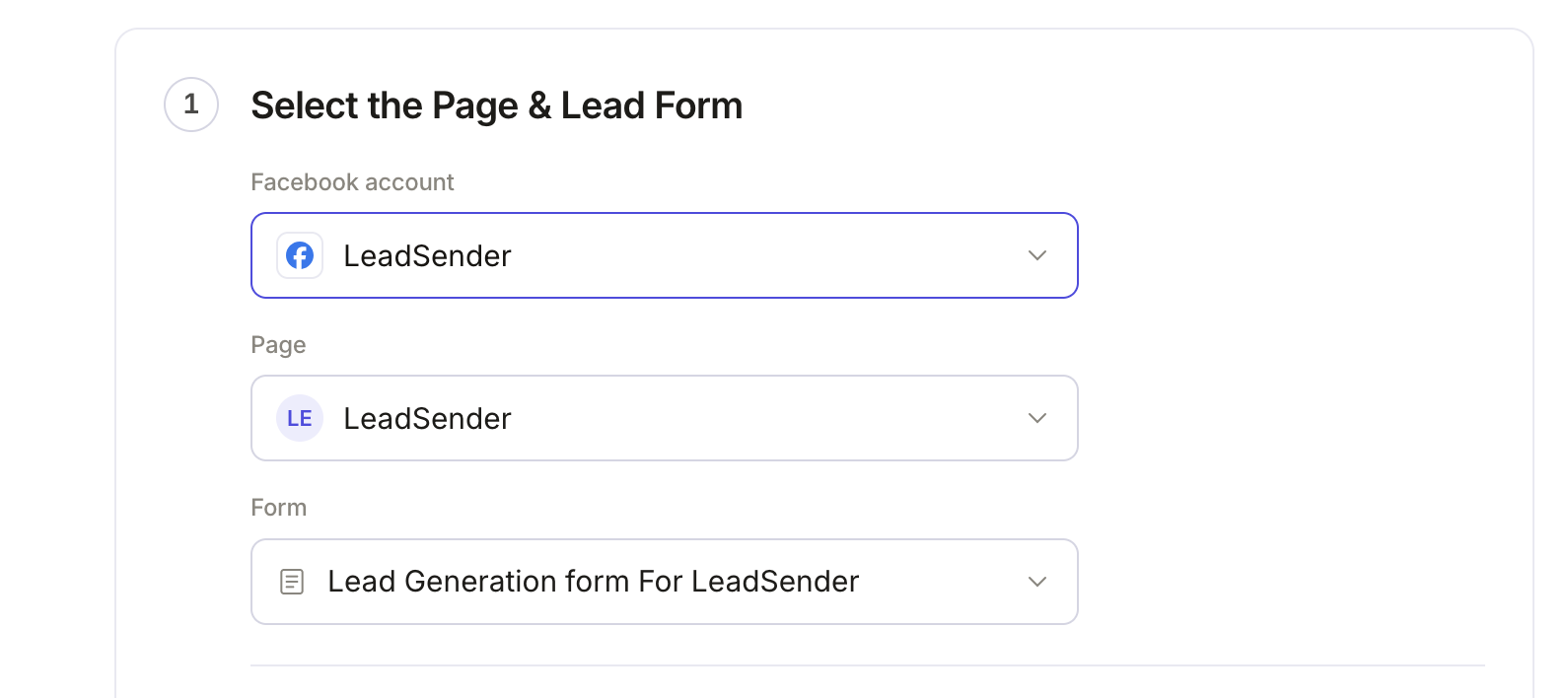
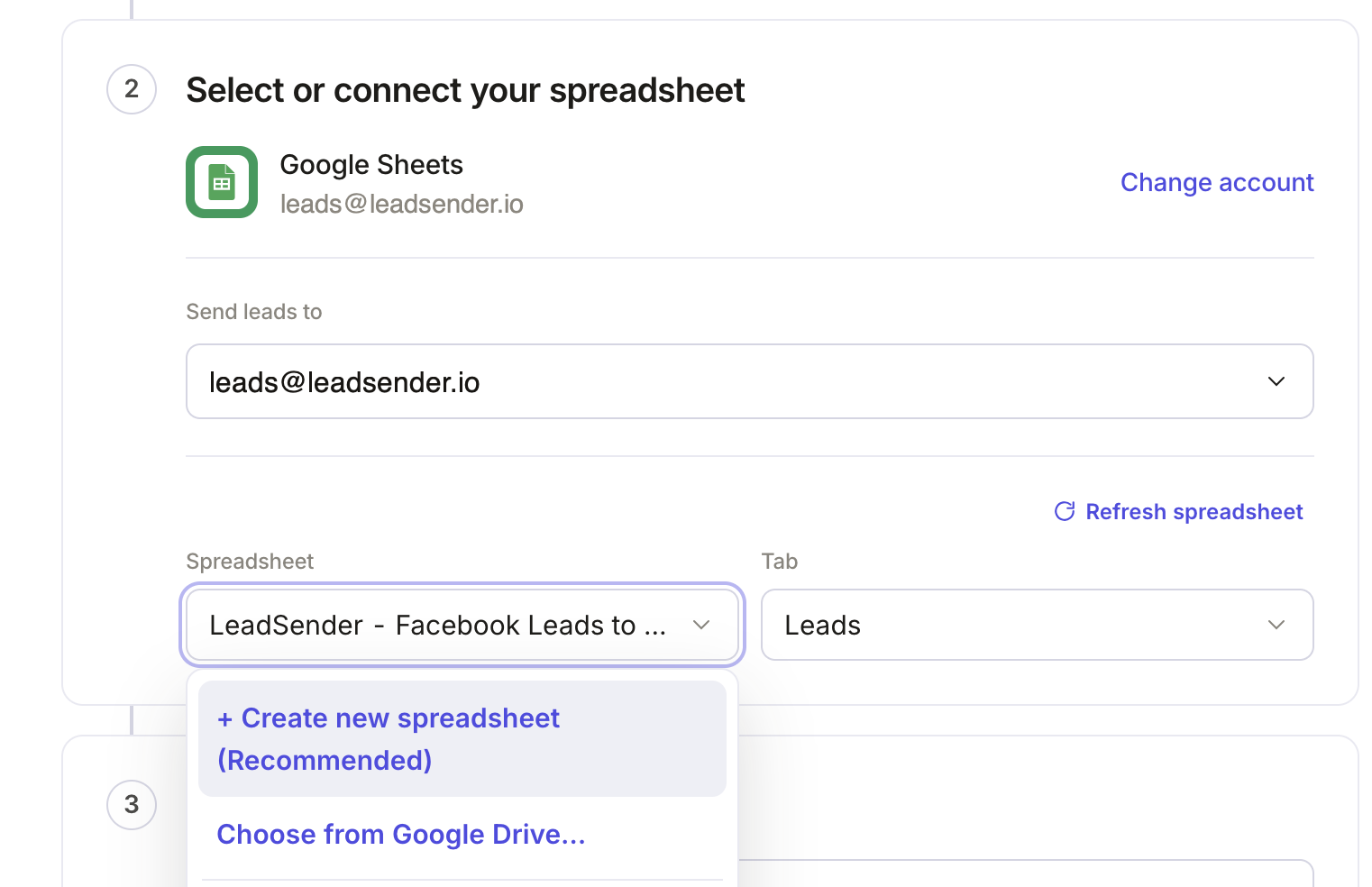
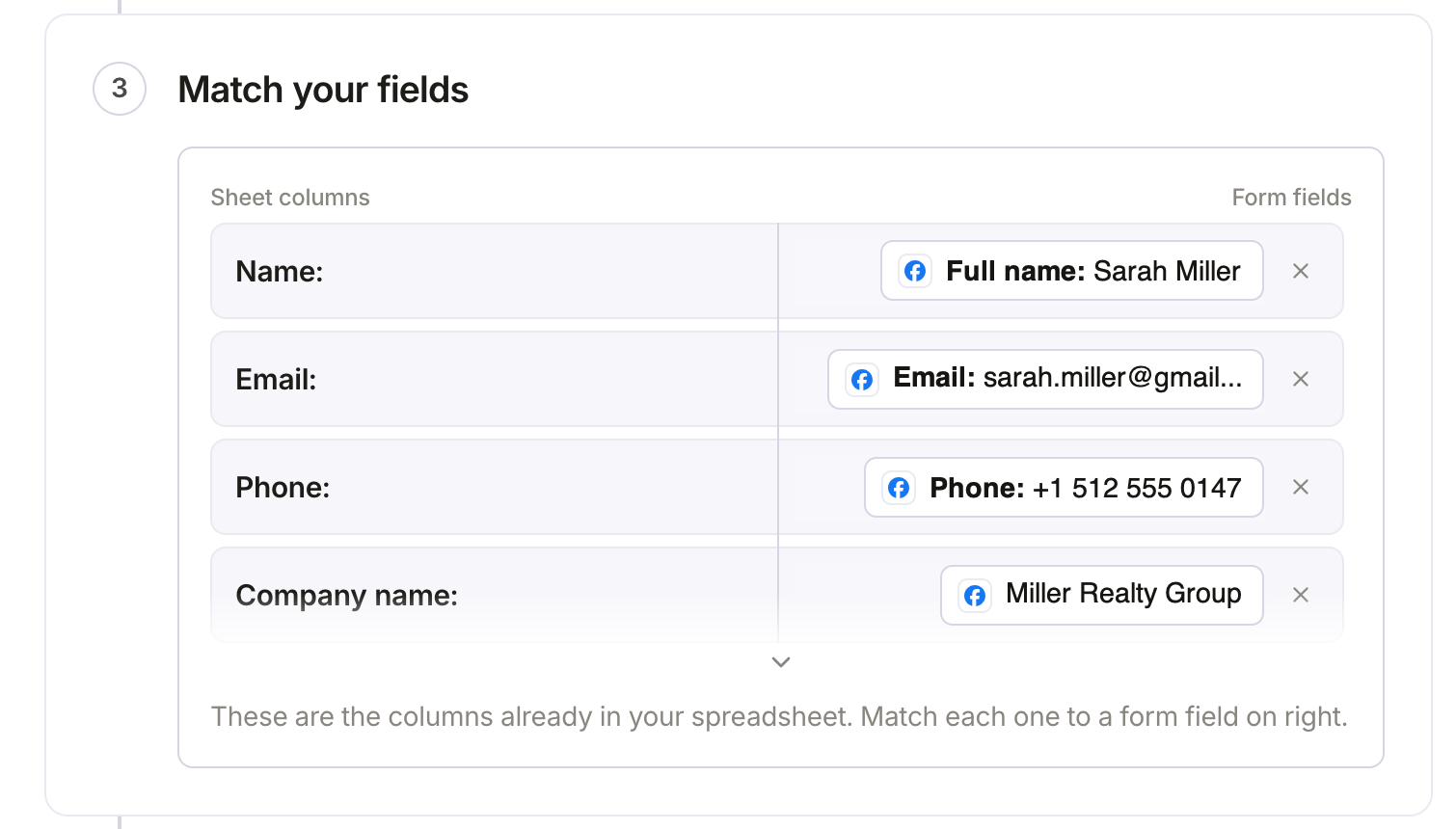
Connect your Facebook Page in LeadSender, choose Google Sheets as the destination, and map each question on your lead form to a field. Sign in with Google and grant access to Sheets, then pick the spreadsheet and the specific tab within it. LeadSender reads the real list of spreadsheets and tabs from your own Drive, so you choose from what actually exists. Once it is switched on, every new submission is delivered automatically.
How fast do leads reach Google Sheets?
Seconds. LeadSender is subscribed to Meta's leadgen webhook, so Facebook tells us the moment a form is submitted and we deliver straight on to Google Sheets. There is no polling window and no sync schedule to wait for.
Do I need Zapier to connect Facebook Lead Ads to Google Sheets?
No. LeadSender talks to Meta and to Google Sheets directly, so there is no Zapier plan to pay for on top and no extra hop for a lead to get stuck in.
Can I map my own custom fields in Google Sheets?
Yes. When you connect Google Sheets, LeadSender reads the live field list from your own account, standard fields and the custom ones you created, so you map each form answer to the field your team actually uses instead of to a fixed list.
Can LeadSender create the Google Sheet for me?
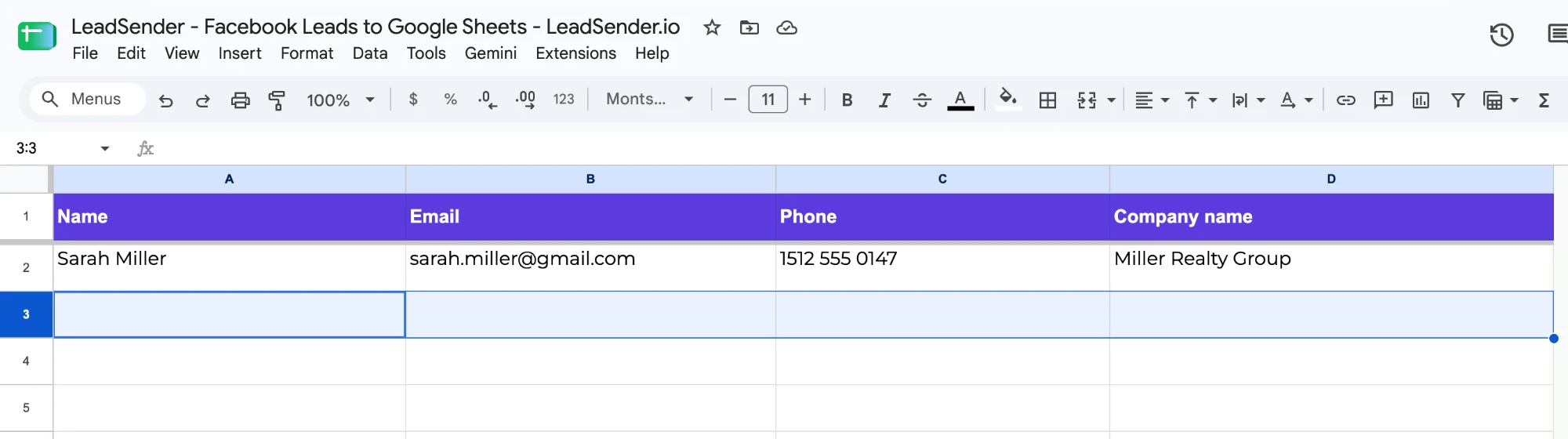
Yes. Choose Create new spreadsheet and LeadSender makes one in your Google Drive with a header row that matches your form, so there is nothing to set up by hand.
Will my old Facebook leads be added to the spreadsheet?
No, only new leads from the moment you switch the integration on. For earlier leads, download them as a CSV from Meta Ads Manager and paste them in once.