Live integration

Facebook Lead Ads & Excel Integration

Send Facebook and Instagram lead ads to Microsoft Excel automatically. Every new lead becomes a row in the OneDrive workbook and sheet you pick, a column per question, within seconds.

No credit card required · Live in about 3 minutes

Setup

How to connect Facebook Leads to Excel

Most people are live in about three minutes. No code, no Zapier, and your next Facebook lead can be in Excel today.

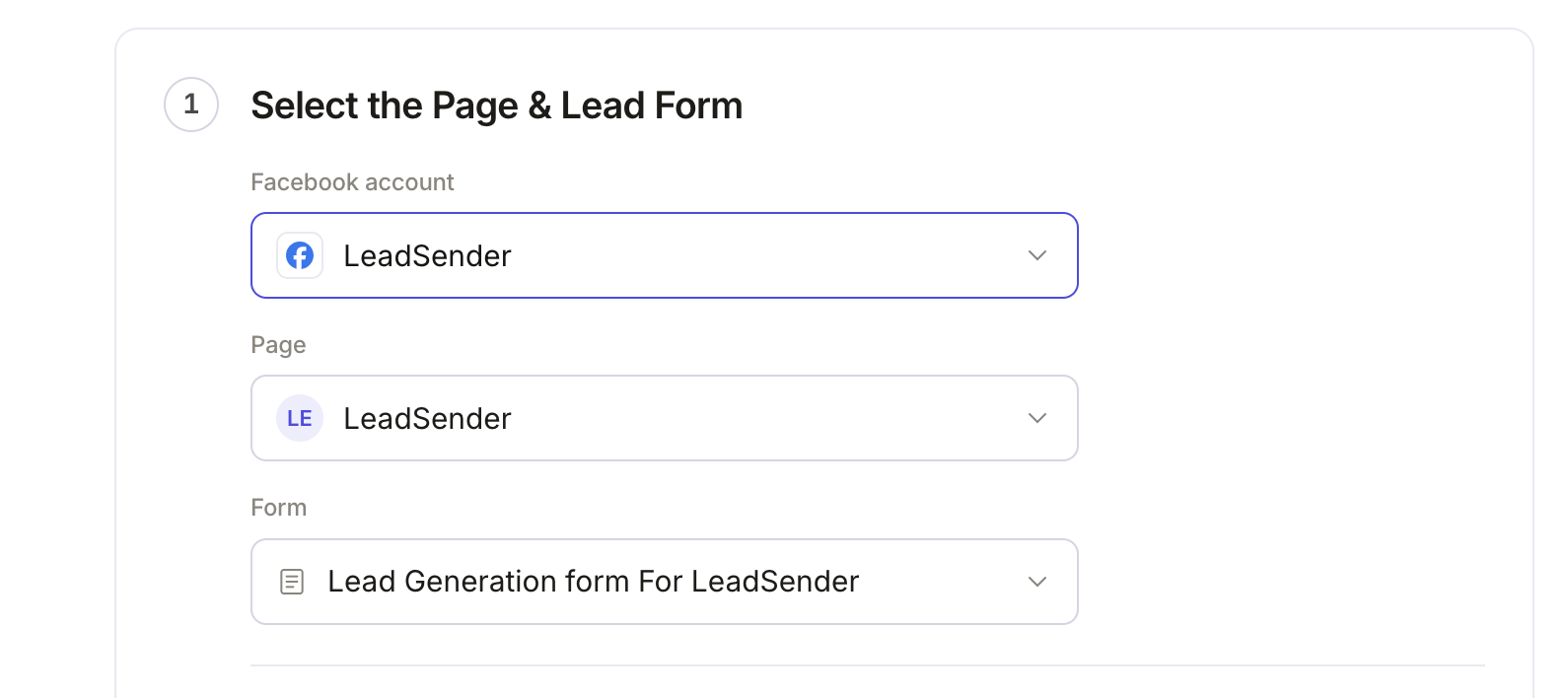
Step 1 of sending Facebook Lead Ads to Excel in LeadSender: the connected Facebook account, the selected Page and the selected lead form
1Step 1 of 4

Connect your Facebook Page and lead form

Sign in with Facebook, then pick the Page you advertise on and the lead form to send to Excel. Every new submission on that form is picked up the moment it happens.

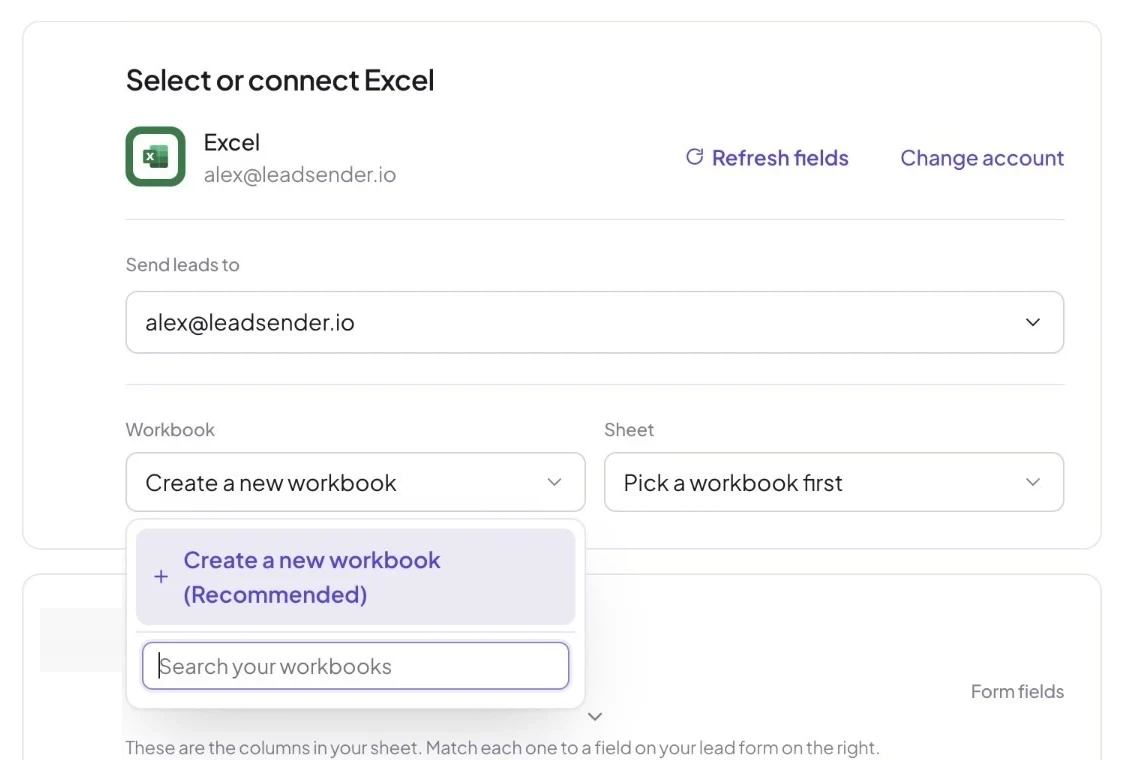
Choosing the Microsoft account, Excel workbook and sheet for Facebook leads, with the option to create a new workbook
2Step 2 of 4

Pick a workbook, or create one

Sign in with Microsoft and pick any workbook and sheet in your OneDrive, or let LeadSender create a new one with the header row already set up.

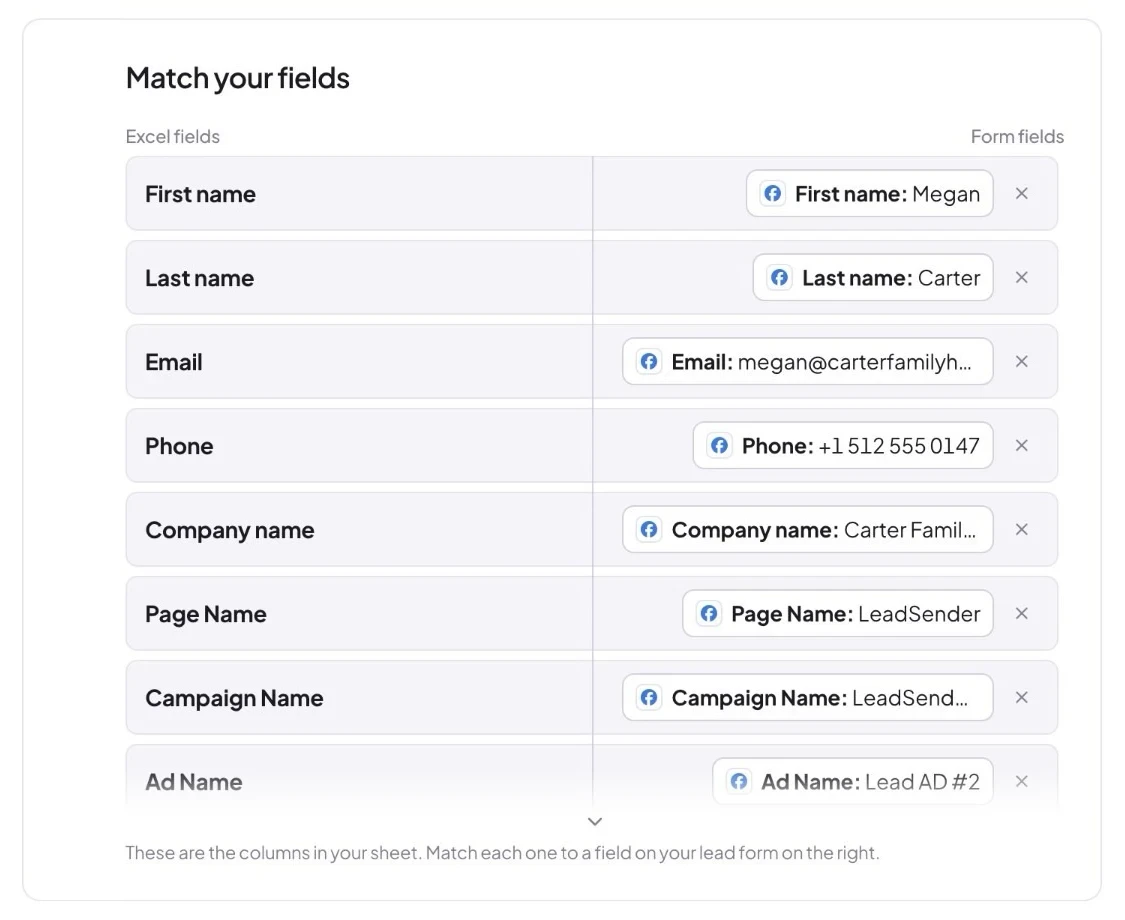
Matching Facebook lead form answers to Excel columns: first name, last name, email, phone and company
3Step 3 of 4

Match each question to a column

Every answer on your Facebook lead form gets its own column, so the workbook stays sortable and filterable instead of one long text cell.

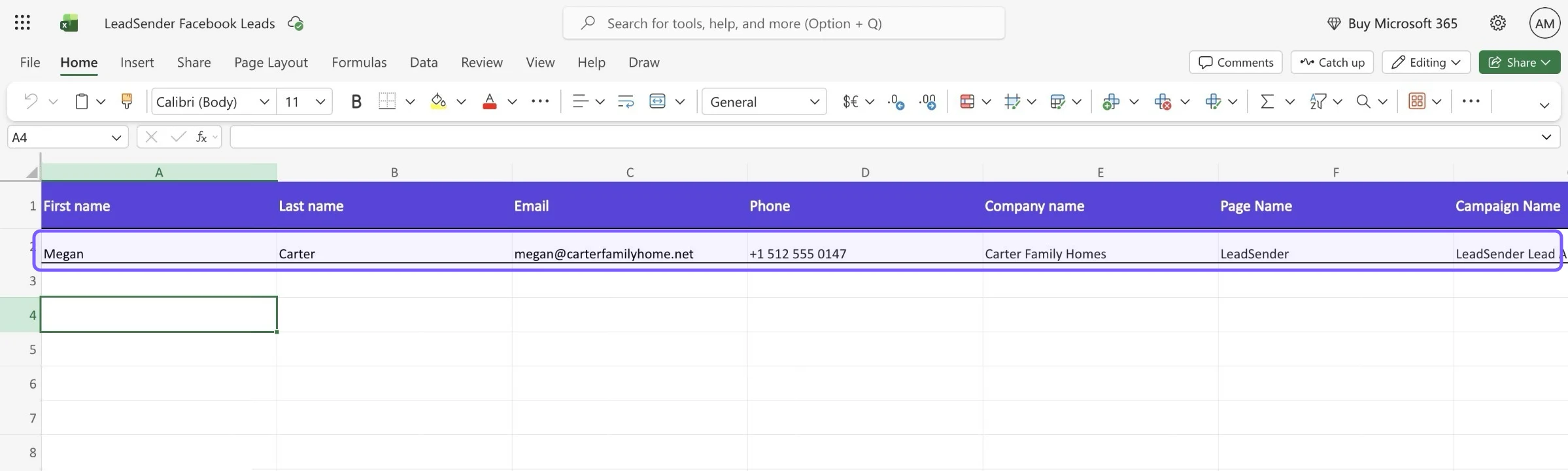
An Excel workbook with a purple header row and a new Facebook lead, Megan Carter, in row 2
4Step 4 of 4

Each lead lands as a new row

The moment a lead submits your form, a new row is added to the sheet you chose. Share the workbook with your team and everyone sees leads as they come in.

Start 7-Day FREE TrialNo credit card required · Live in about 3 minutes
Full setup guideFacebook Lead Ads to Excel: Every Lead as a New Row, Automatically9 min read · 9 sections · Every step with screenshots, field tips and troubleshootingRead the guide

What arrives

What LeadSender sends to Excel

One new row added to the workbook and sheet you choose in OneDrive, the instant the lead is submitted. Each mapped field gets its own column, written as text so phone numbers and zip codes keep their format; a sheet with an Excel table gets a new table row.

Alongside the answers themselves, each lead carries the campaign and ad it came from, the Facebook Page name and the time it was submitted, so the row tells the whole story of where that lead came from, not just what they typed. Every lead is also scored before delivery, with real checks on the email address and phone number, flagged right there in the sheet rather than sitting silently as a dead entry.

Who it suits

Who sends Facebook leads to Excel

Microsoft 365 teams who want leads in the workbook everyone already shares in OneDrive or Teams, and anyone who reports on leads with filters and PivotTables instead of a CRM.

This isn't a database or a project tool. It's the one route that keeps your sheet current the moment a lead actually exists, instead of someone opening Facebook Lead Center to copy it in by hand.

This is the Facebook Lead Ads integration for Microsoft Excel, Excel Online, Excel for the web and OneDrive spreadsheet, so whichever name you know it by, the setup above is the same.

Use cases

Ways to use the Facebook Ads to Excel integration

  • A shared lead list for Microsoft 365 teams, without Ads Manager access
  • Reporting on lead volume by form, campaign or day with filters and PivotTables
  • Handing leads to a client or partner through one shared workbook
  • A simple lead tracker before you need a CRM

About the tools

Facebook Lead Ads, Excel and LeadSender

Facebook Lead Ads

Facebook Lead Ads, now Meta lead ads, let people send you their details through an instant form on Facebook or Instagram without leaving the app. The form pre-fills from their profile, which is why these ads convert well and why the leads go cold fast if nobody follows up.

Excel

Microsoft Excel is the spreadsheet most businesses already run on. With the workbook in OneDrive, the whole team can open it in Excel on the web, the Excel app or Teams, and sort, filter and report on it together.

LeadSender

LeadSender connects Facebook and Instagram lead ads to the tools you already use. It listens to Meta's leadgen webhook, maps each answer to a real field and delivers every lead in seconds, with a LeadScore quality check on the way. No Zapier, no CSV exports.

FAQ

Facebook Leads to Excel FAQs

How do I send Facebook leads to Excel?

Connect your Facebook Page in LeadSender, choose Excel as the destination, and map each question on your lead form to a field. Sign in with Microsoft and accept LeadSender's access to your files, then pick a workbook and sheet from your own OneDrive, or create a new workbook with the header row set up. Personal and work or school accounts both work. Once it is switched on, every new submission is delivered automatically.

How fast do leads reach Excel?

Seconds. LeadSender is subscribed to Meta's leadgen webhook, so Facebook tells us the moment a form is submitted and we deliver straight on to Excel. There is no polling window and no sync schedule to wait for.

Do I need Zapier to connect Facebook Lead Ads to Excel?

No. LeadSender talks to Meta and to Excel directly, so there is no Zapier plan to pay for on top and no extra hop for a lead to get stuck in.

Can I map my own custom fields in Excel?

Yes. When you connect Excel, LeadSender reads the live field list from your own account, standard fields and the custom ones you created, so you map each form answer to the field your team actually uses instead of to a fixed list.

Does it work with a personal Microsoft account?

Yes. LeadSender works with personal Microsoft accounts (Outlook.com, Hotmail, Live) and their OneDrive, as well as work or school accounts your company allows to connect apps.

Can LeadSender create the Excel workbook for me?

Yes. Choose Create a new workbook and LeadSender makes one in your OneDrive with a header row that matches your form, so there is nothing to set up by hand.

Will my old Facebook leads be added to the workbook?

No, only new leads from the moment you switch the integration on. For earlier leads, download them as an XLS file from Meta Ads Manager and paste them in once.


Start sending Facebook leads to Excel today.

Start Your Free TrialNo credit card required · Cancel anytime