Live integration

Facebook Leads to Email

Get every new lead as an instant email, laid out so you can act on it without opening anything else.

Start 7-Day FREE TrialNo credit card required · Live in about 3 minutes

Setup

How to connect Facebook Lead Ads to Email

Most people are live in about three minutes. No code, no Zapier, and your next Facebook lead can be in your inbox today.

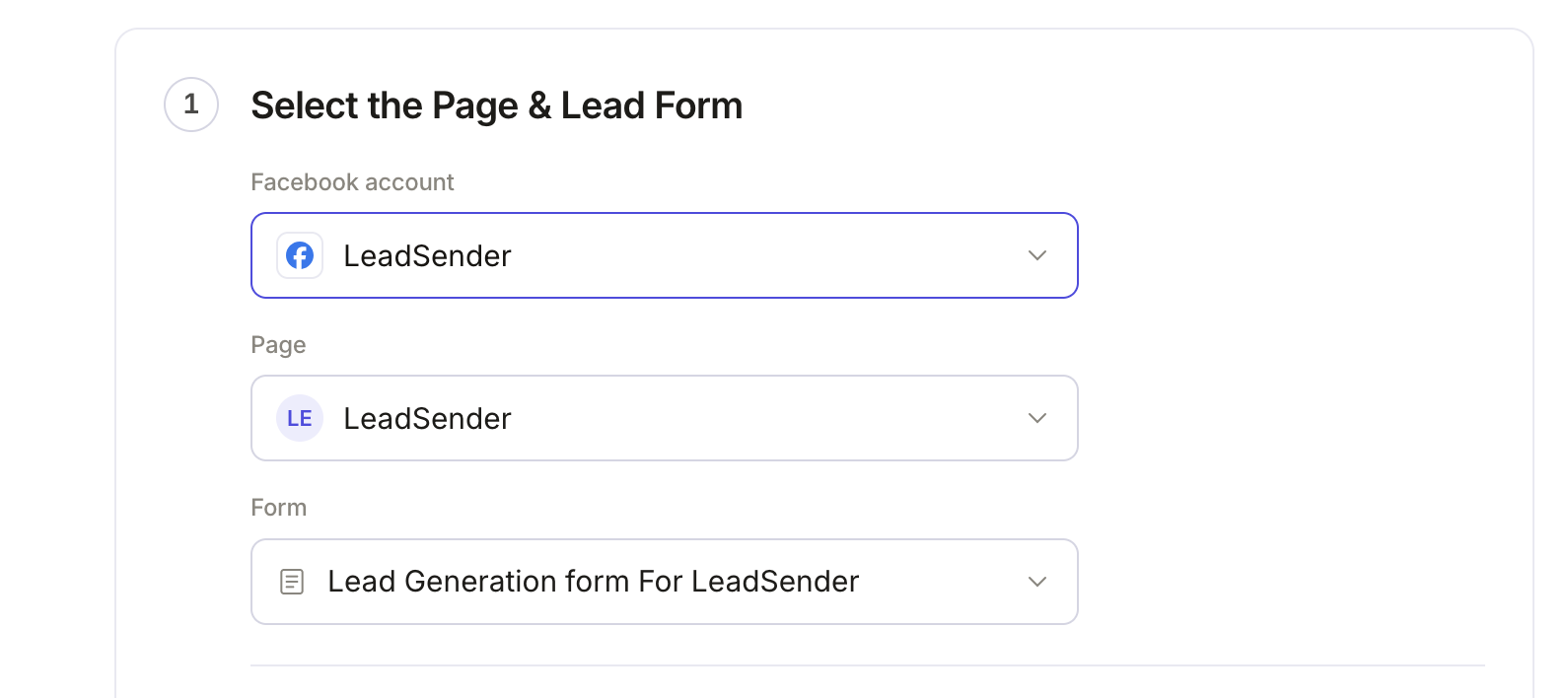
Step 1 of sending Facebook Lead Ads to your inbox in LeadSender: the connected Facebook account, the selected Page and the selected lead form
1Step 1 of 3

Connect your Facebook Page and lead form

Sign in with Facebook, then pick the Page you advertise on and the lead form to send to your inbox. Every new submission on that form is picked up the moment it happens.

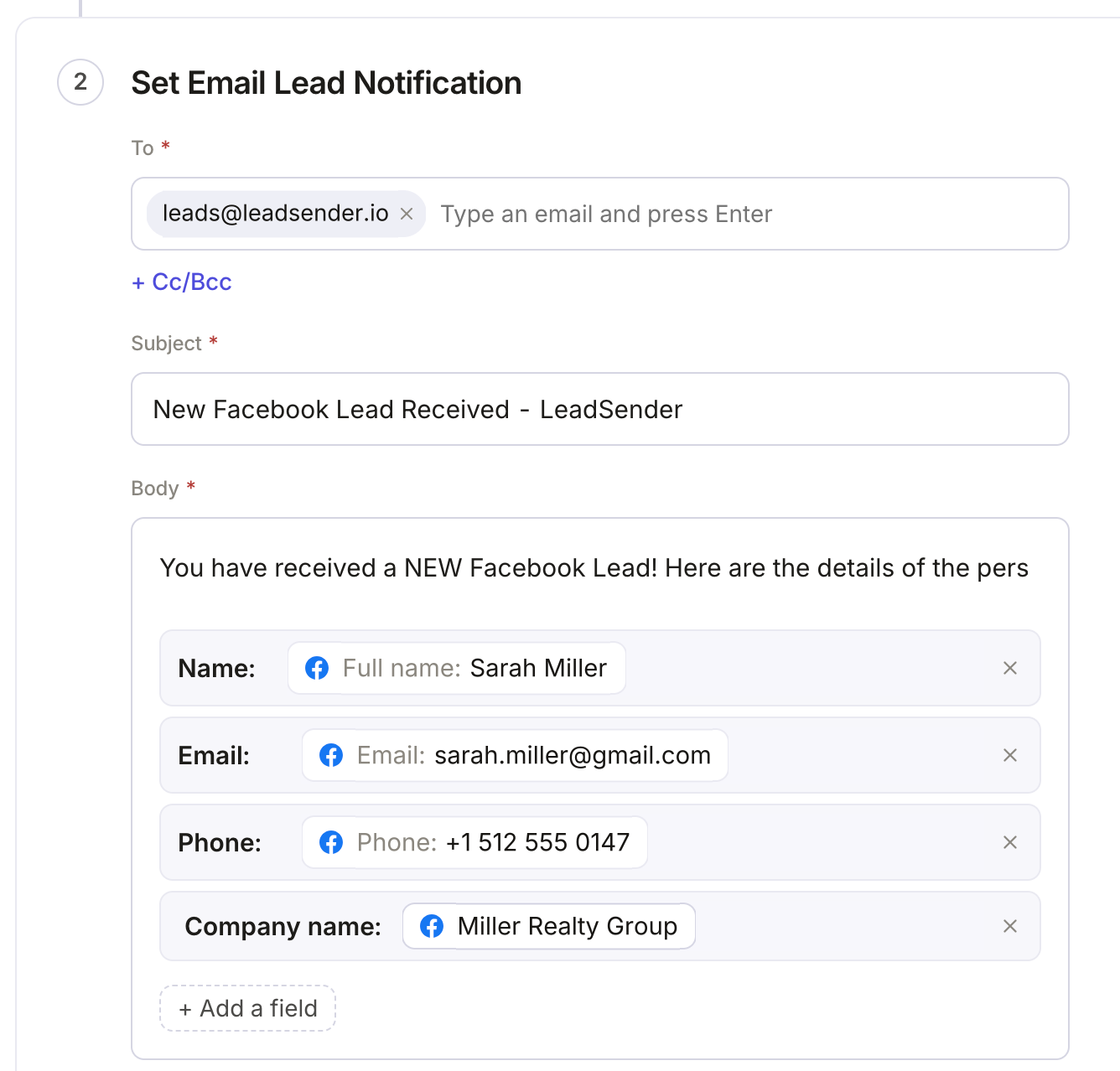
Setting up a Facebook lead email notification: the To address, subject line, and the lead fields included in the email
2Step 2 of 3

Choose who gets the email

Add one address or your whole team, write the subject line, and choose which answers appear in the email and in what order.

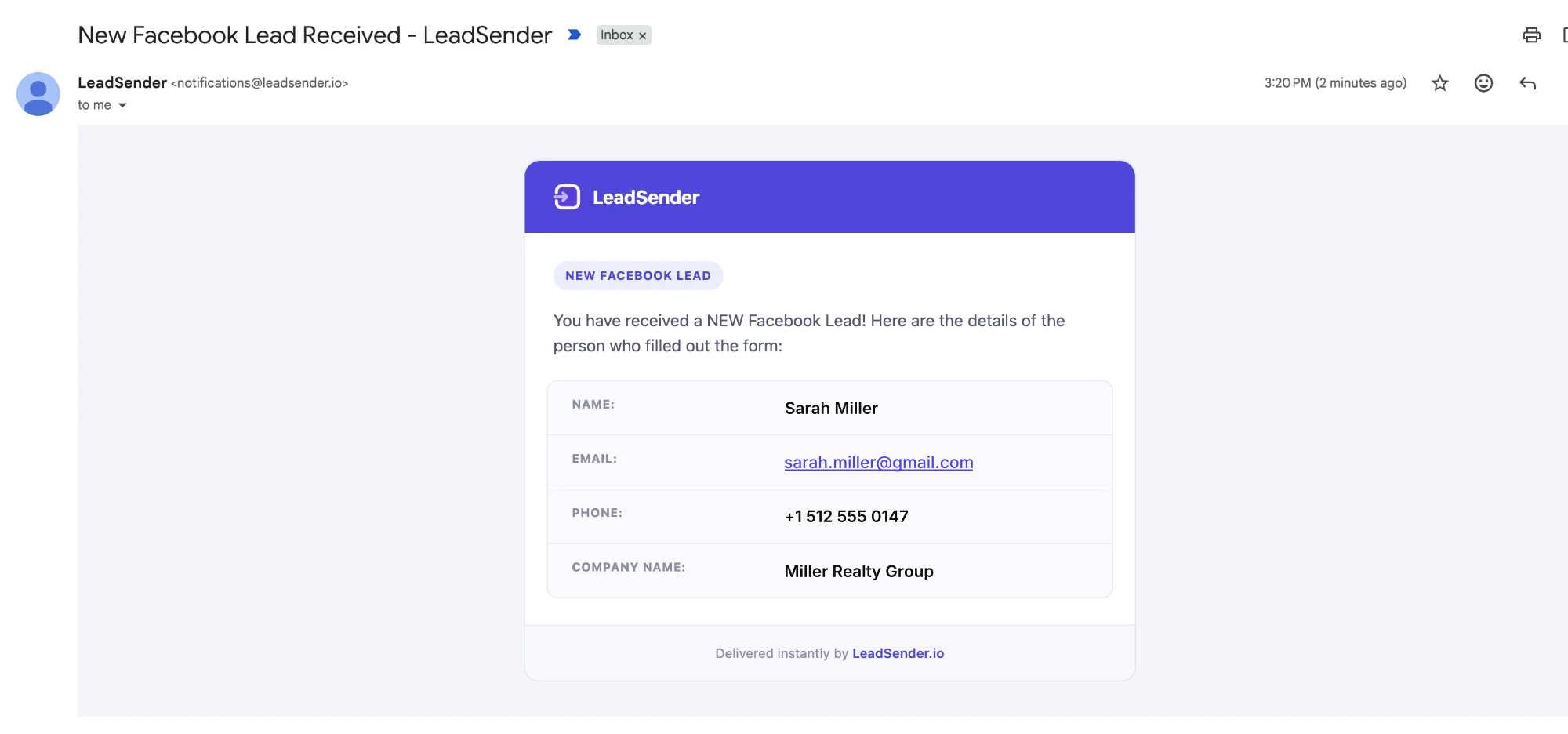
A New Facebook Lead Received email in Gmail with the lead's name, email, phone and company
3Step 3 of 3

Every lead in your Gmail or Outlook

A clean email with the lead's name, email and phone at the top and every answer underneath. Hit reply and you are writing to the lead.

Start 7-Day FREE TrialNo credit card required · Live in about 3 minutes

Prefer to read it all first? How to send Facebook leads to your email →

What arrives

What LeadSender sends to Email

A formatted email to every address you list, with the lead's name, email and phone at the top and every answer from your form underneath, in the order you arranged them. Reply-to is set to the lead, so hitting reply writes to them and not to us.

Alongside the answers themselves, each lead carries the campaign and ad it came from, the Facebook Page name and the time it was submitted, so you know which ad is actually working before you even pick up the phone. Every lead is scored on the way out too, with real checks on the email and phone number, so an obvious dead end doesn't cost you a call or a text.

Who it suits

Who sends Facebook leads to Email

Anyone who wants the lead in front of them immediately, and any team whose follow-up starts in an inbox rather than a CRM.

This isn't a marketing automation platform bolted onto your lead flow. It does one thing: the alert your team is already waiting on, the moment a form is submitted, with no workflow builder and no Zapier step in between.

This is the Facebook Lead Ads integration for Email, Gmail, Outlook and Google Workspace, so whichever name you know it by, the setup above is the same.

Use cases

Ways to use the Facebook Ads to Email integration

  • An instant lead alert in Gmail or Outlook for the person who calls leads back
  • Sending leads to a whole sales team at once with Cc and Bcc
  • Replying to a new lead straight from the notification email
  • Forwarding a client's leads to their own inbox as an agency

About the tools

Facebook Lead Ads, Email and LeadSender

Facebook Lead Ads

Facebook Lead Ads, now Meta lead ads, let people send you their details through an instant form on Facebook or Instagram without leaving the app. The form pre-fills from their profile, which is why these ads convert well and why the leads go cold fast if nobody follows up.

Email

Email is still where most teams find out something needs doing. Facebook lead alerts work with any inbox: Gmail, Google Workspace, Outlook, Microsoft 365 or a mailbox on your own domain.

LeadSender

LeadSender connects Facebook and Instagram lead ads to the tools you already use. It listens to Meta's leadgen webhook, maps each answer to a real field and delivers every lead in seconds, with a LeadScore quality check on the way. No Zapier, no CSV exports.

FAQ

Facebook Leads to Email FAQs

How do I send Facebook leads to Email?

Connect your Facebook Page in LeadSender, choose Email as the destination, and map each question on your lead form to a field. Nothing to authorise. Type the addresses that should be notified, write the subject line and intro, and turn it on. You can send to your whole team by adding several addresses, plus CC and BCC. Once it is switched on, every new submission is delivered automatically.

How fast do leads reach Email?

Seconds. LeadSender is subscribed to Meta's leadgen webhook, so Facebook tells us the moment a form is submitted and we deliver straight on to Email. There is no polling window and no sync schedule to wait for.

Do I need Zapier to connect Facebook Lead Ads to Email?

No. LeadSender talks to Meta and to Email directly, so there is no Zapier plan to pay for on top and no extra hop for a lead to get stuck in.

Can I map my own custom fields in Email?

Yes. When you connect Email, LeadSender reads the live field list from your own account, standard fields and the custom ones you created, so you map each form answer to the field your team actually uses instead of to a fixed list.

Can I get Facebook lead notifications in Gmail?

Yes. Leads can go to any email address: Gmail, Google Workspace, Outlook, or your own domain. There is nothing to install and no inbox to connect, you just type the address.

Can more than one person get the Facebook lead email?

Yes. Add as many addresses as you like, with Cc and Bcc if you need them, so the whole team sees a new lead at the same moment.

Can I reply to the lead straight from the email?

Yes. The reply-to address is set to the lead, so pressing reply in Gmail or Outlook writes straight to the person who filled in your form.

Start sending Facebook leads to Email today.

Start Your Free TrialNo credit card required · Cancel anytime