











If you run Facebook lead ads, you have probably already discovered the awkward part: Meta collects your leads beautifully and then more or less leaves them there. There is no setting anywhere in Ads Manager, Page settings or Meta Business Suite that says “email me each new lead” and actually sends you the lead. People go looking for that switch, do not find it, and end up checking Lead Center by hand a few times a day, which is how a lead that cost you money to generate ends up being called two days late.
This guide walks you through getting Facebook lead ads to email step by step, in about three minutes, with instant email notifications for Facebook leads that carry the whole form submission. After that it explains why Facebook never emails you the lead, compares the free options using Meta's own tools and Zapier, and covers Gmail setup, notifying a whole team, and the handful of reasons lead notifications stop arriving.
Facebook does not email you your leads. Meta's tools can alert you that a lead arrived and store it in Leads Center, but nothing emails you the person's answers. To get every lead in your inbox automatically, connect your Page to a lead delivery tool. In LeadSender: connect Facebook, choose Facebook Leads to Email, pick your Page and form, add who should be notified, choose which answers to include, send a test lead and turn it on. Every new lead is then emailed within seconds, with all of your form's questions in it.
How to send Facebook leads to Email with LeadSender
This is the version most people actually want when they start searching: the lead itself, in your inbox, seconds after the form is submitted, with everything they filled in. It takes about three minutes.
Start a free trial and connect Facebook
Start a free trial and sign in with Facebook. This subscribes your Page to Meta's real-time leadgen webhook, which is what makes every notification instant rather than scheduled.
Choose Facebook Leads to Email
From Integrations, pick the Facebook Leads to Email template. Then select your Facebook Page and the lead form you want to be notified about. There is no mail server, SMTP login or email platform account to set up.
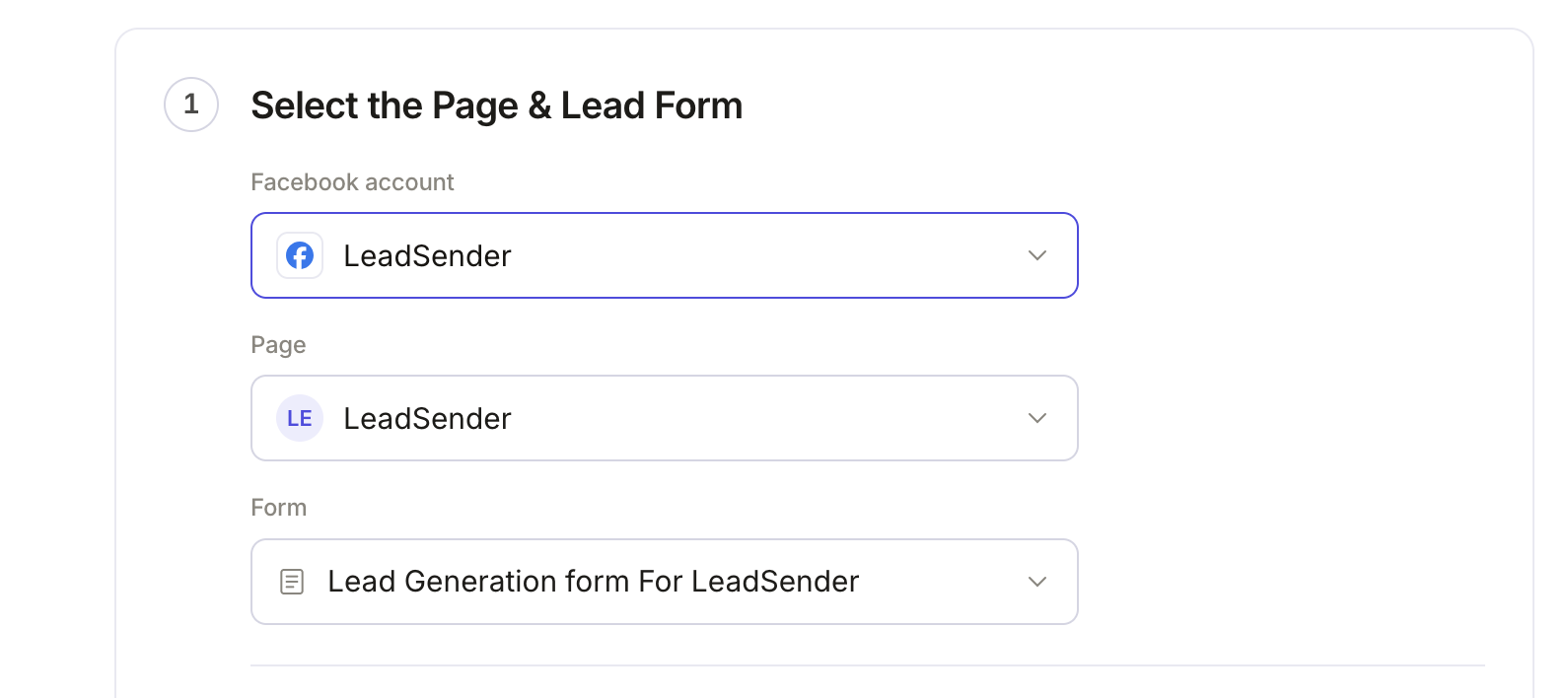 Select your Page
and lead form
Add everyone who should be notified
Type an address in To and press Enter. Add as many as you need, or use + Cc/Bcc. Everyone gets the same email at the same moment, so no lead waits on one person to wake up and forward it.
Write the notification
Set the subject line, then choose which form answers appear in the body. Name, email and phone are added for you. Click + Add a field for your custom questions, like budget, timeline or property type, so the email carries everything the lead told you, not just a name and a number.
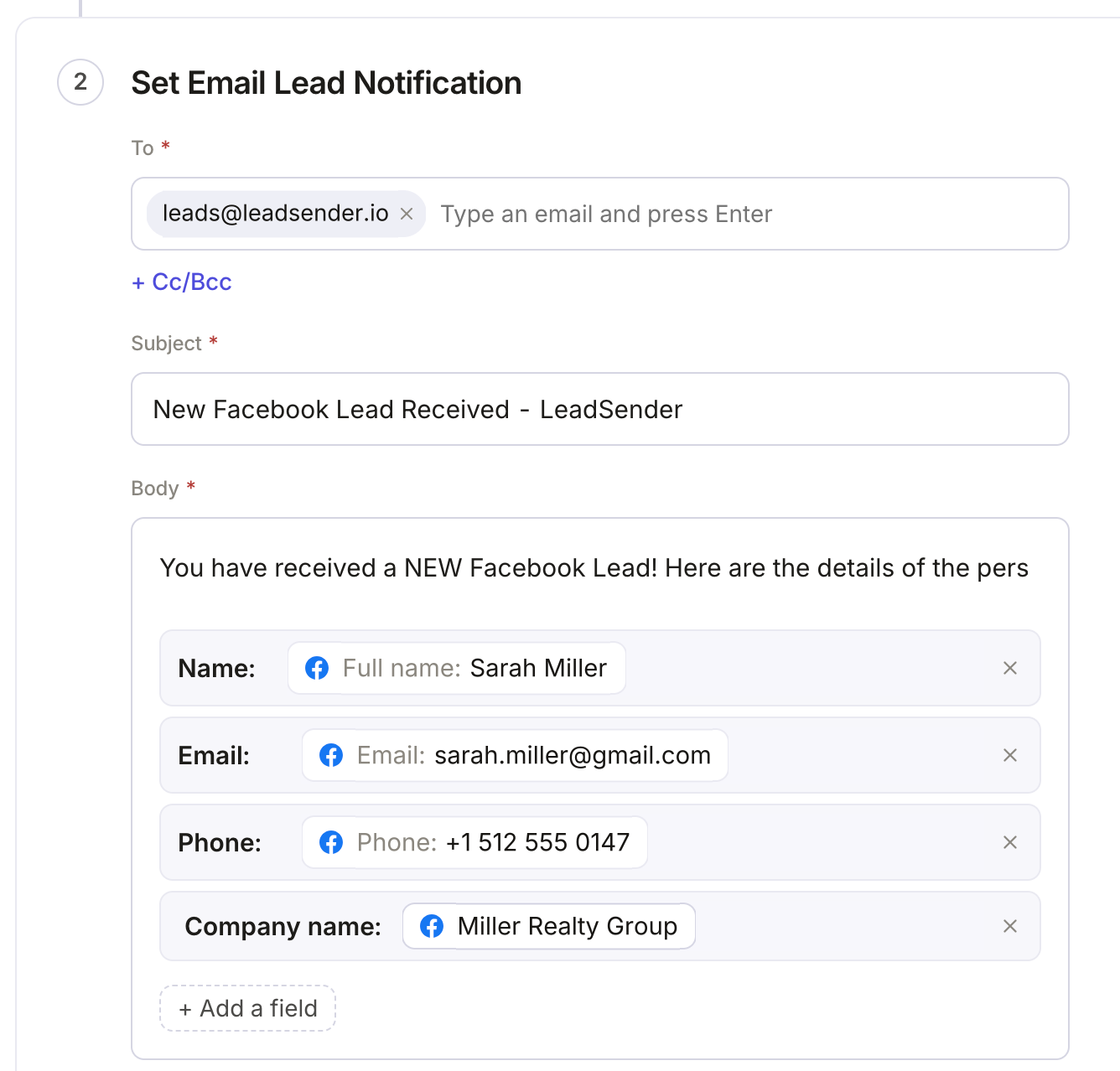 Who gets the emailThe lead's answers
Tip: put the qualifying answer in the subject line if your form has one. “New lead: Sarah M. · Buying in 90 days” is a notification somebody acts on straight from the lock screen.
Send a test lead
Click Send a test lead. LeadSender sends your latest real lead through the real delivery path and shows exactly what was emailed. Want to test with a brand new lead instead? Use our free Meta Lead Ads Testing Tool.
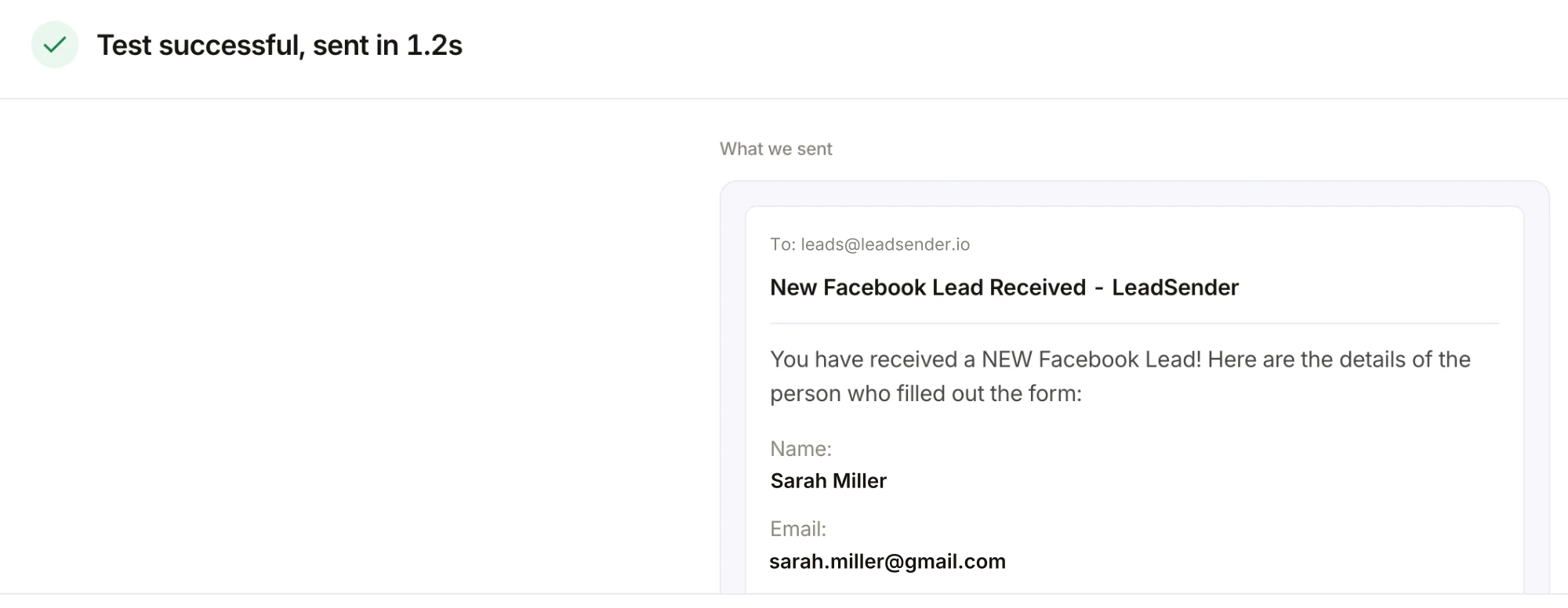 Exactly what was emailed
Then open your inbox. This is the same test lead as it lands in Gmail. Check it arrived in the inbox rather than spam or the Promotions tab, and that every field you picked is in it.
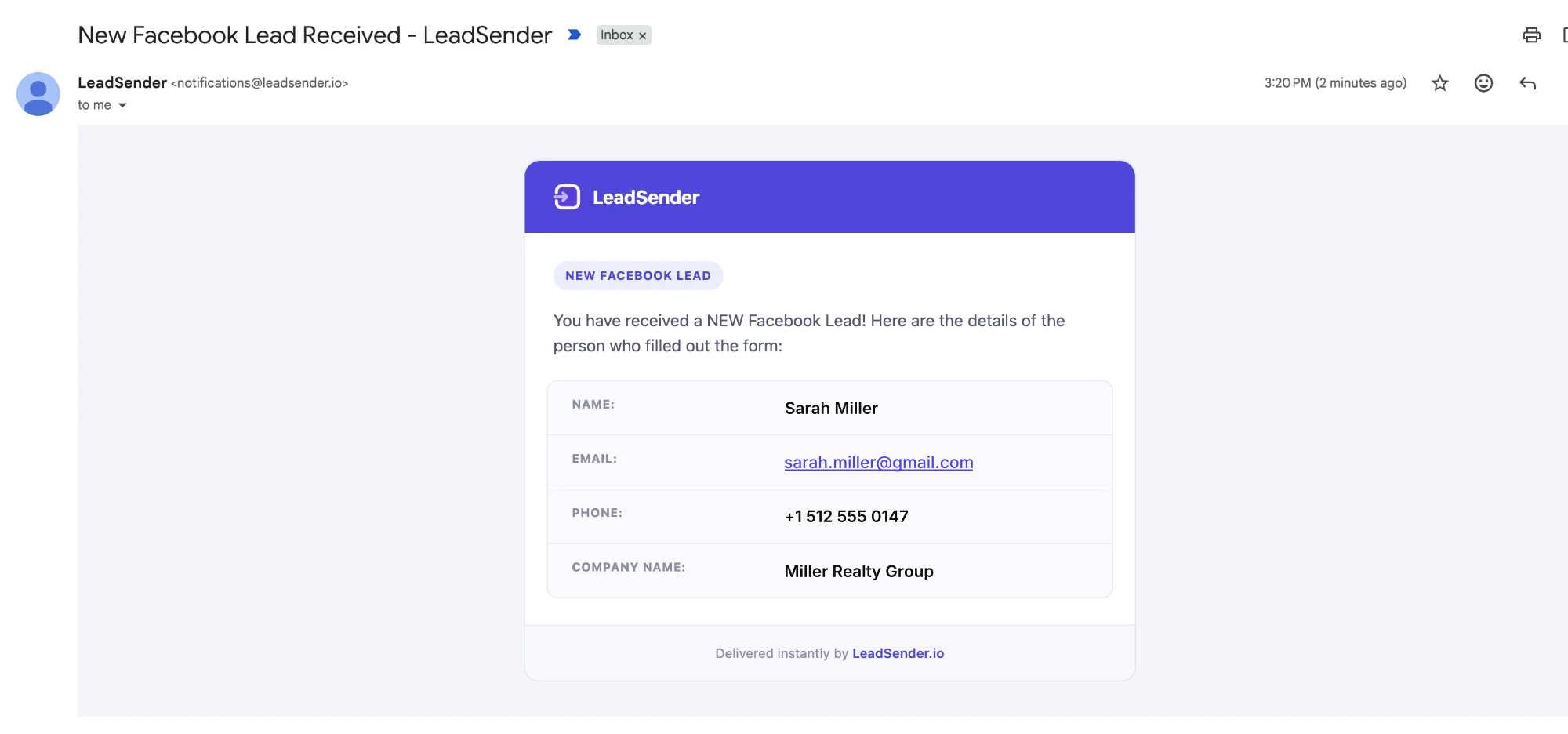
Turn it on
Click Turn on. From now on, every new lead from that form, on Facebook or Instagram, is emailed within seconds. Every attempt is recorded in run history, so if one ever fails you find out from the app, not from a customer asking why nobody called them back.
Get every Facebook lead emailed to you in seconds
Connect your Page, pick Email, and be live in about three minutes. Every form answer included, as many recipients as you need, and a free LeadScore on each lead so you know which to call first.
Why Facebook never emails you the lead
This is not an oversight you can configure around, so it is worth understanding rather than hunting for a setting that does not exist. Meta treats lead ads as a data source, not a notification product. When someone submits your instant form, the submission is written to the Page's lead store, and Meta gives you three ways to reach it:
- Leads Center in Meta Business Suite. A list of leads for the Page that you open and read. It shows you leads; it does not push them anywhere.
- A CSV export. From Leads Center or Ads Manager, on demand. Useful for reporting, useless for speed.
- The leadgen webhook. A real-time push, the instant the form is submitted, to any system authorised for that Page. This is the one that makes instant notifications possible, and it is what CRM integrations and tools like LeadSender subscribe to.
The Facebook lead notification people expect sits in a gap between the first and the third. Meta's Business Suite app can raise a push alert saying a new lead came in, but the alert is a nudge to go and look, not the lead. And Meta never built the email version of it at all.
That matters because of how quickly a paid lead decays. The most cited study on this, from Harvard Business Review, found the gap is not marginal:
Firms that tried to contact potential customers within an hour of receiving a query were nearly seven times as likely to qualify the lead as those that tried to contact the customer even an hour later, and more than 60 times as likely as companies that waited 24 hours or longer.
The Short Life of Online Sales Leads, Harvard Business Review
A lead sitting unread in Lead Center is not a lead yet. Getting it in front of a human the moment it arrives is the whole point of setting notifications up at all.
The three ways to get Facebook leads to email, compared
There are only three real approaches, and they differ on the thing that matters most: whether the lead's own answers arrive with the notification, or whether you still have to go and fetch them.
| Meta's own tools | Zapier / Make | LeadSender | |
|---|---|---|---|
| Emails you the lead | ✕ No, in-app alert only | ✓ Yes | ✓ Yes |
| Speed | Alert can lag; you still open Leads Center | ~ Minutes on polling plans | ✓ Seconds (webhook) |
| Custom form questions | Visible in Leads Center | ~ Mapped by hand, per form | ✓ All of them, mapped for you |
| Multiple recipients | ✕ Per-person app setting | ~ Extra steps per Zap | ✓ Built in |
| Failure is visible | ✕ No | ~ Task history, per Zap | ✓ Run history, with the reason |
| Setup effort | Minutes, then manual forever | Per form, per destination | About three minutes, once |
| Billed by | Free | Tasks (each action, per lead) | Leads (one lead is one lead) |
| Cost at 3 destinations | Free | $29.99 = 250 leads | $19.99 = 2,000 leads |
- You run your own ads, call leads in batches, and spend little. Use Meta's app alerts and Leads Center. It is free and it is enough. Skip the rest of this article until it stops being enough.
- You already pay for Zapier and send each lead to one place. Build it there. One task per lead means your existing plan covers it.
- Speed matters, or a lead goes to more than one place, or more than one person needs it. A dedicated tool is both faster and cheaper here. See the task maths below for why the second and third destination are where general automation platforms get expensive.
The free way: Meta's own notifications
Start here if you want Facebook lead ads notifications without paying for anything, or if you just want to know a lead landed while you decide on a proper setup. This is genuinely useful and genuinely limited, and being clear about which is which saves you an afternoon.
To be blunt about the thing people search for: there is no way to send Facebook leads to email free using Meta's tools alone, because Meta does not send the email at all. What is free is being told a lead arrived and being able to go and read it. Anyone promising a Facebook lead ads email notification free forever is either describing the app alert below, or describing a free tier of a third-party tool.
Turn on Facebook Lead Center notifications in the Meta Business Suite app
The mobile app is the only part of Meta's stack that will proactively tell you about a lead. Install Meta Business Suite on your phone, sign in as an admin of the Page, and enable notifications for the Page's leads in the app's notification settings, as well as in your phone's own settings for that app. When a form is submitted you get a push alert, and tapping it opens the lead in Leads Center.
This is what people mean by Facebook Lead Center notifications: an in-app nudge tied to the Page's lead store, not an email and not a message you can route anywhere. There is no equivalent setting for a desktop browser, and no way to point it at an address.
It will not email anyone, it only reaches phones with the app installed and signed in as a Page admin, and the alert itself contains no contact details, so you still have to open Leads Center and copy the lead out by hand. It is an interruption, not a delivery. For one person running their own ads it is often enough. For a team, or for anyone who wants the lead in a system rather than on a screen, it is not.
Read or export leads in Leads Center
In Meta Business Suite, open Leads Center for the Page to see every lead the form has collected, with all the answers. You can read them there and you can download them as a CSV. If you only run occasional campaigns and call leads in batches, honestly, this plus the app alert may be all you need, and it costs nothing.
The moment it stops being enough is usually the same moment for everyone: the day someone calls a lead that came in on Friday afternoon, on Monday, and is told they already hired somebody else.
Zapier, Make and other middlemen
The usual next step is a general automation platform: a trigger on Facebook Lead Ads, an action that sends an email. It works, and if you already pay for Zapier for other reasons it is a reasonable place to start.
Three things to know before you build it:
- Delivery may be on a schedule rather than instant. Depending on the platform and plan, the Facebook trigger polls for new leads on an interval rather than receiving them the moment they arrive, which is where the familiar five to fifteen minute delay comes from. For a form that asks for a quote, that delay is the difference between first call and third.
- Every form is its own build. Each lead form needs its own trigger and its own field mapping, and when you edit the form, the mapping is what quietly breaks. Teams running several campaigns tend to end up with a wall of near-identical automations nobody wants to touch.
- You are billed per action, not per lead. This is the one that surprises people, and it is worth its own section.
The task maths nobody mentions
Zapier bills in tasks, and a task is each successful action step a Zap performs. The trigger itself is free; every action after it costs one. That distinction is invisible when you send a lead to one place, and it is the entire cost story the moment you send it to two.
Zapier's Professional plan is $29.99/month billed monthly (or $19.99/month billed annually) and starts at 750 tasks. That sounds like 750 leads. It is only 750 leads if each lead does exactly one thing:
| What each lead does | Tasks per lead | Leads on 750 tasks |
|---|---|---|
| Email the lead to you | 1 | 750 leads |
| Email + create the CRM contact | 2 | 375 leads |
| Email + CRM + Google Sheets row | 3 | 250 leads |
| Email + SMS + CRM + Sheets + Slack | 5 | 150 leads |
Three destinations is not an exotic setup. It is the normal one. Notify the team, create the contact, keep a spreadsheet. On a $29.99/month Zapier plan that is 250 leads a month before you are buying more tasks. A single decent week of lead ads can spend the month's allowance, and the failure mode is quiet: the Zaps just stop running until the cycle resets or you upgrade.
LeadSender counts leads, not steps. A lead is one lead whether it goes to one destination or ten, because you are paying for the lead to be delivered rather than for each thing that happens to it. For the same job as that middle row:
| Sending each lead to email + CRM + Sheets | Monthly cost | Leads included |
|---|---|---|
| Zapier Professional (750 tasks) | $29.99 | 250 leads (3 tasks each) |
| LeadSender Starter | $9.99 | 500 leads, 2 integrations |
| LeadSender Growth | $19.99 | 2,000 leads, 10 integrations |
| LeadSender Business | $39.99 | 5,000 leads, unlimited integrations |
To be fair to Zapier: it connects thousands of apps and does a great deal that a lead delivery tool does not, and if you are already running it for other automations, adding a lead email to it costs you nothing new. The comparison above is specifically about this one job, moving Facebook leads to the places they need to go, where paying per step rather than per lead is the wrong shape for the work.
What a good lead notification email actually contains
Most Facebook lead ads email notification setups send a name, an email address and a phone number, and throw away the part that makes the lead worth calling. If you are setting this up once, set it up properly, so that your Facebook email leads arrive complete rather than as three fields and a trip back to Leads Center. A notification worth receiving contains:
- Every answer on the form. Including your custom questions. The answer to “when are you looking to move?” is what decides whether this lead gets called now or on Thursday.
- Tappable contact details. The phone number and email as real links, so the person reading it on a phone can call back in one tap rather than copying a number between apps.
- Which campaign and ad it came from. Otherwise attribution dies the moment the lead leaves Facebook, and you cannot tell which creative is producing people who actually buy.
- The Page and the form name. Essential once you are running more than one campaign, and the thing most setups forget.
- A quality signal. LeadSender runs real checks on the email and phone (whether the domain can receive mail at all, whether it is a disposable address) and puts a LeadScore in the notification, so an obvious junk submission is flagged before someone spends ten minutes chasing it.
Here is one as it actually lands in Gmail:
 LeadSender <leads@leadsender.io>to me 9:41 AM (0 minutes ago)
You have a new lead from Facebook.
| Name | Sarah M. |
|---|---|
| Phone | (555) 014-2280 |
| sarah.m@example.com | |
| Timeline | Within 90 days |
| Budget | $450,000 – $600,000 |
| Campaign | Spring Buyers · Video A |
| Form | Buyer Consultation · Riverside Page |
Manage this notification · Unsubscribe
That email can be acted on without opening anything else, which is the only test that matters. If the person receiving the notification still has to log in somewhere to find out who the lead is, the notification has not done its job.
Sending Facebook leads to Gmail
Gmail is where most of these notifications end up, and getting Facebook lead ads to Gmail reliably takes two minutes of setup that almost nobody does. As far as delivery goes, Gmail is just an inbox, so any Gmail or Google Workspace address works as a recipient. The part worth doing is making sure the notifications are impossible to miss once they get there.
The whole of Facebook lead ads Gmail setup is on Gmail's side, not Facebook's. Your delivery tool sends to the address; Gmail decides how loudly it lands. These four settings are what turn a Facebook leads email notification from something you find later into something you see now.
- Move the first one to Primary. When the test lead arrives, drag it to the Primary tab and say yes to doing it for future messages. Otherwise Gmail may quietly file lead alerts under Promotions, where nobody looks fast.
- Add a filter with a label. Filter on the sender or on the subject prefix you chose, apply a label like Leads, and tick Never send it to Spam and Always mark it as important.
- Turn on high-priority push on mobile. In the Gmail app, notifications for that account set to All new mail, so a lead does not wait on Gmail's own idea of what is important.
- Do not use a shared alias as the only recipient. Aliases like info@ often have their own forwarding rules and spam handling. Add at least one real mailbox alongside it.
Notifying a team, not one inbox
The single biggest reason lead response is slow has nothing to do with the tool. It is that notifications go to one person. That person is in a meeting, driving, or on holiday, and the lead waits for them.
Two setups fix it, and they are worth considering before you connect anything:
- Notify several people at once. Add every address that should see a new lead. Whoever is free calls first. This is the right default for a small team, and it is a one-line change rather than an architecture.
- Send to email and SMS together. The email carries the full lead for the record; a text message gets read in minutes rather than whenever someone next opens their inbox. One form can feed both at the same time.
If your leads should also land in a CRM, do that alongside the notification rather than instead of it. The same form can create the contact in Follow Up Boss, HubSpot or GoHighLevel, append a row to Google Sheets, and still email the team. The notification is what gets it called, the CRM is what stops it being forgotten. The full list is on the integrations page.
What to do in the first five minutes
A notification is only worth setting up if something happens when it arrives. This is the part most guides skip, and it is the part that decides whether any of this made you money. Agree it with your team before you turn anything on:
- Call first, do not email back. The lead just filled in a form on their phone and is still holding it. A call answered in the first few minutes is a conversation; an email is a queue position. If nobody picks up, that is when you text.
- Say where you are calling from in the first sentence. “Hi Sarah, it's Dan from Riverside Realty, you just asked about buying in the next 90 days on Facebook.” People forget they filled in a form within about a minute, and an unexplained call from an unknown number gets hung up on.
- Use the answer they gave you. The reason the notification carries the whole form is so the first thing you say is relevant. Reading the budget and timeline back to them is what separates this from a cold call.
- Two attempts on day one, spaced. One immediately, one a few hours later at a different time of day. Most teams stop after a single unanswered ring, which wastes the lead they already paid for.
- Decide who owns it. If the notification goes to five people and nobody is named, the predictable outcome is that all five assume one of the others called. Either route by territory or agree that first-to-reply claims it in the thread.
None of this is a LeadSender feature. It is just what makes the difference between a fast notification and a fast business, and it costs nothing to agree on beforehand.
When Facebook lead notifications stop arriving
This is the section people arrive at in a panic, usually a month or two after everything worked fine. A Facebook lead form notification that stops without warning is almost always an access change rather than a broken integration, and the causes are worth knowing in advance:
- The person who connected the Page lost access. Lead access is granted by a Page admin. If that admin leaves, has their role reduced, or their token is invalidated during a Business Manager change, delivery stops. Reconnecting the Page as a current admin fixes it.
- The lead form was edited. Adding, removing or renaming a question can orphan a field mapping, so the notification arrives with a blank where an answer should be. Re-check the mapping after any form change.
- Business Manager permissions changed. Agencies hit this when a client reorganises asset access. The Page is still there; the authorisation to read its leads is not.
- The notifications are arriving, into spam. Especially after a change of recipient, or with a brand-new address that has no sending history with your provider. Check spam and the Promotions tab before assuming nothing was sent.
- The campaign is simply not producing leads. Worth ruling out before debugging. Leads Center is the source of truth: if no lead is listed there, none was submitted, and the problem is in the ad rather than the notification.
Whatever the cause, the useful question is whether the attempt happened and failed, or never happened at all. That is why run history matters: in LeadSender, every delivery attempt is recorded with the reason it failed, so this is a thirty-second check rather than an afternoon of guessing. A silent integration that gives you no way to tell the difference is worse than no integration, because you trust it.
Facebook lead email notification FAQs
Does Facebook send email notifications for new leads?
Not with the lead's answers in them. Meta can alert you that a lead arrived through the Meta Business Suite app and it collects leads in Leads Center, but there is no native setting that emails you a new lead's name, email address, phone number and form answers. To get the lead itself into an inbox you need either a CRM connected to the Page or a delivery tool such as LeadSender.
How do I get Facebook leads to email for free?
Two free routes exist. Turn on lead alerts in the Meta Business Suite mobile app so you know a lead arrived, then open Leads Center to read it, or download the leads as a CSV from Leads Center or Ads Manager. Both are free and both are manual. LeadSender's 7-day free trial covers automatic email notifications with the full lead in them if you want to test the automated version before paying for anything.
Can I send Facebook lead ads straight to Gmail?
Yes. Gmail is just an inbox as far as delivery is concerned, so any Gmail or Google Workspace address can receive lead notifications. It is worth adding a filter that labels them and marks them as important, and moving the first one to your Primary tab, so later notifications are never sorted into Promotions.
How fast do the email notifications arrive?
With a webhook-based tool, seconds. LeadSender subscribes to Meta's own leadgen webhook, so Facebook pushes the lead the moment the form is submitted and the email goes straight out. Polling-based tools check on a schedule instead, which is where the familiar five to fifteen minute delay comes from.
Can more than one person be notified about the same lead?
Yes. Add as many recipients as you need and all of them receive the same notification at the same time. That matters more than it sounds: a single-recipient setup means every lead waits on one person being awake, at their desk, and willing to forward it.
Why did my Facebook lead notifications suddenly stop?
Almost always an access change rather than a broken integration. The most common causes are the Page admin who connected the integration losing access or leaving, permissions being revoked during a Business Manager change, the lead form being edited so a mapped question no longer exists, or the notifications being filtered into spam. Check the run history first, because it names which of these happened.
Do Instagram lead ads work the same way?
Yes. Instagram lead forms run on the same Meta lead ads system and are attached to the same Page, so a form on a Page you have connected is delivered exactly the same way with no separate setup.
Does this work with Facebook's instant forms and the CRM section of Page settings?
Yes. Connecting a delivery tool is done through the same Page-level lead access Meta uses for CRM integrations, so an instant form on that Page is covered. You do not need to change anything about how the form itself is built.
Will the notification include my custom lead form questions?
It should, and that is the main thing to check before choosing a tool. Many integrations only carry the standard fields, so budget, timeline, property type or service needed, which is the part that tells you whether the lead is worth calling first, is quietly dropped. LeadSender maps every question on the form, including custom ones.
Is Zapier cheaper than a dedicated tool for Facebook lead notifications?
Only if each lead goes to exactly one place. Zapier bills per task, and a task is each action step, so sending one lead to email, your CRM and a Google Sheet costs three tasks. Zapier's Professional plan is $29.99/month billed monthly and starts at 750 tasks, which is 750 leads at one destination but only 250 leads at three. LeadSender bills per lead regardless of how many destinations it goes to: $9.99/month covers 500 leads, $19.99 covers 2,000 leads and up to 10 integrations, and $39.99 covers 5,000 leads with unlimited integrations.
Does sending the same lead to several places use up my LeadSender plan faster?
No. Your plan counts leads, not deliveries. A lead that goes to your inbox, your CRM and a spreadsheet at the same time is still one lead against your monthly allowance. The number of integrations you can run at once is a separate limit set by your plan.
Is email enough, or should I use SMS as well?
Email is the right default because it holds the full lead and is easy to forward, search and file. SMS is worth adding on top when speed to first call is the whole game, since a text is read in minutes rather than whenever someone next checks their inbox. Running both is common: the text says a lead came in, the email holds the detail.
Getting started
If you take one thing from this: the reason your Facebook leads go cold is not that you are disorganised, it is that Meta never built the notification you assumed existed. Once a lead lands in an inbox the moment it is submitted, with the answers that tell you whether to call it first, the rest of the problem mostly solves itself.
Start free with Meta's own app alerts if all you need is to know something arrived. When you need the lead itself, delivered, to more than one person, with your custom questions intact, that is what Facebook Leads to Email does, and the trial is long enough to run a real campaign through it.