



















If your team already talks in Slack all day, that's where a new lead gets noticed fastest. Posting Facebook leads to Slack means the whole team sees each lead the moment it arrives, and whoever is free can call them while they're still on their phone.
This guide shows how to send Facebook lead ads to Slack step by step, in about three minutes, with every answer laid out in one clean message. Then it compares the Zapier route, so you can pick what fits.
Slack has no built-in Facebook Lead Ads integration, so you connect the two with a lead delivery tool. In LeadSender: connect Facebook, choose Facebook Leads to Slack, pick your Page and form, connect Slack, pick the channel, send a test lead and turn it on. Every new lead is then posted to that channel within seconds, with every answer and buttons to call or WhatsApp the lead.
How to send Facebook leads to Slack with LeadSender
This is the quickest way to connect Facebook lead ads to Slack: no Zap to maintain, a message in seconds, and an email if a lead ever fails to post.
Start a free trial and connect Facebook
Start your 7-day free trial of LeadSender (no card needed) and sign in with the Facebook account that manages your Page. That lets LeadSender hear about each new lead the moment it's submitted.
Choose the Slack template
From Integrations, pick Facebook Leads to Slack. Then select your Facebook Page and the lead form to send.
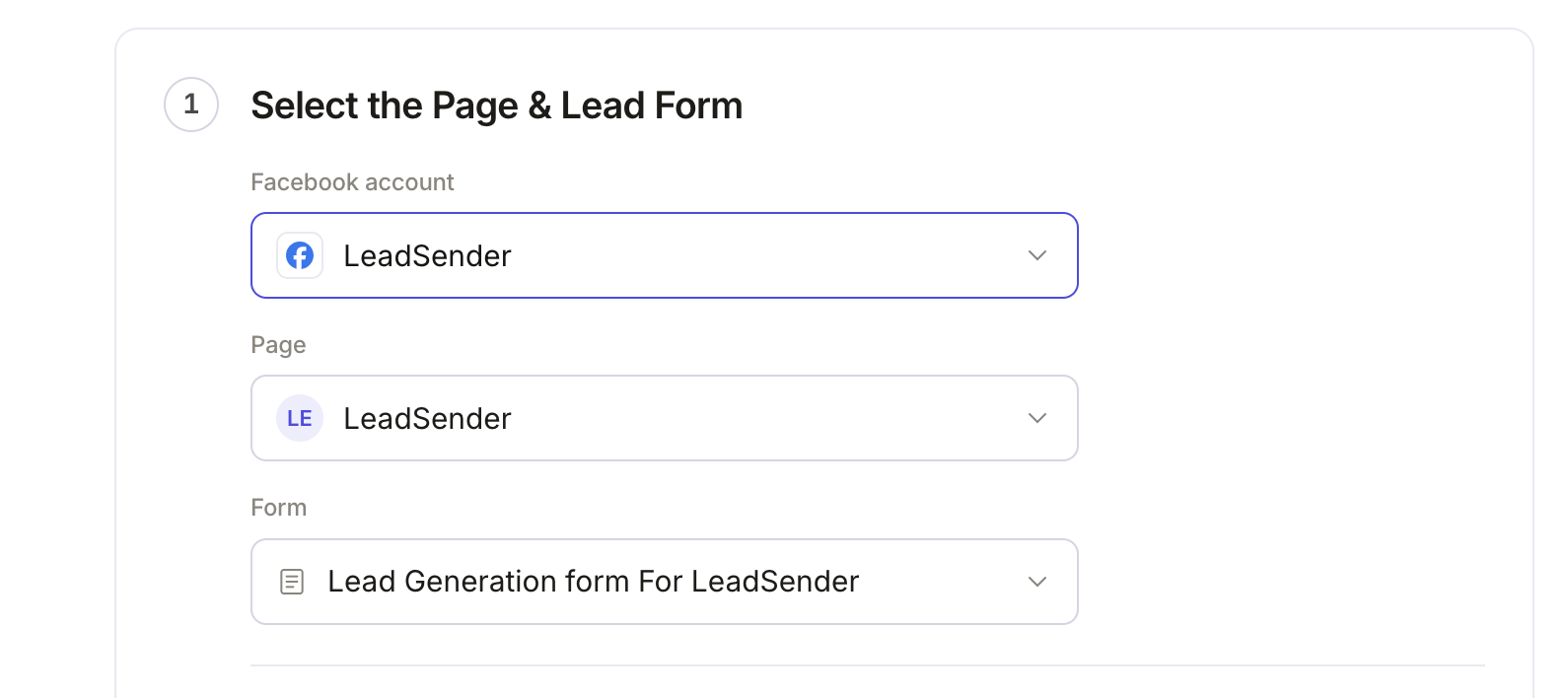 Select your Page
and lead form
Add LeadSender to Slack
In the builder's Connect Slack step, click Connect. Slack's own window opens.
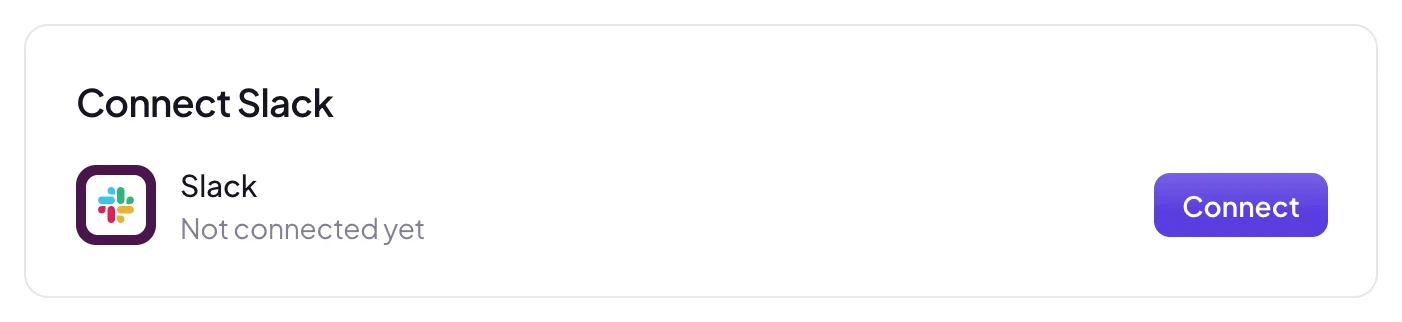 Click Connect
Choose your workspace in Where do you want to use LeadSender? and click Allow. LeadSender asks only to see your channels and post messages; it can't read your conversations.
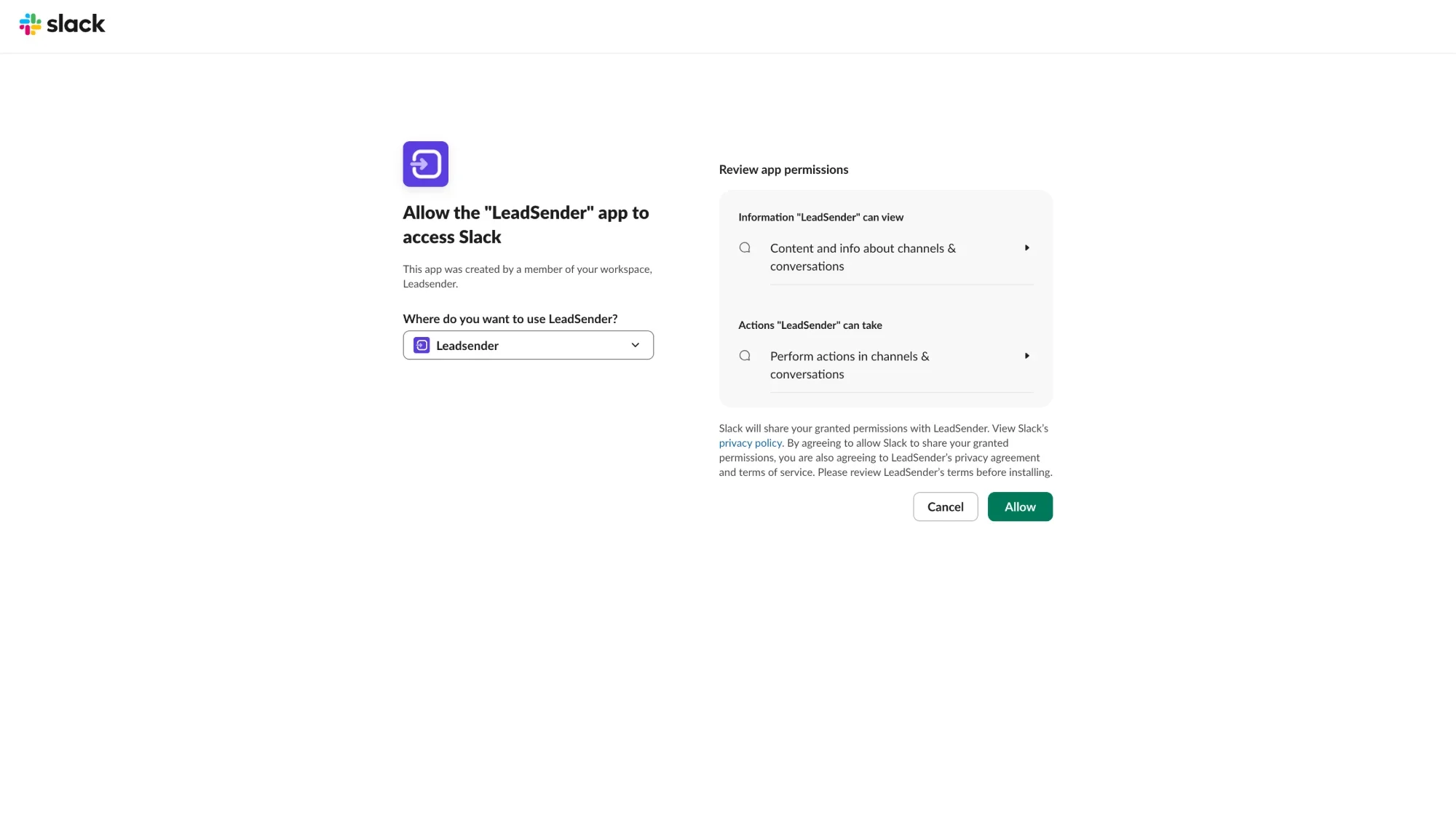 Click AllowPick your workspace
Pick the channel
Back in LeadSender, your workspace is selected. Open Channel and pick where leads should go, like #facebook-leads. The list comes straight from your workspace, so it always matches Slack.
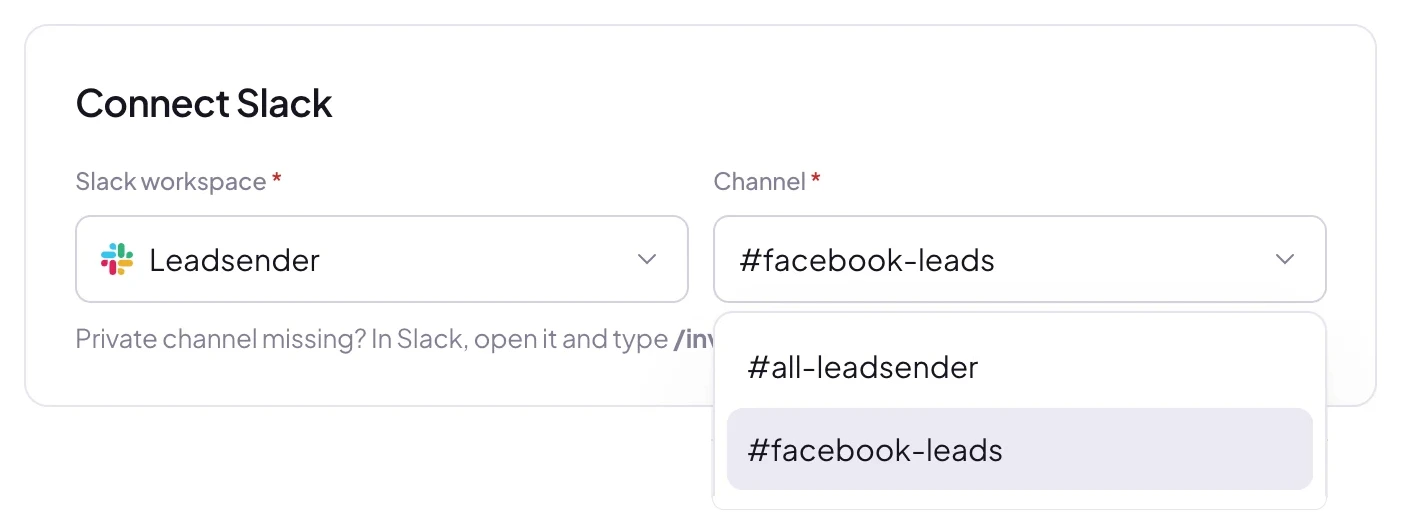 Pick the channel
Choose what the message shows
In Set Slack Lead Notification, edit the intro line if you like. Name, email and phone are matched for you, and every question on your form is listed below. Remove any row you don't want in Slack with its ×, rename a label by hovering it, or add a field with Add a field.
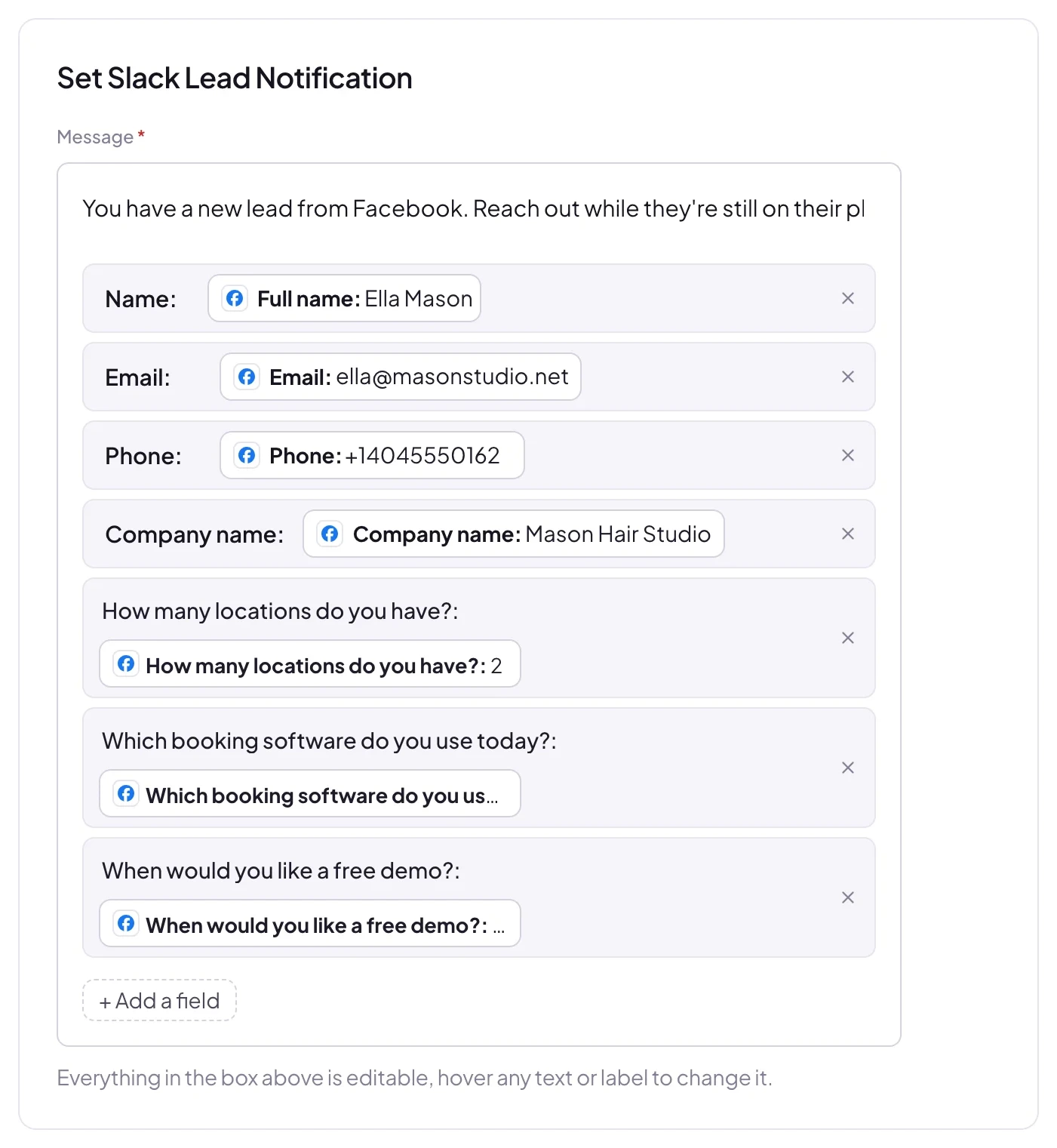 Add, remove or rename any field
Send a test lead and turn it on
Click Send a test lead. LeadSender posts your latest real lead to the channel and shows exactly what was sent. Want a brand new lead instead? Create one with our free Meta Lead Ads Testing Tool.
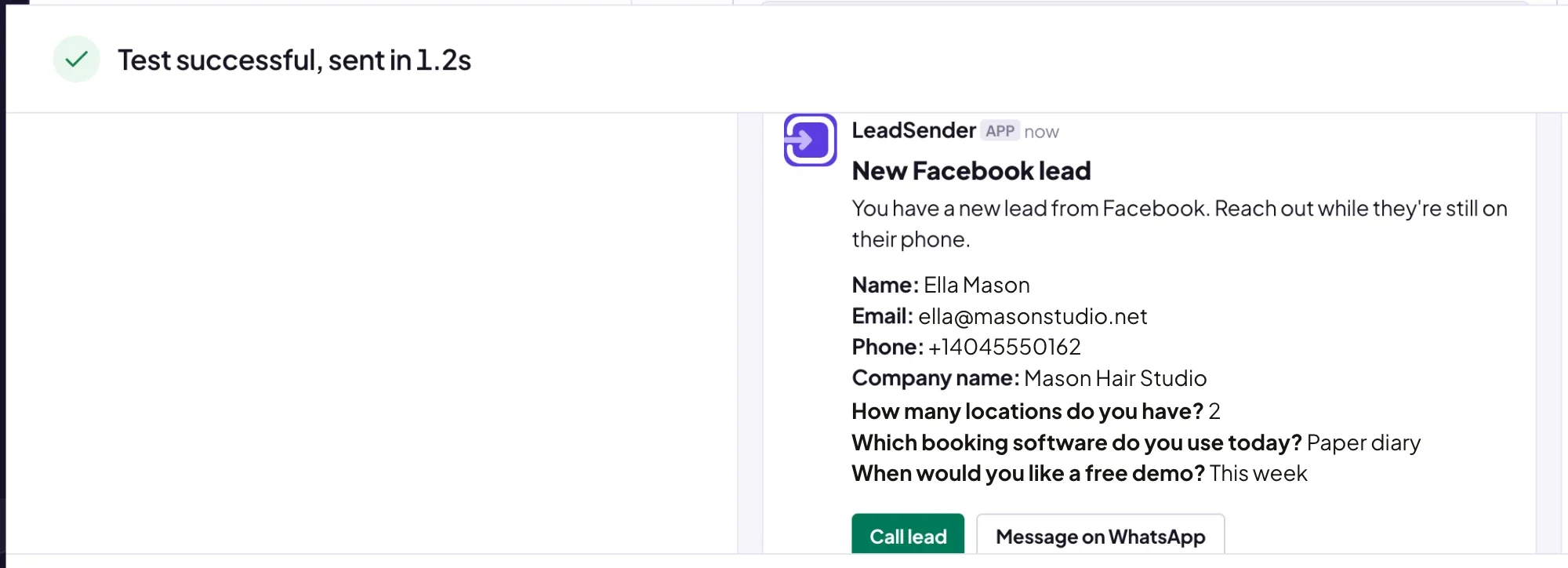 Exactly what was posted to Slack
Open the channel in Slack and the lead is already there. When it looks right, click Turn on. From then on every new lead from that form, on Facebook or Instagram, is posted within seconds.
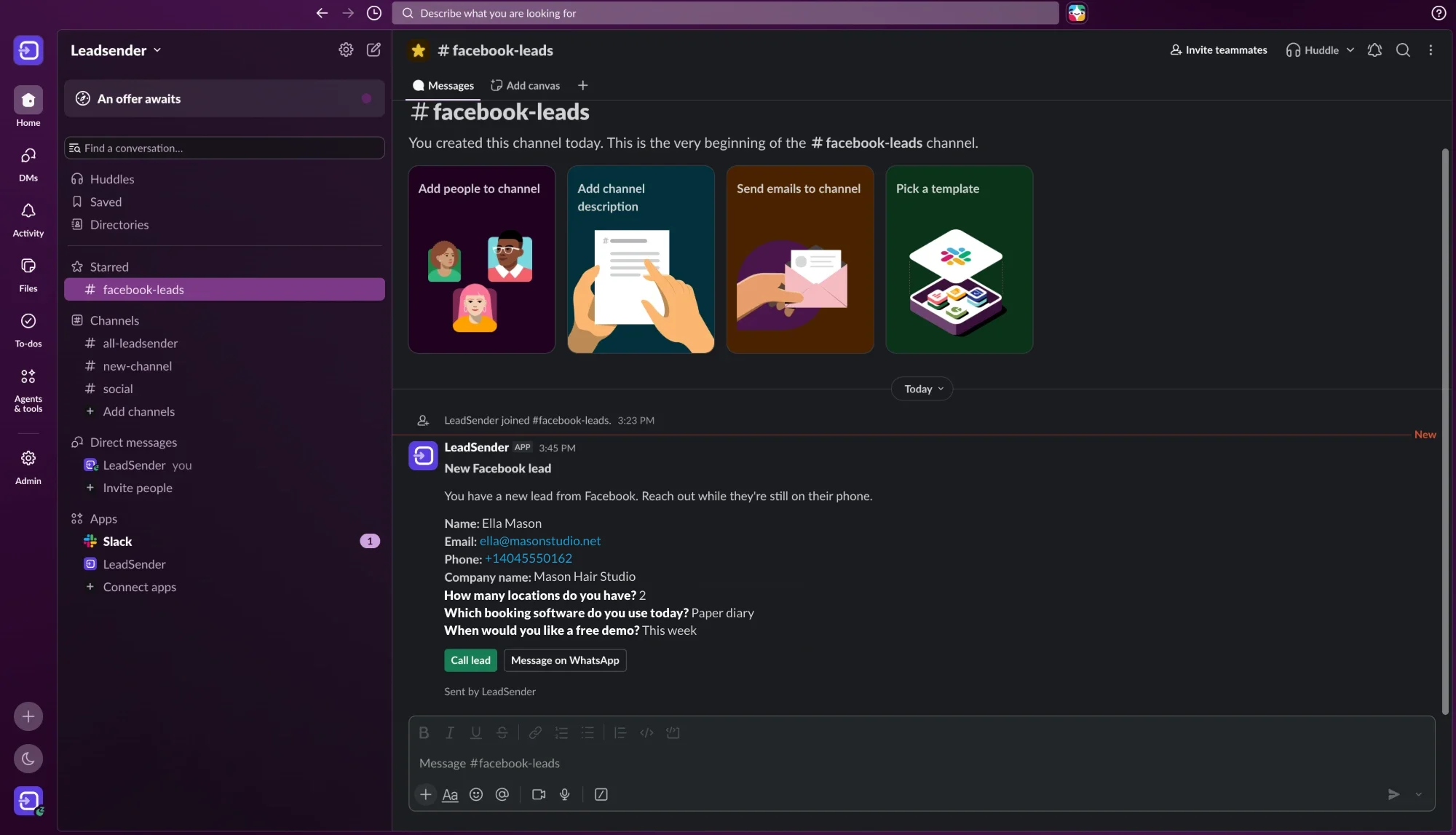 Call or WhatsApp the lead in one tap
What each Slack lead message includes
Every lead arrives as one tidy message, laid out the same way each time so the team can scan it at a glance:
- A New Facebook lead header, so it stands out from normal chat.
- Your intro line, for example who should take it or what to say first.
- One field per line: name, email, phone, then every answer you kept, with long questions wrapping neatly.
- A clickable phone number and a Call lead button that opens your phone's dialer.
- Message on WhatsApp, which opens a chat with the lead in one tap.
Reply in the message's thread with “mine” or add an emoji when you pick up a lead. Everyone else sees it's handled, and nobody calls the same person twice.
Private channels and several workspaces
Public channels work straight away: LeadSender can post to them without joining. For a private channel, open it in Slack and type /invite @LeadSender, then click Refresh channels in the channel list and pick it.
To post different forms to different places, create one integration per form and pick a channel on each. Agencies can connect several workspaces and switch with Change account, so each client's leads land in that client's own Slack. Every connected workspace also shows on the Destinations page.
LeadSender vs Zapier for Facebook leads to Slack
Slack has no built-in way to receive Facebook lead ads, so the real choice is a dedicated tool or a general automation platform:
| LeadSender | Zapier | |
|---|---|---|
| Price | From $9.99/mo, 7-day free trial | From $29.99/mo (Facebook Lead Ads is a premium app) |
| Speed | ✓ Seconds | Depends on plan |
| Setup | ✓ About 3 minutes, guided | ⚠ Build and test a Zap yourself |
| Message layout | ✓ Ready made, one field per line | ⚠ You write the message template |
| Call and WhatsApp buttons | ✓ Built in | ⚠ Build them yourself |
| Failed deliveries | ✓ Email alert, reason shown, one-click resend | Zap history |
| Also send to a CRM, Sheets or SMS | ✓ Add another integration | ✓ With more steps or Zaps |
Short version: Zapier works if you already pay for it and don't mind building the message yourself. If you want a clean lead message in seconds without maintaining a Zap, use LeadSender. More in LeadSender vs Zapier.
Using Zapier
With Zapier you create a Zap with Facebook Lead Ads (New Lead) as the trigger and Slack (Send Channel Message) as the action, then write the message text field by field. It works, but Facebook Lead Ads is a premium app, so you need a paid Zapier plan, and every lead uses tasks from your allowance.
When Facebook leads don't reach Slack
- Private channel not listed: invite LeadSender with
/invite @LeadSenderin that channel, then click Refresh channels. - “LeadSender was removed from this Slack workspace”: someone uninstalled the app in Slack. Click Connect again and allow it.
- Channel archived or renamed: pick the channel again on the integration and save.
- Nothing at all: check the integration is turned on, then send a test lead and read the result. Every attempt is listed in Run history with the reason.
Comparing options? See how Facebook lead ads integration works, with the 5 ways to send leads to Email, SMS or your CRM compared.