
















A lead who hears from you while your ad is still on their mind is far more likely to open, reply and buy. If your email marketing runs on Constant Contact, the fastest way to get there is to have every Facebook lead added to Constant Contact the moment they submit your form, so your welcome email goes out straight away.
This guide shows how to send Facebook lead ads to Constant Contact step by step, in about three minutes, with no CSV exports and no Zapier. Then it covers which fields carry over, how permission works, and what to check if a lead doesn't appear.
Facebook keeps instant-form leads in Leads Center, so you need a tool to send them to Constant Contact. In LeadSender: connect Facebook, choose Facebook Leads to Constant Contact, pick your Page and form, click Connect and allow LeadSender in Constant Contact, choose your lists and tags, then turn it on. Every new lead becomes a Constant Contact contact within seconds.
How to send Facebook leads to Constant Contact with LeadSender
Start a free trial and connect Facebook
Start your 7-day free trial of LeadSender (no card needed) and sign in with the Facebook account that manages your Page. That lets LeadSender hear about each new lead the moment it's submitted.
Choose the Constant Contact template
From Integrations, pick Facebook Leads to Constant Contact. Then select your Facebook Page and the lead form you want to send.
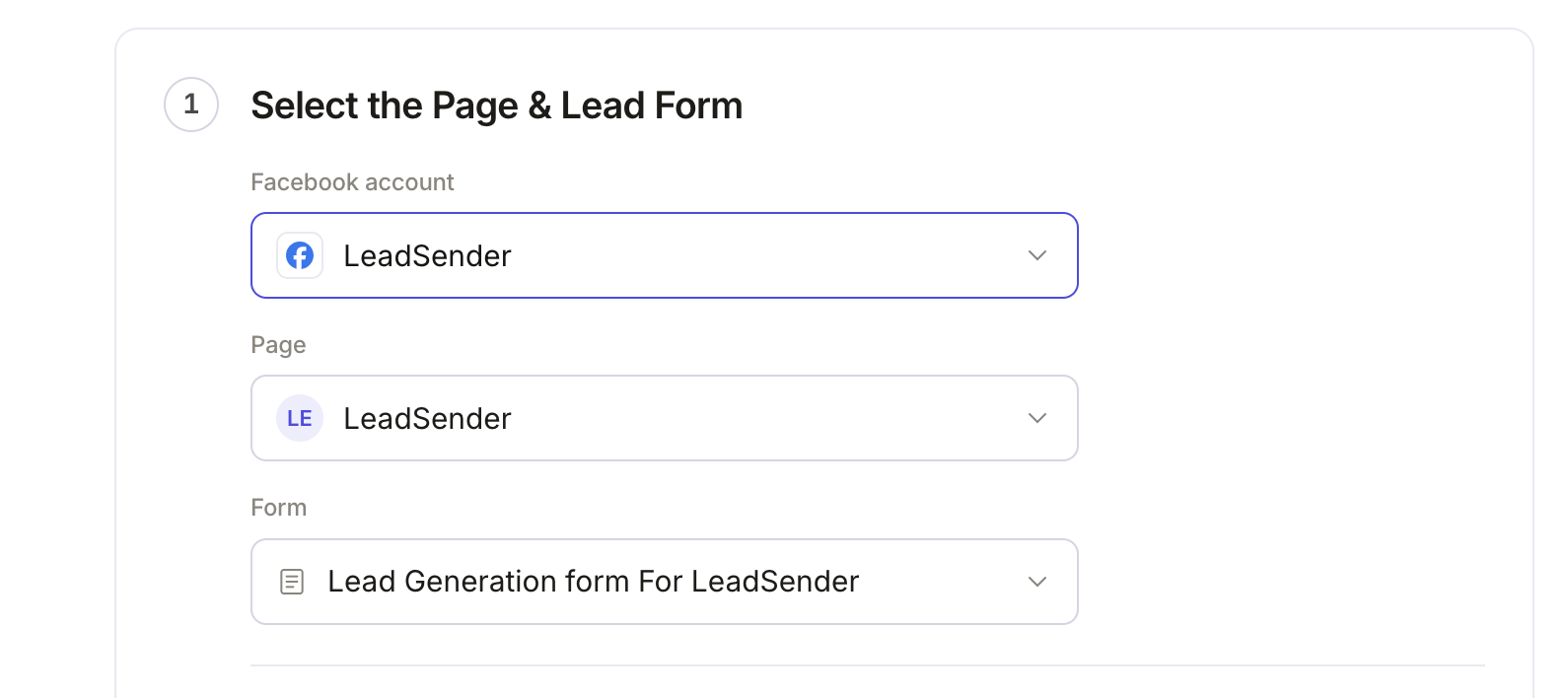 Select your Page
and lead form
Connect Constant Contact
In Select or connect Constant Contact, click Connect. A Constant Contact window opens; sign in if you aren't already.
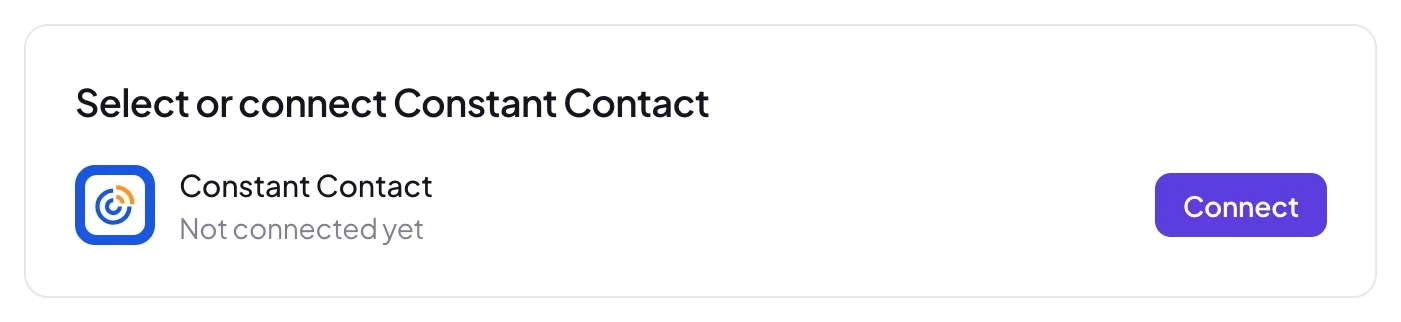 Click Connect
Constant Contact asks whether LeadSender may read your account details and manage your contacts. Click Allow Access. The window closes and the builder shows your Constant Contact account.
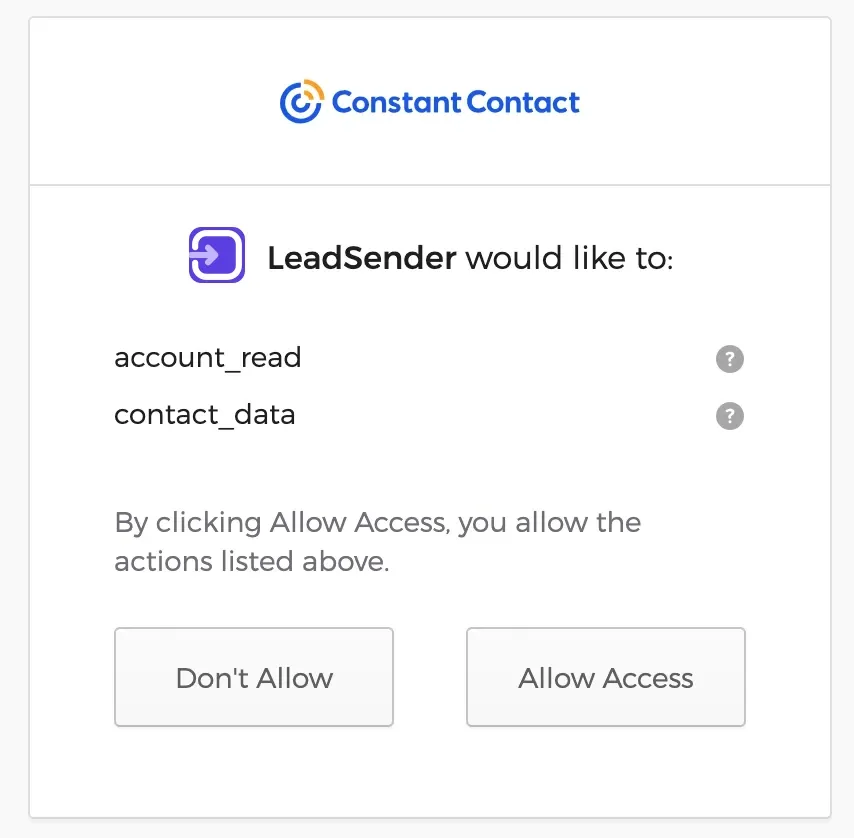 Click Allow Access
Pick your lists and tags
Under Add new contacts to these lists, choose one or more of your Constant Contact lists. Then pick any tags to apply, or type a new tag name to create it. Both come live from your account.
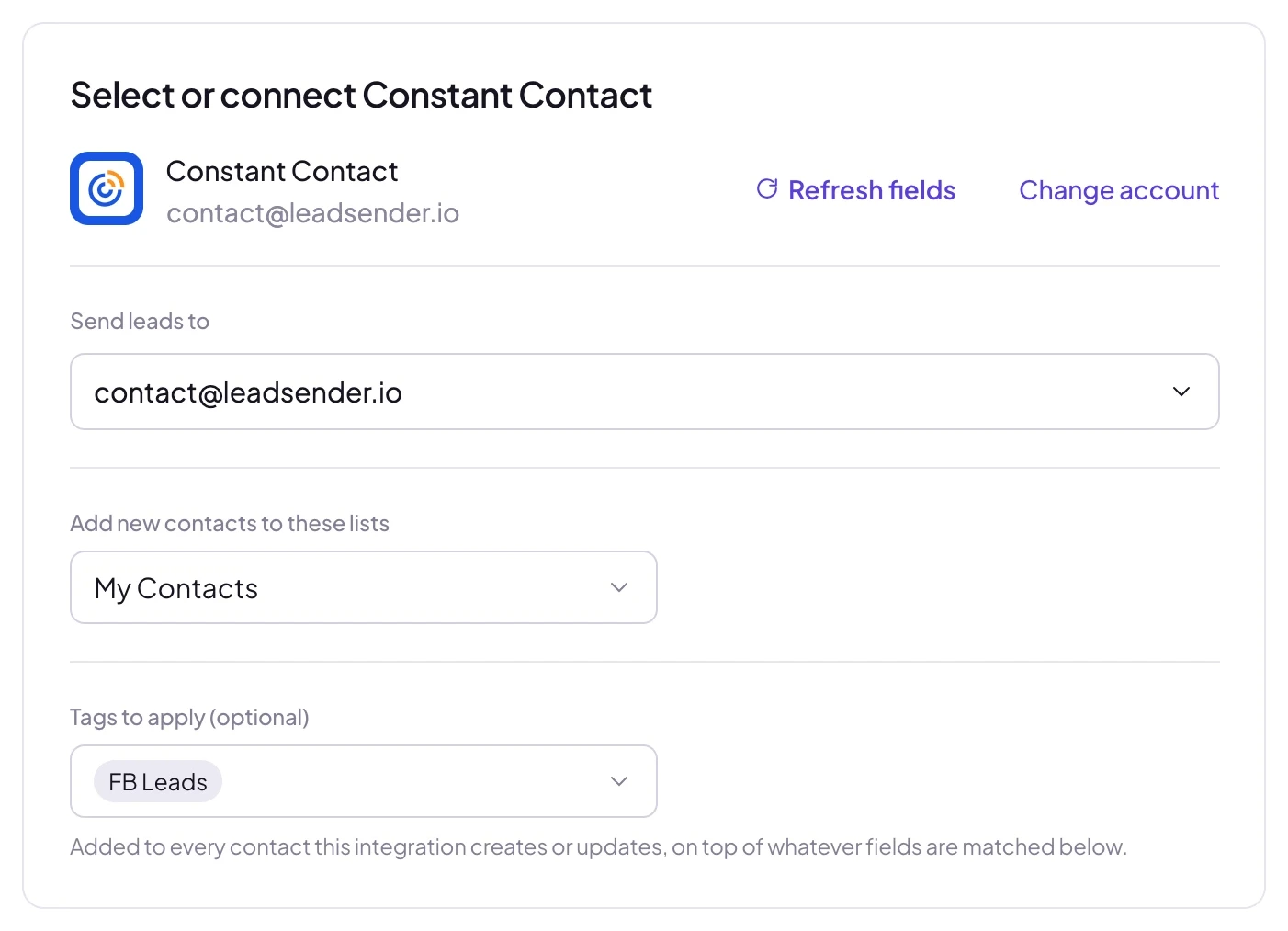 Pick one or more listsTags are optional
Match your fields, test and turn on
In Match your fields, name, email and phone are matched for you, and Constant Contact's company, job title and address fields sit alongside your own custom fields. Pick a form answer for any of them. Then click Send a test lead. Want a brand new lead to test with? Create one with our free Meta Lead Ads Testing Tool.
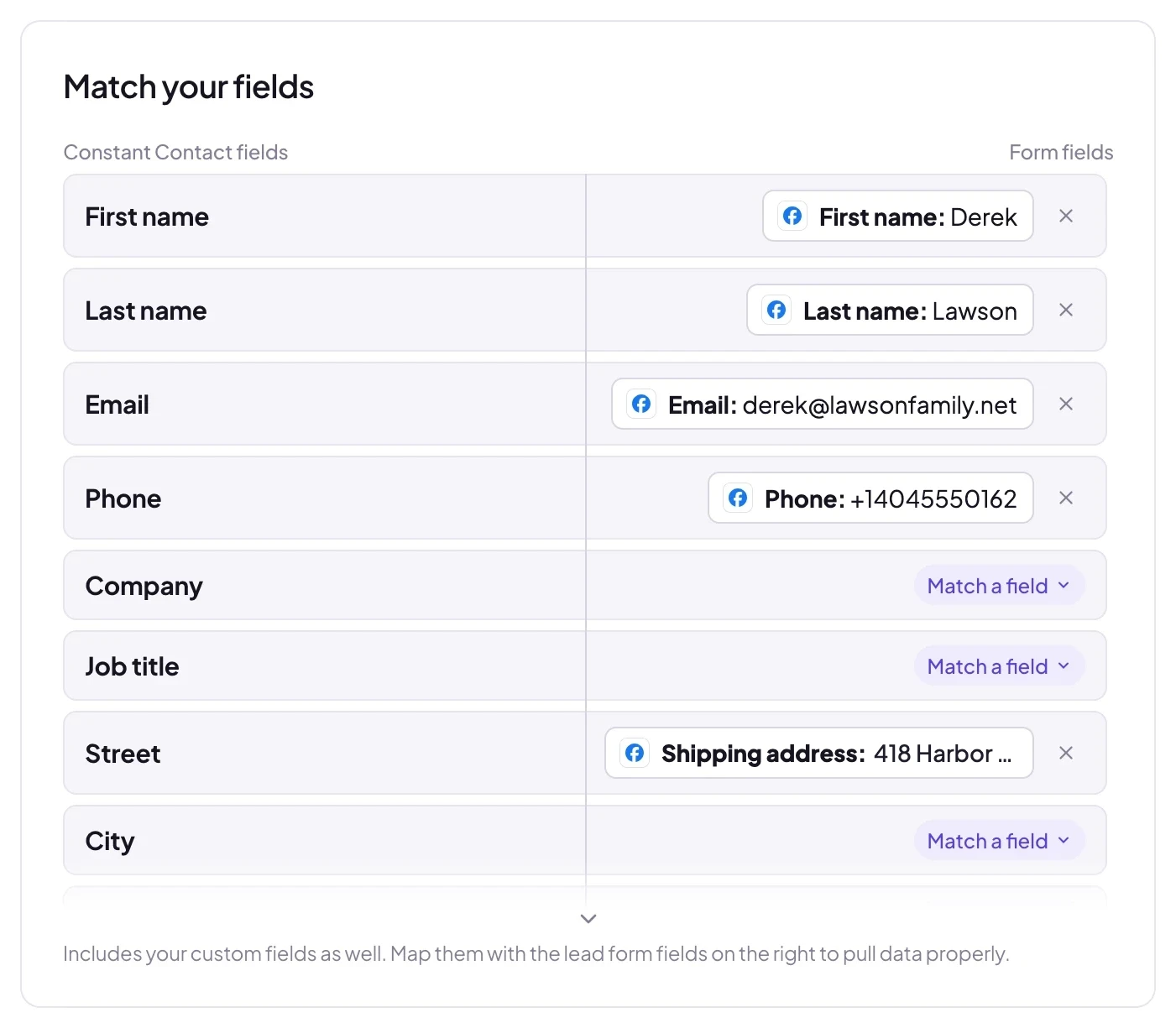 Matched for you
Open Constant Contact's Contacts and the test lead is already there, subscribed, on your list and tagged. When it looks right, click Turn on. From then on every new lead from that form, on Facebook or Instagram, arrives in Constant Contact within seconds.
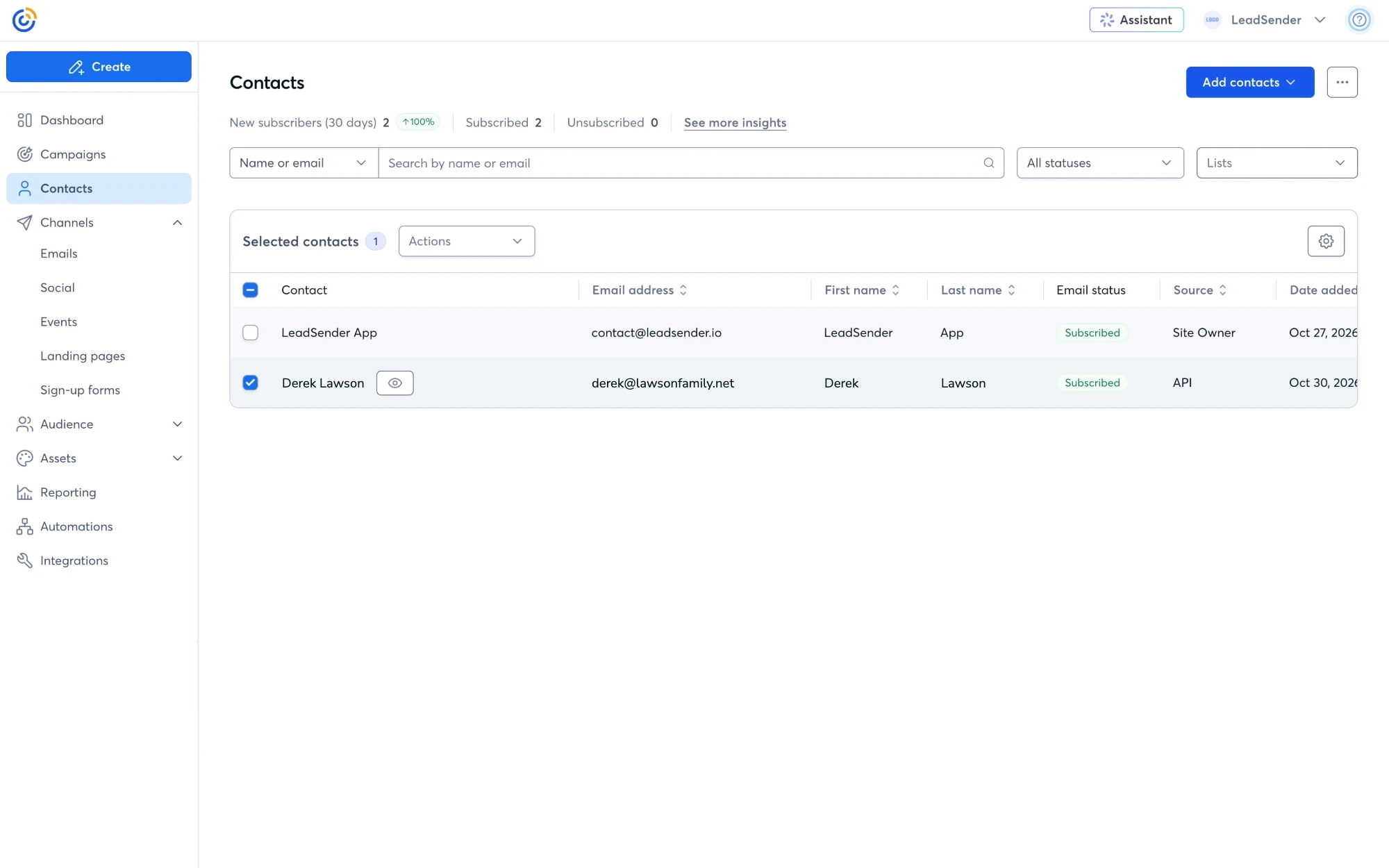 Added in seconds
Which fields reach Constant Contact
- Email, which Constant Contact needs for every contact. A lead without one can't be added.
- First and last name. A form that only asks for a full name is split into first and last name.
- Phone, company and job title, in Constant Contact's own contact fields.
- Street, city, state, ZIP and country, saved together as the contact's home address.
- Your custom fields, including dropdowns, numbers, dates and yes/no fields. An answer that isn't one of a dropdown's choices is left out instead of failing the whole lead.
In Constant Contact, create a welcome automation triggered when a contact joins the list you picked here. Every Facebook lead then gets your first email within minutes of submitting the form.
Will Facebook leads get your Constant Contact emails?
Yes. Leads are added the way Constant Contact adds people from its own sign-up forms, so they get permission to email. If your account has Confirmed Opt-In switched on, Constant Contact first sends each new lead a confirmation email, and they start receiving your campaigns once they confirm. Make sure your lead form's privacy policy says you'll email people who submit it.
LeadSender vs Zapier vs CSV imports
| LeadSender | Zapier | CSV import | |
|---|---|---|---|
| Price | From $9.99/mo | From $29.99/mo (Facebook Lead Ads is a premium app) | Free |
| Speed | ✓ Seconds | Depends on plan | ✗ Whenever you remember |
| Setup | ✓ About 3 minutes, guided | ⚠ Build and test a Zap | ⚠ Every time, by hand |
| Several lists and tags | ✓ Pick from your account | ⚠ Set up in the Zap | ⚠ Per import |
| Failed leads | ✓ Reason and retry in Run history | Zap history | None |
Short version: CSV imports work for a handful of leads, but every hour of delay costs replies. Zapier works if you already pay for a premium Zapier plan. LeadSender is the quickest way to get every lead into Constant Contact the moment it comes in. More in LeadSender vs Zapier.
When a lead doesn't show up in Constant Contact
- No email on the lead: Constant Contact needs one. Make sure your form asks for it and Email is matched.
- Confirmed Opt-In is on: the contact is there but waiting to confirm. Search Contacts with All statuses.
- The list was deleted: pick another list in the integration and turn it back on.
- Access was removed: if LeadSender was disconnected in Constant Contact, click Change account and connect again.
- Nothing at all: check the integration is turned on, then send a test lead and read the result. Every attempt is listed in Run history with the reason.
Comparing options? See how Facebook lead ads integration works, with the 5 ways to send leads to Email, SMS or your CRM compared.