

















Facebook collects your leads, but it doesn't give you a place to work them. Leads Center is fine for a glance, and downloading a CSV every morning gets old fast. That's why so many teams send Facebook lead ads to Google Sheets: one live list that the whole team can open, sort, share and call from, updated the moment someone fills in your form.
This guide walks you through a Facebook lead ads Google Sheets integration step by step, in about two minutes. After that, it compares every other way to connect Facebook leads to Google Sheets, including the free ones, so you can see what each one can and can't do.
To send Facebook lead ads to Google Sheets automatically, connect your Facebook Page to your sheet with a lead delivery tool. In LeadSender: connect Facebook, choose Facebook Leads to Google Sheets, pick your Page and form, sign in with Google, choose the spreadsheet and tab, match the fields to columns, and turn it on. Every new lead then lands as its own row within seconds. For a free option, Meta's own connector (Business Suite, then Instant Forms, then CRM Setup) sends leads to one sheet with fixed columns.
How to send Facebook lead ads to Google Sheets with LeadSender
This is the setup most teams want: every answer in the column you choose, a row within seconds, and an email if anything ever goes wrong. It takes about two minutes.
Start a free trial and connect Facebook
Start your 7-day free trial (no card needed), then click Connect Facebook and sign in with the account that manages your Page. Tick the Pages you want to send leads from.
Choose Facebook Leads to Google Sheets
From Integrations, pick the Facebook Leads to Google Sheets template. Then select your Facebook Page and the lead form you want to send. The builder previews your most recent real lead from that form, so you can see real answers while you set up.
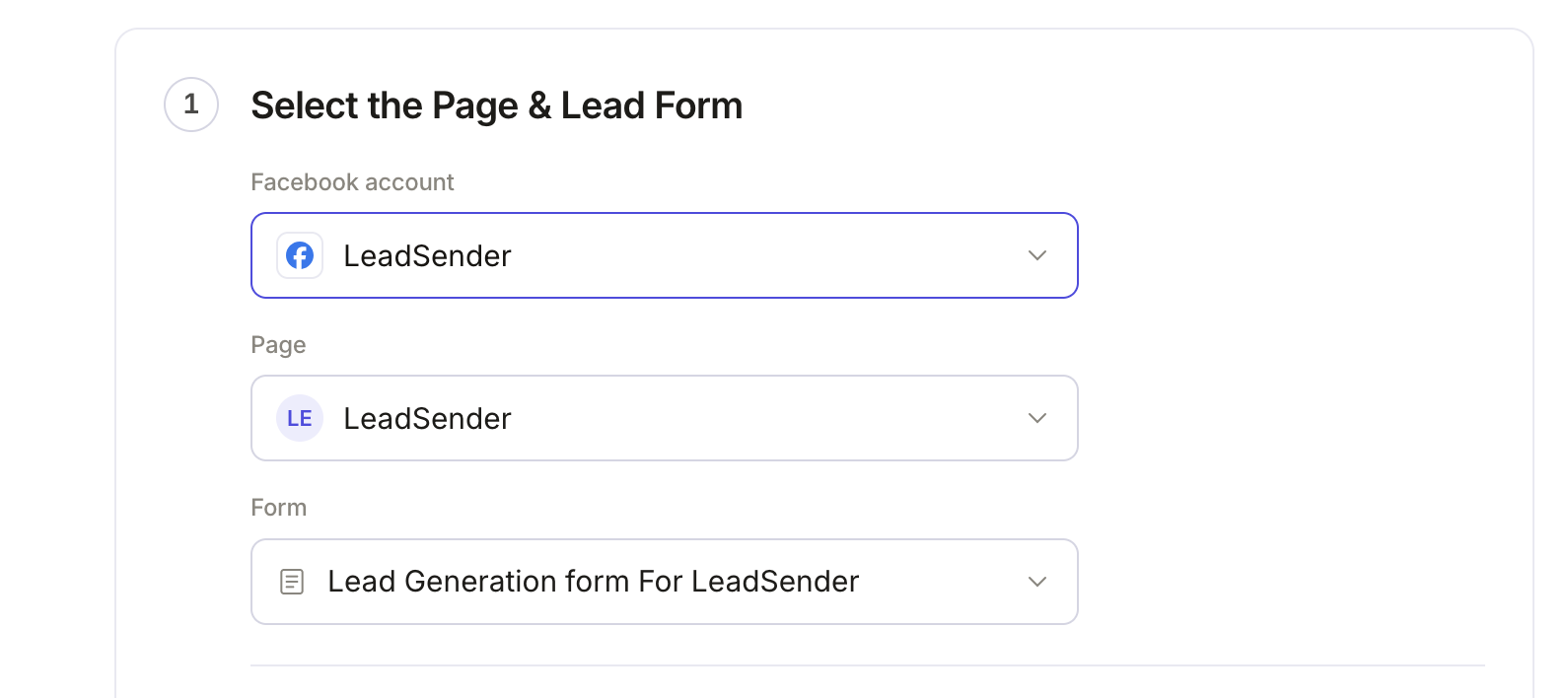 Select your Page
and lead form
Connect Google and pick your sheet
Click Connect and sign in with Google. Then use Select a spreadsheet to choose an existing one and the tab inside it, or click + Create new spreadsheet (Recommended). A new spreadsheet comes with a clean, bold header row written for you, one column per field.
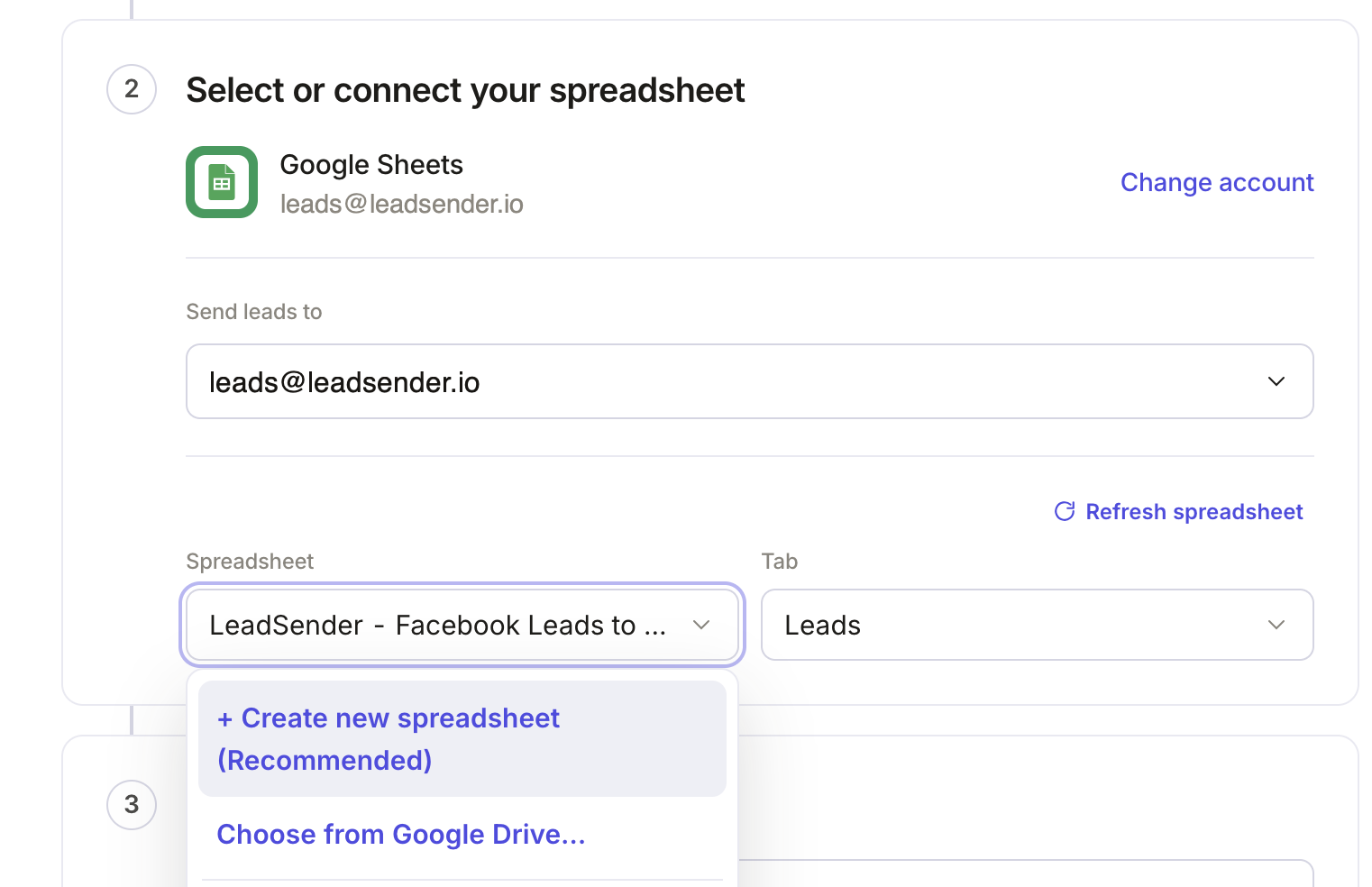 Pick your spreadsheetOr create a new one
Match form answers to columns
Name, email and phone are matched for you. For each custom question (budget, timeline, property type), pick the column it should go into. Nothing gets lumped into one cell, so the sheet stays sortable and filterable.
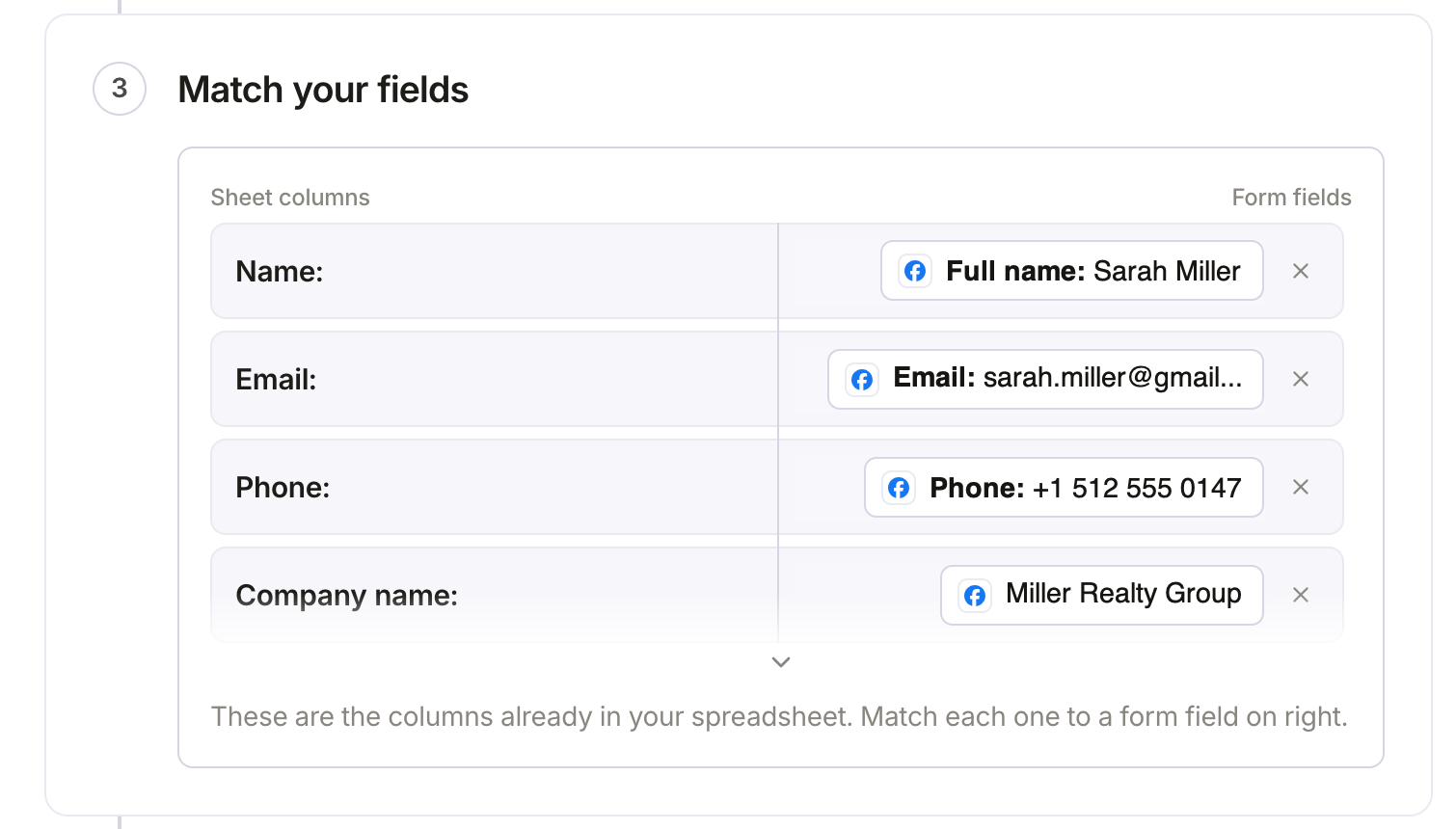
Send a test lead
Click Send a test lead. LeadSender sends your latest real lead through your mapping and shows exactly what was written. Open the sheet and check the new row. Want to test with a brand new lead instead? Use our free Meta Lead Ads Testing Tool.
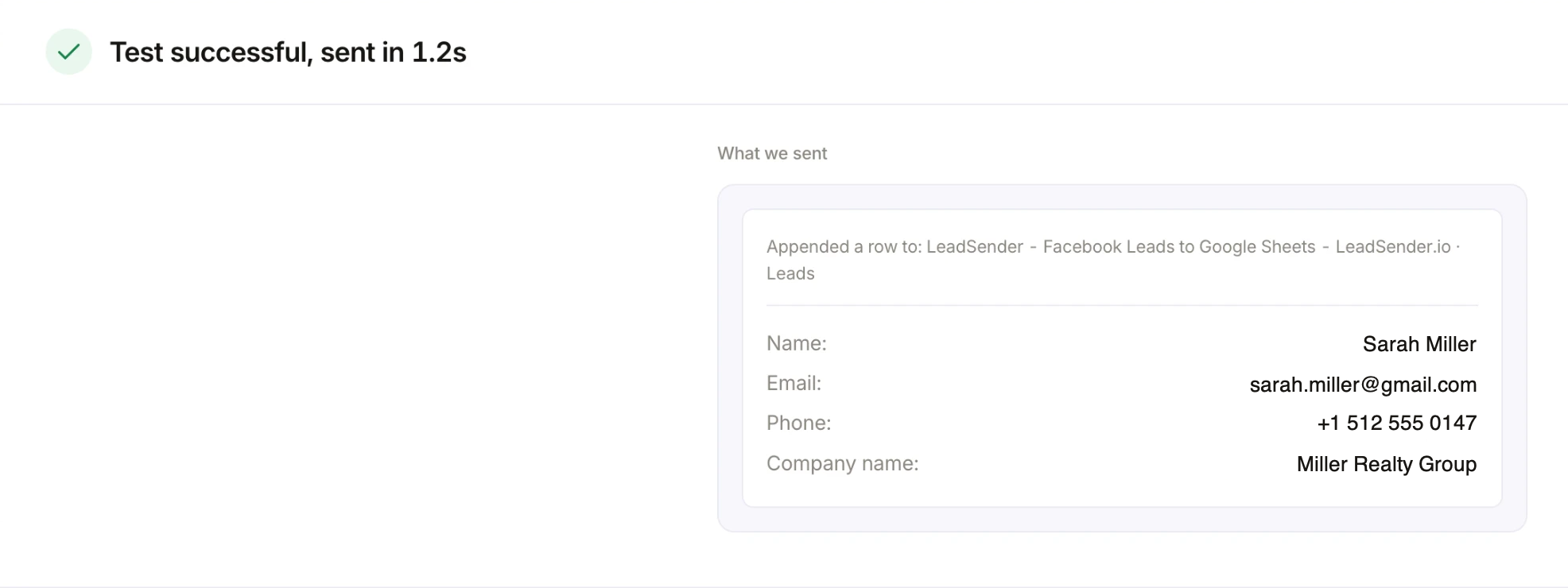 Row added to your sheet
“What we sent” shows exactly what landed in your sheet, field by field, so you can check every answer is in the right column before you turn it on.
Turn it on
Click Turn on. From now on, every new lead from that form, on Facebook or Instagram, is added to your sheet as a new row within seconds.
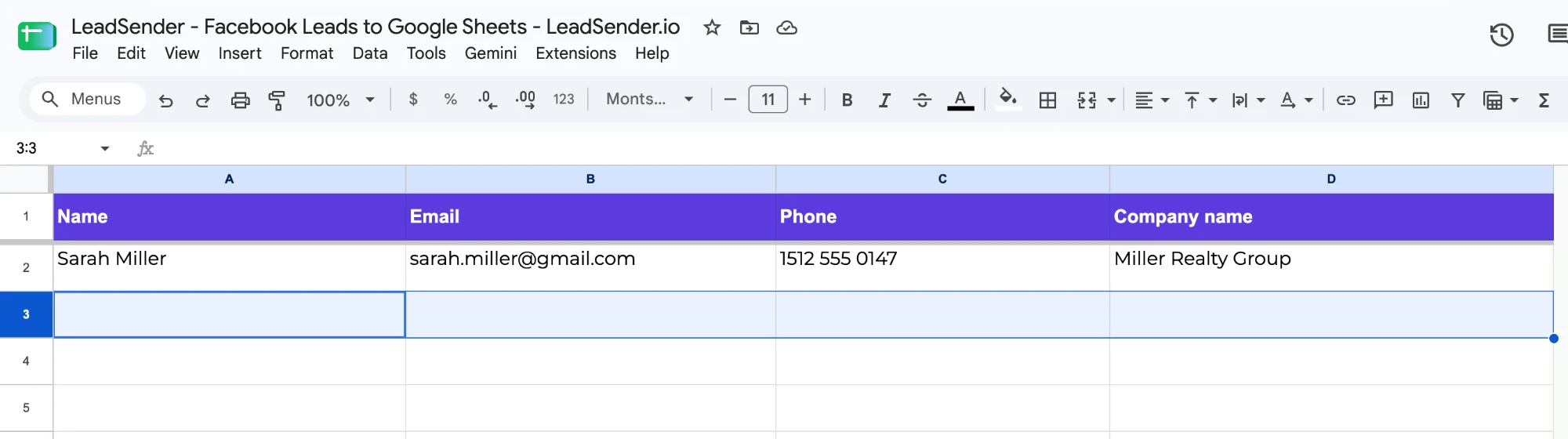
Every Facebook lead in your Google Sheet, in seconds
Your own columns, one row per lead, and an email alert if a lead ever fails to deliver. Set it up once and never download a CSV again.
Why send Facebook leads to Google Sheets?
A spreadsheet sounds basic. For a lot of businesses, it's exactly the right tool:
- Your team already knows it. No CRM to learn. Share the sheet, and anyone can see new leads and call them.
- Leads stop disappearing. Meta only keeps lead data for 90 days. Once a lead is in your sheet, it's yours for good.
- Speed. A lead called within minutes is far more likely to answer than one called tomorrow. A live sheet makes new leads impossible to miss.
- Easy reporting. Filter by form or campaign, count leads per day, add a Status column, and build a simple pipeline without paying for a CRM.
- A stepping stone. Many teams start in Sheets and add a CRM later. The sheet becomes the history of every lead you've ever had.
Every way to send Facebook leads to Google Sheets, compared
There are four real options. Here's how they stack up:
| LeadSender | Meta's connector | Zapier | CSV download | |
|---|---|---|---|---|
| Price | From $9.99/mo, 7-day free trial | Free | Paid plan needed | Free |
| Automatic | ✓ Yes | ✓ Yes | ✓ Yes | ✕ Manual |
| Speed | Seconds | Seconds | Depends on plan | Whenever you remember |
| Choose your own columns | ✓ Yes | ✕ Meta's columns | ✓ Yes | ⚠ By hand |
| Also send to CRM, Email or SMS | ✓ Yes | ✕ One sheet only | ✓ With more steps | ✕ No |
| Tells you when a lead fails | ✓ Email alert | ✕ Fails silently | ⚠ Zap errors | n/a |
| Setup time | About 2 minutes | About 5 minutes | 10 to 15 minutes | Every time |
Short version: if you want it free and don't mind Meta's fixed columns, use Meta's connector. If you want your own columns, alerts when something breaks, and the option to send the same lead to your CRM or phone, use LeadSender. Zapier works, but you'll pay per task for something simpler tools do in one step.
The free way: Meta's own Google Sheets connector
Meta now has a built-in way to send Facebook leads to Google Sheets free. If you're looking for Facebook lead ads to Google Sheets free of charge and only need a simple list, it's a solid option.
- Open Meta Business Suite and go to All tools, then Instant Forms.
- Open the CRM Setup tab and choose Google Sheets.
- Click Sign in with Google and allow access.
- Paste the link to an existing sheet, or create a new one, and choose the worksheet.
- Pick the lead form to connect. Optionally turn on syncing existing leads for a one-time backfill.
- Send a test lead, check it arrives, and finish the setup.
What to know before you rely on it:
- You can't choose the columns. Meta decides the column names and order. Renaming or moving them can break the connection.
- One sheet, nothing else. No email or text alert, and no way to send the same lead to a CRM.
- It can fail silently. If the Google sign-in expires or the form changes, new leads can simply stop appearing, with no warning.
Using Zapier to send Facebook lead ads to Google Sheets
Zapier is the name most people know for Facebook lead ads to Google Sheets. It works, with two catches. First, Facebook Lead Ads isn't available on Zapier's free plan: its own guide says you need a paid plan or its trial. Second, Zapier charges per task, so every lead costs part of your monthly allowance.
The Zapier Facebook ads Google Sheets setup, in brief:
- Create a Zap with Facebook Lead Ads, New Lead as the trigger, and choose your Page and form.
- Add Google Sheets, Create Spreadsheet Row as the action, and pick your spreadsheet and worksheet.
- Map each lead field to a column, test the step, and publish the Zap.
If you already pay for Zapier and use it heavily, it's a reasonable choice. If Sheets (plus maybe email or a CRM) is all you need, a dedicated tool is simpler and usually cheaper.
The manual way: download a CSV and import it
If you only need leads now and then, you can download them from Ads Manager or Leads Center as a CSV and import the file into Google Sheets with File, Import. It's free, but it's manual every time, nothing updates by itself, and Meta deletes leads after 90 days. Our guide on how to download leads from Facebook Ads Manager walks through it.
How to set up the sheet itself
A few small choices make a lead sheet much easier to work with:
- Keep row 1 as the header row and freeze it (View, Freeze, 1 row), so column names stay visible as the list grows.
- Don't rename or reorder mapped columns once leads are flowing. Add new columns to the right instead.
- Add your own working columns after the lead data: Status, Called by, Next step, Notes. New leads never overwrite them.
- Use a separate tab per form if you run several forms, so buyer and seller leads, for example, don't mix.
- Highlight new leads with conditional formatting on the Status column, so anything not yet called stands out.
- Share carefully. Lead sheets contain personal data. Share with the people who need it, and avoid “anyone with the link”.
When Facebook leads don't show up in Google Sheets
| What you see | Likely cause | Fix |
|---|---|---|
| No new rows at all | The connection is off or lost access | Check the integration is turned on, then send a test lead. Reconnect Google or Facebook if asked. |
| Test works, real leads don't | A different form is running in your ads | Check the form your live ad uses matches the one in the integration. |
| Rows stopped after you edited the sheet | A mapped column was renamed, moved or deleted | Put the column back, or refresh the fields and re-match them. |
| Answers in the wrong columns | Mapping doesn't match the header row | Open the integration and re-match each answer to its column. |
| Leads arrive in the Page's Leads Center but not the sheet | Lead access was removed for the app | In Business Settings, Integrations, Lead Access, give the app access again. |
| Old leads are missing | Only new leads are sent after setup | Download older leads as a CSV from Ads Manager (within Meta's 90 days). |
The fastest way to find out where it breaks is a test lead. Our free Meta Lead Ads Testing Tool creates one on your real form and emails it to you, and this guide explains every error you might see.
Facebook Lead Ads to Google Sheets: FAQs
Can I send Facebook lead ads to Google Sheets automatically?
Yes. Connect your Facebook Page to Google Sheets with Meta's own CRM setup, Zapier, or a lead delivery tool like LeadSender, and every new lead is added to your sheet as a new row the moment someone submits your form. No manual downloading.
Is there a free way to send Facebook leads to Google Sheets?
Yes, two. Meta's own connector in Business Suite (All tools, Instant Forms, CRM Setup, Google Sheets) is free and real time, but it writes to one sheet with Meta's fixed columns. The other free route is downloading a CSV from Ads Manager and importing it by hand, which isn't automatic. LeadSender also has a 7-day free trial with no card.
How do I connect Facebook leads to Google Sheets?
In LeadSender: connect your Facebook Page, choose Facebook Leads to Google Sheets, pick your Page and form, sign in with Google, choose or create the spreadsheet and tab, match the fields to columns, send a test lead, and turn it on. It takes about two minutes.
Can Zapier send Facebook lead ads to Google Sheets for free?
No. Zapier's own guide says you need a paid Zapier plan, or its trial, to use Facebook Lead Ads in a Zap. Its pricing is also per task, so the cost grows with your lead volume.
How fast do FB leads reach Google Sheets?
When you send FB leads to Google Sheets with a webhook based tool like LeadSender or Meta's own connector, they arrive within seconds of the form being submitted. Tools that check for new leads on a schedule can take several minutes.
Can I choose which columns each answer goes into?
With LeadSender, yes. Every form answer is matched to the column you choose, including your custom questions. Meta's free connector doesn't allow this: columns appear the way Meta names them.
Will old leads be added to the sheet?
LeadSender sends new leads from the moment you turn the integration on. Meta's own connector has a one-time option to sync existing leads. For anything older, download a CSV from Ads Manager, but remember Meta only keeps leads for 90 days.
Does this work for Instagram lead ads?
Yes. Instagram lead ads use the same Instant Forms on your Facebook Page, so the same setup sends Instagram leads to your Google Sheet too.
Can I send the same lead to Google Sheets and my CRM or email?
Yes. In LeadSender you can set up one integration to Google Sheets and another to your CRM, Email or SMS for the same form. Meta's free connector sends to one sheet only.
What happens if the Google connection stops working?
With Meta's connector, leads can quietly stop appearing if the Google sign-in expires. LeadSender emails you when a lead fails to deliver, and you can resend it from Run history once it's fixed.
Do I need to create the Google Sheet first?
No. LeadSender can create a new spreadsheet for you and write the header row. If you already have one, just pick it and the tab you want.
Getting started
If you only need a basic list and don't mind Meta's columns, start with Meta's free connector. If you want your own columns, alerts when something fails, and the option to send the same lead to your CRM (see our Facebook Leads to GoHighLevel guide) or phone, set up Facebook Leads to Google Sheets in LeadSender. The trial is long enough to watch real leads land in your sheet before you decide.
