














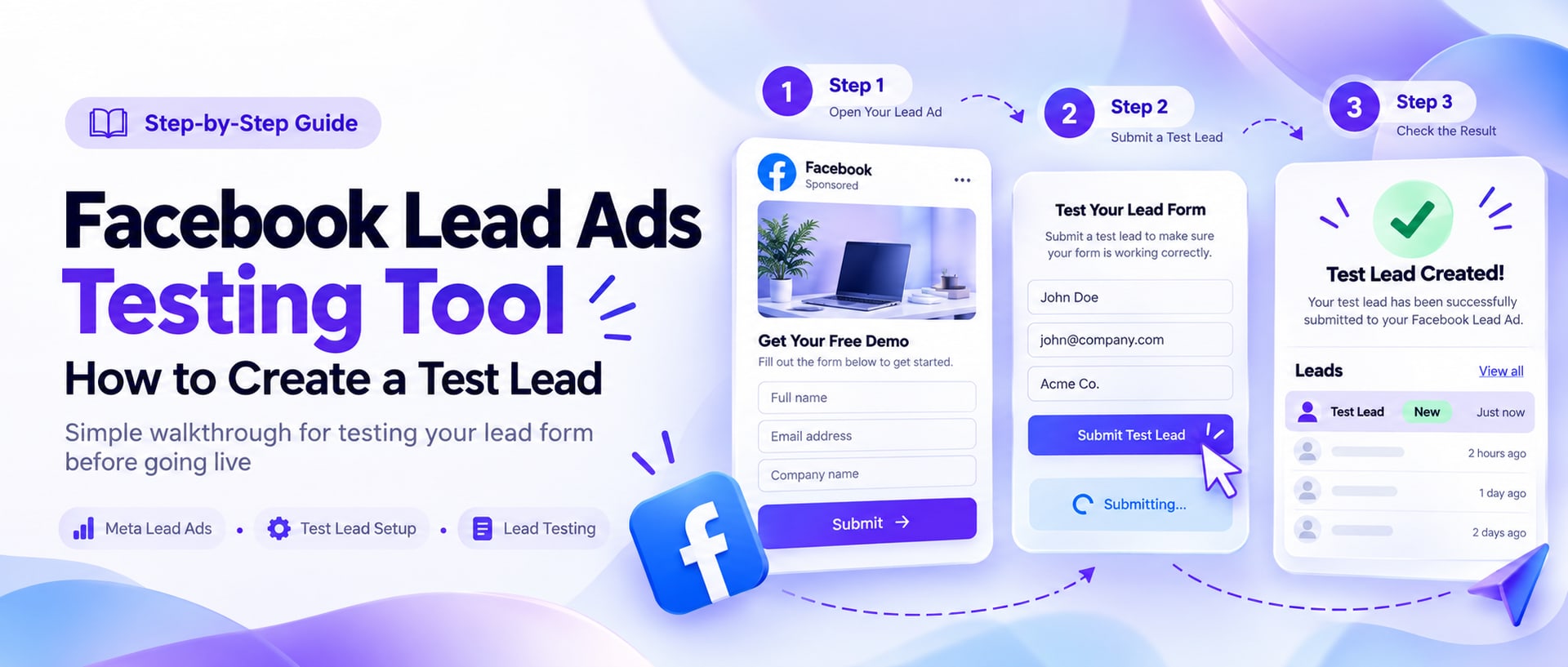
You built the lead form, connected your CRM, and now there is one question left: will a real lead actually arrive? The only honest way to know is to send one. Meta has a free tool built for exactly this, the Facebook Lead Ads Testing Tool, and it is one of the most useful and least explained pages Meta has.
This guide shows you where the tool is, how to create a test lead in about two minutes, what the test lead really contains, how to read Track Status, and how to fix every common reason a Facebook test lead never shows up in your CRM.
Use our free Facebook Lead Ads Testing Tool: pick your Page and form, send a test lead with your own details, and see every app that receives it. No developer site needed.
Open Meta's Lead Ads Testing Tool at developers.facebook.com/tools/lead-ads-testing, pick your Page, pick your form, and click Create Lead. Then click Track Status to see whether your CRM, Zapier or webhook received it, and check your CRM to confirm every field landed in the right place. It is free, it does not spend ad budget, and you can have one test lead per form at a time, so click Delete Lead before sending another.
What is the Facebook Lead Ads Testing Tool?
The Lead Ads Testing Tool is a page inside Meta for Developers that submits a test lead through one of your real Instant Forms. It does not need an ad, a campaign or a budget. The test lead is created on your Page exactly as if someone had filled in the form, so Meta sends it to every app connected to that Page: your CRM, Zapier, Make, LeadSender, or your own webhook.
That is what makes it useful. A preview in Ads Manager shows you what the form looks like. The testing tool shows you whether the form actually works, all the way from Facebook to wherever your leads need to end up. Everything that can break between those two points (permissions, a disconnected integration, a wrong field mapping) shows up in a test lead before it can cost you a real one.
| Question | Answer |
|---|---|
| Where is it? | developers.facebook.com/tools/lead-ads-testing |
| Who made it? | Meta (Meta for Developers) |
| What does it cost? | Nothing. Test leads never spend ad budget. |
| What does it test? | That a lead from your form reaches your CRM, Zapier or webhook |
| Does it need a live ad? | No. It only needs a published Instant Form on your Page. |
| Limit | One test lead per form per person at a time |
| Works for Instagram? | Yes. Instagram lead ads use the same forms. |
What you need before you start
Most “the tool does not work” problems are really one of these four things missing. Check them first and the rest takes two minutes.
- A published Instant Form. The form has to exist on the Page. Draft forms and forms from a different Page will not appear in the drop-down.
- Advertiser access or higher on the Page. Meta's own documentation lists this as the requirement. If you can see the Page but not create leads, your role is the first thing to check.
- Lead access, if your business uses Lead Access Manager. In Business Settings, under Integrations, Lead Access, a business can restrict who and which apps can see leads. Both you and your CRM app need access there.
- Your CRM already connected to the Page. The tool only proves delivery to apps that are already connected. Connect your CRM, Zapier or LeadSender first, then test.
Meta requires a Page admin to accept the Lead Ads Terms once for each Page before any lead can be created, test or real. If the tool complains about terms of service, open facebook.com/ads/leadgen/tos as a Page admin, accept for that Page, and come back.
How to create a test lead with the Lead Ads Testing Tool
Here is the full walkthrough, from opening the tool to seeing the lead in your CRM.
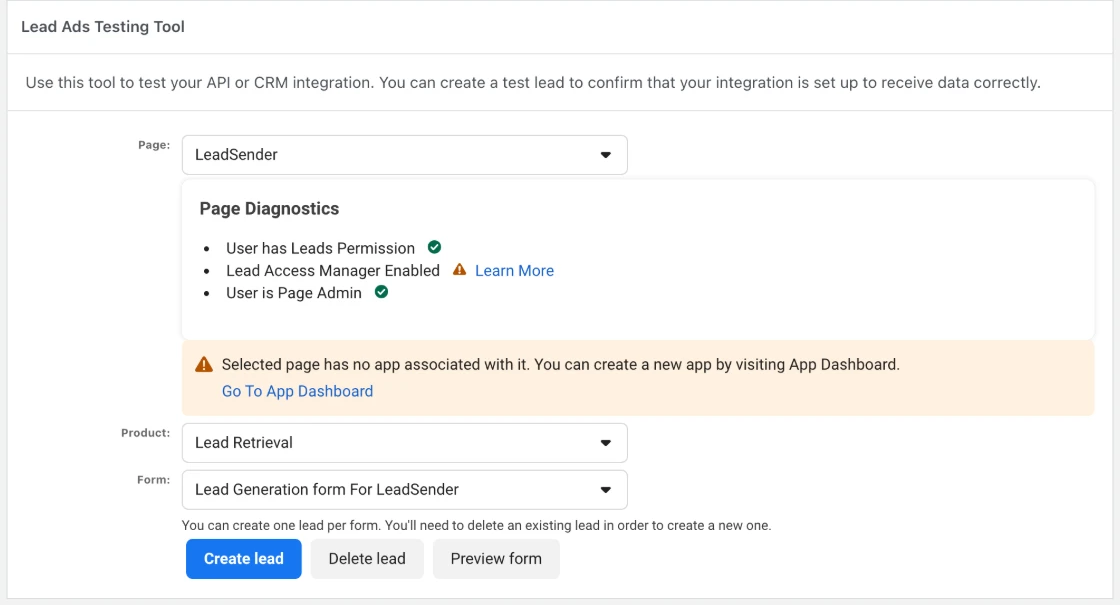 ① Select your Page② Select your form
Open the Lead Ads Testing Tool
Go to developers.facebook.com/tools/lead-ads-testing and log in with the Facebook account that manages your Page. Use the same account that has the Page role, not a separate business profile that cannot see the Page.
Select your Page
Choose the Page your lead form belongs to from the Page drop-down. If your Page is not listed, your account does not have the right role on it yet.
Select the lead form
Pick the form from the Form drop-down. Name your forms clearly in Ads Manager (for example “Home Valuation, Sept 2026”) and this step becomes much easier once a Page has a dozen of them.
Click Create Lead, or Preview Form
Create Lead submits a test lead straight away, filled with dummy placeholder values. Preview Form opens the real form so you can type your own answers and submit it yourself. Which one to use is covered just below. You will see a confirmation once the lead has been created.
Click Track Status
In the webhook section underneath, click Track Status. Every app connected to the Page gets a row, showing pending while Meta delivers the lead, then success or failed. If it stays pending, wait ten to thirty seconds and click it again.
Check your CRM
Success in Track Status means Meta delivered the lead. It does not mean your CRM filed it correctly. Open your CRM, spreadsheet or inbox and check that the lead is there and every field is in the right place.
Delete the test lead to test again
Only one test lead can exist per form. When you are ready to test again (after fixing a field mapping, say), click Delete Lead and create a new one.
Once you click Create Lead, Meta confirms it at the top of the tool: “Your test lead has been sent. To create a new lead, please delete this one.” That message means Meta created the lead and started delivering it to every app connected to your Page.
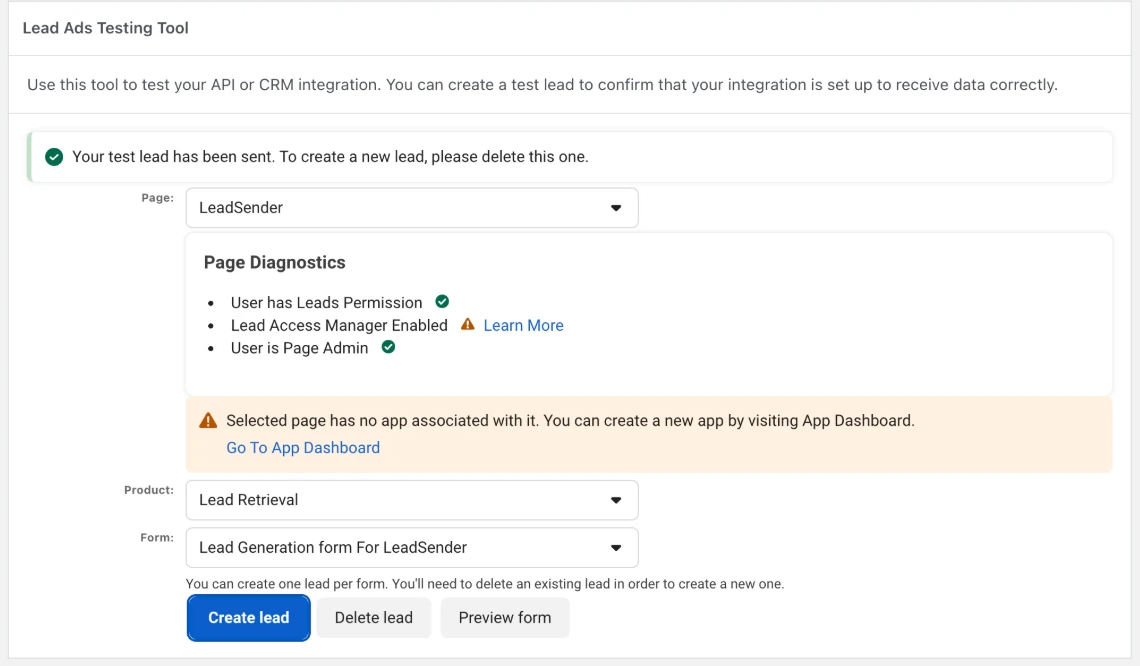 ✓ Test lead sent
Try our FREE Meta Lead Ads Testing Tool
Prefer not to use Meta's developer site? We built a free version of the same tool. It creates the same official Meta test lead, but in four plain steps, and it emails the test lead to you so you can see every answer without opening your CRM.
Create a Facebook test lead and get it in your inbox
- Connect Facebook and pick your Page and lead form. No developer account needed.
- Use your own details instead of placeholder text, so strict CRMs accept the test lead.
- Get the test lead by email, answer by answer, in the same order a real lead arrives.
- Clear the old test lead in one click when you want to test again.
Create Lead or Preview Form: which should you use?
Both buttons create the same kind of test lead. The difference is what is inside it.
| Create Lead | Preview Form | |
|---|---|---|
| What it sends | Dummy placeholder values | Whatever you type into the form |
| Speed | One click | You fill in the form yourself |
| Tests your form's look | ✕ No | ✓ Yes |
| Passes strict CRM validation | ⚠ Often not | ✓ Yes, with real looking values |
| Tests your follow up emails and texts | ✕ No, nothing to send to | ✓ Yes, use your own email and phone |
| Best for | A quick “is it connected?” check | A real end to end test |
Our advice: use Create Lead once to confirm the connection, then use Preview Form with your own name, email and phone number for the real test. Placeholder values are exactly what trips up a lot of CRMs, and a dummy email address will never show you whether your welcome email actually sends.
What a Facebook test lead actually contains
This is the part most guides skip, and it explains half of the “my test lead looks broken” questions. A test lead made with Create Lead fills each field with a placeholder in this style:
| Form field | Value in a Create Lead test lead |
|---|---|
| Full name | <test lead: dummy data for full_name> |
test@meta.com | |
| Phone number | <test lead: dummy data for phone_number> |
| City | <test lead: dummy data for city> |
| Your custom questions | <test lead: dummy data for your_question_key> |
| Ad, ad set, campaign | Empty. No ad was involved. |
Three things follow from this, and each one explains a common surprise:
- A CRM that validates fields can reject it. A phone field that expects digits (the placeholder phone is text, not a number), or a name field with a character limit, may refuse the placeholder text. The lead then looks “lost” when it was actually rejected. Preview Form with realistic values avoids this.
- Custom questions show up by their key. The placeholder names the question's internal key, not the friendly label, which tells you exactly what key your integration has to map.
- There is no ad or campaign name. If your CRM shows the campaign as blank, or your automation only runs for a specific campaign, a test lead will look incomplete or skip that automation entirely. That is expected, not a bug.
What your webhook receives
If you are a developer, or you want to see what your CRM actually gets, Meta sends the test lead to each connected app as a leadgen webhook, the same as a real lead. The notification carries IDs, not the answers themselves. It looks like this:
{
  "object": "page",
  "entry": [{
    "id": "PAGE_ID",
    "time": 1727520000,
    "changes": [{
      "field": "leadgen",
      "value": {
        "leadgen_id": "LEAD_ID",
        "page_id": "PAGE_ID",
        "form_id": "FORM_ID",
        "created_time": 1727520000
      }
    }]
  }]
}
The receiving app then uses the leadgen_id to fetch the actual answers from the Graph API. A real lead from an ad usually also carries the ad and ad group IDs; a test lead does not, which is how you can tell them apart in your own logs.
How to read Track Status
Track Status is the most useful button on the page, because it tells you which side a problem is on. Each app connected to your Page gets its own row:
| Status | What it means | What to do |
|---|---|---|
| Pending | Meta has not finished delivering the lead to that app yet | Wait 10 to 30 seconds and click Track Status again |
| Success | The app accepted the lead from Meta | Check your CRM. If the lead is not there, the problem is inside the CRM, not Facebook. |
| Failed | Meta could not deliver the lead to that app | Read the error code in that row and see the table below |
| No rows at all | No app is connected to this Page | Connect your CRM, Zapier or LeadSender to the Page first, then create a new test lead |
Seeing an app you do not recognize in that list is worth a second look too. Every app there receives every lead from the Page. Old integrations you stopped using can be removed in Business Settings, under Integrations, Lead Access.
Deleting a test lead and sending another
Meta allows one test lead per form for each person at a time. Try to create a second and the tool refuses until the first is gone. To test again:
- Select the same Page and form.
- Click Delete Lead.
- Click Create Lead or Preview Form again.
Deleting only removes the test lead from Facebook. Anything it already created in your CRM, sheet or inbox stays there. See cleaning up test leads below.
See exactly what reached your CRM, field by field
LeadSender receives test leads from Meta's tool the same way it receives real ones, within seconds. Its own Send a test lead button goes one step further: it sends your most recent real lead through your field mapping and shows you exactly what was delivered, so you are not testing with placeholder text.
Other ways to test a Facebook lead form
The testing tool is the right choice most of the time, but it is not the only way to run a Facebook lead form test. Here is how the options compare:
| Method | Needs a live ad | Counts in results | Real data | Best for |
|---|---|---|---|---|
| Lead Ads Testing Tool | No | No | Dummy or your own | Checking a new CRM connection |
| Submitting your live ad yourself | Yes | Yes, it is a real lead | Your own | Testing the full ad experience on a phone |
Graph API test_leads | No | No | Any values you send | Developers testing their own webhook |
| Your delivery tool's test button | No | No | A real past lead | Checking field mapping with real answers |
Submitting the form yourself
Filling in your own live ad on your phone is the most realistic test, because it covers the ad, the form, and delivery in one go. The catch: it creates a real lead that counts in your results and your cost per lead. Do it once before launch, not as a routine check.
The Graph API test_leads endpoint
Developers can create the same kind of test lead without the website, by sending a POST to /{form_id}/test_leads with a Page access token, optionally with your own field_data. The same one test lead per form rule applies, and DELETE on the same edge removes it. Meta documents this on its lead ads testing and troubleshooting page.
Your delivery tool's own test
Most lead delivery tools have a test button of their own. In LeadSender, Send a test lead takes the most recent real lead from your form, runs it through the field mapping you set up, sends it to your destination and shows you exactly what arrived. That tests the part the Meta tool cannot: whether real answers, not placeholders, land in the right fields.
Test lead vs real lead: what is different?
| Test lead | Real lead | |
|---|---|---|
| Reaches your CRM, Zapier or webhook | ✓ Yes, same path | ✓ Yes |
| Costs money | ✓ No | Paid through your ad spend |
| Shows in Ads Manager results | No | Yes |
| Has an ad and campaign attached | No | Yes (from an ad) |
| How many per form | One at a time, per person | Unlimited |
| Can be deleted from Facebook | Yes | No |
| Triggers your CRM automations | Yes | Yes |
When the test lead does not arrive
Start with Track Status. It tells you whether the problem is between Facebook and your app, or inside your app. Then find your symptom here:
| What you see | Likely cause | Fix |
|---|---|---|
| Your Page is not in the drop-down | Your account has no role on the Page, or the wrong account is logged in | Log in with the account that manages the Page, or ask an admin for Advertiser access |
| The Form drop-down is empty | The form is a draft, archived, or on a different Page | Publish the form in Ads Manager, or pick the Page it actually belongs to |
| Create Lead is greyed out | A test lead already exists for this form, or missing permissions | Click Delete Lead first. If that does not help, check your Page role and Lead Access. |
| Terms of service not accepted | The Page has never accepted the Lead Ads Terms | A Page admin accepts them at facebook.com/ads/leadgen/tos |
| “Something went wrong” | A temporary Meta issue or a stale session | Reload, try a private window, or log out and back in |
| Track Status failed, error 103 | The app lost lead access in Lead Access Manager | Business Settings, Integrations, Lead Access: give the CRM app access again |
| Track Status failed, error 190 | The app's Facebook login expired or was revoked | Reconnect Facebook inside your CRM or delivery tool |
| Track Status failed, error 100 | The app used the wrong kind of access token | Reconnect the integration; if it persists, contact that app's support |
| Stuck on pending | Delivery is slow or the receiving app is not responding | Wait 30 seconds and retry; if still pending, delete and create a new test lead |
| Success, but nothing in the CRM | Field mapping, a CRM filter, or the CRM rejecting placeholder values | Retest with Preview Form and real looking values, then check the CRM's own logs |
| Lead arrives with a blank campaign | Test leads have no ad attached | Nothing to fix. Real leads from ads will have it. |
Track Status only proves Meta handed the lead over. Plenty of leads are delivered successfully and then quietly dropped by a CRM filter, a required field, or a duplicate rule. The test is only done when you have seen the lead inside your CRM with every answer in the right field.
A CRM testing checklist
Run through this once for every new form and every new integration, before any money goes into ads:
- Create Lead once to confirm the connection. Track Status should show success for your CRM's app.
- Delete it, then use Preview Form with your own name, email and phone number.
- Find the lead in your CRM and check name, email and phone are in their proper fields, not lumped into a note.
- Check every custom question landed in the field you mapped it to.
- Check the follow up: did your welcome email, text or task actually fire, and did it reach your inbox and phone?
- Check the notification: did the person who should call the lead actually hear about it?
- Clean up the test records, then launch.
If you want the email and SMS part of that list handled for you, LeadSender can send every lead to Email, SMS, Google Sheets or CRMs like HubSpot, GoHighLevel and Salesforce within seconds, and this guide covers lead alerts in detail.
Cleaning up test leads afterwards
Deleting the test lead in Meta's tool does not reach into your other systems. Before launch, remove:
- The test contact or lead in your CRM, including any deals or tasks it created.
- Any rows it added to a Google Sheet.
- Anyone it enrolled in an email or SMS sequence, so reporting starts clean.
One habit makes this painless: when you use Preview Form, put “Test” in the last name field. Every test record then turns up in one search, and nobody on your sales team mistakes it for a real person.
Facebook Lead Ads Testing Tool: FAQs
What is the Facebook Lead Ads Testing Tool?
It is a free tool from Meta, at developers.facebook.com/tools/lead-ads-testing, that submits a test lead through one of your real Instant Forms. The test lead travels the same path a real lead does, so it reaches every app connected to your Page, such as your CRM, Zapier or your own webhook. It costs nothing and does not touch your ad budget or campaign results.
How do I create a test lead on Facebook?
Open developers.facebook.com/tools/lead-ads-testing, select your Page, select your lead form, and click Create Lead. Then click Track Status to see whether each connected app received it, and check your CRM. The whole thing takes about two minutes.
Is the Facebook Lead Ads Testing Tool free?
Yes. It is part of Meta for Developers and costs nothing. Test leads are not charged, do not spend ad budget and do not show up in your campaign results.
Why can I only create one test lead per form?
Meta allows one test lead per form for each person at a time. To send another, click Delete Lead in the tool first, then create a new one. If you need several at once, a second person with access to the Page can create their own.
Why is the Create Lead button greyed out or missing?
Usually permissions. You need Advertiser access or higher on the Page, and if your business uses Lead Access Manager, you may also need to be given lead access there. It is also greyed out when a test lead already exists for that form, in which case delete it first.
Why does my test lead not show up in my CRM?
Click Track Status first. If your CRM's app shows failed, the error code tells you why (103 usually means the CRM lost lead access, 190 means its login expired). If it shows success but the lead is still missing, the problem is on the CRM side: field mapping, a filter, or the CRM rejecting placeholder values like a dummy email address. Try again with Preview Form and realistic values.
Does a test lead count as a real lead in Ads Manager?
No. Test leads do not appear in your campaign's Results column and do not affect cost per lead or optimization. They do reach your connected apps exactly like a real lead, which is the whole point.
Do Instagram lead ads work with the testing tool?
Yes. Instagram lead ads use the same Instant Forms, which belong to your Facebook Page, so you test them in the same tool with the same form.
How long does a test lead take to arrive?
Meta usually sends it within a few seconds. Track Status may show pending for a short while; wait ten to thirty seconds and click it again. How long it then takes to appear in your CRM depends on the tool in between. Tools that use Meta's webhook, like LeadSender, show it within seconds.
Can I test a lead form without the Lead Ads Testing Tool?
Yes, three other ways: submit the form yourself from a live ad or ad preview (this creates a real lead that counts in your results), create a test lead through the Graph API's test_leads endpoint, or use your delivery tool's own test button. In LeadSender, Send a test lead sends your most recent real lead through your mapping and shows exactly what was delivered.
What data is in a Facebook test lead?
When you use Create Lead, the email is always test@meta.com and every other field is filled with a placeholder such as "<test lead: dummy data for full_name>" or "<test lead: dummy data for phone_number>". When you use Preview Form, the lead contains whatever you typed. Test leads also have no ad, ad set or campaign attached, because no ad was involved.
Why does the tool say terms of service not accepted?
Meta requires a Page admin to accept the Lead Ads Terms once per Page before any lead, test or real, can be created. Open facebook.com/ads/leadgen/tos while logged in as a Page admin, accept for that Page, and try again.
Can I delete a test lead from my CRM?
Deleting it in the testing tool only removes it from Facebook. Anything it already created in your CRM, spreadsheet or inbox stays there and has to be deleted on that side. Tagging or naming test leads clearly makes this a two minute job.
Does the test lead trigger my automations and emails?
Yes, and that is worth planning for. A test lead that reaches your CRM can start a welcome sequence, assign a salesperson or send a text, just like a real lead. Use your own email and phone number in Preview Form so any follow up lands with you, not a stranger.
Before you launch
A two minute test with the Lead Ads Testing Tool is the cheapest insurance in Facebook advertising. It is far better to find a broken connection with a test lead than with a real person who filled in your form and never heard back. If you are still building the campaign itself, our guide on how to create Facebook lead ads walks through the whole setup, and if you ever need your leads as a file, here is how to download them. Once your test lead lands where it should, the only thing left is making sure every real one does too, in seconds, every time.