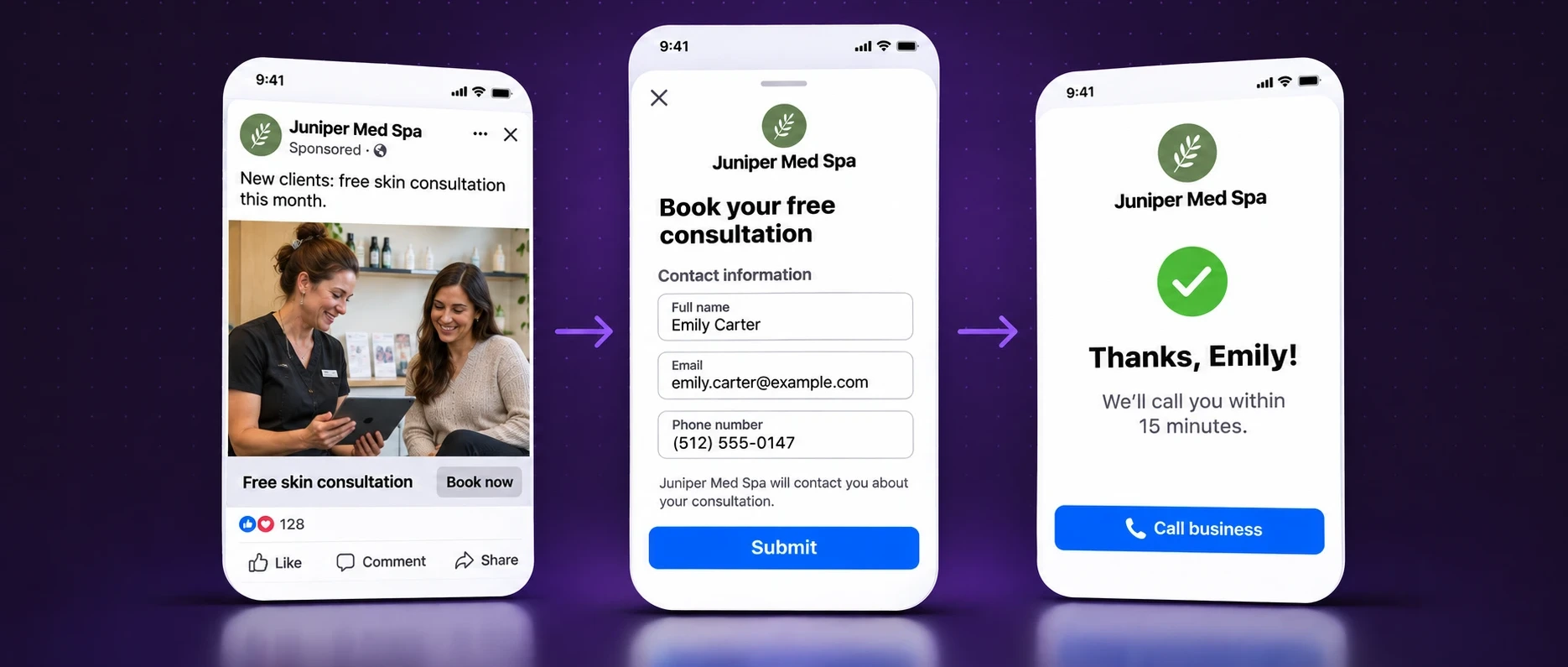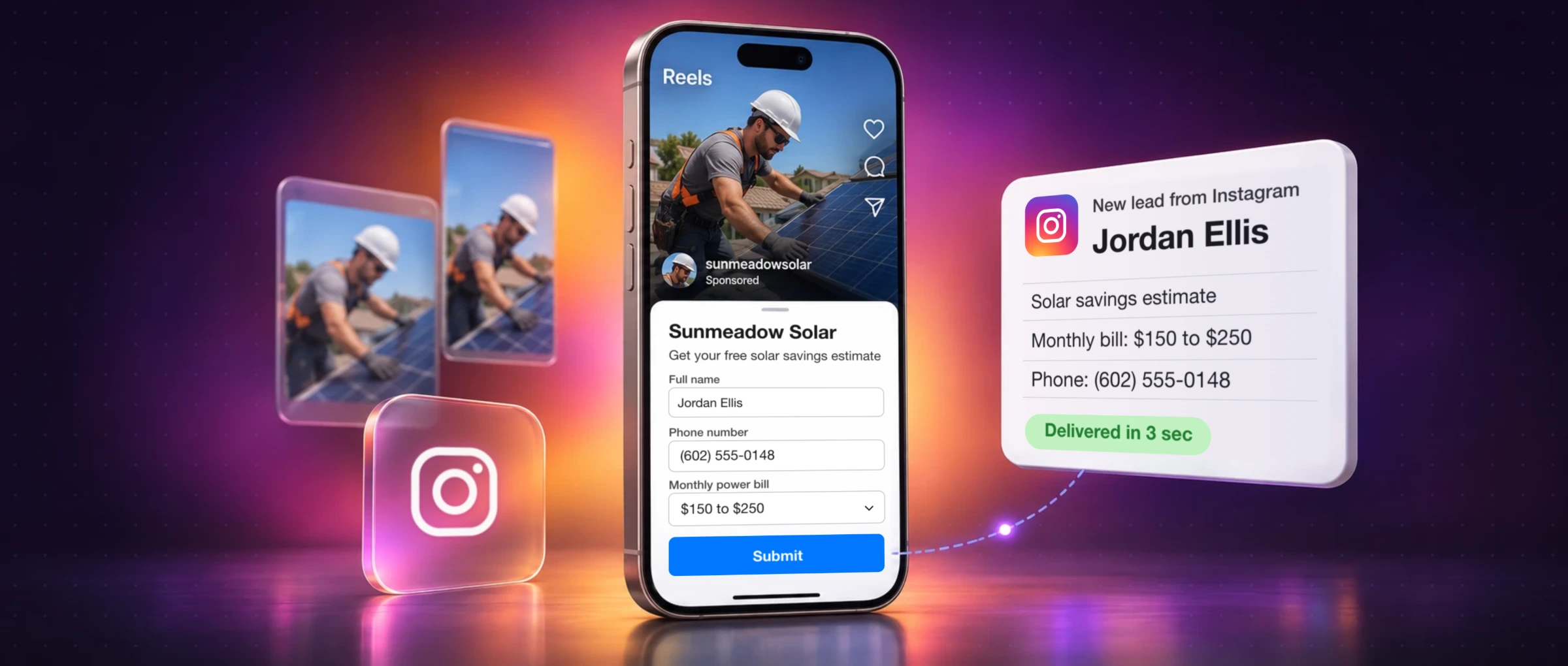














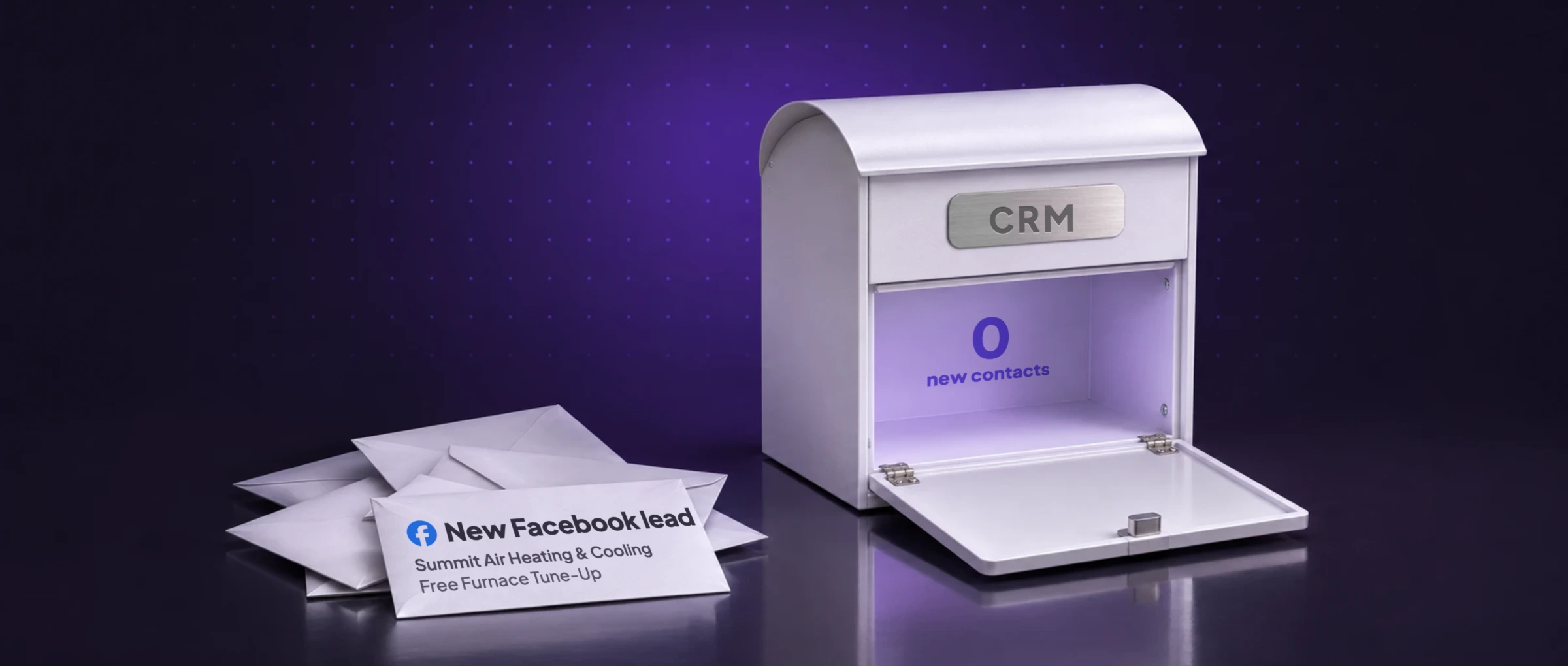
Your ad says 20 leads. Your CRM has 12. Somewhere between someone tapping Submit and your team seeing their name, eight people disappeared, and each of them filled in a form because they wanted to hear from you today.
This guide shows how to find exactly where Facebook leads go missing and fix each cause, step by step, with the screens you'll actually see. Most fixes take under five minutes once you know which one you need.
First check Meta has the leads (Ads Manager or Leads Center). If it doesn't, fix the ad or form. If it does, send a test lead with our free Lead Ads Testing Tool and see if it arrives. The answer is almost always one of four things: Leads access doesn't include your tool, the Facebook login behind the connection expired, the integration is watching the wrong form, or your CRM rejected a field.
Find your cause in 60 seconds
Pick what you're seeing. You'll get the most likely cause and the first thing to do.
This is the most common case. A test lead shows in a minute whether Meta can hand leads to your tool, and Meta's own testing tool shows why if it can't.
See the fix →- No leads at all, not even in Meta's Leads Center
- The ad isn't producing leads yet. Do this first: Open Ads Manager and check the Results column for your lead ad. If Meta has no leads, nothing downstream can have them. A paused ad, an unaccepted Lead Generation Terms, a broken privacy policy link or a tiny budget all stop leads before they exist.
- Leads are in Leads Center but not in my CRM, email or sheet
- The connection between Meta and your tool is broken. Do this first: Send a test lead with the free Lead Ads Testing Tool and see whether it arrives. This is the most common case. A test lead shows in a minute whether Meta can hand leads to your tool, and Meta's own testing tool shows why if it can't.
- The Testing Tool says CRM access has been revoked
- Lead access is customized and your tool isn't on the list. Do this first: Business settings, then Integrations, then Leads access: assign your tool to the Page. Once a business customizes lead access, only the people and tools on the list can read leads, even Page admins. A tool added later stays locked out until someone adds it.
- It worked, then stopped after a change
- The Facebook login behind the connection stopped working. Do this first: Reconnect Facebook in your tool, with an account that's still admin of the Page. A password change, a removed admin, a new Page or a turned-off integration ends the access your tool was using. Reconnecting gives it a fresh one.
- Only some leads are missing
- A specific form, field or delivery gap. Do this first: Compare a Leads Center export with what arrived, lead by lead. Missing leads usually share something: a new form your tool isn't watching, a field your CRM rejects, or a gap in delivery. The comparison shows which.
- Leads arrive, but minutes or hours late
- Your tool checks for leads on a timer. Do this first: Check whether your tool uses Meta's webhook or polls every few minutes. Tools that poll can wait 1 to 15 minutes, or an hour on some free plans. Webhook-based delivery arrives within seconds.
- Old leads never showed up in my new tool
- Integrations send new leads, and Meta keeps leads for 90 days. Do this first: Download older leads from Leads Center or Ads Manager and import them. Connecting a tool doesn't backfill leads from before it was connected. Anything older than 90 days is gone from Meta for good.
Where a Facebook lead can go missing
Every lead travels the same path. Knowing it turns “my leads aren't working” into one question: at which step did it stop?
| Step | What happens | What breaks it |
|---|---|---|
| 1. The ad | Someone sees your lead ad and opens the form | Ad paused, budget too small, ad rejected |
| 2. The form | They submit, and Meta stores the lead in Leads Center | Lead Generation Terms not accepted, broken privacy policy link |
| 3. Leads access | Meta checks who may read leads for that Page | Access customized without your tool on the list |
| 4. The connection | Meta tells your tool a new lead exists, and the tool reads it | Expired Facebook login, Page no longer connected, app removed |
| 5. The integration | Your tool sends the lead to your CRM, email or sheet | Turned off, wrong form, a field the CRM rejects |
Work through the steps below in order. Each one rules out a whole part of the path.
1. When Meta has no leads at all
Before touching any integration, check that Meta has the leads. In Ads Manager, find your lead ad and look at the Results column: it shows Leads (Form) and how many came in. The same leads are listed in Leads Center in Meta Business Suite.
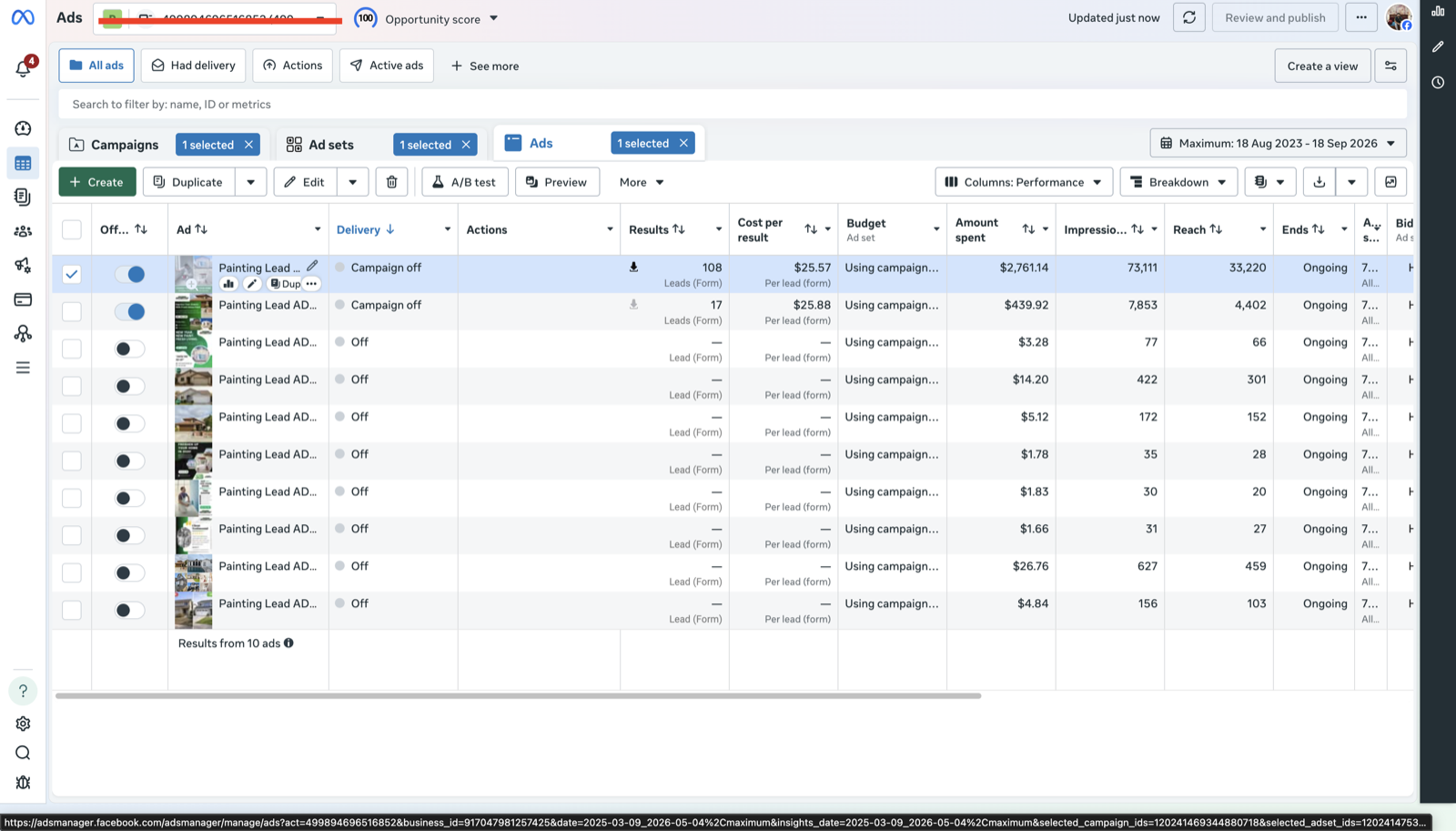 Delivery: is the ad running?
Results: how many leads Meta has
If the Results column shows no leads, the problem is the ad or the form. Check these:
- Delivery: “Campaign off”, “Off” or “Rejected” means the ad isn't showing. Turn it on, or fix what the rejection says.
- Lead Generation Terms: a Page admin must accept Meta's terms once. Ads Manager stops you publishing until they do.
- Privacy policy link: the form needs a working privacy policy page on your website, not a PDF or an image.
- Budget and audience: “Ad set may get zero leads” means the budget or audience is too small to produce results.
2. Send a test lead (the fastest way to find the break)
If Meta has the leads, the break is between Meta and your tool. A test lead finds it in a minute: send one through the same Page and form, then check whether it reached your CRM, email or sheet.
The quickest way is our free Lead Ads Testing Tool. It creates the same official Meta test lead as Meta's developer tool, without the developer screens, and emails the test lead to you so you can compare it with what your CRM received.
Send a Facebook test lead in under a minute
- Continue with Facebook and pick your Page and lead form. No developer account needed.
- Use your own details instead of placeholder text, so strict CRMs accept the test lead.
- Get the test lead by email, answer by answer, then check whether your CRM got the same one.
- Delete it in one click when you want to test again.
Test lead arrived in your inbox but not in your CRM? Meta's own Lead Ads Testing Tool shows why. Pick the same Page and form and read the Page Diagnostics, then click Track Status after creating a lead to see each connected tool and whether it received it.
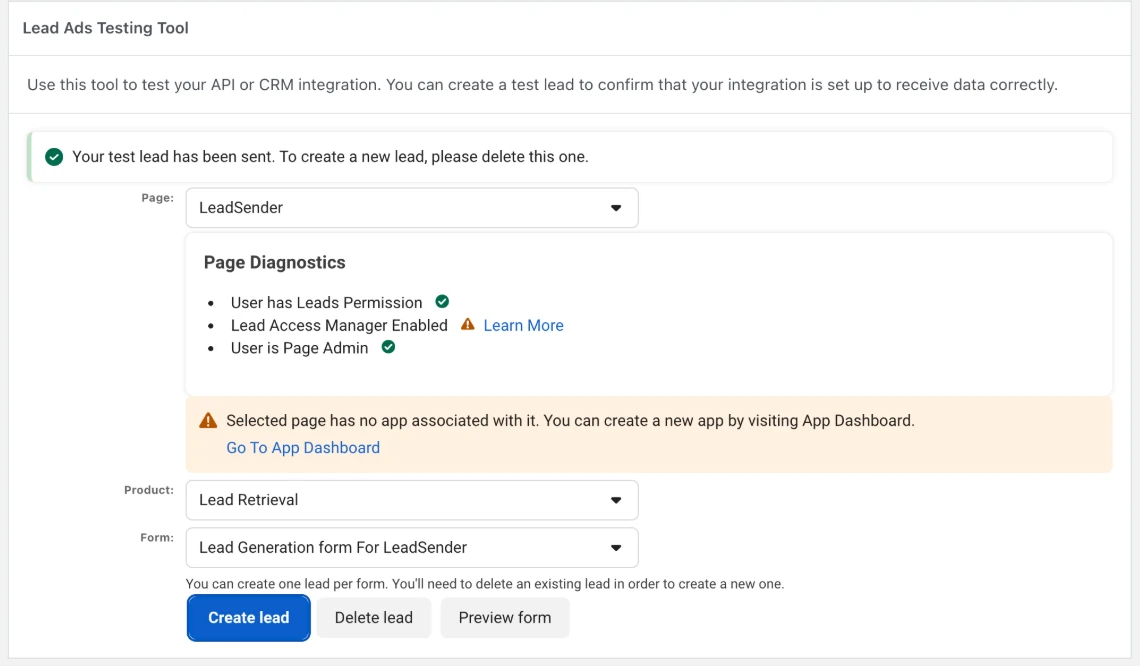 Check these first
What the Page Diagnostics lines and results mean:
| You see | It means | Fix |
|---|---|---|
| “CRM access has been revoked from Lead Access Manager” | Leads access is customized and your tool isn't on the list | Fix Leads access |
| “Lead Access Manager Enabled” with a warning | Access is customized for this Page, so only listed people and tools can read leads | Check your tool is listed |
| “Selected page has no app associated with it” | No tool is set up to receive this Page's leads | Connect or reconnect your tool |
| Your tool listed as a success | Meta handed the lead over: the problem is inside your tool | Check the integration |
| “A test lead was already created for this leadgen form” | Only one test lead per form can exist | Click Delete lead, then create a new one |
3. Fix Leads access (“CRM access has been revoked”)
By default every Page admin can read a Page's leads. Once someone with full control of the business customizes Leads access, only the people and tools on its list can, and anything added later, a new CRM, a new tool, a new admin, stays locked out until it's added. This is the single most common reason leads stop reaching a CRM.
- Open Settings for your business portfolio in Meta Business Suite (you need full control of the business).
- Under Integrations, click Leads access, then select the Page your lead ads run on.
If you see Manage leads access with “By default, all Page admins and connected CRMs can access leads” and a Customise access button, access was never customized. Leads access isn't your problem: move on to reconnecting.
If access is customized, the Page shows who can read its leads instead, in three tabs: People, Partners and CRMs. Only the people listed under People can download leads, even if they're a Page admin.
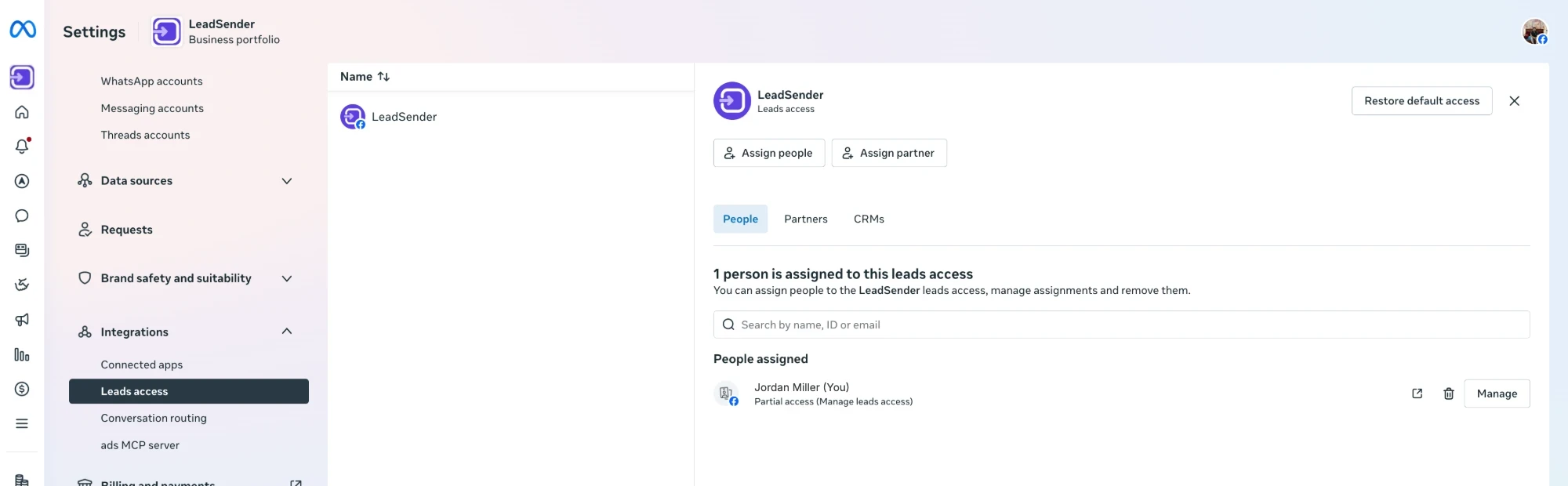 Who can read leads
- Open the CRMs tab. Your lead tool must be listed under CRMs with leads access.
- If it isn't, click Assign CRM and add it. Do the same on the People tab for a teammate who can't see leads.
- Send another test lead and confirm it arrives.
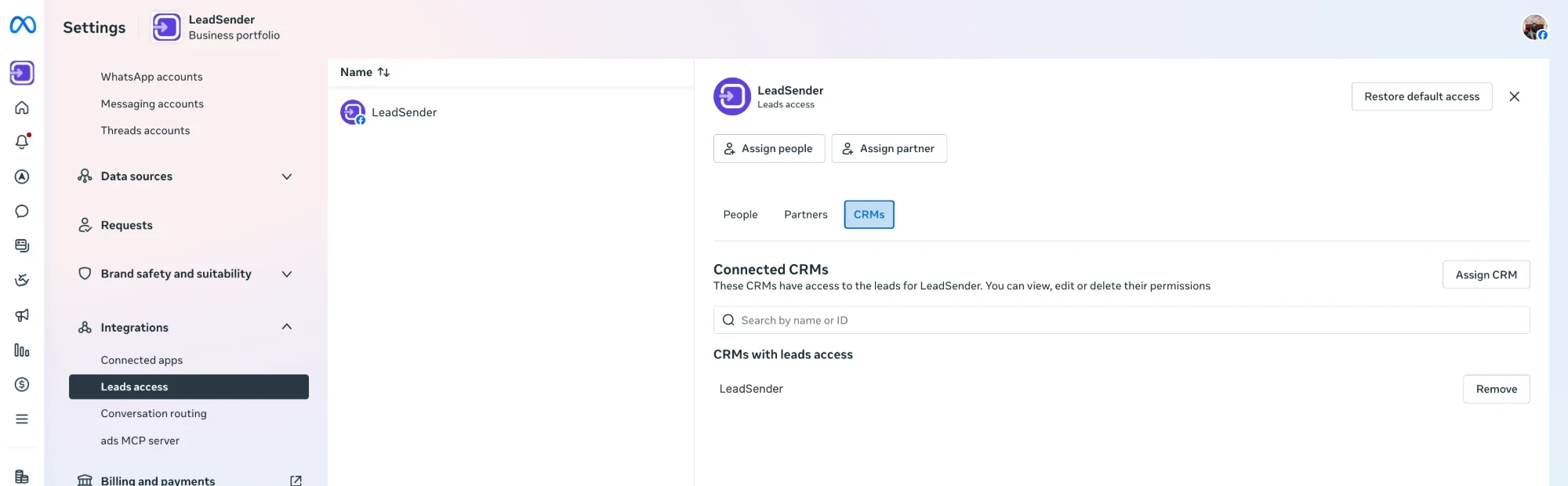 Your tool goes here
Customized access by mistake, or not sure who set it up? Restore default access puts the Page back to the default, where every Page admin and connected CRM can read its leads.
Once Leads access is customized, a Page admin who isn't on the list can't download leads either, and neither can a tool connected with their login. Add both.
4. Reconnect after a change
Your tool reads leads using the Facebook login that connected it. When that login stops being valid, leads stop, often weeks after the change that caused it, with an error like “Error validating access token” (error 190). These changes cause it:
| What changed | What to do |
|---|---|
| You changed your Facebook password | Reconnect Facebook in every tool that reads your leads |
| The person who connected the tool left, or lost admin | Reconnect with an account that is still admin of the Page |
| The tool was removed in Facebook's Business integrations | Reconnect, and approve access to the Page again |
| You moved ads to a new Page | Connect the new Page and point the integration at it |
| You created a new form | Pick the new form in the integration, unless it already sends all forms |
When you reconnect, select the Page and the form again and send a test lead, so you know it's working before the next real lead arrives. In LeadSender, that's step 1 of the integration: pick the Facebook account, the Page and the form. Other tools have the same choice in their Facebook connection settings.
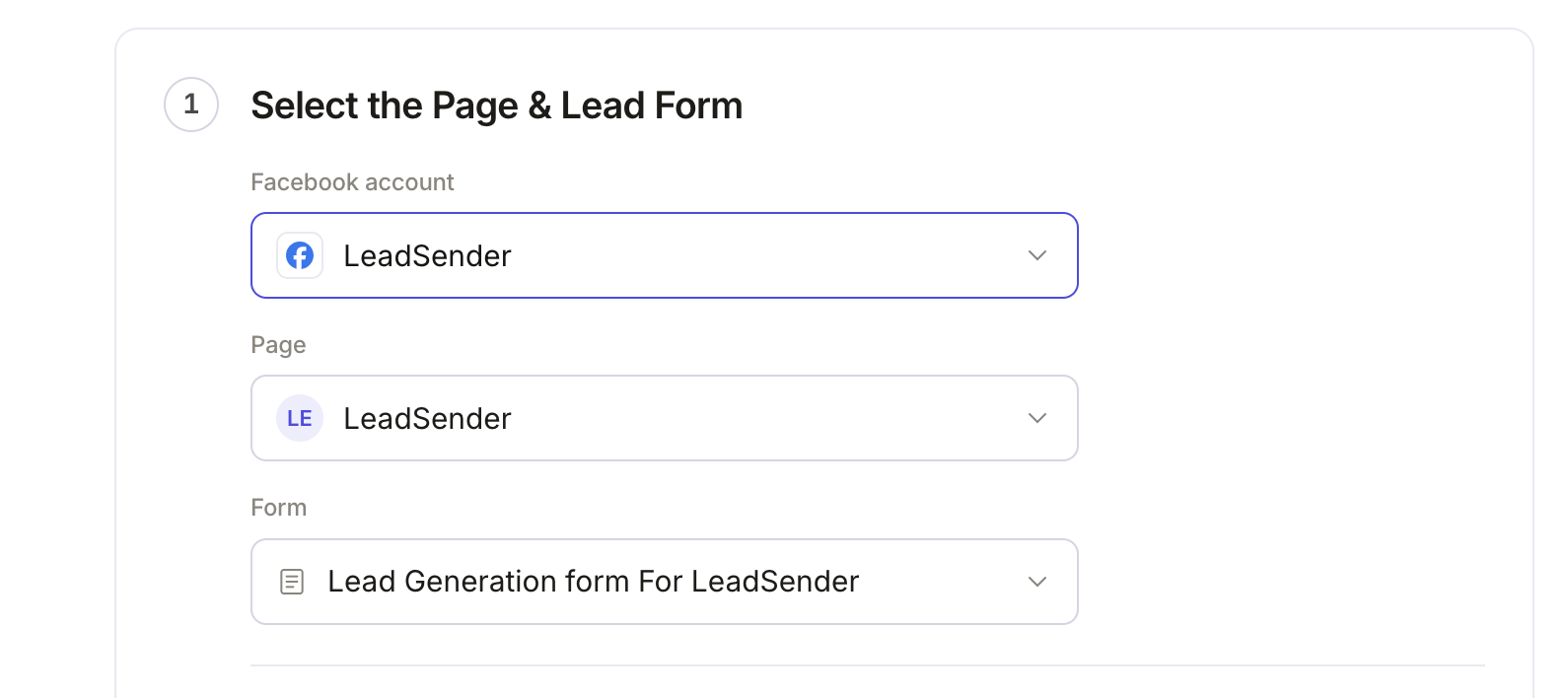 Pick the Page
and form
5. Check the integration itself
If the test lead reached your tool but never reached your CRM, email or sheet, the problem is inside the integration:
- It's turned off: integrations pause when a trial ends, a payment fails or someone switches them off.
- It watches the wrong form: an integration set to one form ignores every other form on the Page, including a copy you made last week.
- The CRM rejected a field: text in a number field, an unknown dropdown value, or a missing required field like last name or email. The integration's history shows the exact reason.
- The destination account changed: a reset API key, a deleted list or sheet, a disconnected CRM account.
In LeadSender, every attempt is listed in Run history with the destination's exact reason in plain English, and a failed lead can be resent in one click once it's fixed.
When only some leads are missing
Partial gaps always have a pattern. Find it by comparing what Meta has with what arrived, lead by lead:
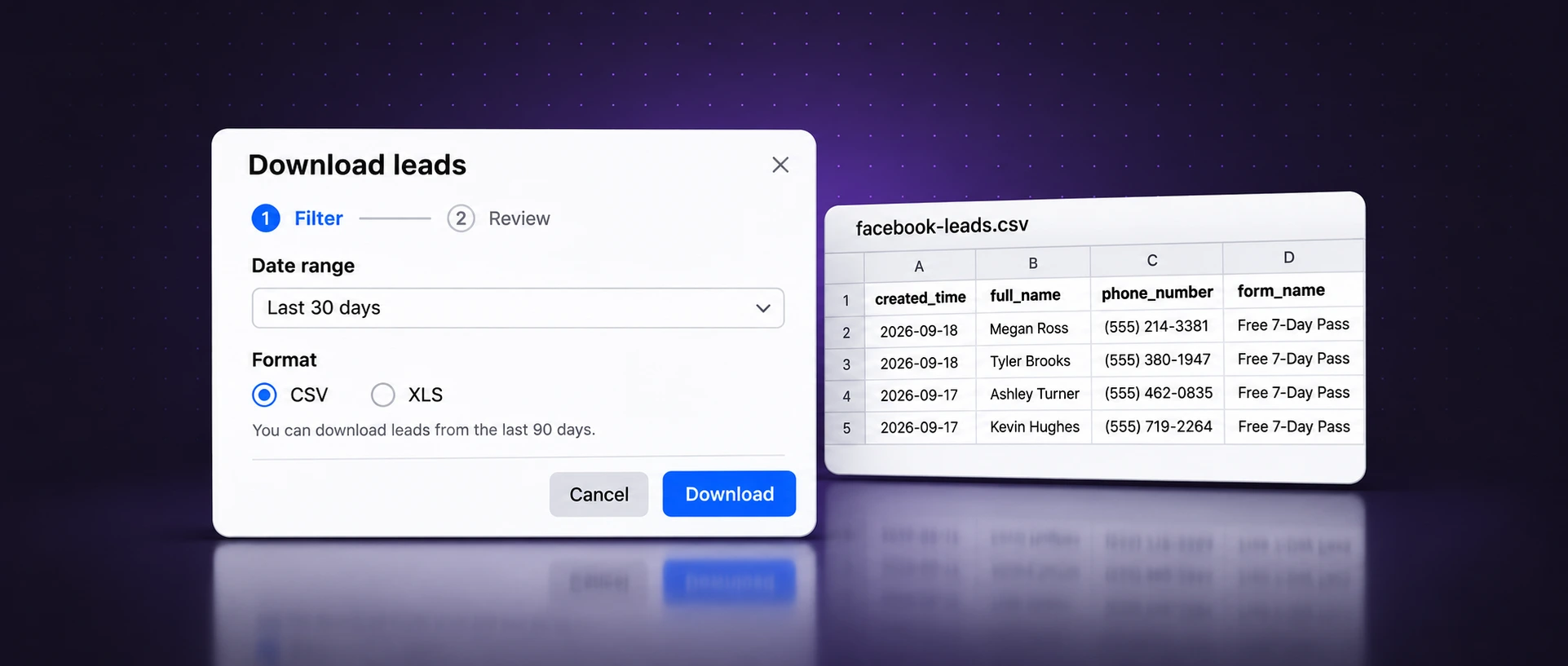
- In Leads Center, filter by the form and the dates of the gap, then download the leads.
- Export the same dates from your CRM, email or sheet.
- Match them by email or phone, and list the leads that are only in Meta.
- Look for what the missing ones share: the same form, the same day, an empty field, an unusual answer.
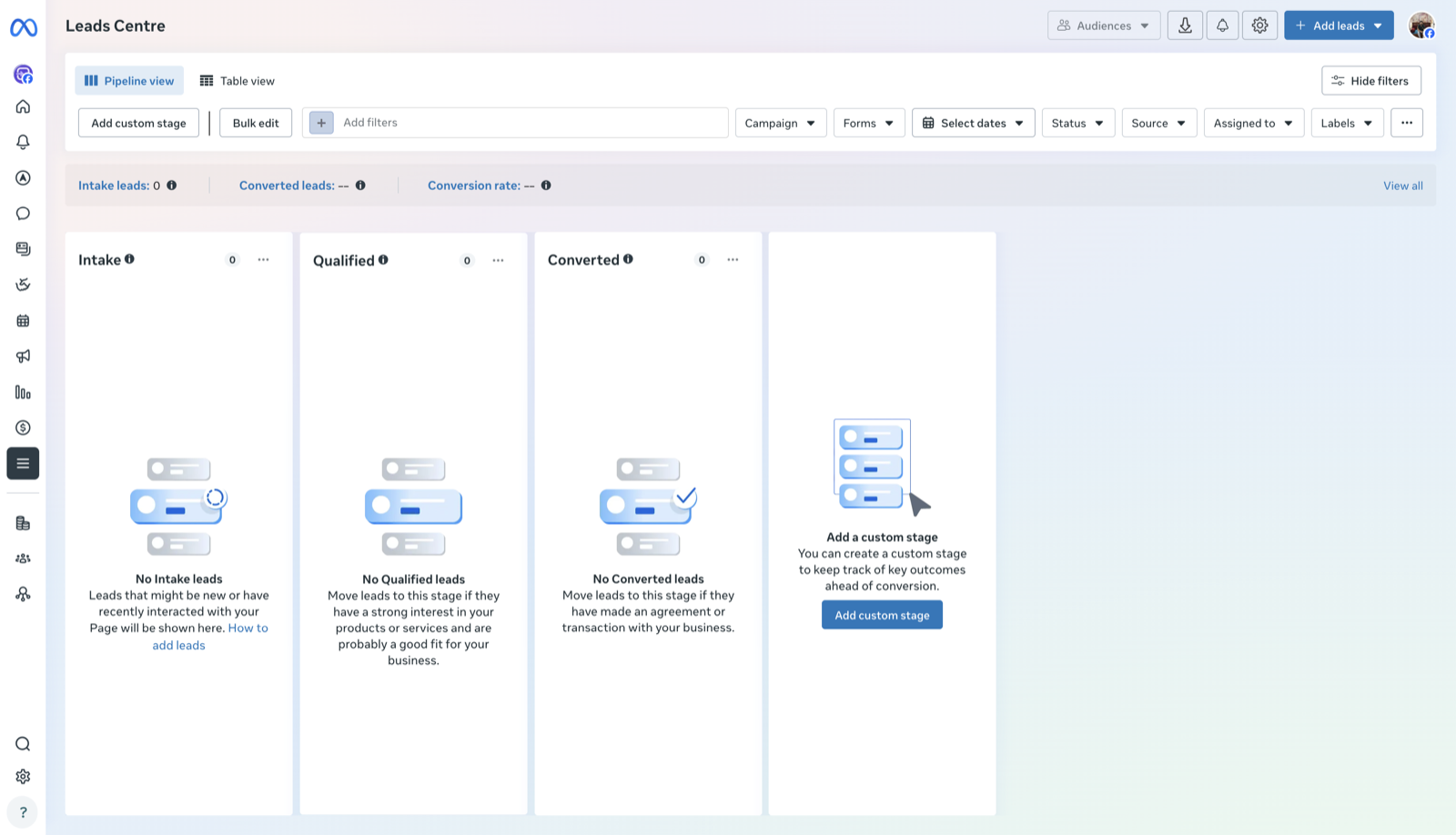 Filter, then download
| The missing leads share | Usual cause |
|---|---|
| One form | The integration watches a different form, or the form belongs to another Page |
| An empty or unusual answer | The CRM rejects that value or needs that field |
| The same email as an earlier lead | Your CRM merged them into the existing contact, so nothing looks new |
| A time window | The connection was broken then, or the tool was paused |
| Nothing at all | Delivery gaps between Meta and your tool. Ask your tool's support with the details below |
When leads arrive late
A lead that shows up an hour later isn't missing, but it's nearly as costly: people who hear back in minutes are far more likely to answer than people called the next morning. How fast leads arrive depends on how your tool gets them:
| How the tool gets leads | How fast | Examples |
|---|---|---|
| Meta's webhook (Meta tells the tool) | ✓ Seconds | LeadSender, most native CRM integrations |
| Polling (the tool asks Meta on a timer) | ⚠ 1 to 15 minutes, or an hour on some free plans | Many automation tools, depending on plan |
| Manual CSV download | ✗ Whenever someone remembers | Downloading from Leads Center |
When old leads never arrive
Integrations deliver leads that come in after they're connected. They don't go back and send the leads you already had. And Meta only keeps each lead for 90 days from the moment it was submitted, then it's gone for good, from Leads Center, Ads Manager and the API.
- Under 90 days old: download them from Leads Center or Ads Manager and import the file into your CRM or sheet.
- Over 90 days old: they can't be recovered from Meta. Check your inbox or any spreadsheet that had them.
- Meta resending old leads: Meta sometimes sends the same old lead again days later. LeadSender only delivers fresh leads, so a backlog never floods your team with week-old names as if they were new.
What to send to support
If none of this finds it, contact your tool's support, or Meta's. The fastest answers come from a message with everything they need to check. Copy this and fill it in:
Hi, some of our Facebook lead ads leads are not reaching our CRM.

Page name: [Page name]
Page ID: [Page ID, from the Page's About section]
Form name and ID: [form name, ID from Forms library]
Time window: [first and last date/time of the missing leads, with time zone]
Missing leads: [number] of [number] in Leads Center for that window
Test lead result: [what Track Status in the Lead Ads Testing Tool showed]
Errors seen: [exact error text, or "none"]

Attached: Leads Center export for the window, and a screenshot of the test result.

Can you tell us whether these leads were sent to our integration, and if not, why?
How to make sure it never happens quietly
The worst part of missing leads is finding out weeks later. These habits catch it the same day:
- Get told when a lead fails. LeadSender emails you the moment a lead can't be delivered, with the reason, and you can resend it from Run history in one click.
- Send every lead to two places. Your CRM, and an email or text alert, so one failing never means a lost lead.
- Send a test lead after every change: a new form, a new Page, a password change, a new admin.
- Keep two admins on the Page and in Leads access, so one person leaving doesn't cut off your leads.
- Glance at Ads Manager against your CRM once a week. The two numbers should match.
Stop losing Facebook leads with LeadSender
- Every lead in seconds, through Meta's webhook, to your CRM, email, SMS or WhatsApp. No polling, no waiting.
- Told the moment a lead fails, in plain English, with a one-click resend once it's fixed.
- Send a test lead from inside the app after any change, and see exactly what arrived.
- 33 apps, from HubSpot, GoHighLevel and Follow Up Boss to Google Sheets and Mailchimp. Set up in about 3 minutes, no Zapier.