














If you have ever gone looking for a plain export button on your Facebook lead ads and come away confused, you are not missing anything. Meta does give you a way to download Facebook leads, but it is tucked into a small, unlabelled icon rather than an obvious button, and it lives in two different places depending on whether you are looking from Ads Manager or from the Page itself.
This guide walks through both routes in full: the desktop and mobile steps for downloading leads from Facebook Ads Manager, the separate path through Lead Center in Meta Business Suite, what the file actually looks like once you have it, and the 90 day limit that quietly deletes leads nobody remembered to export in time.
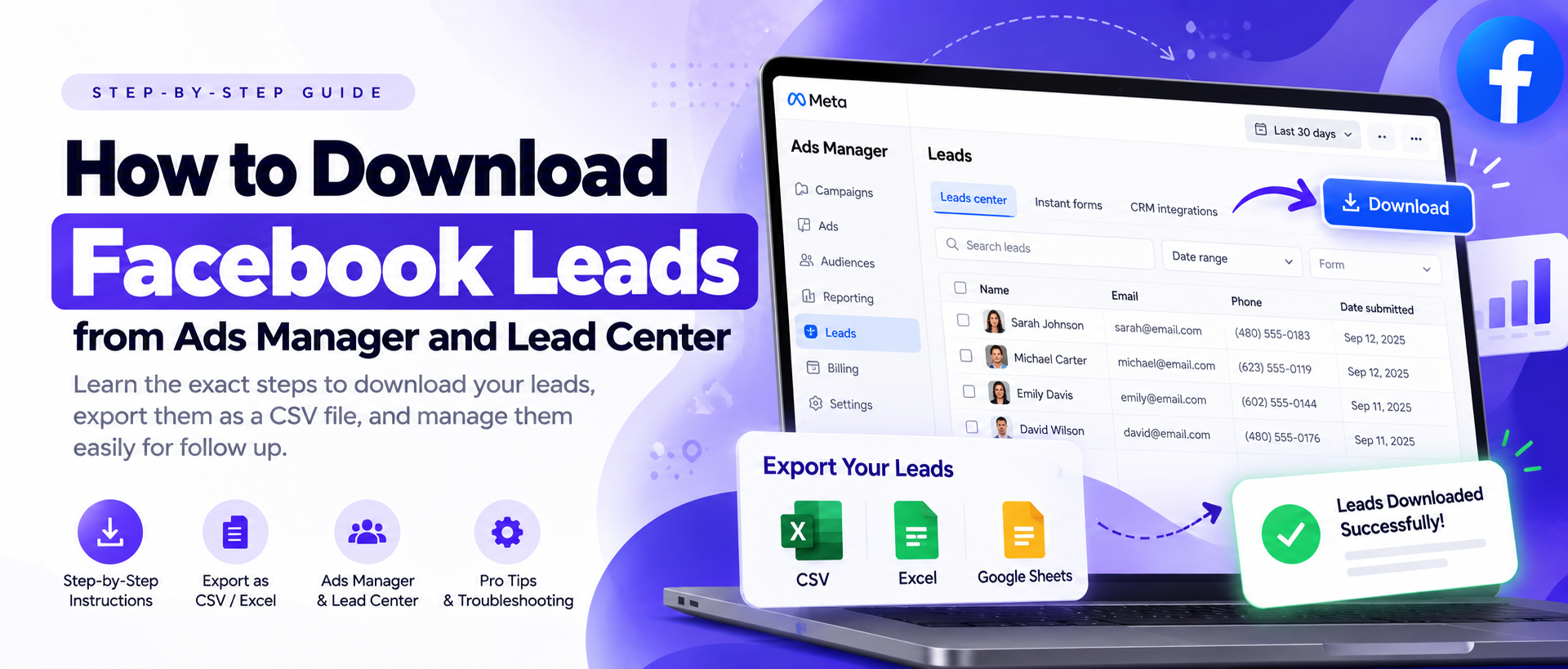
In Ads Manager, open the Ads tab, tick the ad or campaign you want, then click the small download icon inside the Results column, next to that ad's own lead count. That opens a Download leads dialog where you pick a date range, confirm how many leads it found, and choose CSV or XLS. If you would rather work from the Page instead of a specific campaign, open Lead Center in Meta Business Suite and export from there. Either way you get the same file, and either way it is a manual, one-off download, not something that updates itself.
There are only two ways to do this
Whatever way you searched for this (from a page, a campaign, a form, Business Suite) it comes down to two real places, and they both hand you the same file:
Ads Manager
Use this when you know which campaign, ad set or ad the leads came from. You pick the ads, and the export is scoped to exactly those.
See the steps ↓Lead Center
Use this when you manage the Page and just want every lead it has ever collected, no matter which campaign brought it in.
See the steps ↓Both are manual. Both give you a CSV or XLS. Neither one refreshes itself, so downloading today does not mean tomorrow's leads will already be in the file; you would have to repeat the whole thing.
How to download leads from Facebook Ads Manager
This is the route to use when you are already looking at a specific campaign's performance and want the leads that came out of it. It takes under two minutes.
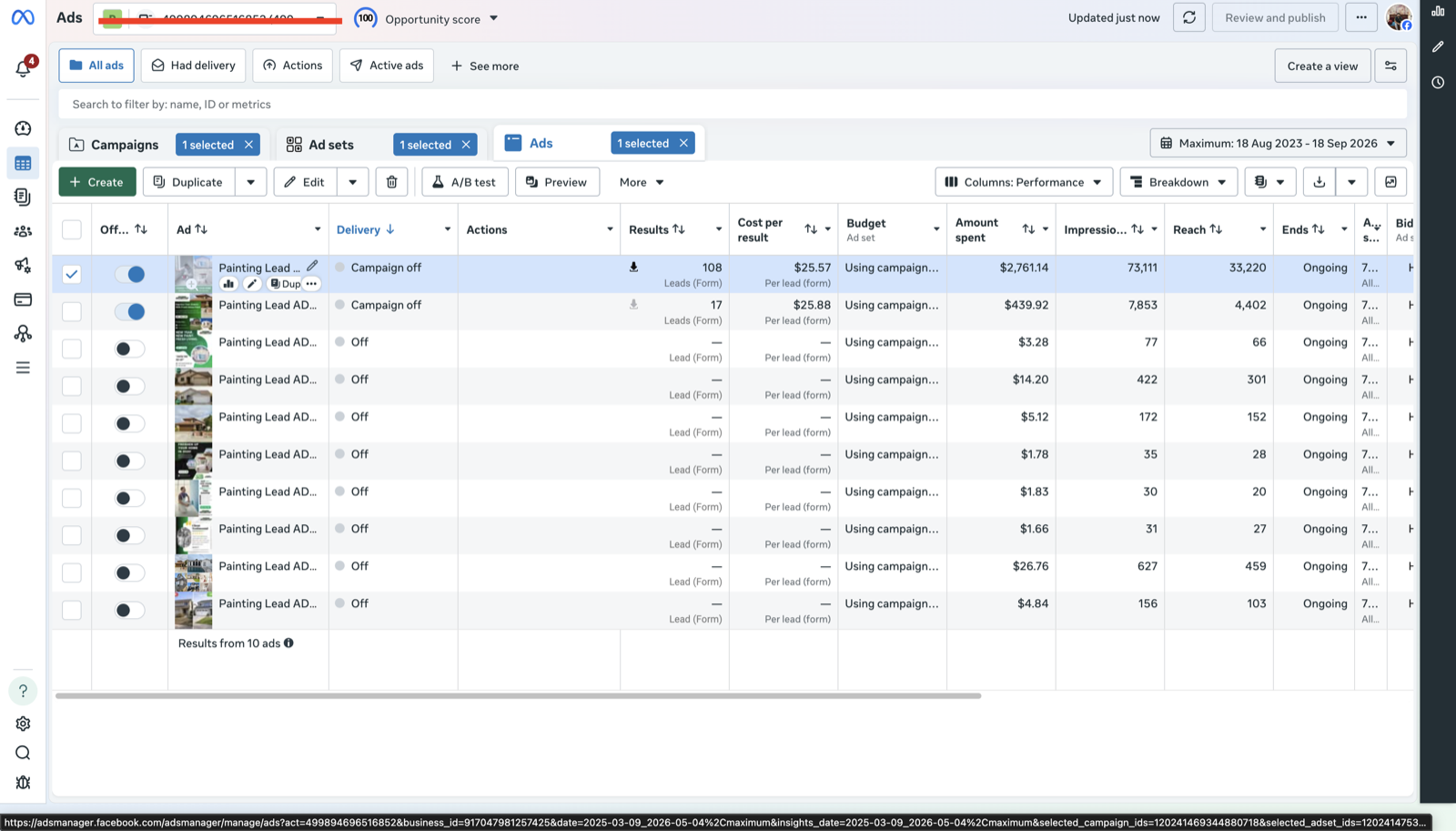 ☝ Click here
Open the Ads tab
In Ads Manager, make sure you are on the Ads tab, not Campaigns or Ad sets. The download tool works from the ad level, so this is where the icon actually appears.
Select what you want leads from
Tick the checkbox beside one ad, several ads, or select a whole campaign or ad set. You can select more than one at a time; the next step tells you exactly how many leads that whole selection adds up to.
Click the download icon in the Results column
It is small and easy to miss the first time: a plain arrow pointing into a tray, sitting inside the Results column next to the lead count itself, for example right beside “108 Leads (Form)”. It only lights up once the row's checkbox is ticked. Clicking it opens the Download leads dialog. This is not the same as the export icon further up in the toolbar, which downloads the performance table instead of the leads themselves.
Set your filter
The dialog opens on a Filter step with two things to check: the Ad object (which ads are included, already matching your selection) and a Date range. As soon as both are set it tells you the real number, for example “9 leads found”, so you know before you download whether the range is actually right.
Review, then pick a file type
Click Next to land on a Review step that repeats the lead count, the ad objects included and the date range in plain language. Choose CSV if you are not sure what you will open it in, or XLS if you know it is going straight into Excel.
Download and open the file
Click Download. The file goes to your browser's usual downloads location, and opens in Excel, Google Sheets or Numbers with one row per lead and one column per question on your form.
You do not need to repeat this once per campaign. Select ads across more than one campaign before clicking the download icon, and the Filter step will combine them into a single lead count and a single file, as long as they are all in the same ad account.
Downloading leads on mobile
Downloading Facebook leads on mobile works differently, because Ads Manager's mobile site does not support the download dialog described above. The reliable way to get leads from a phone is the Meta Business Suite app, not the Ads Manager app:
- Open the Meta Business Suite app and sign in as an admin of the Page.
- Go to Leads Centre for that Page.
- Use the export option there to download the same CSV you would get from a desktop browser.
In practice, a phone is the right tool for checking a lead in a hurry, not for working with a spreadsheet afterwards. If you need to actually do something with the file (import it into a CRM, hand it to someone, open it in Excel), it is worth waiting until you are at a laptop.
How to download from Lead Center
Lead Center, inside Meta Business Suite, is the Page level view of every lead you have ever collected. Where Ads Manager organises leads by campaign, Lead Center organises them by Page, so it is the route to use when Ads Manager is not the natural starting point, for example when you manage the Page but somebody else runs the ads, or when you just want everything the Page has ever collected in one list.
It does more than hold a downloadable list, which is why it is worth knowing on its own rather than as a second export button. Lead Center is also where you:
- Work leads without leaving the browser. The Pipeline view sorts leads into stages (Intake, Qualified, Converted, or custom ones you add) so a team can see where each lead actually stands, not just that it exists.
- Read the full submission. Click into any lead to see every answer they gave, without opening a spreadsheet at all.
- Filter by campaign, form, status, source or the person it is assigned to, which is useful even if you end up downloading anyway, since it lets you scope the file before you export it.
- Get an in-app alert when one arrives, if you have the Meta Business Suite app installed, which is the closest thing Meta offers to a lead notification.
For downloading specifically, the good news is that it takes fewer steps than Ads Manager: the download icon sits in the main toolbar itself, so you do not need to open a specific view or select anything first.
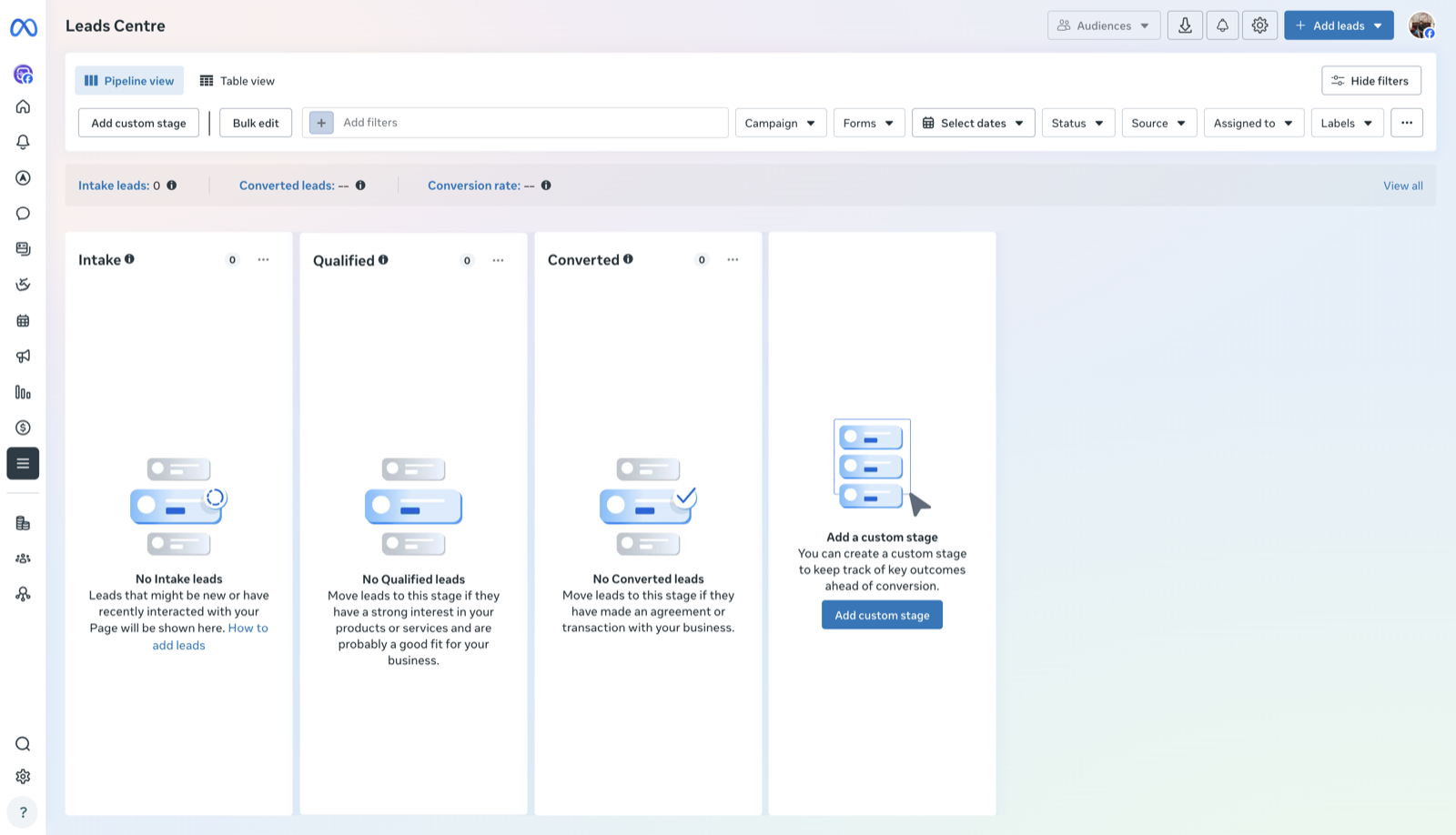 ☝ Click here to download
Once you open Lead Center for your Page:
- Optionally, filter first using Campaign, Forms, Select dates, Status or Source along the top, if you only want a subset of leads.
- Click the download icon in the top toolbar, next to Audiences and the bell. You do not need to switch out of Pipeline view or select individual leads first.
- The same Filter and Review dialog Ads Manager uses opens from here. Confirm the lead count, choose CSV or XLS, and download.
Because Lead Center and Ads Manager both read from the same underlying lead store, downloading from either one gives you the same data. Pick whichever one you are already looking at, or use Lead Center specifically when you want to work the leads (assign, tag, move through stages) rather than just export them.
Skip the download and get every lead delivered automatically
Connect your Page once and every new lead is sent straight to your CRM, email, phone or a Google Sheet the moment someone submits your form, with a free LeadScore on each one. No CSV, no 90 day clock, no logging into Ads Manager to check what came in.
Opening the CSV or XLS once you have it
The exported file has one row per lead and one column per question your form asked, including the standard fields (name, email, phone) and any custom questions you added.
- Google Sheets is the safest default. Import it and the columns line up correctly, including any special characters in someone's name or address.
- Excel opens XLS directly, or CSV through File > Import if double clicking it produces oddly formatted columns.
- A CRM's import tool will usually want CSV specifically, and will ask you to match each column to a field during import, which is the point where a badly named form question becomes obvious.
The 90 day limit nobody warns you about
This is the detail that turns a one-time question into a recurring chore. Meta's own Business Help Centre states that lead data is only available to download for up to 90 days from when it was submitted. After that window, the leads are deleted and cannot be recovered, even though the campaign's own Results column will still show the historical count as if nothing had changed.
A campaign you ran three months ago and never got around to exporting is already gone, not just hard to find. Meta will not warn you before the window closes, and there is no way to ask for the data back afterwards. If you run ads regularly and only ever remember to download leads when someone asks for them, this is usually the moment that changes.
When the download does not work
A handful of things account for almost every problem people hit here:
- No download icon, or it is greyed out. Almost always a permissions issue. You need Advertiser or Analyst access on the ad account, and an admin may need to grant lead access separately.
- The file downloads but opens blank. Check the date range you set in the Filter step first; a range that does not actually cover when leads came in produces a technically correct, empty file.
- Columns look scrambled in Excel. Try opening the same file in Google Sheets instead. Meta's CSV encoding is read correctly there more reliably than by every version of Excel.
- The leads you expect are simply not there. Check the 90 day window above before assuming the export is broken. If the campaign ran longer ago than that, the data is gone rather than hidden.
- You can see the leads in Lead Center but not in Ads Manager, or the other way round. Access to the two is granted separately in some Business Manager setups. If one works and the other does not, that is almost always why.
Best option: skipping the download entirely
Downloading is fine for a one-off, for a client who asked for a report, or for a campaign you ran once. It stops being fine the moment you are doing it every week, because it means every lead sits unseen until someone remembers to go and export it, and the 90 day window is a real deadline attached to that habit.
The actual fix is not a better way to download. It is not needing to download at all. Connecting your Page to a delivery tool sends each lead automatically the moment it is submitted, straight to email, Google Sheets, your CRM or a text message, so the export step disappears completely rather than becoming easier.
Downloading Facebook leads: FAQs
Where do I download leads from Facebook?
There are only two real places: Ads Manager (Ads tab, the small download icon inside the Results column) and Lead Center inside Meta Business Suite, which you can open directly at business.facebook.com/latest/leads_center. Both give you the same CSV or XLS file. Ads Manager is faster if you already know which campaign the leads came from; Lead Center is easier if you just want every lead on the Page.
How do I access or see my Facebook leads without downloading a file?
Open Lead Center in Meta Business Suite. It shows every lead as a real list you can read, filter and work through (assign it, move it through pipeline stages, reply to it) without exporting anything. Downloading is only necessary when you actually need the data outside Facebook, for example in a spreadsheet or a report.
How do I download leads from Facebook on mobile?
Through the Meta Business Suite app rather than Ads Manager's mobile site, which does not support the download flow. Open the app, go to Leads Centre for your Page, and use the export option there. On a phone, treat this as a way to check leads quickly. If you need to actually work with the exported file, a laptop is much easier.
How long do I have to download a lead before it disappears?
Meta's own Business Help Centre states that leads are only available to download for up to 90 days from when someone submits the form. After that the data is deleted and cannot be recovered, even though your campaign's Results column will still show the historical lead count. If you run ads regularly, this window is the whole reason people end up automating delivery instead of downloading by hand.
Why is there no download button in Ads Manager?
Almost always a permissions issue. You need Advertiser or Analyst access to the ad account at minimum, and lead access specifically may need to be granted separately by whoever manages the Business Manager. If you can see the ads but the download icon is missing or greyed out, ask an admin to check your role rather than assuming something is broken.
Can I download leads from a Facebook Page without Ads Manager?
Yes. Lead Center in Meta Business Suite is tied to the Page, not to a specific campaign, so you can open it and download every lead the Page has collected without touching Ads Manager at all. This is the route to use if you did not run the ads yourself but manage the Page.
Why is my downloaded CSV blank or missing columns?
Two common causes. First, the date range in the Filter step may not actually cover when the leads came in, so the file is technically correct and simply empty. Second, some spreadsheet apps misread the file's encoding and show blank or garbled cells even though the data is there. Try opening it in Google Sheets, which handles Meta's CSV export reliably, before assuming the export itself failed.
Does downloading a lead delete it from Lead Center?
No. Downloading only makes a copy. The lead stays in Lead Center until Meta's own 90 day window removes it, so you can download the same leads more than once with no risk of losing anything.
What is the difference between CSV and XLS when downloading leads?
CSV is a plain text file that opens in literally anything, including Google Sheets, Numbers and every CRM's import tool. XLS opens directly in Excel with the columns already formatted. If you are not sure what you will do with the file afterwards, CSV is the safer default because nothing rejects it.
Can I download leads from more than one ad at once?
Yes. Select multiple ads, an entire ad set, or a whole campaign before clicking the download icon, and the Filter step will show you the combined lead count across everything you selected.
Do Instagram lead ads download the same way?
Yes. Instagram lead forms run through the same Meta lead ads system as Facebook, so they show up in the same Ads Manager account and the same Page's Lead Center, and they download through the identical Filter and Review flow.
Is there a way to stop downloading leads manually every day?
Yes, and it is the actual fix rather than a workaround. Connecting your Page to a delivery tool such as LeadSender sends every new lead the moment it is submitted, straight to your CRM, email, phone or a spreadsheet, so nobody has to remember to open Ads Manager and export a file before the 90 day window closes.
Getting started
If you only needed a file for today, the steps above get you there in under two minutes from either Ads Manager or Lead Center. If you are tired of it being a recurring task, and of the 90 day window quietly deciding which leads you get to keep, that is what automatic lead delivery is for, and the trial is long enough to run a real campaign through it before you decide.