













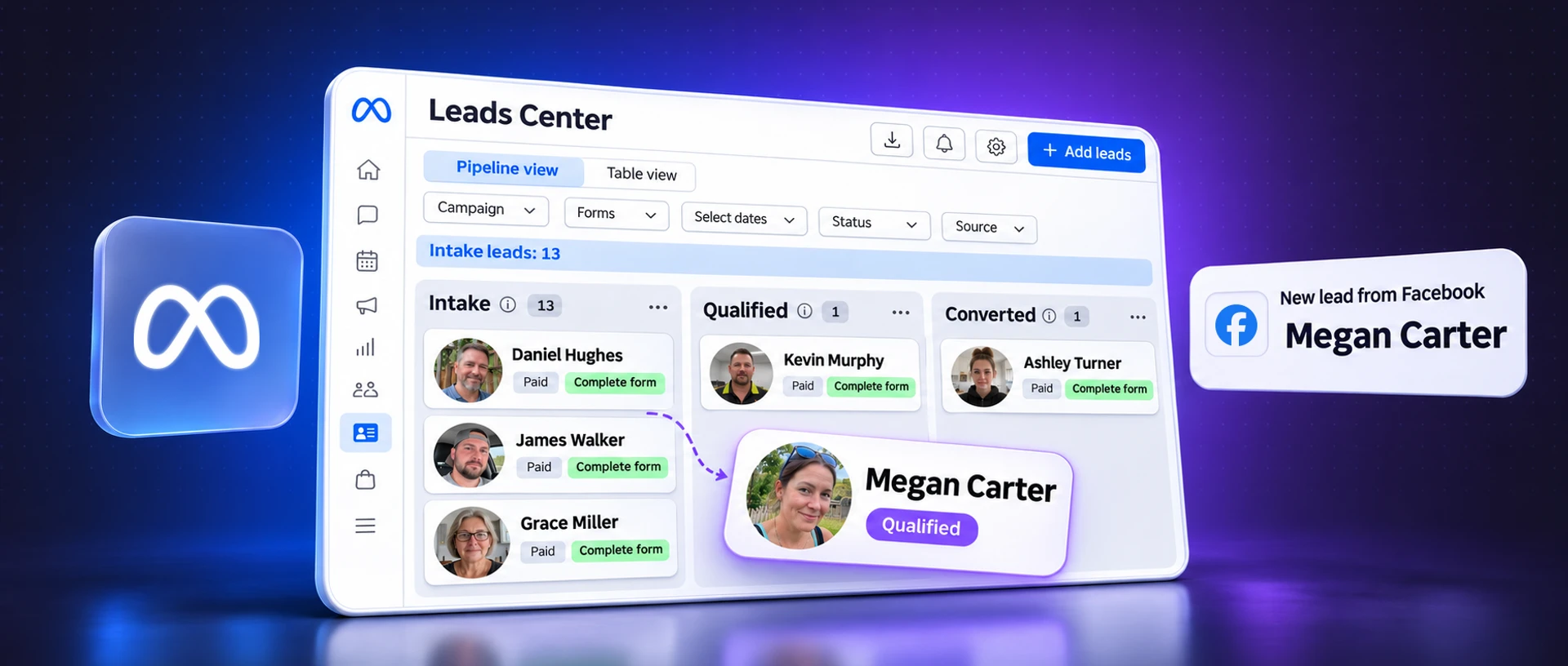
Every lead from your Facebook and Instagram lead ads ends up in one place inside Meta: Leads Center. It is easy to miss, it opens on whichever Page you used last, and its download quietly leaves out the answers you asked for. This guide shows where Meta Leads Center is, the one link that opens it on the right Page, how to work your leads through it, and what to do when it looks empty.
Open business.facebook.com/latest/leads_center, or go to Meta Business Suite and click Leads Center in the left menu (or All tools > Engage audience). Check the Page name at the top left first. Three things catch everyone out: its download has no custom answers, leads can only be downloaded for 90 days, and Meta never sends you the lead itself by email or text.
What Meta Leads Center is
Leads Center (spelled Leads Centre if your Facebook is set to UK English) is a free page inside Meta Business Suite that keeps track of the people who are interested in your business. It pulls in leads from three places: lead ads with instant forms, ads that click to message, and organic Messenger and Instagram conversations. Each one appears as a row you can sort, filter and move through a simple sales pipeline.
Think of it as a lightweight CRM that Meta gives you for free. It is good at one thing: seeing who came in and where each lead stands. It is not built to tell you the moment a lead arrives, and it does not follow up for you.
How to open Leads Center
There are three ways in. They all open the same Leads Center.
From Meta Business Suite
Click Leads Center in the left menu. Not there? Click All tools, then find it under Engage audience.
From your Facebook Page
Open your Page, click Business Dashboard in the menu, then Leads Center.
The third way is the fastest: the direct link, business.facebook.com/latest/leads_center. Bookmark it. If you manage more than one Page, add your Page ID so it always opens on the right one. The tool below builds that link for you.
Leads belong to the Facebook Page the ad ran from, not to you or your ad account. Business Suite opens on the last Page you used, so a Leads Center that looks empty is usually just showing a different Page. The Page name sits at the top left of Business Suite.
Free tool: your Leads Center link, and what to do next
Paste your Page ID to get a link that always opens Leads Center on that Page, then pick what you need. Every answer is a real menu path from Meta's own help pages.
Find it on your Page: About > Page transparency, or in Business Suite under Settings. It stays in your browser.
https://business.facebook.com/latest/leads_centerCheck the Page name at the top left first. Leads belong to the Page the ad ran from, and Business Suite opens on the last Page you used.
Open Leads Center →- Open Leads Center
- Meta Business Suite > Leads Center. Or All tools > Engage audience > Leads Center. From your Page: Business Dashboard > Leads Center. Check the Page name at the top left first. Leads belong to the Page the ad ran from, and Business Suite opens on the last Page you used.
- See every answer from my form
- Download from Ads Manager instead. Ads Manager > Ads tab > tick the ad > download icon in the Results column. A Leads Center download only has date, name, email, phone, stage, source and owner. Your own questions are left out. The Ads Manager file has every answer.
- Give a teammate access
- Business portfolio settings > Integrations > Leads access. Gear icon next to your business portfolio > Integrations > Leads access. Page admins can see leads by default. Once someone customises Leads access, new admins and new apps see nothing until they are added by name.
- Leads Center is empty
- Check these four things, in order. 1. The Page selector (top left). 2. Leads access. 3. Saved filters. 4. The date: leads older than 90 days are gone. Then send a test lead with Meta's Lead Ads Testing Tool. If the test lead does not show, the problem is inside Meta, not in your CRM.
- Get told when a lead arrives
- Meta does not email you the lead. The Business Suite and Ads Manager apps can only tell you that a lead arrived. The lead itself stays in Leads Center. To get the name, phone and answers the moment someone submits, send each lead to your email, phone or CRM.
- Find leads older than 90 days
- They can no longer be downloaded. Meta keeps leads available for 90 days after the form is submitted. Your ad results still count them. There is no way to get them back from Meta. Download often, or send every lead out the moment it arrives so the 90 days never matter.
Pipeline view and Table view
Leads Center shows the same leads two ways. Switch between them with the tabs at the top.
| View | What you see | Best for |
|---|---|---|
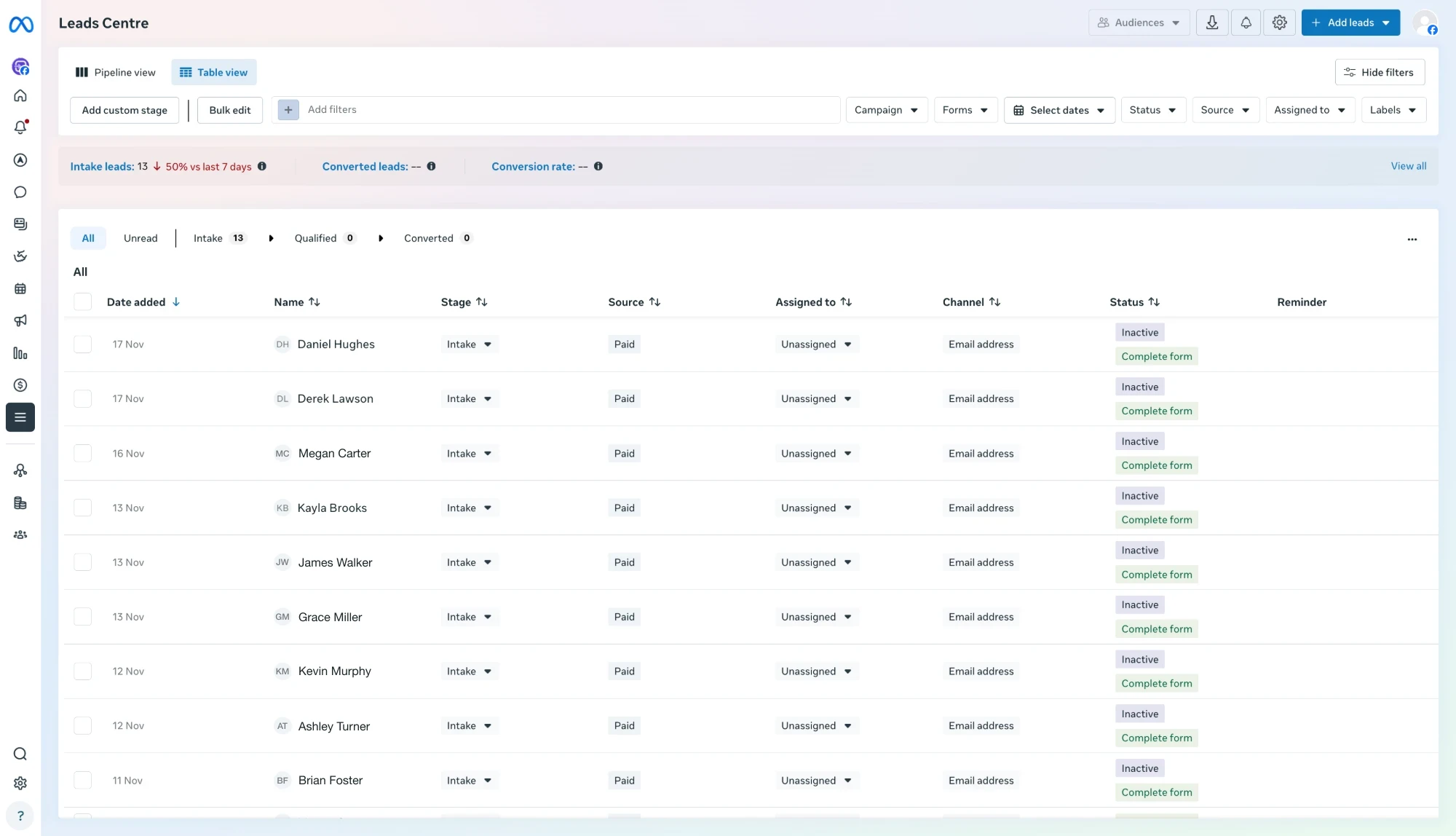
| Table view | One row per lead. Sort by date added, name, source, channel, stage or owner. | Finding a lead, filtering, downloading |
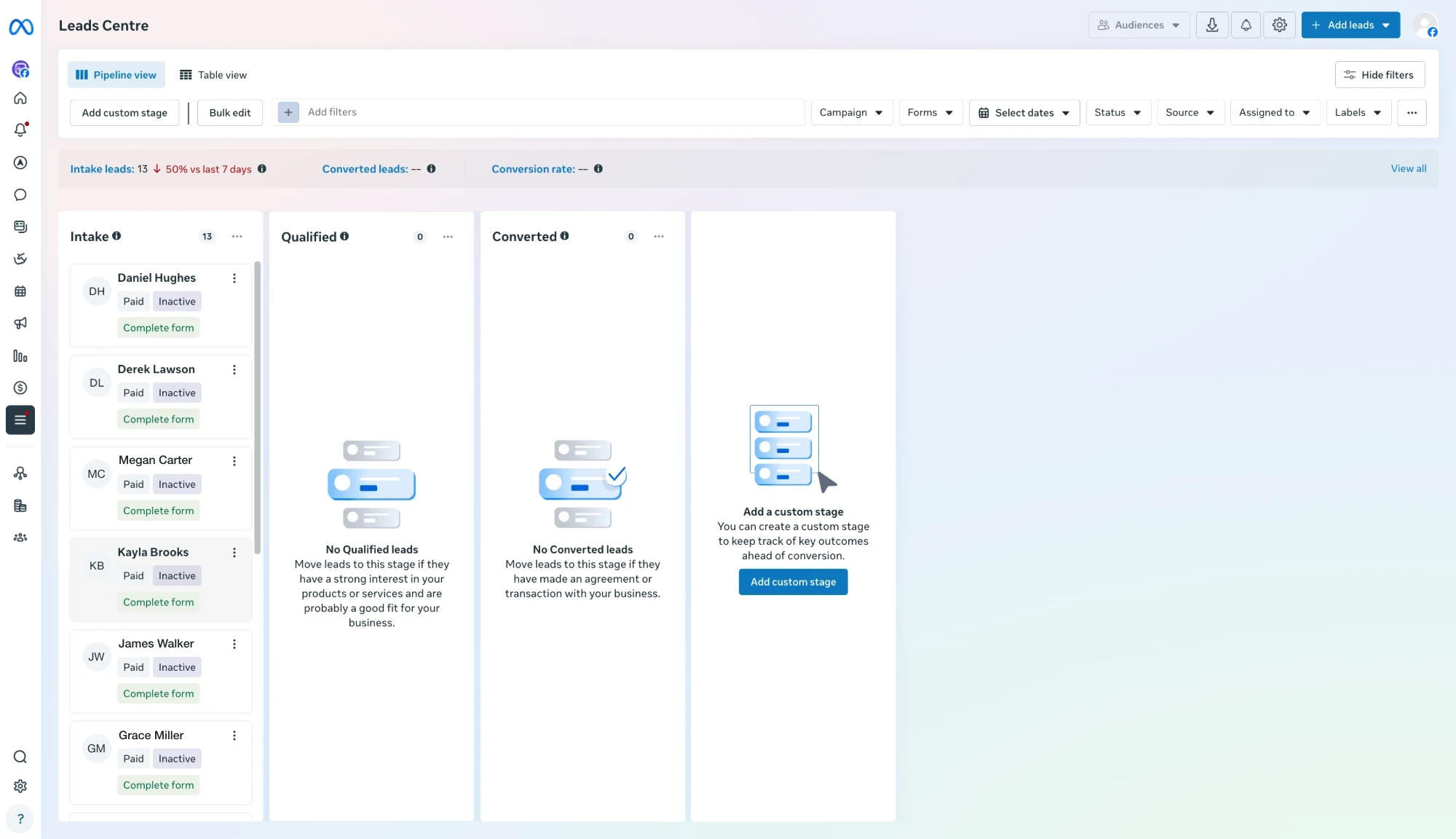
| Pipeline view | One column per stage. Drag a lead card from Intake to Qualified to Converted. | Seeing where every lead stands at a glance |
Working a lead in Leads Center
Click any lead to open its contact card. From there you can:
- Read the form answers. A Complete form label means the answers are on the contact card.
- Move it to a stage with the Stage drop-down. New leads start as Intake.
- Give it an owner with the Unassigned drop-down, so one person is clearly calling.
- Add a label or a note, for example “called, voicemail” or “wants a quote Friday”.
- Schedule a reminder for the owner to follow up.
- Message the lead if it came from Messenger or Instagram.
- See where it came from. Click the Paid source label to see the ad or a preview of the form they filled in.
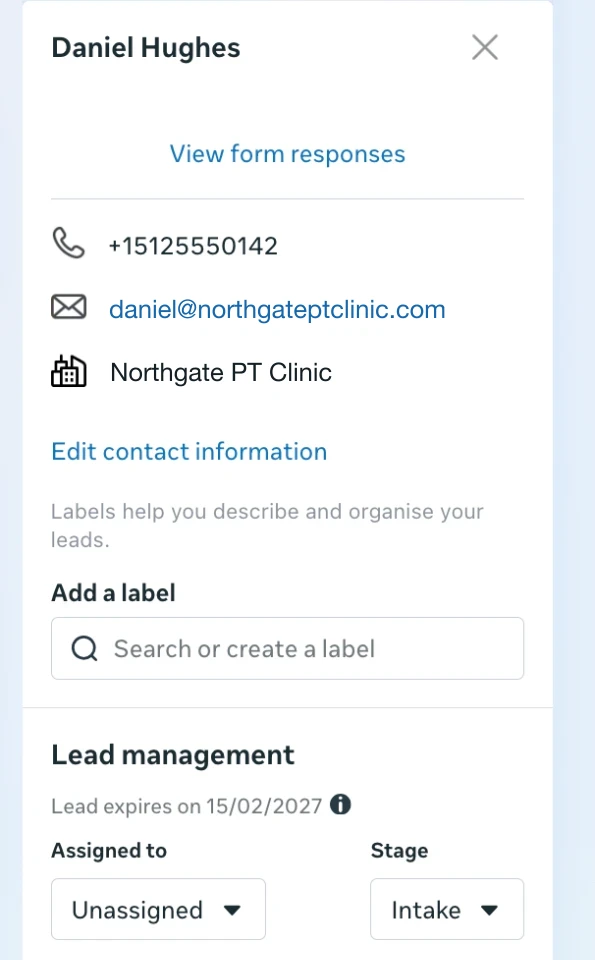
Look under Lead management: every lead shows the date it expires, 90 days after it came in. After that date it can no longer be downloaded.
Working through a batch? Bulk edit at the top changes the owner or stage of many leads at once. Filters narrow the list by form, date added, source, owner or label, and Add filter reaches campaign ID and ad ID.
Change your stages to match how you sell
Open Leads Center, click the gear (Settings) and scroll to Lead funnel. On a real account the stages sit in four fixed groups:
| Group | Stages | Can you change it? |
|---|---|---|
| Top | Intake | No. Every new lead lands here |
| Middle | Qualified, plus any you add | Yes. + Create stage adds one; drag to reorder |
| Bottom | Converted | No |
| Complete | Lost, Not qualified | No |
So your own steps go in the middle: a roofer might add Inspection booked and Quote sent between Qualified and Converted. The same Settings window also has Permissions, where you add teammates by name or email so they can work leads without full Page access.
A roofer might use Intake, Inspection booked, Quote sent, Won and Lost. Keep it to five or six stages; more than that and nobody keeps them up to date.
What a Leads Center download leaves out
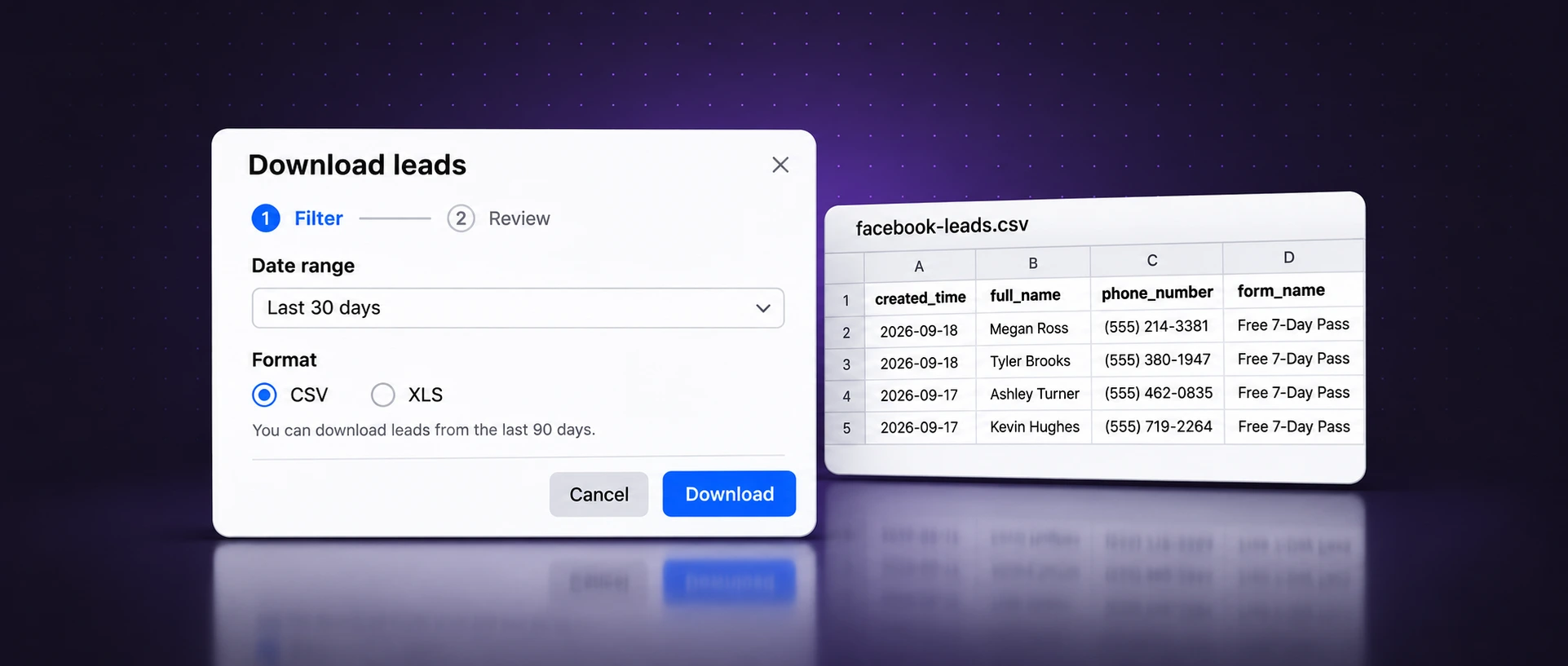
Leads Center has a Download icon at the top right that saves the leads in your current filter as a CSV. Before you rely on it, know what is in the file, because it is not the same file Ads Manager gives you:
| Leads Center download | Ads Manager download | |
|---|---|---|
| Name, email, phone | Yes | Yes |
| Date | Yes | Yes (created_time) |
| Stage, source, owner | Yes | No |
| Answers to your own questions | No | Yes |
| Ad, ad set, campaign and form names | No | Yes |
| Facebook or Instagram (platform) | No | Yes |
So if you asked “When are you looking to buy?” or “What is your budget?”, those answers are not in the Leads Center file. Download from Ads Manager, or from the instant forms page in Business Suite, when you need every answer. Here is how to download every answer, step by step.
The 90-day rule
Meta keeps leads available to download for up to 90 days after someone submits your form. After that they are gone from the download, even though your ad's Results column still counts them. That is why the number of leads in your file can be lower than the number Ads Manager reports.
Meta's own advice is to download often or connect a CRM. If a lead is worth paying for, it is worth sending somewhere you own the moment it arrives.
Leads Center not showing leads? Check these in order
An empty Leads Center looks like this, with “No Intake leads” in every column. It almost never means your leads are gone.
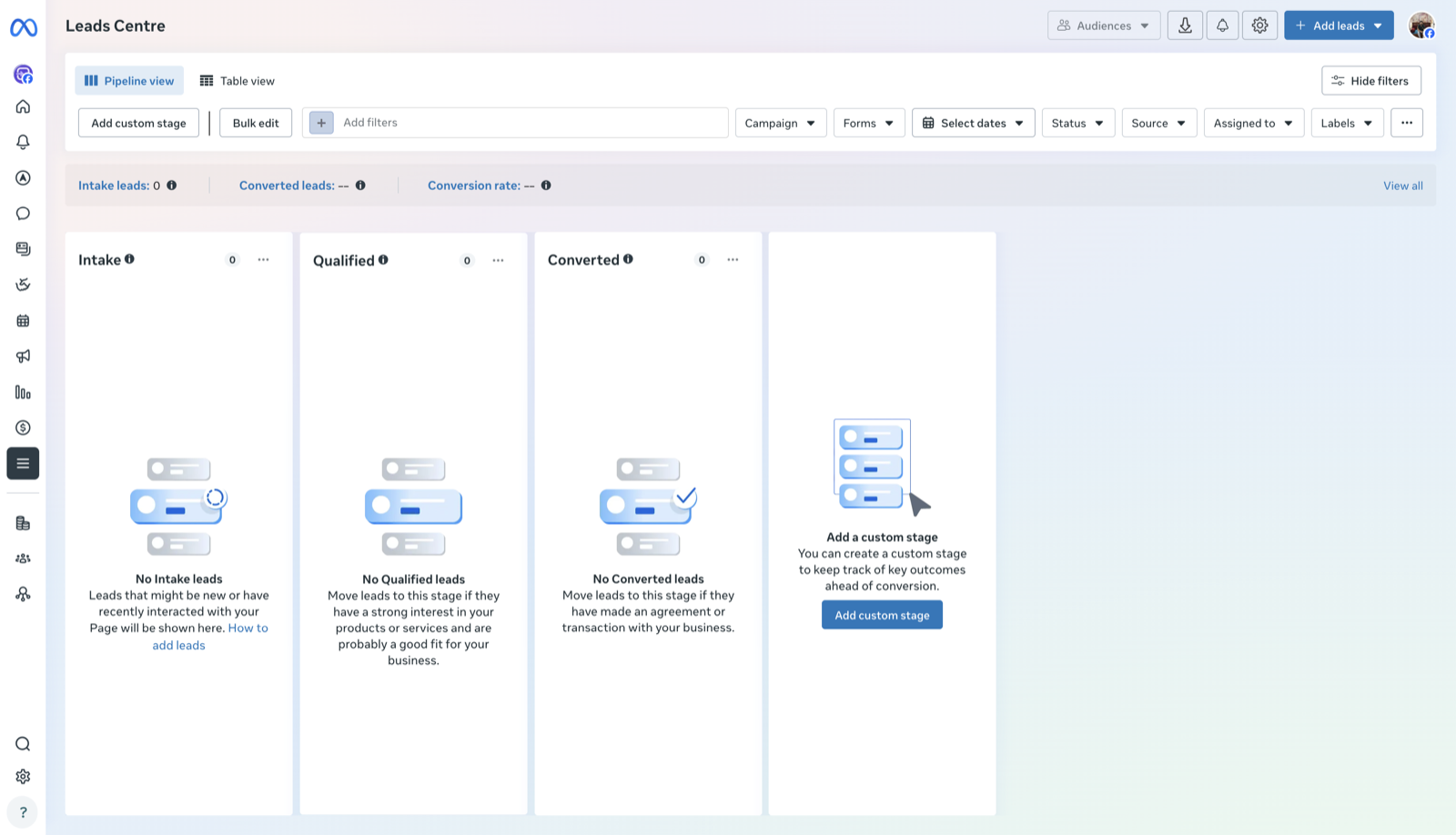
| What you see | Likely cause | Fix |
|---|---|---|
| Leads Center is empty | Business Suite is on another Page | Switch the Page at the top left to the one the ad ran from, or use your direct link |
| Empty, or the download has headers but no rows | No leads access for your account | A full-control admin adds you: portfolio gear > Integrations > Leads access |
| Some leads are missing | A saved filter | Clear the filters and the search bar |
| Older leads are missing | The 90-day rule | They cannot be recovered. Send leads out of Meta as they arrive |
| New leads stopped coming into your CRM | Leads access was customised and your app was left out | Add the app under Leads access, then send a test lead |
A note on leads access: Page admins can see leads by default. As soon as someone with full control of the business portfolio customises leads access, new admins and new apps get nothing until they are added by name. People see an error when they try to download, and apps stop receiving new leads.
The fastest way to find where it breaks is a test lead from Meta's Lead Ads Testing Tool. If the test lead shows up in Leads Center but not in your CRM, the problem is your connection. Our missing-leads guide walks through every cause.
Leads Center on your phone
Yes, Leads Center is on your phone too. We checked on a real account: the Meta Business Suite app has its own Leads Centre screen, with the stages as tabs along the top (Intake, Qualified, Converted, Lost), each with its lead count, and a Most recent sort. Tap a lead to see its details. Meta's help pages also say you can view and manage leads in the Ads Manager app.
The phone version is for checking, not for setting things up: Pipeline view, custom stages, bulk edits and downloads are on the desktop Leads Center in Business Suite.
Notifications: what Meta tells you, and what it does not
This is the part most people get wrong. Meta does not email or text you the lead. You open Leads Center to find out who came in, and when a lead is worth calling in the first five minutes, waiting until someone checks is what loses it.
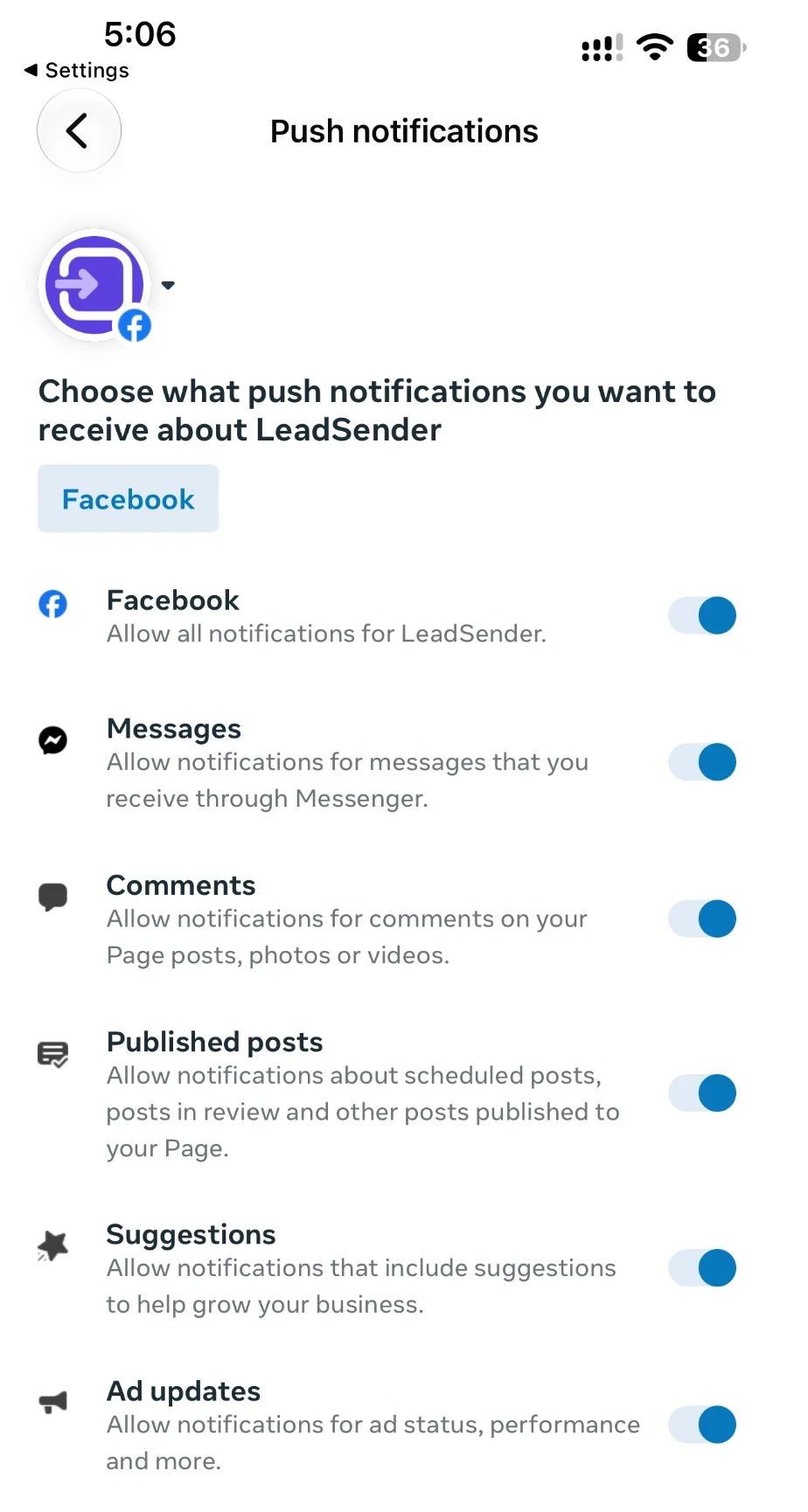
We checked on a real account. In the Meta Business Suite app, Settings > Push notifications has switches for Messages, Comments, Published posts, Suggestions and Ad updates. There is no switch for leads. Some guides tell you to turn on “New leads” there; on our account, that option does not exist.
The bell at the top of Leads Center is not a lead alert either. On our account, with 13 new leads sitting in Intake, it said “No updates to show”.
Your options, from free to fully automatic:
| Option | What you get | Watch out for |
|---|---|---|
| Business Suite app | Leads Centre on your phone, whenever you open it | No push switch for leads on our account, so nothing tells you to look |
| Checking Leads Center | Every lead, whenever you look | Leads wait until someone remembers to check |
| Your CRM's Meta connection | Leads land in the CRM if it has a lead ads integration | Only some CRMs have one, and it breaks if leads access changes |
| A lead delivery tool | The full lead, with every answer, sent to email, text, WhatsApp or a CRM in seconds | A monthly cost; send a test lead to confirm it works |
Get every lead with its answers, the second it arrives
That last option is what LeadSender does. Connect your Facebook Page once and every new Facebook and Instagram lead arrives as an Email, a text, a WhatsApp message or a new contact in your CRM within seconds, with every form answer. Nobody has to check Leads Center, and the 90-day rule stops mattering, because every lead already lives somewhere you own.
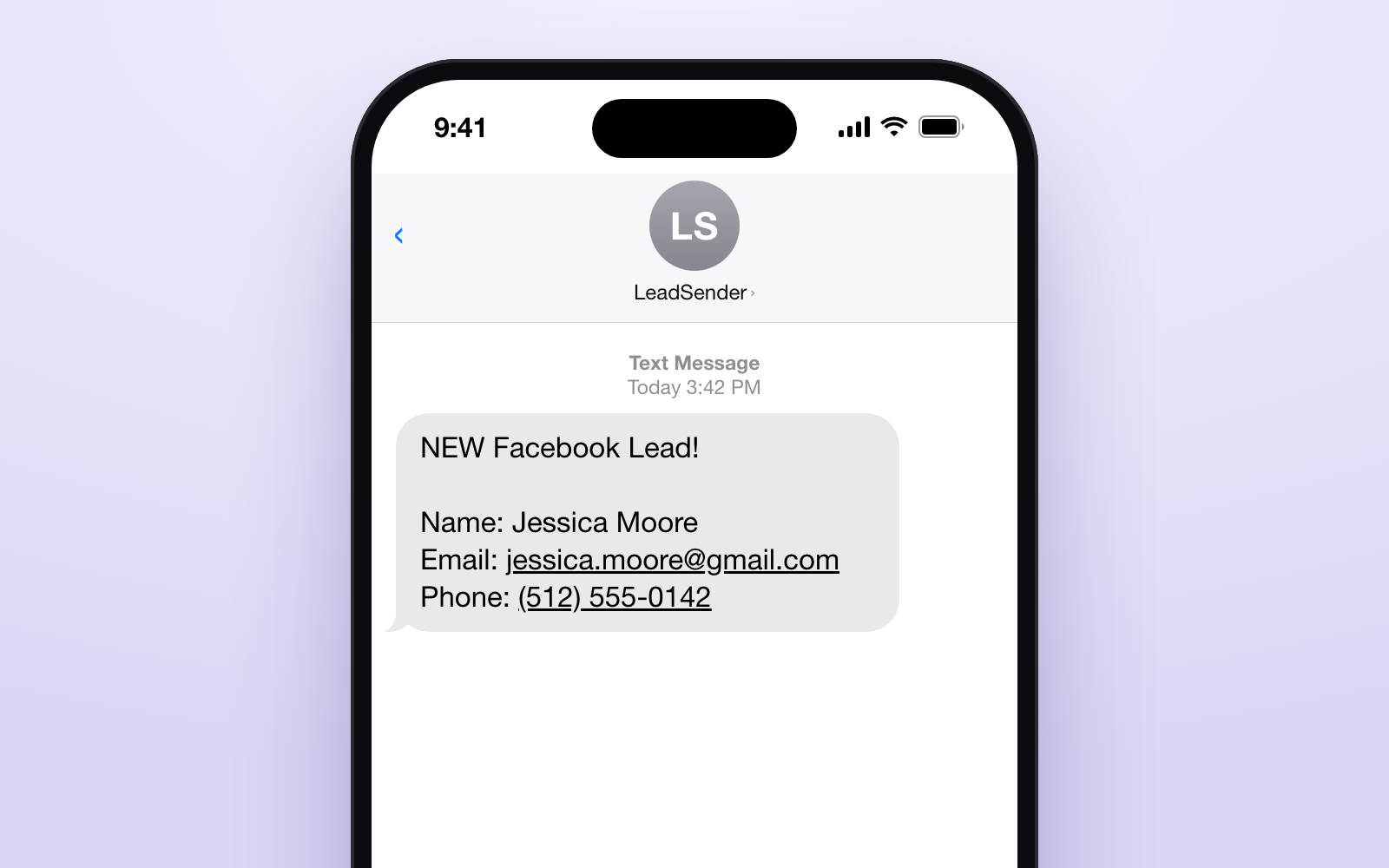
- Set up in about 3 minutes. No Zapier, no code.
- Every answer, not just the contact details, so whoever calls knows what the lead asked for.
- Goes where your team works: Email, SMS, WhatsApp, Slack, Google Sheets, HubSpot, GoHighLevel and more.
- Leads Center keeps working exactly as before. LeadSender only receives a copy of each lead.
Connect your Page, send a test lead and watch it land on your phone. No card needed. Start your free trial.
Meta Leads Center FAQs
What is Meta Leads Center?
Leads Center is a free page inside Meta Business Suite that collects the leads from your lead ads, ads that click to message and organic Messenger and Instagram conversations in one list. You can move each lead through stages such as Intake, Qualified and Converted, assign it to a teammate, add labels and notes, set reminders and download a CSV.
How do I log in to Meta Leads Center?
There is no separate login. Sign in to Meta Business Suite at business.facebook.com with the Facebook account that manages your Page, then click Leads Center in the left menu, or All tools and then Engage audience. If you can open Business Suite but Leads Center shows nothing, your account may not have leads access for that Page.
What is the direct link to Leads Center?
business.facebook.com/latest/leads_center. Adding your Page ID as asset_id (the free tool on this page builds it for you) opens Leads Center on that exact Page, which avoids the most common mistake: looking at the wrong Page.
Why is my Leads Center not showing any leads?
In order of how often it happens: Business Suite is open on a different Page than the one the ad ran from; your account does not have leads access after someone customised it; a saved filter is hiding leads; or the leads are older than 90 days. Send a test lead with Meta's Lead Ads Testing Tool. If it does not appear in Leads Center, the problem is inside Meta, not in your CRM.
Can I use Leads Center on my phone?
Meta's help pages say you can view and manage your leads in the Meta Ads Manager app. The full Leads Center, with Pipeline view, stages and bulk edits, is a desktop page in Meta Business Suite. The section on phones above shows what each app gives you from a real account.
Does Leads Center send me a notification for new leads?
Not reliably. Meta never emails or texts you the lead itself, and when we checked a real account, the Meta Business Suite app's push notification settings had switches for messages, comments, posts, suggestions and ad updates, but none for leads. To get the name, phone and answers the moment someone submits, send each lead to your email, phone or CRM.
What does a Leads Center download include?
A CSV of the leads in your current filter, with date, name, email, phone number, stage, source and owner. It does not include the answers to your own form questions. Download from Ads Manager or the instant forms page in Business Suite when you need every answer.
How long does Leads Center keep my leads?
Meta makes leads available to download for up to 90 days after the form is submitted. After that they cannot be downloaded, even though your ad results still count them. Download often, or send each lead out of Meta the moment it arrives.
Is there a Leads Center API?
There is no separate Leads Center API. Apps get leads through Meta's Lead Ads API (the Graph API's leadgen endpoints and the leadgen webhook), which is how CRMs and tools such as LeadSender receive each lead in real time.
Can I add or upload leads to Leads Center?
Yes. Click + Add leads in the top right to create one lead by hand or upload a spreadsheet, so leads from other sources can sit in the same pipeline as your Facebook and Instagram leads.
Is Leads Center a CRM?
It is a basic one. It has stages, owners, labels, notes and reminders, which is enough for one person working a few leads a week. It has no automated follow-up, no email or text sequences and no alerts with the lead's details, which is why most businesses send their leads to a real CRM or straight to their phone.
Sources
Checked on 23 November 2026. Meta renames and moves menus often; if a screen looks different, trust Business Suite.
- Meta Business Help Center: About Leads Center in Meta Business Suite
- Meta Business Help Center: Manage and download your leads in Leads Center
- Meta Business Help Center: Information included when you download your leads data
- Meta Business Help Center: About expired leads
- Meta Business Help Center: Enable leads access in Meta Business Suite
- Meta Business Help Center: Download or retrieve your leads data from Meta
- Meta Business Help Center: Add, create or upload leads in Leads Center
- Meta for Developers: Retrieving leads