
















Close is built for one thing: getting a rep on the phone with a lead fast. That only works for Facebook leads if they reach Close while they still remember your ad. Download a CSV from Meta at the end of the day and your reps are calling people who filled the form hours ago and have already spoken to someone else.
This guide shows how to connect Facebook lead ads to Close CRM step by step, in about three minutes, with no CSV exports and no Zapier. Every lead lands in the status you pick, with every form answer on the lead, so your team can call within minutes and already know what the person asked for.
Facebook keeps instant-form leads in Leads Center, so you need a connector to send them to Close. In LeadSender: connect Facebook, choose Facebook Leads to Close CRM, pick your Page and form, paste a Close API key, pick a status, then turn it on. Every new lead becomes a Close lead within seconds.
How to connect Facebook lead ads to Close CRM with LeadSender
Start a free trial and connect Facebook
Start your 7-day free trial of LeadSender (no card needed) and sign in with the Facebook account that manages your Page. That lets LeadSender hear about each new lead the moment it's submitted.
Choose the Close template
From Integrations, pick Facebook Leads to Close CRM. Then select your Facebook Page and the lead form you want to send.
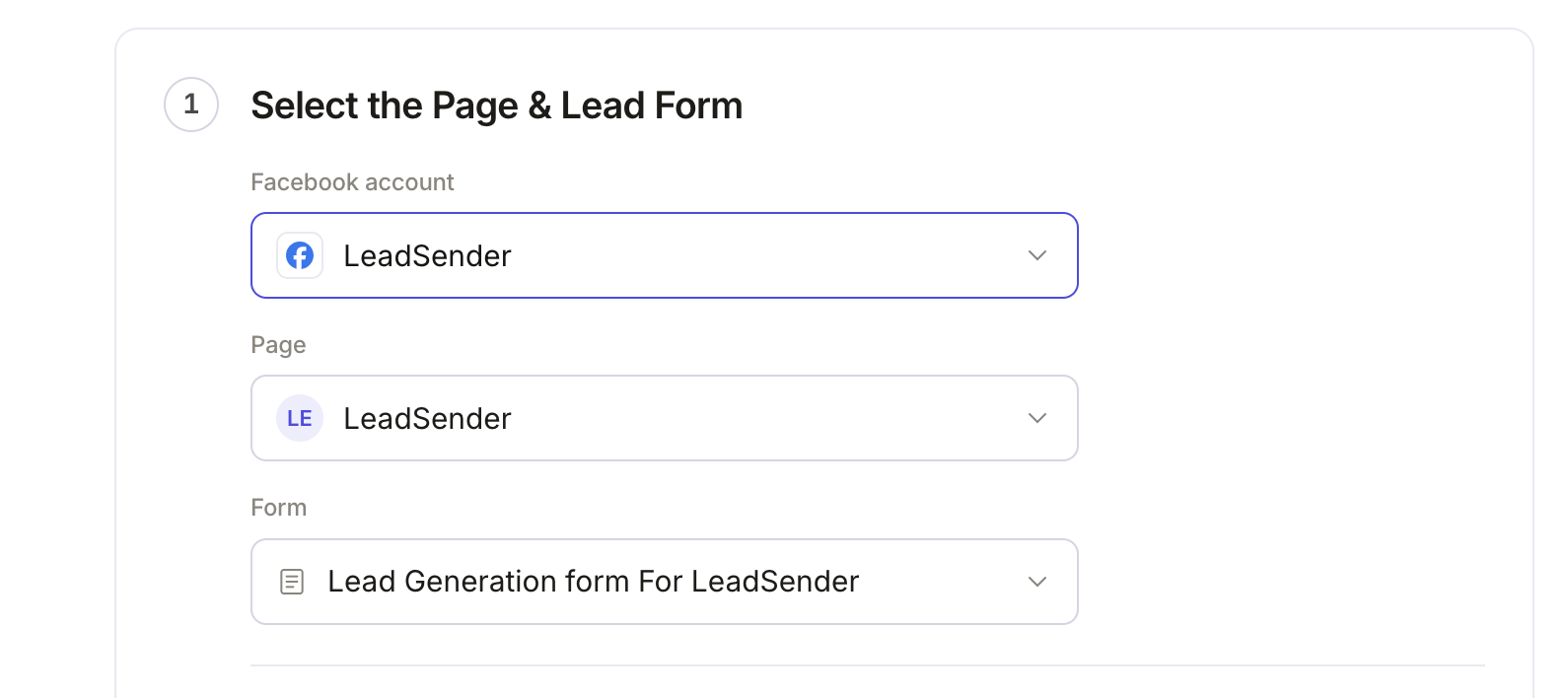 Select your Page
and lead form
Create a Close API key
In Close, open Settings, then Developer, API Keys, and click New API Key. Name it LeadSender and copy the key.
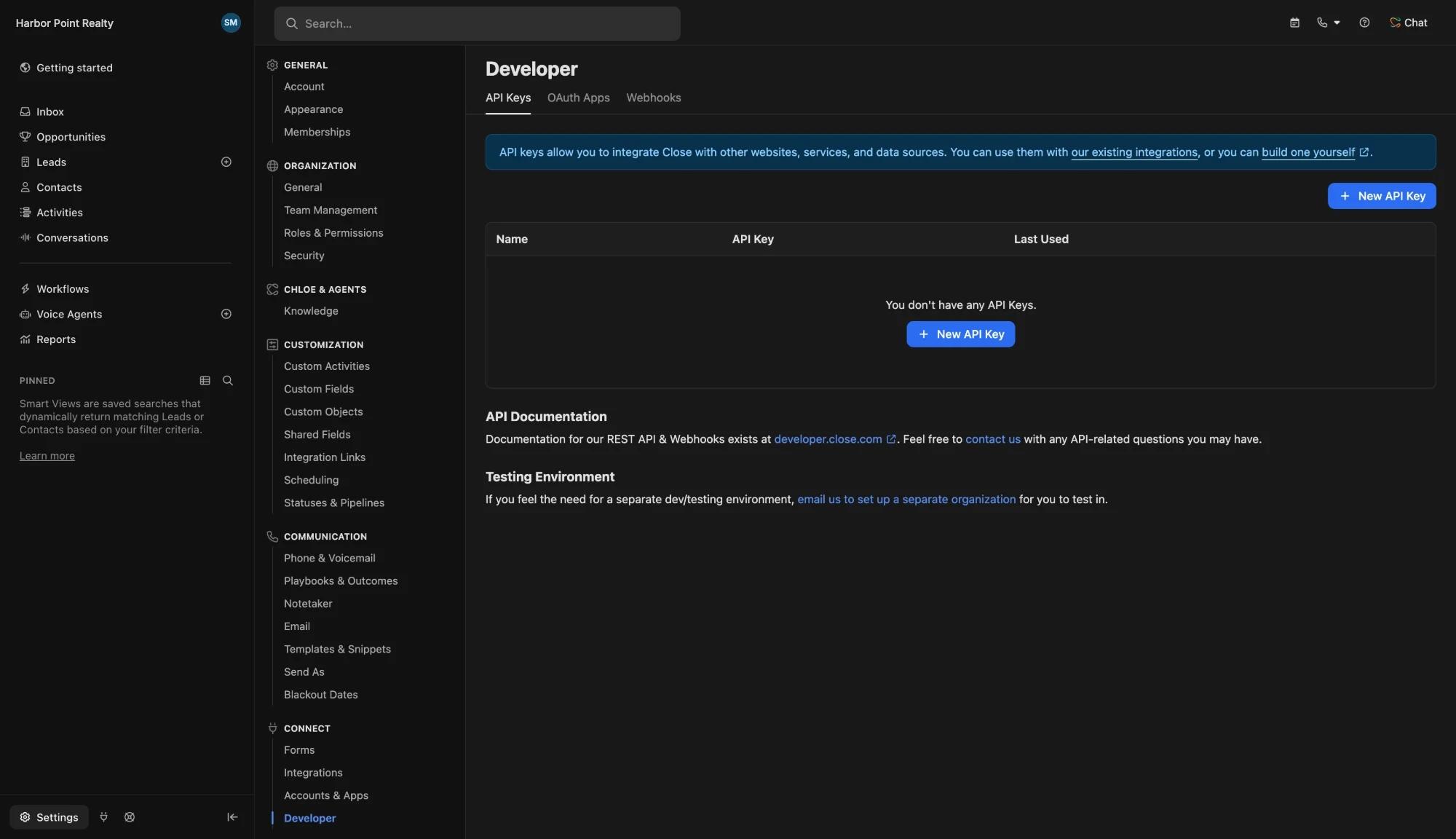 Click New API Key
Connect Close
Back in LeadSender, click Connect next to Close and paste the key. LeadSender checks it with Close straight away, and the key stays on LeadSender's servers.
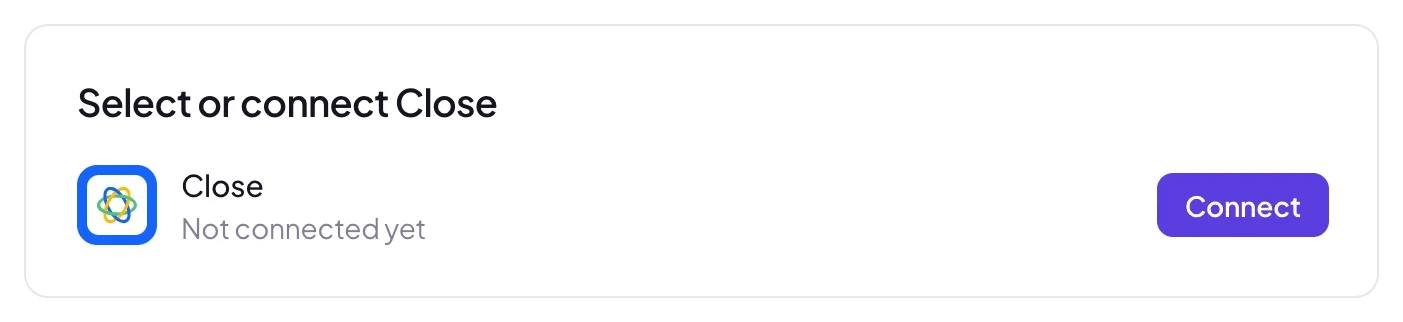 Click Connect
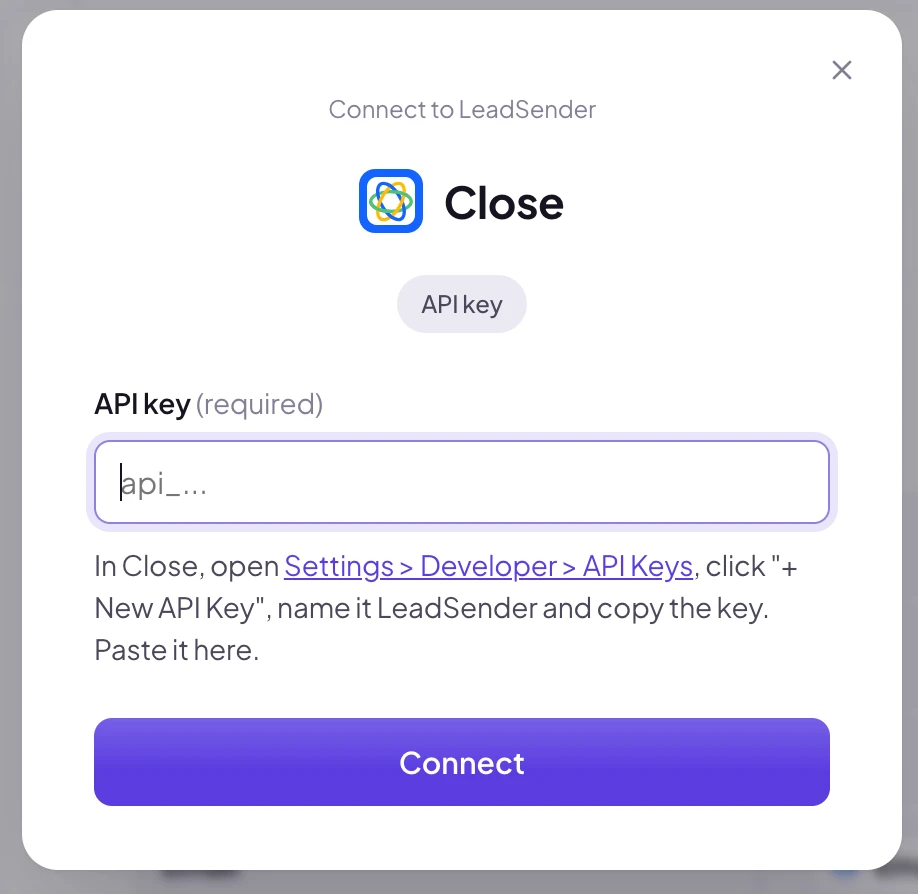 Paste your key
Pick a status
Under Put new leads in this status, choose where Facebook leads should land. Your statuses come live from your Close account; leave it and Close uses your first status.
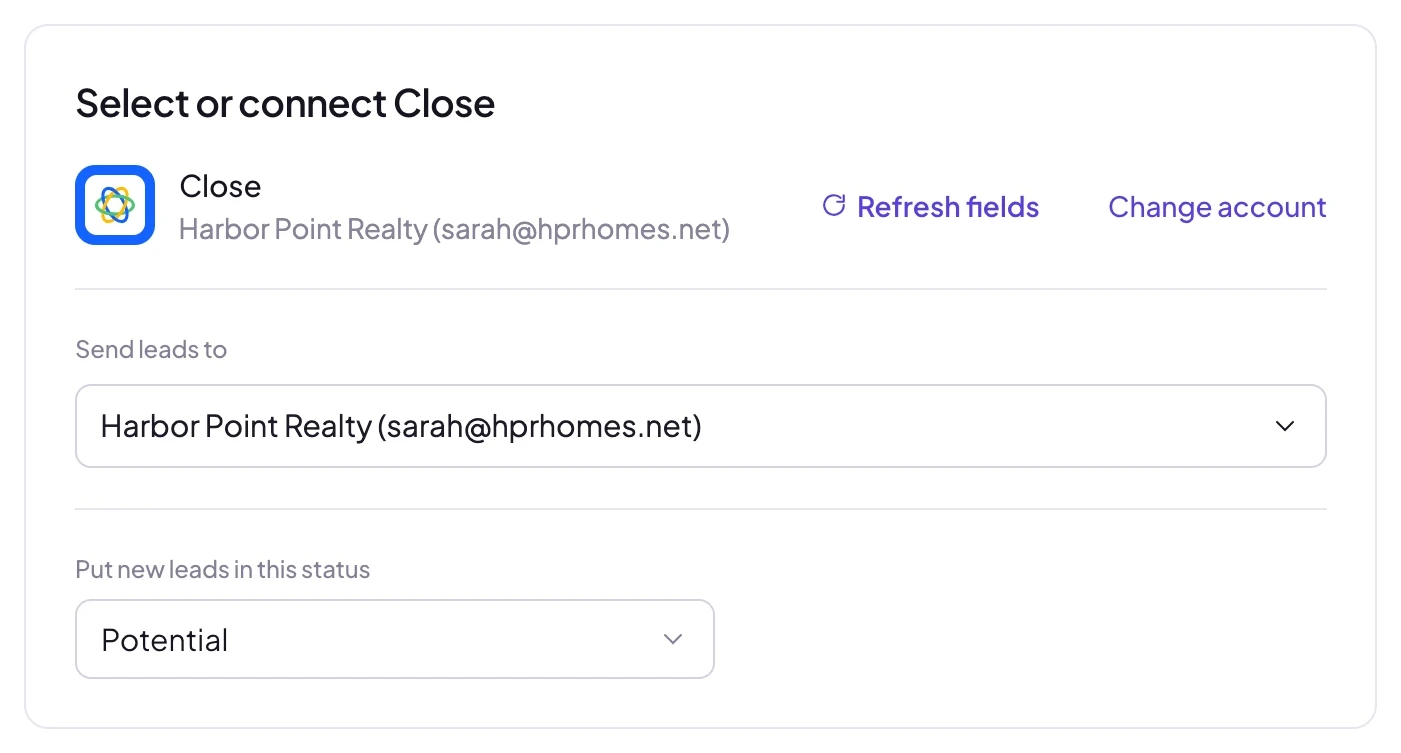 Pick a status
Match your fields, test and turn on
In Match your fields, name, email and phone are matched for you. Match any other field to a form answer, your Close custom fields included. Then click Send a test lead. Need a fresh lead to test with? Create one with our free Meta Lead Ads Testing Tool.
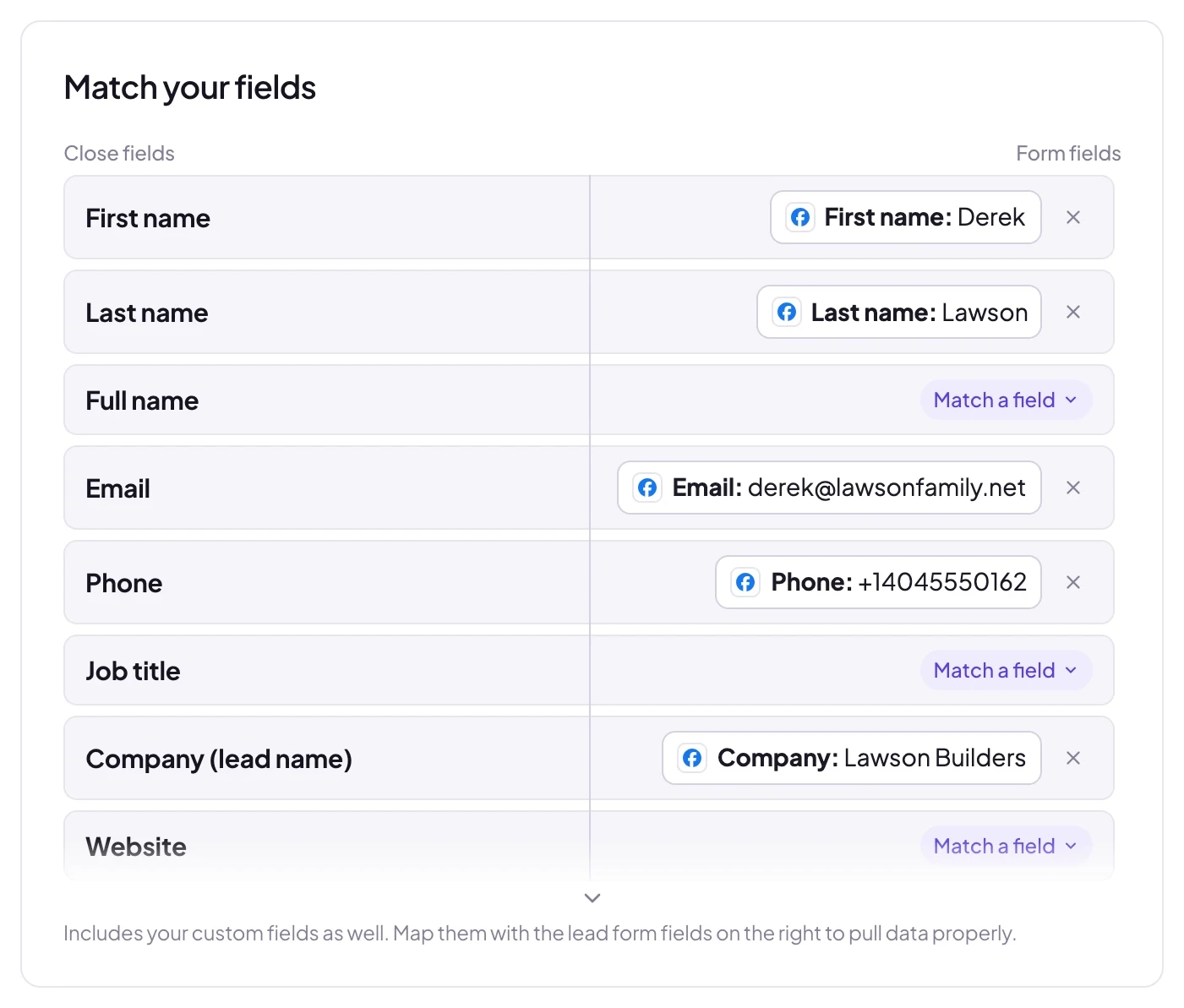 Matched for you
Open Leads in Close and the test lead is already there, in your status. When it looks right, click Turn on. From then on every new lead from that form, on Facebook or Instagram, is added to Close within seconds.
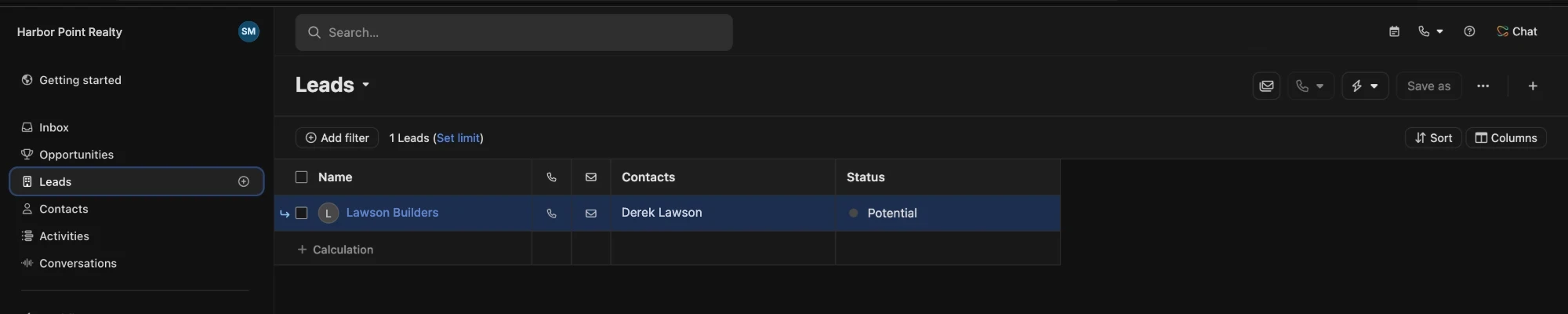 Added by LeadSender in seconds
Open the lead and every answer from the form is waiting as a note, ready before the first call:
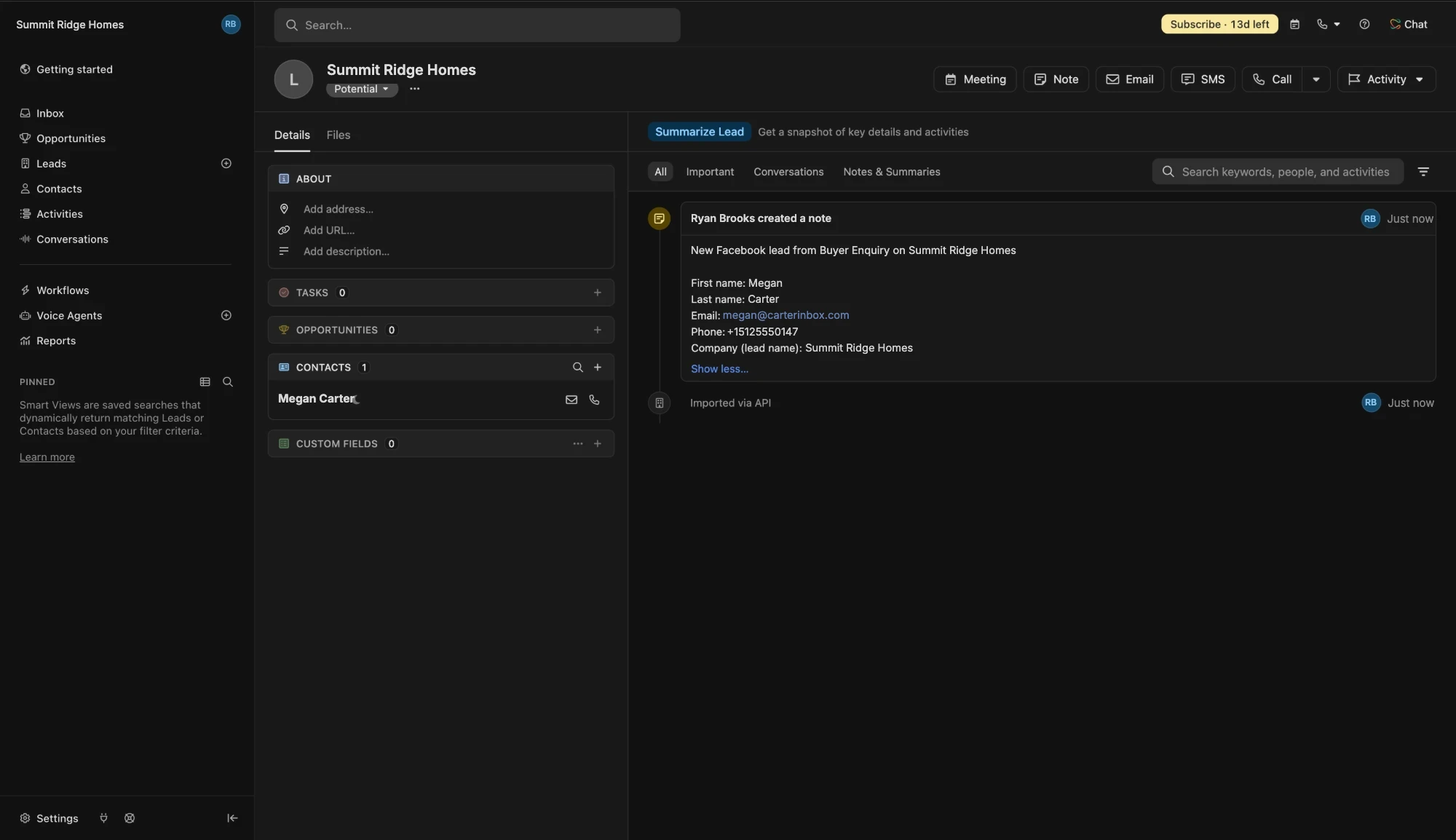 Every answer as a note
Which fields reach Close
LeadSender reads your account's real fields, so you only ever see fields that exist in your Close.
| Close field | What happens |
|---|---|
| First, last or full name | Becomes the contact's name |
| Email and phone | Added to the contact, and used to find a repeat enquiry |
| Company | Becomes the lead's name. Leave it empty and the lead is named after the person |
| Job title and website | The contact's title and the lead's URL |
| Your custom fields | Lead and contact custom fields, matched to any form answer |
Custom fields that point at a Close user or another contact, and strict date fields, aren't offered: a free-text Facebook answer can't fill them reliably. Added a field in Close after setting up? Click Refresh fields.
Statuses, notes and repeat enquiries
- Status: every new lead lands in the status you picked, or your first status if you didn't pick one.
- Notes: every answer from the form is added to the lead as a note, including answers you didn't match to a field, so nothing the lead said is lost.
- Repeat enquiries: LeadSender finds the existing contact by email, or by phone when there's no email, and updates that lead instead of creating a second one. A new phone number or email is added next to the old one, and the note is marked as a repeat enquiry.
- Your team's work stays put: a repeat enquiry never moves an existing lead back to your starting status.
Call every new lead first
The point of Close is speed, so make new Facebook leads impossible to miss:
- In Close, filter Leads by the status you picked for Facebook leads, for example Potential.
- Save it as a Smart View, like New Facebook leads, and pin it.
- Start a calling session from that view each morning and after every campaign push.
Because every answer is on the lead as a note, ask your form the questions your reps would open with, like budget or timeline. The rep reads them on the lead before calling instead of asking again.
LeadSender vs Zapier vs CSV imports
| LeadSender | Zapier | CSV import | |
|---|---|---|---|
| Price | From $9.99/mo | From $29.99/mo (Facebook Lead Ads is a premium app) | Free |
| Speed | ✓ Seconds | Depends on plan | ✗ Whenever you remember |
| Setup | ✓ About 3 minutes, guided | ⚠ Build and test a Zap | ⚠ Every time, by hand |
| Repeat enquiries | ✓ Updates the existing lead | ⚠ Extra search step in the Zap | ⚠ Merge by hand |
| All answers on the lead | ✓ As a note, automatically | ⚠ Built step by step | ⚠ Only mapped columns |
| Failed leads | ✓ Reason and resend in Run history | Zap history | None |
Short version: CSV imports are fine for a one-off list, but every hour of delay costs you conversations. Zapier works if you already pay for a premium Zapier plan. LeadSender is the simplest way to get every Facebook lead into Close the moment it comes in. More in LeadSender vs Zapier.
When a Facebook lead doesn't show up in Close
- “Close rejected this API key”: the key was deleted or copied incompletely. Create a new one under Settings, Developer, API Keys and reconnect.
- “Has no name, email or phone mapped”: Close needs at least one of them to file the lead. Match your form's name, email or phone.
- A custom field rejected the value: for example, text in a number field. Run history shows Close's exact reason; unmatch that field or change the question.
- Nothing at all: check the integration is turned on, then send a test lead and read the result. Every attempt is listed in Run history.
Comparing options? See how Facebook lead ads integration works, with the 5 ways to send leads to Email, SMS or your CRM compared.