

















A Facebook lead sitting in Meta's Leads Center isn't in Wise Agent, so it isn't on anyone's call list and none of your drip campaigns start. Sending Facebook leads to Wise Agent puts every new lead in your contacts the moment they submit, already marked as a buyer or seller.
This guide shows how to send Facebook lead ads to Wise Agent step by step, in about three minutes, with no CSV exports and no Zapier. Then it covers how each lead arrives, which fields you can fill, and how to sort buyers and sellers automatically. New to running lead ads for listings and valuations? Start with our guide to Facebook lead ads for real estate.
Connect the two with a lead delivery tool. In LeadSender: connect Facebook, choose Facebook Leads to Wise Agent, pick your Page and form, click Connect and allow access on Wise Agent's sign-in page, choose the lead source, status and categories, match your fields, send a test lead and turn it on. Every new lead then lands in Wise Agent within seconds, with every form answer added as a note.
How to send Facebook leads to Wise Agent with LeadSender
This is the quickest way to connect Facebook lead ads to Wise Agent: no Zap to maintain, a new contact in seconds, and an email if a lead ever fails to arrive.
Start a free trial and connect Facebook
Start your 7-day free trial of LeadSender (no card needed) and sign in with the Facebook account that manages your Page. That lets LeadSender hear about each new lead the moment it's submitted.
Choose the Wise Agent template
From Integrations, pick Facebook Leads to Wise Agent. Then select your Facebook Page and the lead form to send.
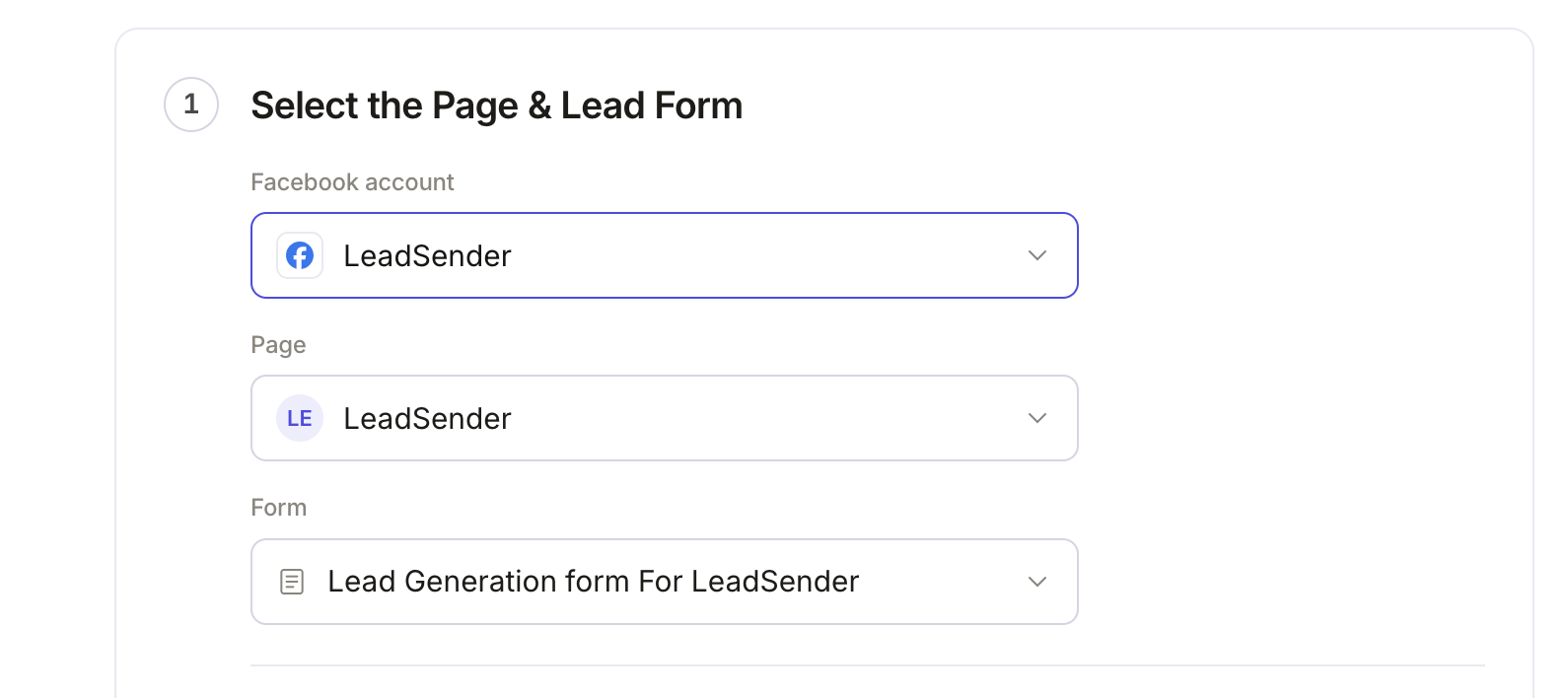 Select your Page
and lead form
Connect Wise Agent
In the builder's Select or connect Wise Agent step, click Connect. Wise Agent's own sign-in page opens. Sign in, choose the Team Member the leads belong to, then click Allow. LeadSender only gets access to your contacts and never sees your Wise Agent password.
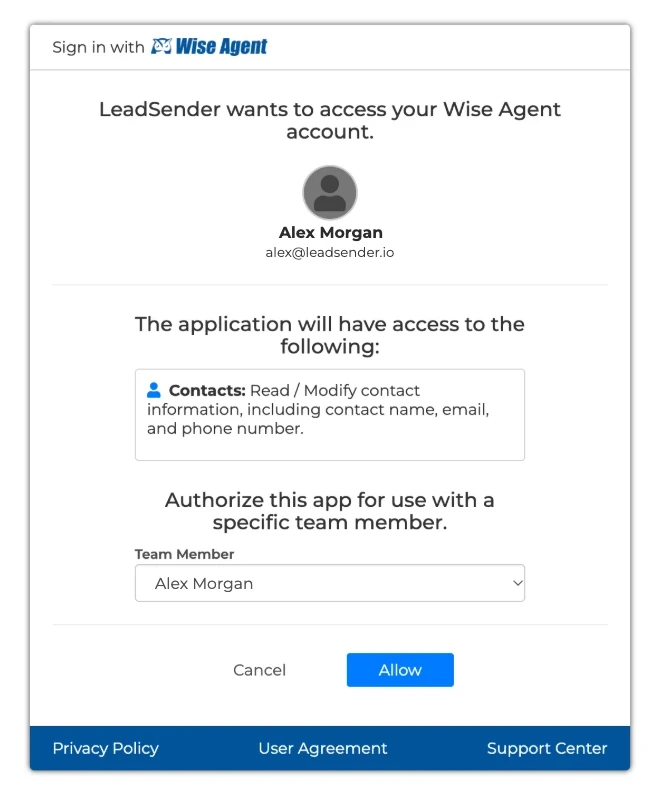 Click Allow
Choose how leads are filed
Pick the Lead source (Facebook Lead Ads unless you choose one of your own), the Contact status and Rank new leads start with, and the Categories they belong in, like Buyer or Seller. The lists come from your own Wise Agent account, so you pick what your team already uses.
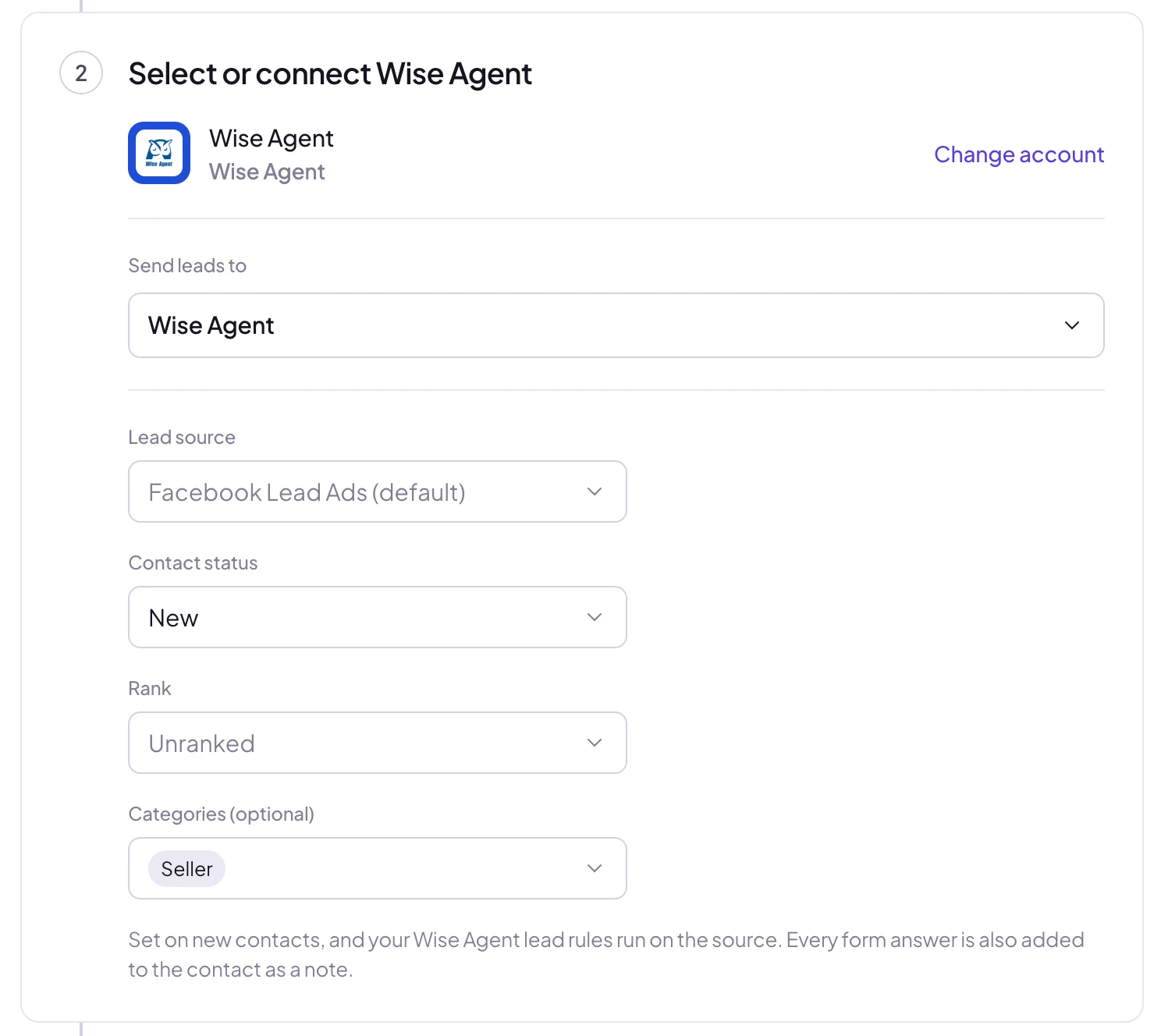 Filed the way
your team works
Match your fields
In Match your fields, Wise Agent's contact fields are on the left and your form's answers on the right. First and last name, email and phone are matched for you. Pick the answer for Street, City, State and Zip if your form asks for an address. Every other answer still reaches Wise Agent as a note.
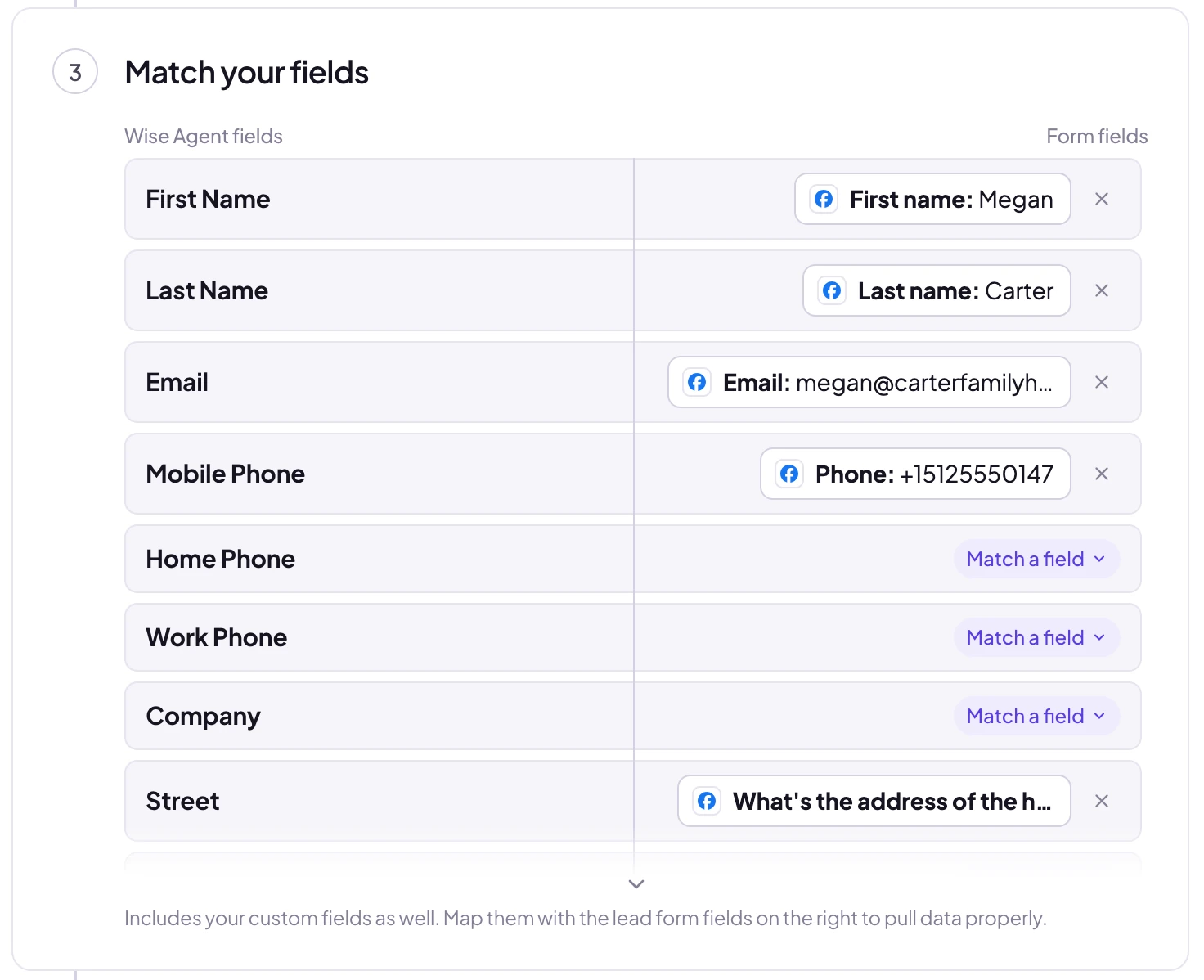 Address answers
fill Wise Agent's fields
Send a test lead and turn it on
Click Send a test lead. LeadSender sends your latest real lead to Wise Agent, so you can open the new contact and check it. Want a brand new lead instead? Create one with our free Meta Lead Ads Testing Tool. When it looks right, click Turn on.
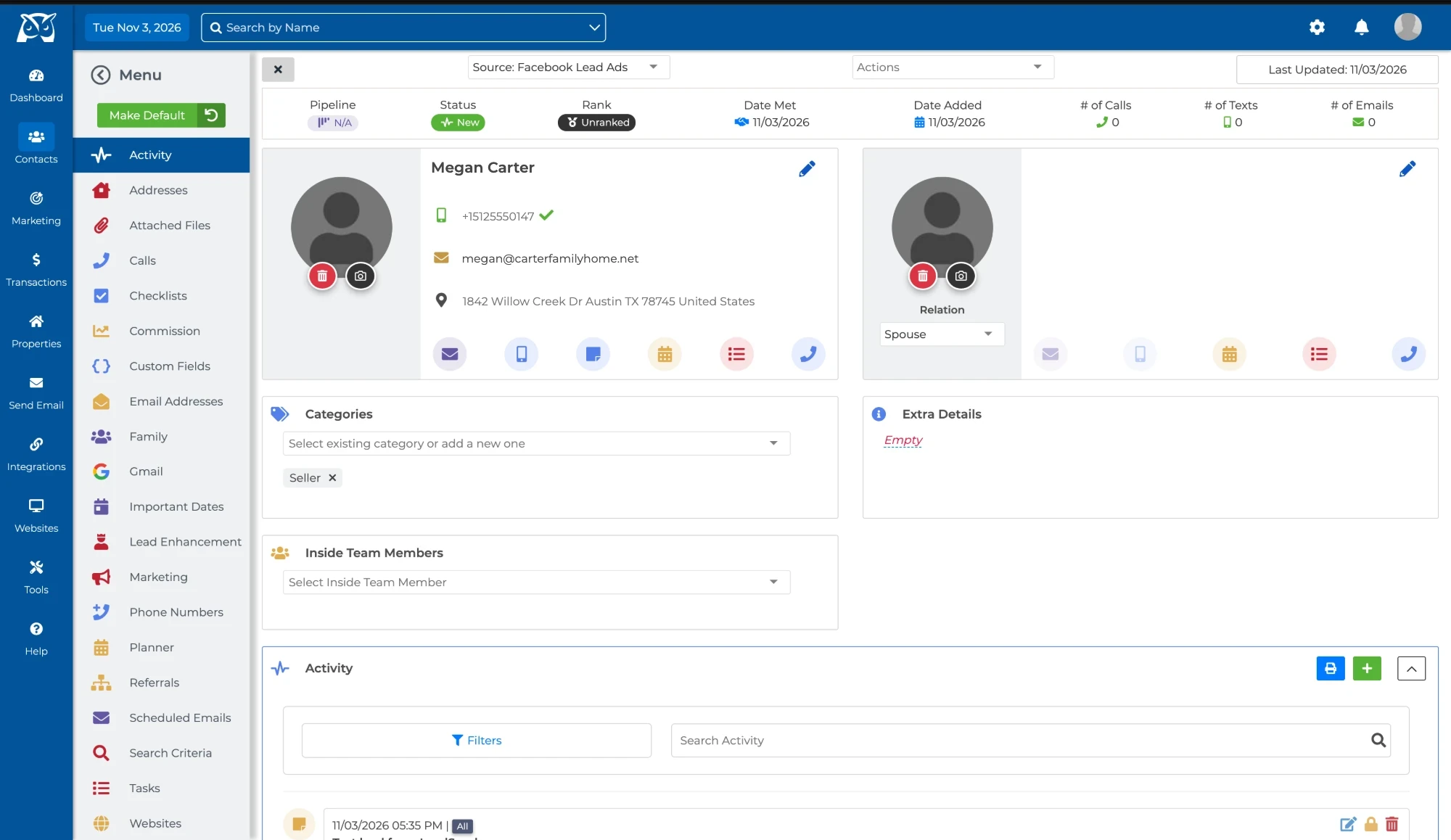 Lead source setSeller category set
How each lead arrives in Wise Agent
- As a new contact, added the moment it's submitted, with the name, email, phone and address you matched.
- With your lead source, Facebook Lead Ads unless you pick another, so your Wise Agent lead rules and reports pick it up like any other source.
- With a status, rank and categories, so a seller lead is a Seller with status New before anyone opens it.
- With every answer as a note, so questions like timeframe, price range or pre-approval are on the contact when you call.
- Without a second copy. Wise Agent recognises a contact it already has and adds any new phone number or email to it.
Which Wise Agent fields you can fill
| Wise Agent field | Typical form answer |
|---|---|
| First Name, Last Name | First and last name (a single full-name answer goes in First Name) |
| Mobile, Home, Work Phone | Phone number |
| Street, Suite, City, State, Zip, Country | The address of the home they want valued or to sell |
| Company, Website | For relocation, investor or business leads |
| Lead source, Status, Rank, Categories | Picked once in the builder, set on every new contact |
| Note | Every answer on the form, added automatically |
Sort buyers and sellers automatically
Getting the lead into Wise Agent is half the job. The other half is the right follow-up, fast:
- Run one integration per form. Send your home valuation form with the Seller category and your new listings form with Buyer, so each lead lands in the right list.
- Pick a lead source per campaign when you want Wise Agent's lead rules to start a different drip campaign for each one.
- Add an instant alert on the same form, by text or WhatsApp, so the agent on duty hears about the lead the second it lands in Wise Agent.
Every lead is scored by LeadScore, which checks the email and phone number, so obvious junk submissions are flagged before they waste an agent's time.
LeadSender vs Zapier vs downloading leads
| LeadSender | Zapier | Downloading leads | |
|---|---|---|---|
| Price | From $9.99/mo, 7-day free trial | From $29.99/mo (Facebook Lead Ads is a premium app) | Free, but it costs your time |
| Speed | ✓ Seconds | Depends on plan | ✗ Whenever someone gets to it |
| Connects to Wise Agent | ✓ Directly, through Wise Agent's sign-in | ⚠ A Zap you build and maintain | ⚠ Typed or imported by hand |
| Buyer or Seller, status, rank | ✓ Set on every new contact | ⚠ Depends on your setup | ✗ Set by hand |
| Custom questions | ✓ Every answer as a note | ⚠ Mapped one by one | ⚠ In the CSV |
| Failed deliveries | ✓ Email alert, reason shown, one-click resend | Zap history | None |
Short version: downloading leads costs nothing but means slower calls. Zapier needs a paid plan and a Zap to maintain. If you want each lead in Wise Agent within seconds, already filed as a buyer or seller, use LeadSender. More in LeadSender vs Zapier.
When a lead doesn't show up in Wise Agent
- “Wise Agent access expired. Reconnect Wise Agent”: click Change account, then Connect, and allow access again. Your integrations keep working once it's reconnected.
- The contact is there but the status or categories didn't change: those are set on new contacts. When the person is already in Wise Agent, it keeps their status and adds the new phone, email and answers.
- Leads went to the wrong agent: the connection belongs to the team member chosen when you clicked Allow. Click Change account and connect again, choosing the right team member.
- Nothing at all: check the integration is turned on, then send a test lead and read the result. Every attempt is listed in Run history with the reason.
Comparing options? See how Facebook lead ads integration works, with the 5 ways to send leads to Email, SMS or your CRM compared.