


















If your team runs its pipeline on a Monday (monday.com) board, a Facebook lead that isn't on that board doesn't exist yet. Nobody's assigned, nothing's labelled, and no automation fires. Sending Facebook leads to Monday puts every new lead on the board the moment they submit, already in the right group and assigned to the right person.
This guide shows how to send Facebook lead ads to Monday step by step, in about three minutes, including Monday CRM. Then it compares Zapier and CSV imports, so you can pick what fits.
Connect the two with a lead delivery tool. In LeadSender: connect Facebook, choose Facebook Leads to Monday, pick your Page and form, paste your Monday API token, choose a board and group, match your columns, send a test lead and turn it on. Every new lead then becomes an item on your board within seconds, with its status set and an agent assigned.
How to send Facebook leads to Monday with LeadSender
This is the quickest way to connect Facebook lead ads to Monday: no Zap to maintain, a new item in seconds, and an email if a lead ever fails to arrive.
Start a free trial and connect Facebook
Start your 7-day free trial of LeadSender (no card needed) and sign in with the Facebook account that manages your Page. That lets LeadSender hear about each new lead the moment it's submitted.
Choose the Monday template
From Integrations, pick Facebook Leads to Monday. Then select your Facebook Page and the lead form to send.
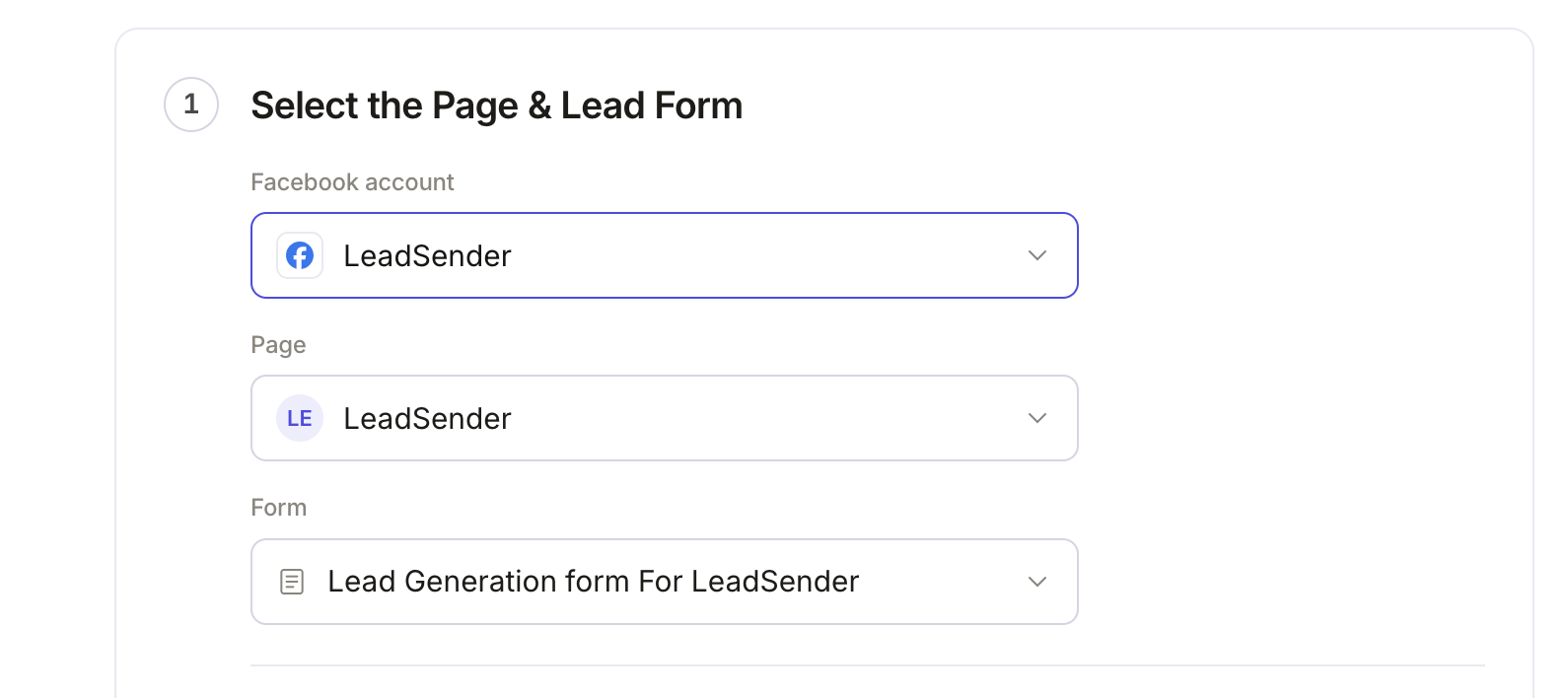 Select your Page
and lead form
Connect Monday with an API token
In the builder's Select or connect Monday step, click Connect.
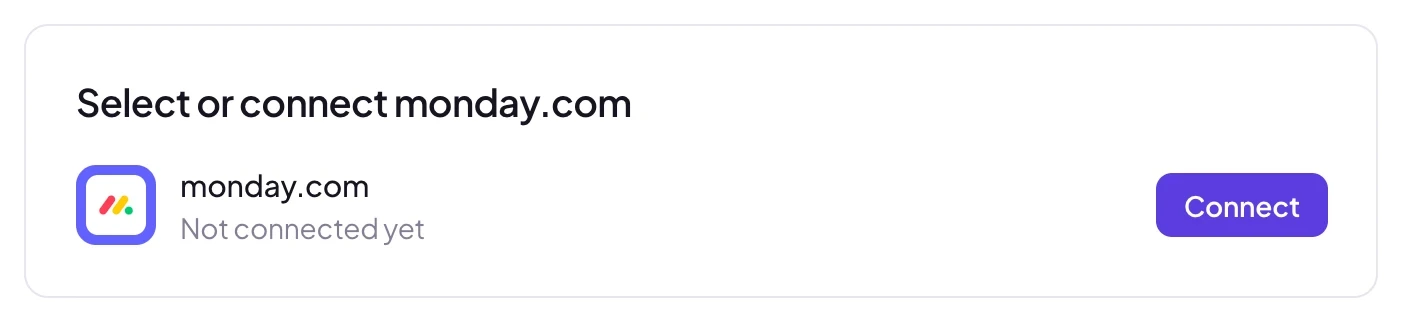 Click Connect
In monday.com, click your profile picture, then Developers, then API token, and copy your personal token. Paste it into LeadSender and click Connect. LeadSender checks the token with Monday before saving it, keeps it on its servers, and names the connection by your Monday email.
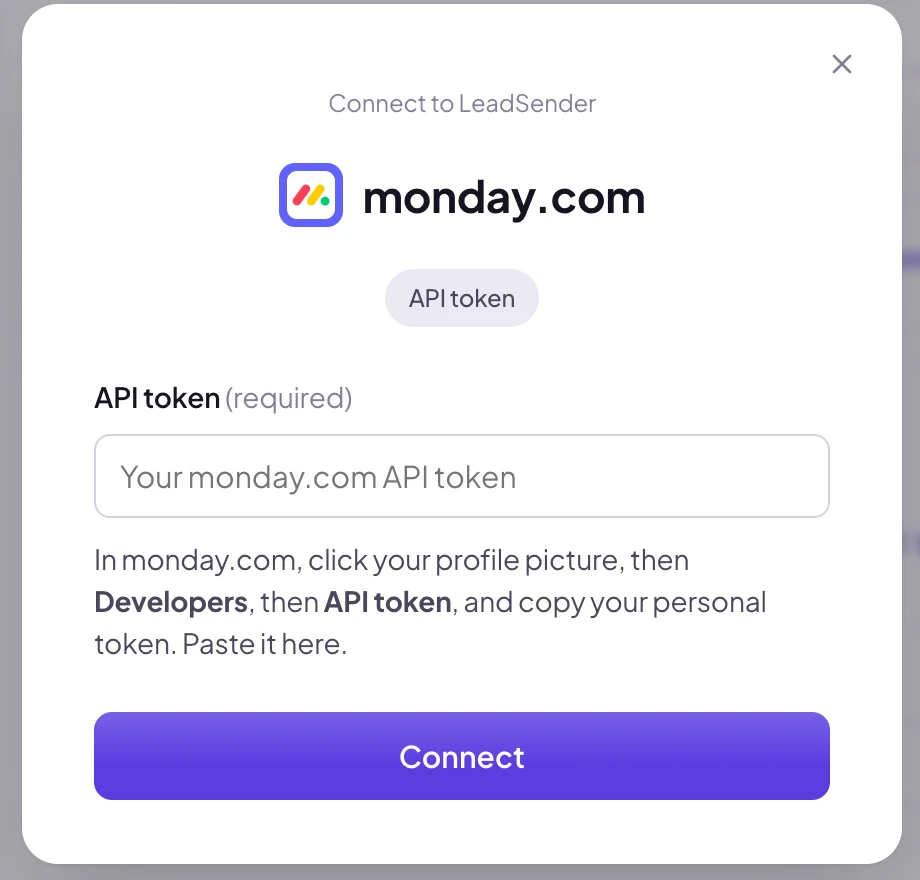 Paste your API token
Pick the board and group
Once connected, choose the Board leads should go to, like Contacts, and the Group, like Potential Leads. Your boards are read live and you can search them by name or workspace. New items go to the board's top group unless you pick another.
 Pick the board and group
Match your columns
In Match your fields, every column on the board is listed. Name, email and phone are matched for you. For Agent, pick the teammate leads are assigned to; for Priority and Type, pick one of your board's labels, like High and Lead; for a connected column like link to Properties, pick the item it should link to.
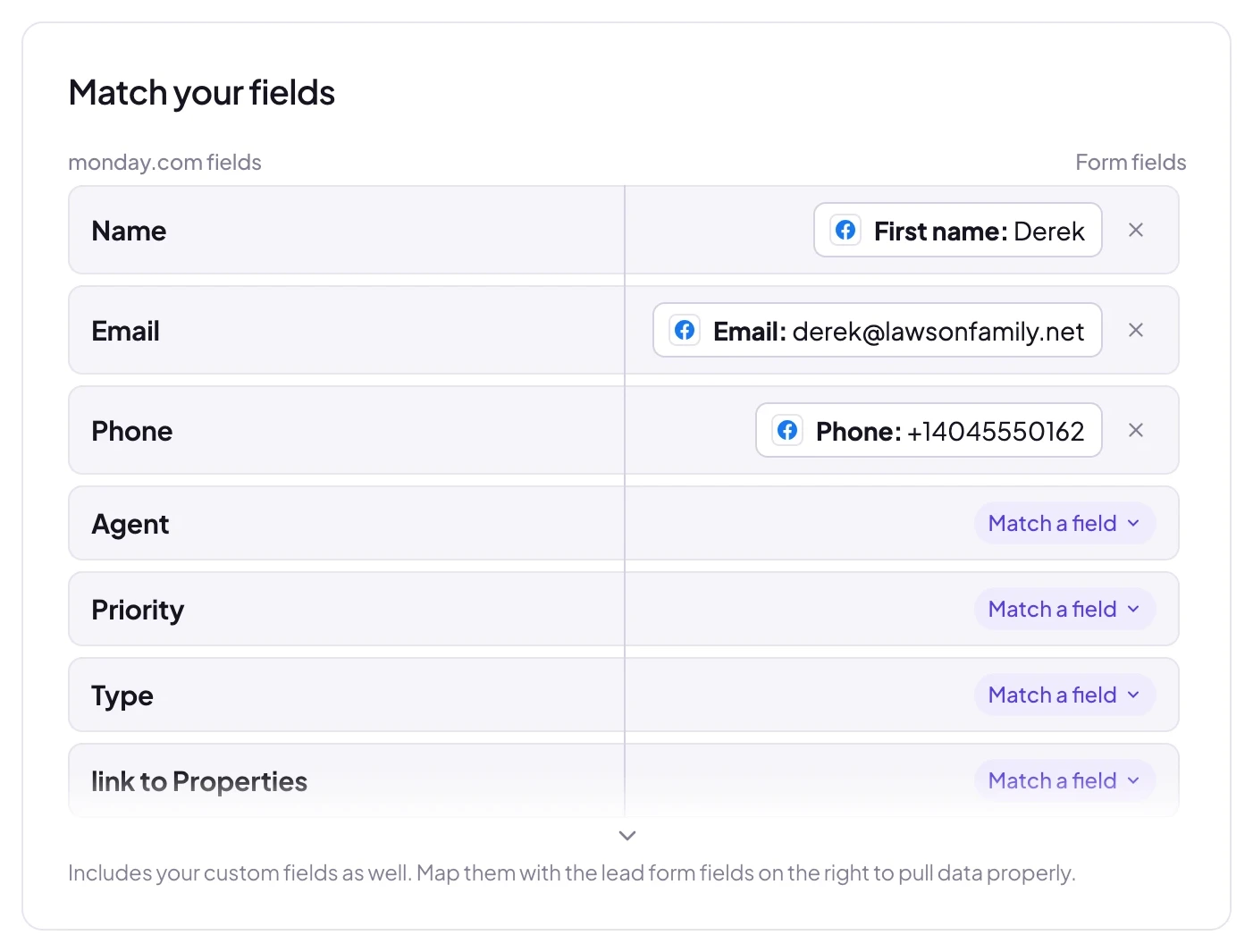 Assign an agent, set
Priority and Type
Send a test lead and turn it on
Click Send a test lead. LeadSender adds your latest real lead to the board, so you can check it in Monday. Want a brand new lead instead? Create one with our free Meta Lead Ads Testing Tool. When it looks right, click Turn on.
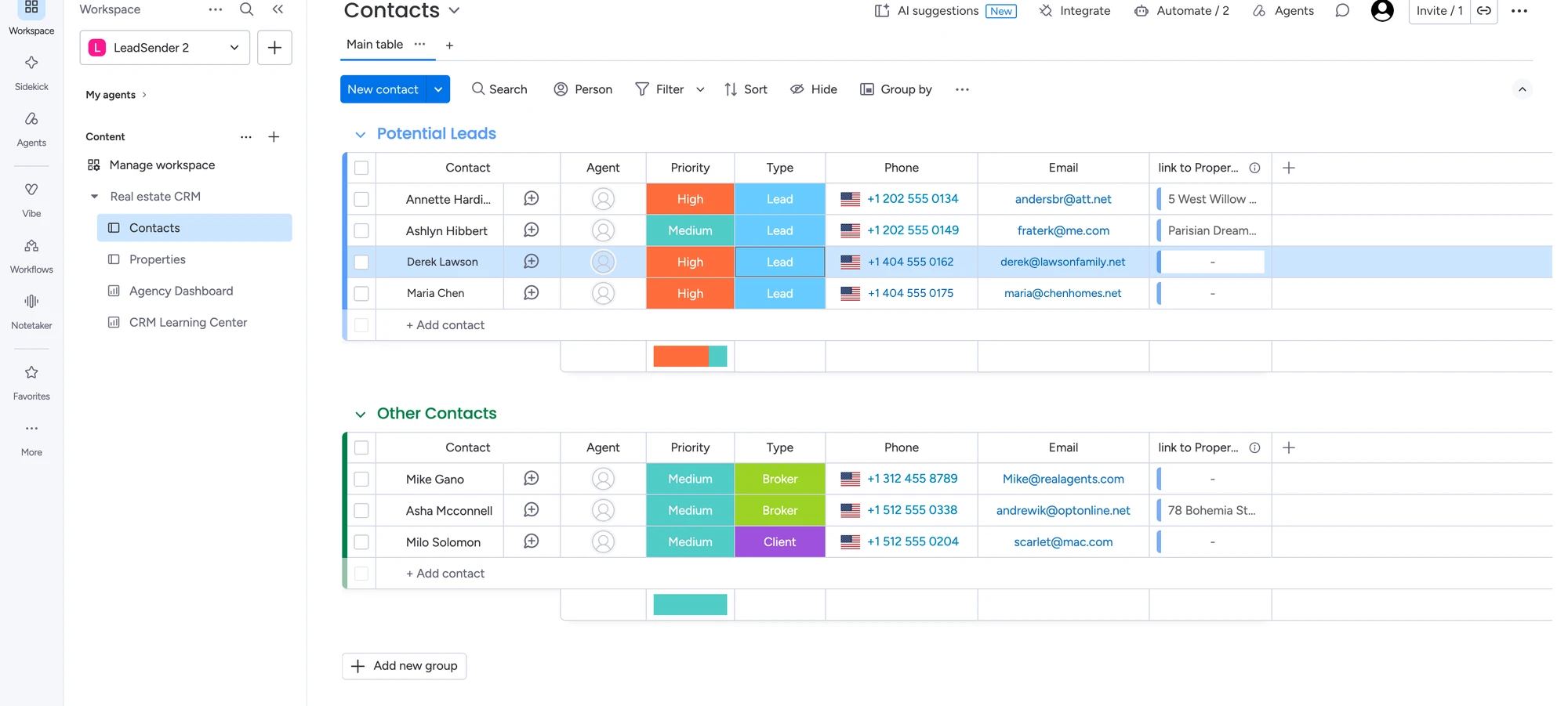 New Facebook leads, labelled and ready
How each Monday column gets filled
Monday columns come in two kinds, and LeadSender handles each the way it should be:
- The item name (often called Name or Contact) gets the lead's full name.
- Email, phone, text, numbers, dates and links take the lead's answers. Phone numbers keep their country, so the flag shows correctly.
- Status and dropdown columns take one of your board's own labels, like Lead or High.
- People columns take a teammate, so every lead is assigned the moment it lands.
- Connected boards, like link to Properties, take an item from the linked board.
- Repeat leads with an email already on the board update that item instead of adding a duplicate.
Assign, label and automate every lead
Because each lead arrives with its status already set, Monday's own automations can take it from there:
- When an item is created in Potential Leads, notify the agent, so nobody has to watch the board.
- When Type changes to Lead, create an update or a follow-up task for the first call.
- When Priority is High, move the item to a Hot Leads group or ping a channel.
Running a buyer ad and a seller ad? Create one integration per form and set a different Type or agent on each. Every lead then lands labelled for the right follow-up, with no sorting by hand.
LeadSender vs Zapier vs CSV import for Monday
| LeadSender | Zapier | CSV import | |
|---|---|---|---|
| Price | From $9.99/mo, 7-day free trial | From $29.99/mo (Facebook Lead Ads is a premium app) | Free |
| Speed | ✓ Seconds | Depends on plan | ✗ Whenever you import |
| Setup | ✓ About 3 minutes, guided | ⚠ Build and test a Zap yourself | ⚠ Download, clean and upload every time |
| Boards, groups and columns | ✓ Read live from your account | ✓ Mapped by hand | ⚠ Columns matched on each import |
| No duplicates | ✓ Updates the item with that email | ⚠ Extra search step | ✗ Duplicates rows |
| Failed deliveries | ✓ Email alert, reason shown, one-click resend | Zap history | None |
Short version: Zapier works if you already pay for it and don't mind building the Zap. CSV imports cost nothing but leave leads waiting. If you want each lead on your board within seconds without maintaining anything, use LeadSender. More in LeadSender vs Zapier.
Using Zapier
With Zapier you create a Zap with Facebook Lead Ads (New Lead) as the trigger and Monday (Create Item) as the action, then map each column. It works, but Facebook Lead Ads is a premium app, so you need a paid Zapier plan, and every lead uses tasks from your allowance.
Importing a CSV
You can download your Facebook leads as a CSV and import it into a board from Monday's import menu. It's fine for a one-off backfill of older leads, but nobody follows up until you remember to do it.
When Facebook leads don't reach your board
- “Monday rejected this API token”: the token was regenerated or the user left the account. Copy the current token from Developers, API token, and connect again.
- A board is missing: the token can only see boards that user can see. Make sure the user is a member of the board, then click Refresh fields.
- A new column or label is missing: click Refresh fields in the Select or connect Monday step.
- Phone column left empty: Monday needs the country code on a phone number, like +1. Numbers without one are left out instead of failing the lead.
- Nothing at all: check the integration is turned on, then send a test lead and read the result. Every attempt is listed in Run history with the reason.
Comparing options? See how Facebook lead ads integration works, with the 5 ways to send leads to Email, SMS or your CRM compared.