










A Facebook lead is worth the most in the first few minutes, while they still remember your ad. If your sales team works in Zoho CRM, that lead should be there too, with its source set, not sitting in Facebook's Leads Center until someone exports a CSV.
This guide shows how to connect Facebook lead ads to Zoho CRM step by step, in about five minutes, with no CSV imports and no Zapier. Every lead lands as a Zoho Lead, with your lead source and your own fields filled in, seconds after the form is submitted.
Facebook keeps instant-form leads in Leads Center, so you need a connector to send them to Zoho CRM. In LeadSender: connect Facebook, choose Facebook Leads to Zoho CRM, pick your Page and form, sign in to Zoho and click Accept, pick a lead source, then turn it on. Every new lead reaches Zoho CRM within seconds.
Before you start
- Any Zoho data center works: the US, EU, India, Australia and the rest. There's no API key to find: you sign in with your normal Zoho account.
- Your form needs a name question. Zoho CRM won't create a Lead without a Last Name, so make sure your Facebook form asks for one, as full name or as first and last name.
How to connect Facebook lead ads to Zoho CRM with LeadSender
Start a free trial and connect Facebook
Start your 7-day free trial of LeadSender (no card needed) and sign in with the Facebook account that manages your Page. That lets LeadSender hear about each new lead the moment it's submitted.
Choose the Zoho CRM template
From Integrations, pick Facebook Leads to Zoho CRM. Then select your Facebook Page and the lead form you want to send.
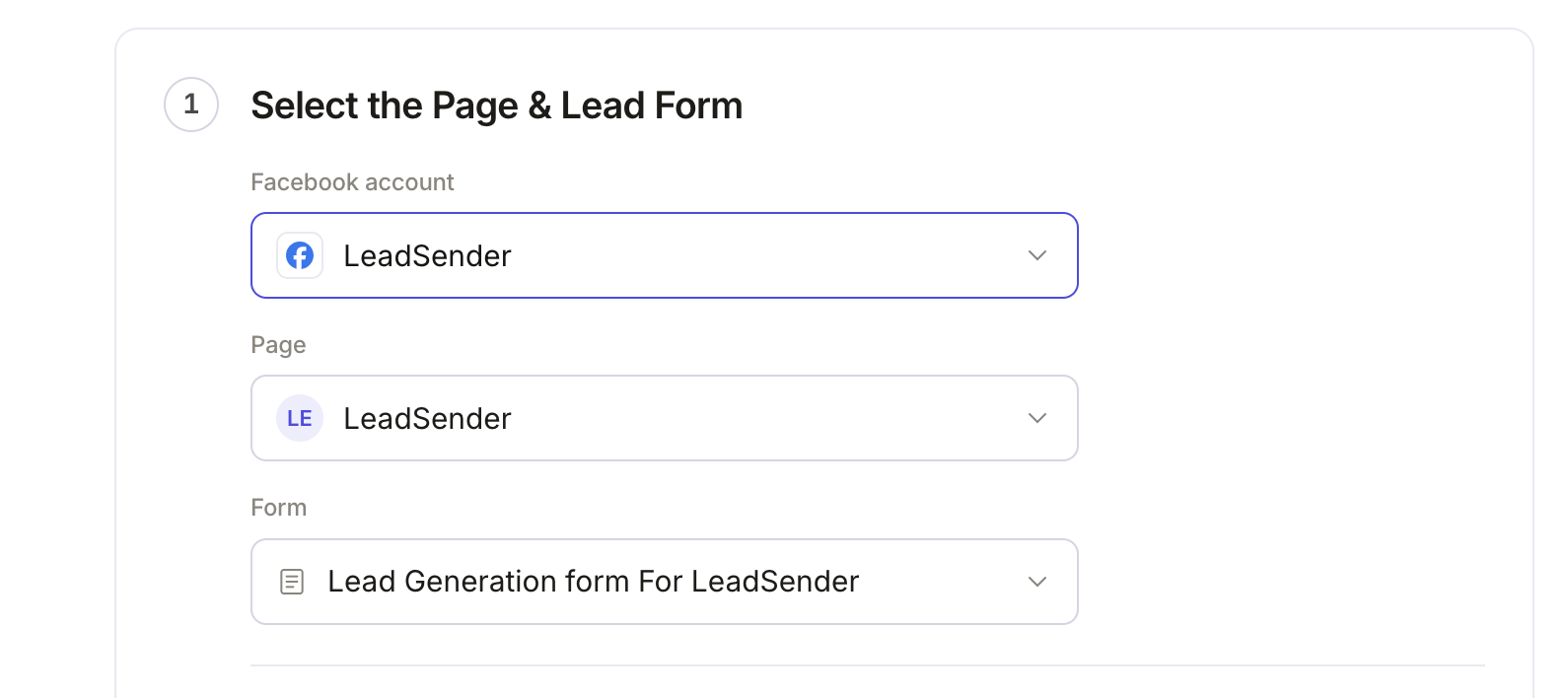 Select your Page
and lead form
Connect Zoho CRM
Click Connect next to Zoho CRM.
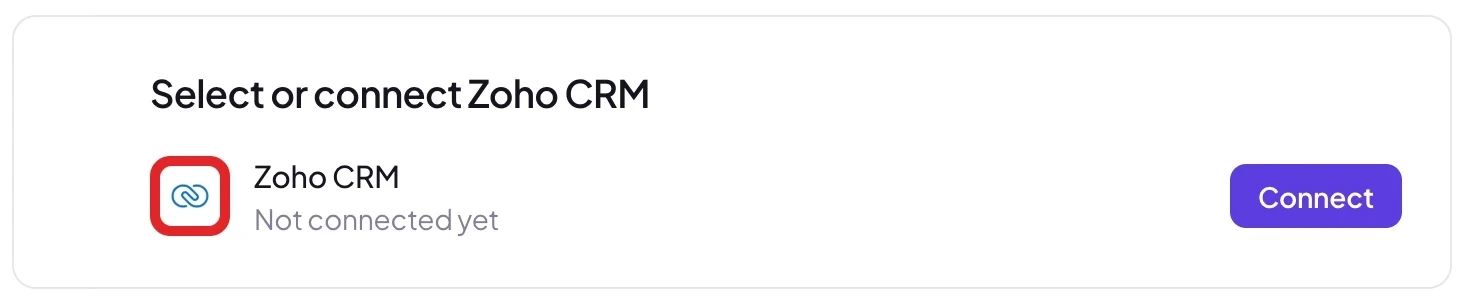 Click Connect
Sign in to Zoho if asked. Zoho then shows what LeadSender can do: create leads, read your fields and read your organization's name. Click Accept. Your data center is picked up automatically.
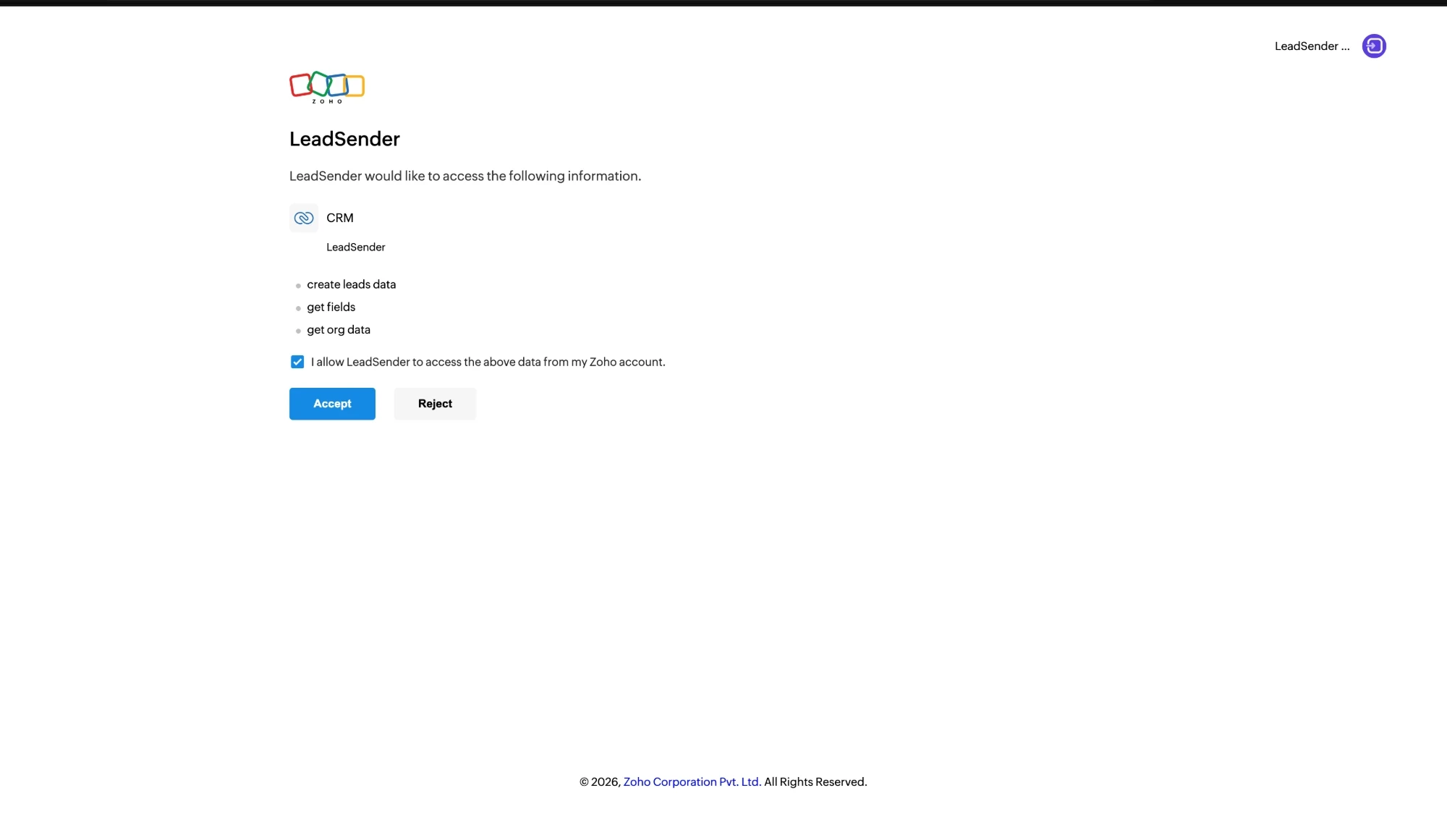 Click Accept
Pick a lead source and status
Choose the Lead source every new lead gets, such as Facebook, so your Zoho reports show which leads came from ads. Optionally pick a Lead status, or leave Zoho's default. Both lists come live from your Zoho CRM, custom values included. They're set on new leads only, so a repeat enquiry never resets a lead's status.
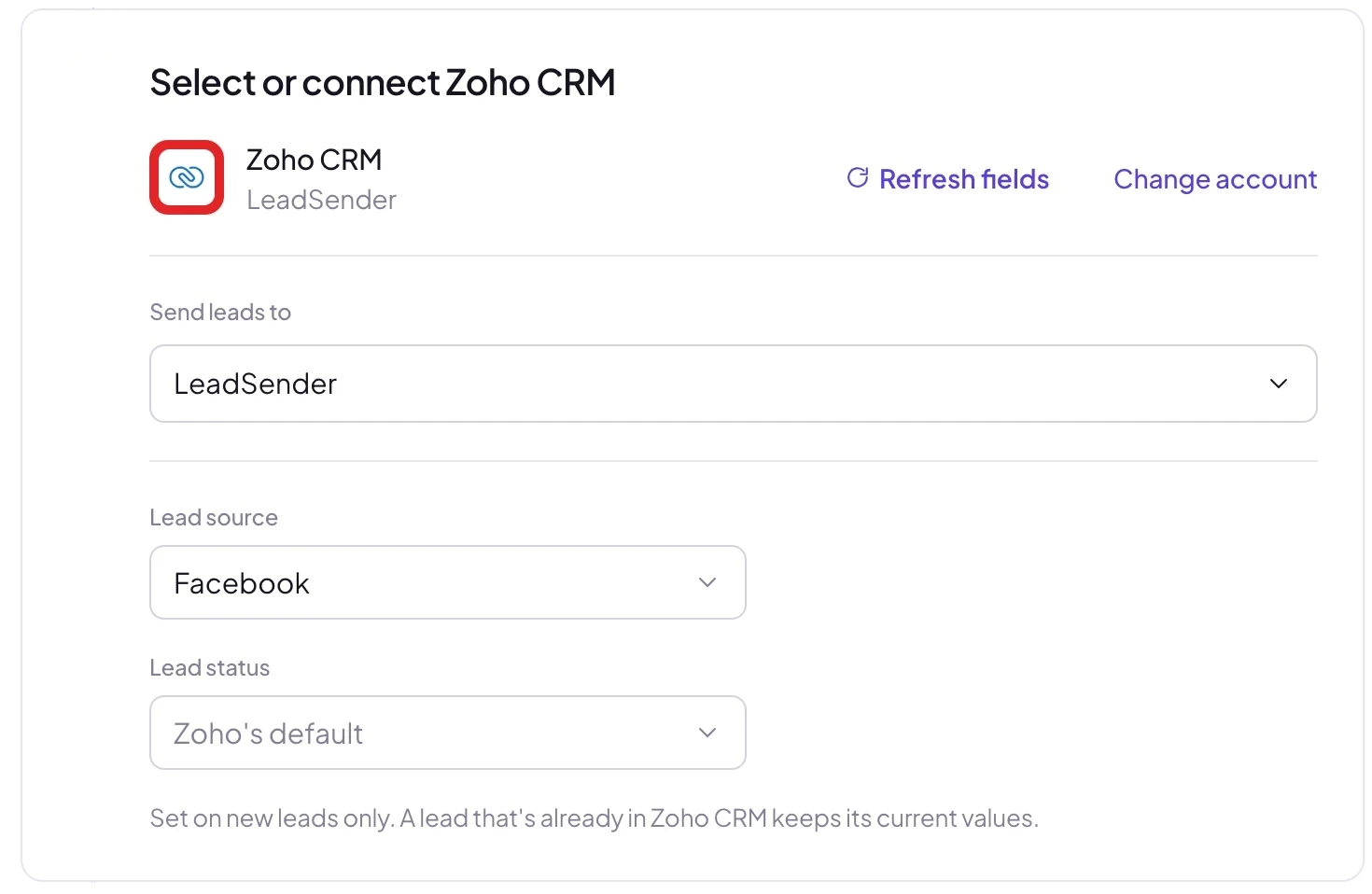 Lead sourceLead status
Match your fields, test and turn on
In Match your fields, name, email and phone are matched for you, and your own Zoho fields are listed too. Check that Last Name is matched. Then click Send a test lead. Need a fresh lead to test with? Create one with our free Meta Lead Ads Testing Tool.
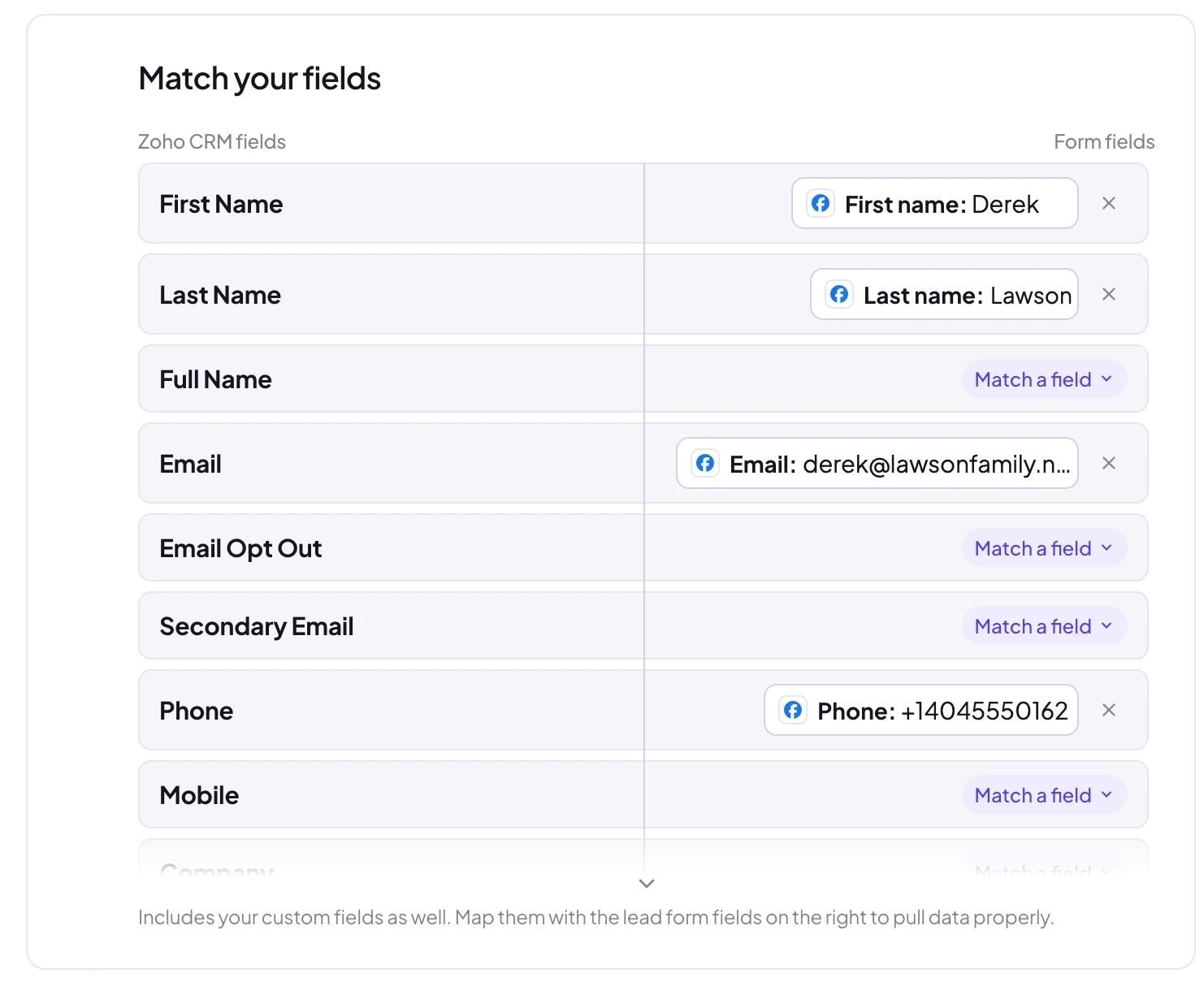 Last Name is required
The test shows exactly what reached Zoho CRM:
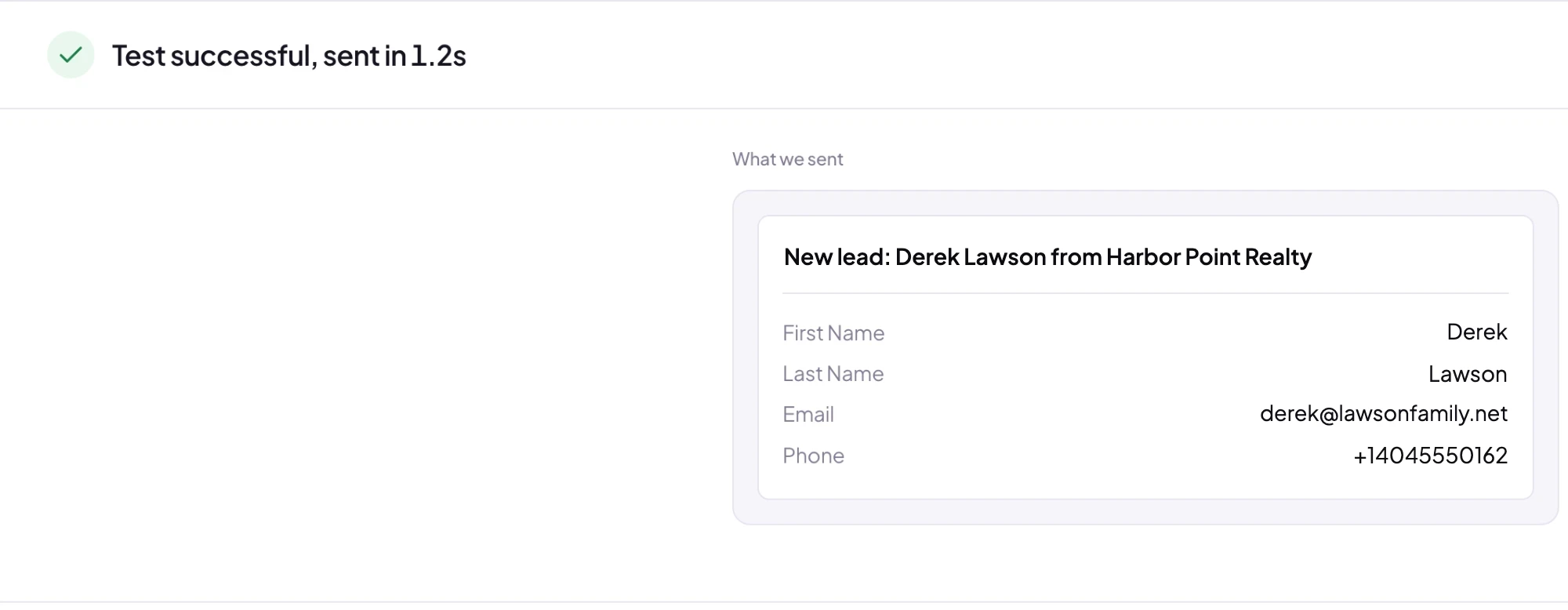 What Zoho CRM received
Open Leads in Zoho CRM and the test lead is already at the top. When it looks right, click Turn on. From then on every new lead from that form, on Facebook or Instagram, reaches Zoho CRM within seconds.
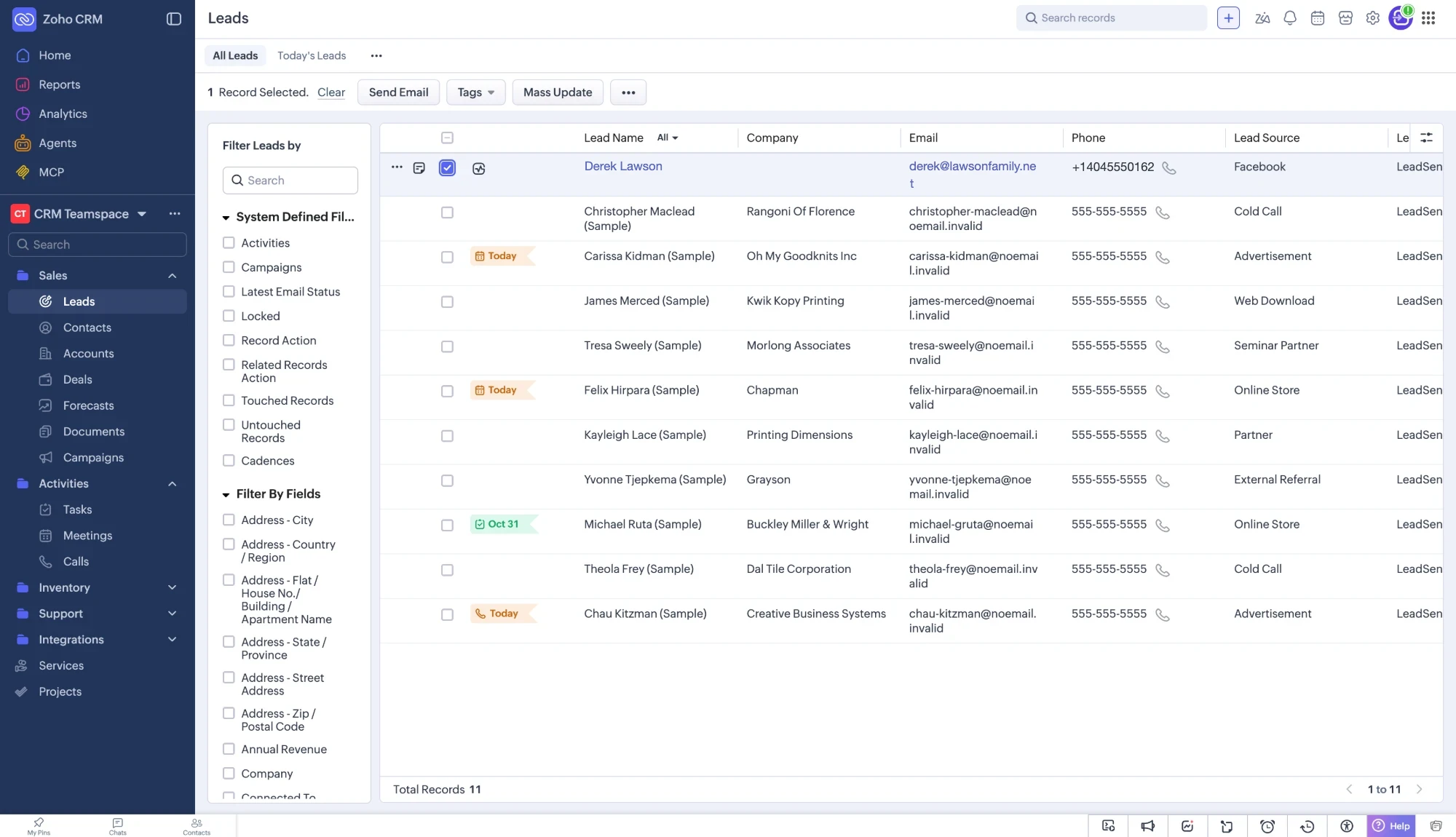 Your Facebook lead
Which fields reach Zoho CRM
| Zoho CRM field | What happens |
|---|---|
| First Name, Last Name | Filled from the form. Last Name is required by Zoho |
| Email, Phone, Mobile | Filled from the form. Email is how a repeat lead is matched |
| Company, address, description | Filled from any question you match to them |
| Lead Source | The source you picked, such as Facebook, unless a form answer is matched to it |
| Lead Status | The status you picked, or Zoho's default |
| Your custom fields | Any of your own Lead fields, matched to any question on your form |
Here is the test lead in Zoho CRM, with its lead source already set:
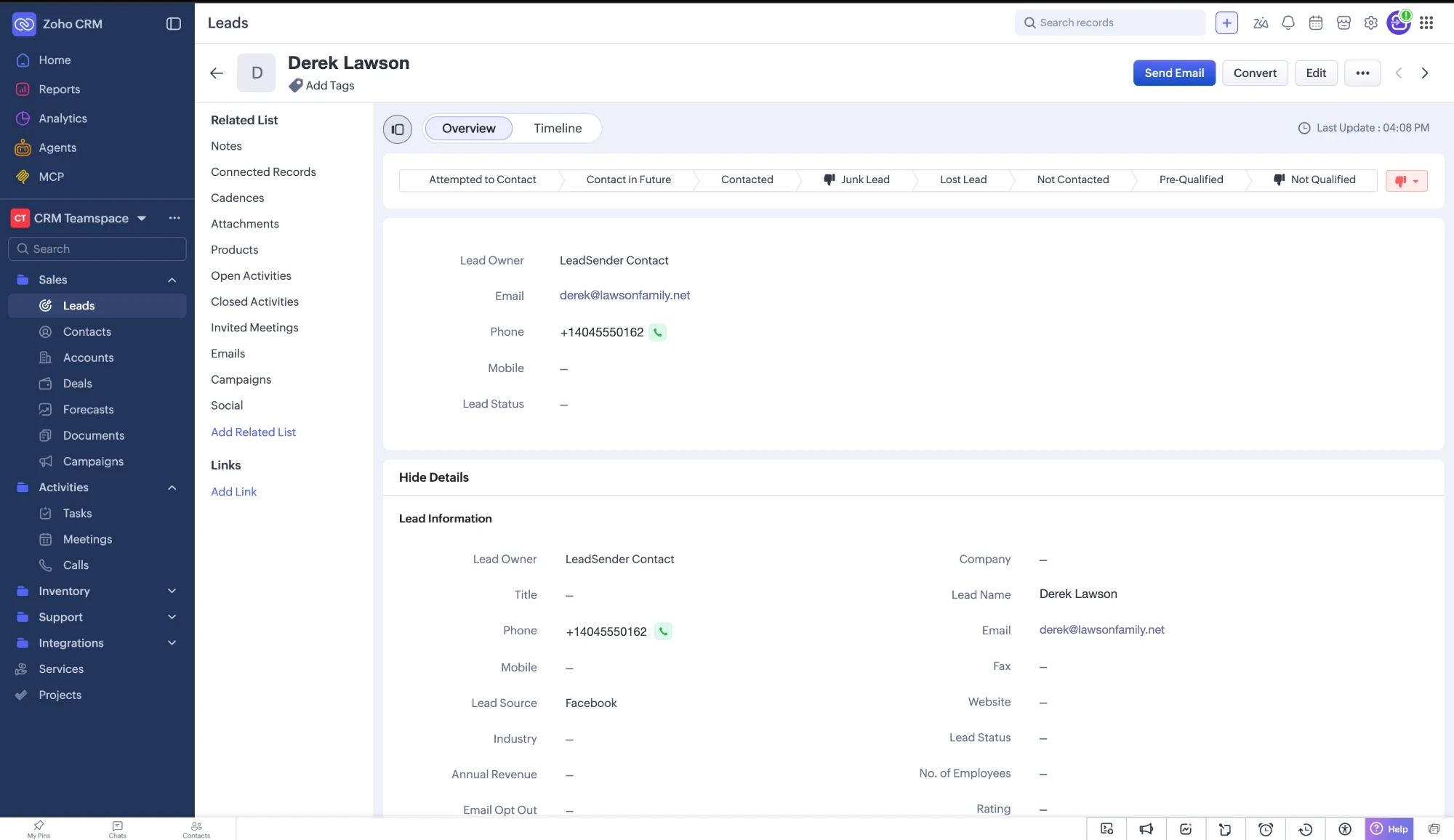 Set for you
If your Zoho plan has workflow rules, add one on Leads where Lead Source is Facebook, such as a task to call the lead or an email alert to the lead owner. Every Facebook lead then starts your follow-up the moment it arrives.
LeadSender vs Zapier vs CSV imports
| LeadSender | Zapier | CSV import | |
|---|---|---|---|
| Price | From $9.99/mo | From $29.99/mo (Facebook Lead Ads is a premium app) | Free |
| Speed | ✓ Seconds | Depends on plan | ✗ Whenever you remember |
| Setup | ✓ About 5 minutes, guided | ⚠ Build and test a Zap | ⚠ Every time, by hand |
| Your custom fields | ✓ Listed live from Zoho | ⚠ Map in each Zap | ⚠ Match columns on every import |
| Repeat leads | ✓ Matched by email | ⚠ Extra search step | ⚠ Merge by hand |
| Failed leads | ✓ Reason and resend in Run history | Zap history | None |
Short version: CSV imports are fine for a one-off list, but a lead imported tomorrow has already gone cold. Zapier works if you already pay for a premium Zapier plan. If you use Zoho Social, it has its own lead ads sync too. LeadSender is the simplest way to get every Facebook lead into Zoho CRM, with your own fields, the moment it comes in. More in LeadSender vs Zapier.
When a Facebook lead doesn't show up in Zoho CRM
- “Map a field to Last Name”: Zoho won't create a lead without a last name. Match your form's name question to Last Name.
- The lead updated instead of appearing as new: someone with that email was already a Zoho lead, so it was updated. Search Leads by their email.
- A custom field is missing: click Refresh fields next to Change account after adding it in Zoho.
- Zoho asks you to sign in again: your Zoho access was removed or expired. Click Change account and connect again.
- Nothing at all: check the integration is turned on, then send a test lead and read the result. Every attempt is listed in Run history.
Comparing options? See how Facebook lead ads integration works, with the 5 ways to send leads to Email, SMS or your CRM compared.