















Klaviyo is at its best in the first few minutes after someone signs up: a welcome email, a discount, the follow-up that turns interest into a sale. Facebook leads miss all of that if they sit in Leads Center until someone downloads a CSV and imports it.
This guide shows how to connect Facebook lead ads to Klaviyo step by step, in about three minutes, with no CSV imports and no Zapier. Every lead lands as a profile on the list you pick, subscribed to email and ready to start your flows, seconds after they submit your form.
Facebook keeps instant-form leads in Leads Center, so you need a connector to send them to Klaviyo. In LeadSender: connect Facebook, choose Facebook Leads to Klaviyo, pick your Page and form, paste a Klaviyo private API key, pick a list, then turn it on. Every new lead becomes a Klaviyo profile within seconds.
How to connect Facebook lead ads to Klaviyo with LeadSender
Start a free trial and connect Facebook
Start your 7-day free trial of LeadSender (no card needed) and sign in with the Facebook account that manages your Page. That lets LeadSender hear about each new lead the moment it's submitted.
Choose the Klaviyo template
From Integrations, pick Facebook Leads to Klaviyo. Then select your Facebook Page and the lead form you want to send.
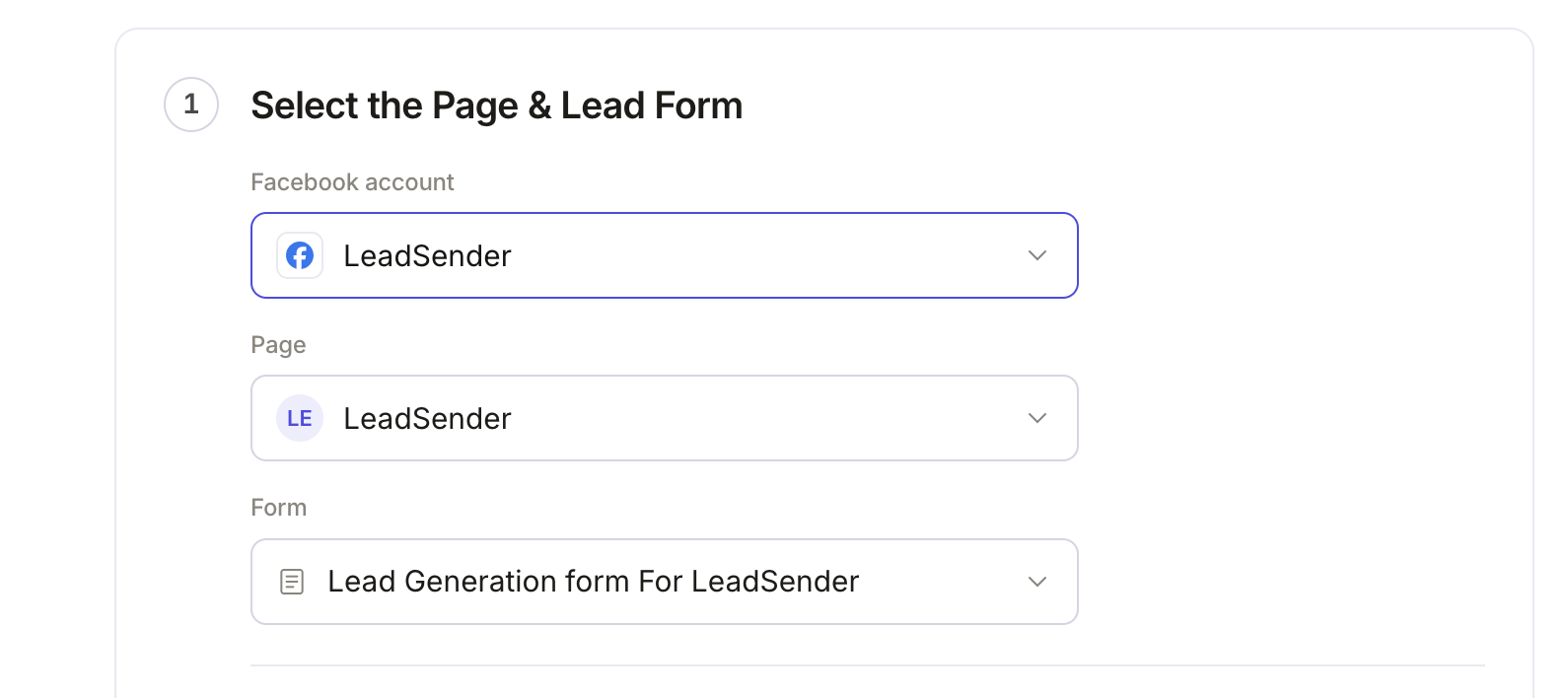 Select your Page
and lead form
Create a Klaviyo private API key
In Klaviyo, click your organization name at the bottom left, then Settings and API keys. Click Create Private API Key.
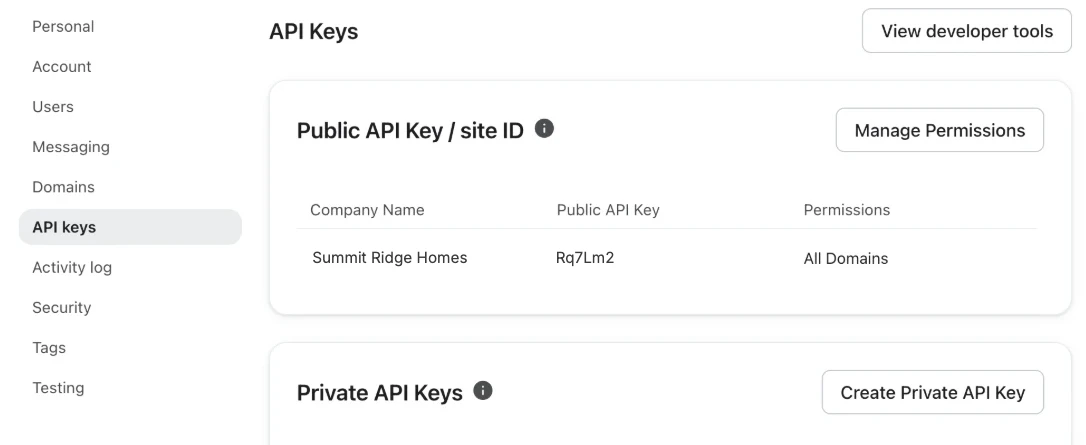 Click here
Name the key LeadSender, choose Full Access Key, click Create and copy the key. Klaviyo only shows it once. The short public key (site ID) at the top of the page won't work.
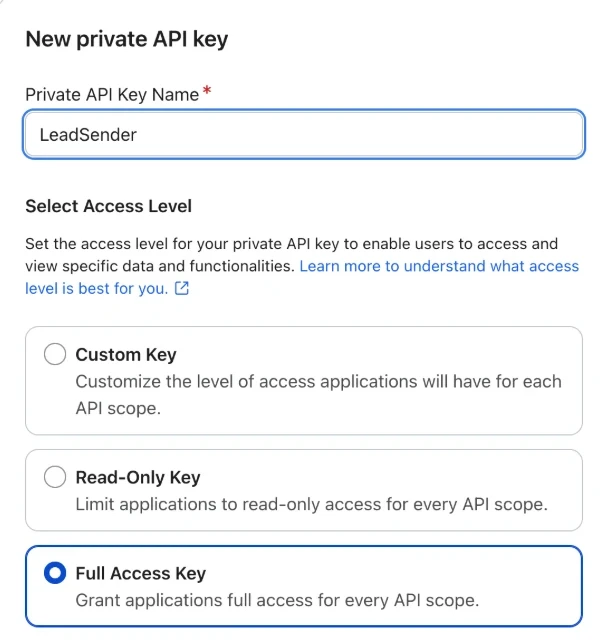
Connect Klaviyo
Back in LeadSender, click Connect next to Klaviyo and paste the key. LeadSender checks it with Klaviyo straight away, and the key stays on LeadSender's servers.
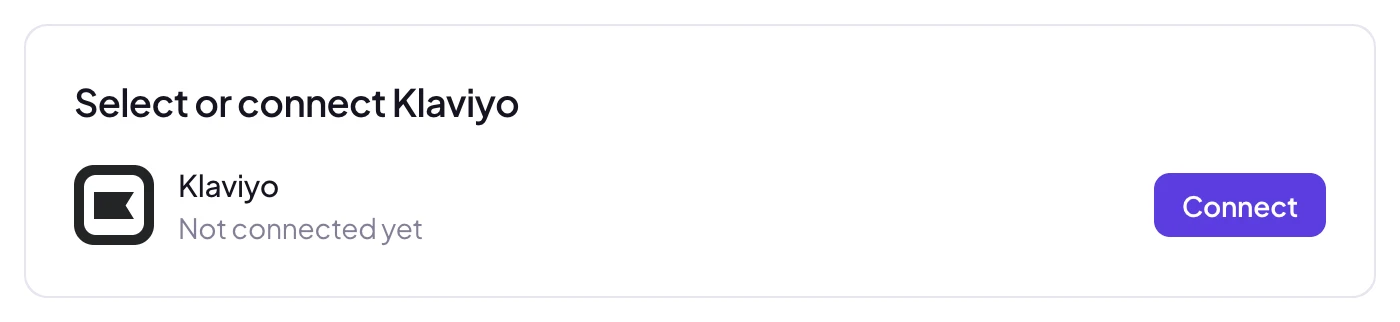 Click Connect
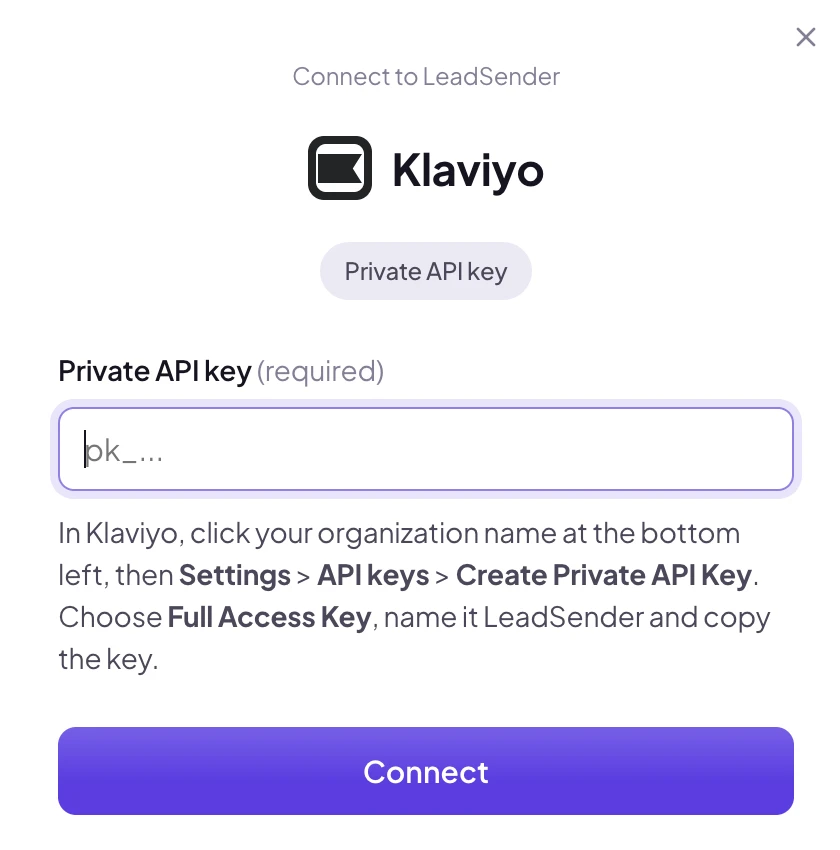 Paste your private key
Pick a list
Under Add new profiles to this list, choose the list Facebook leads should join; your lists come live from your Klaviyo account. Leave Subscribe to email marketing on to give them email consent, or turn it off to add them without changing it.
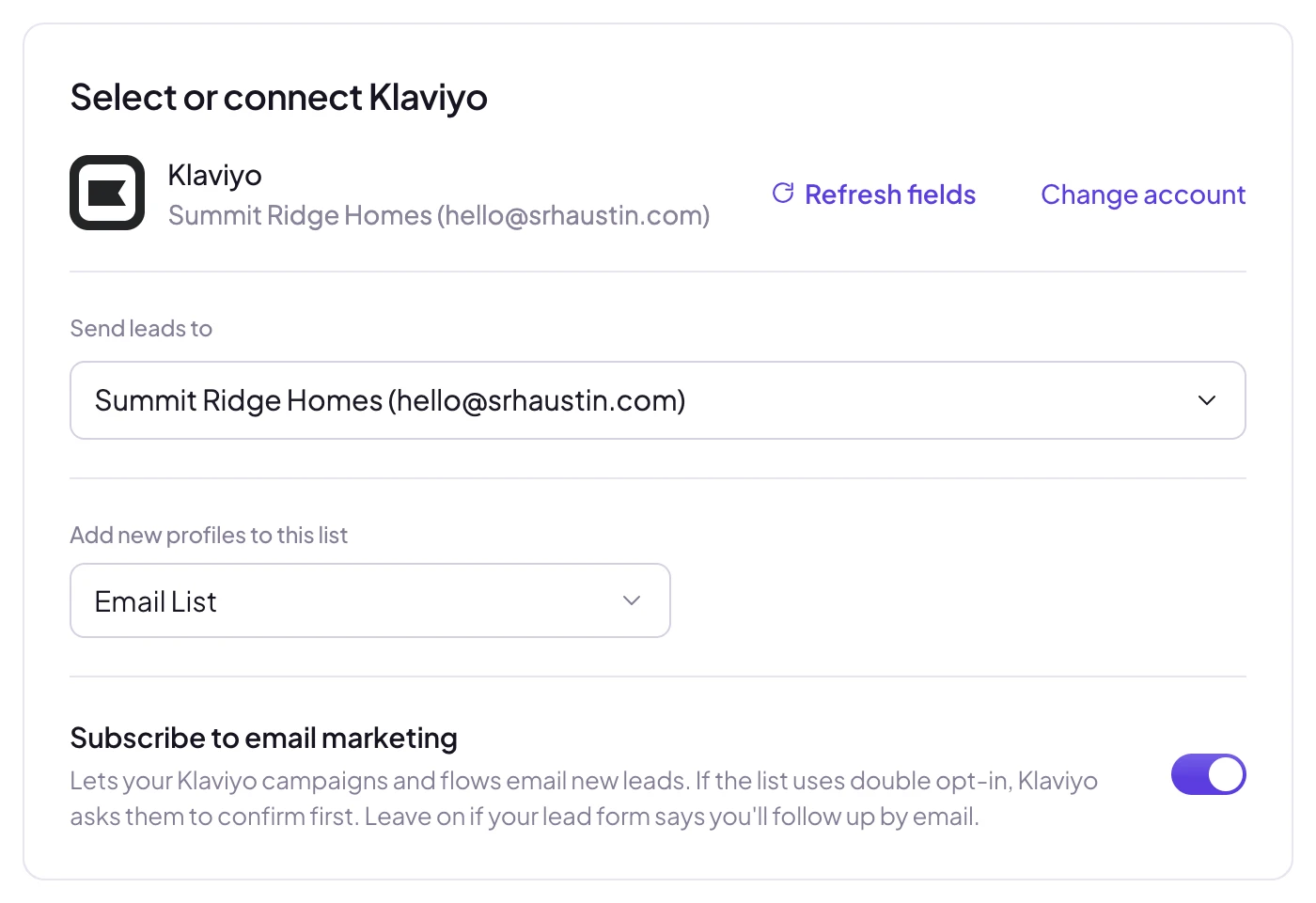 Pick a list
Match your fields, test and turn on
In Match your fields, name, email and phone are matched for you, and each question on your form gets its own custom property. Then click Send a test lead. Need a fresh lead to test with? Create one with our free Meta Lead Ads Testing Tool.
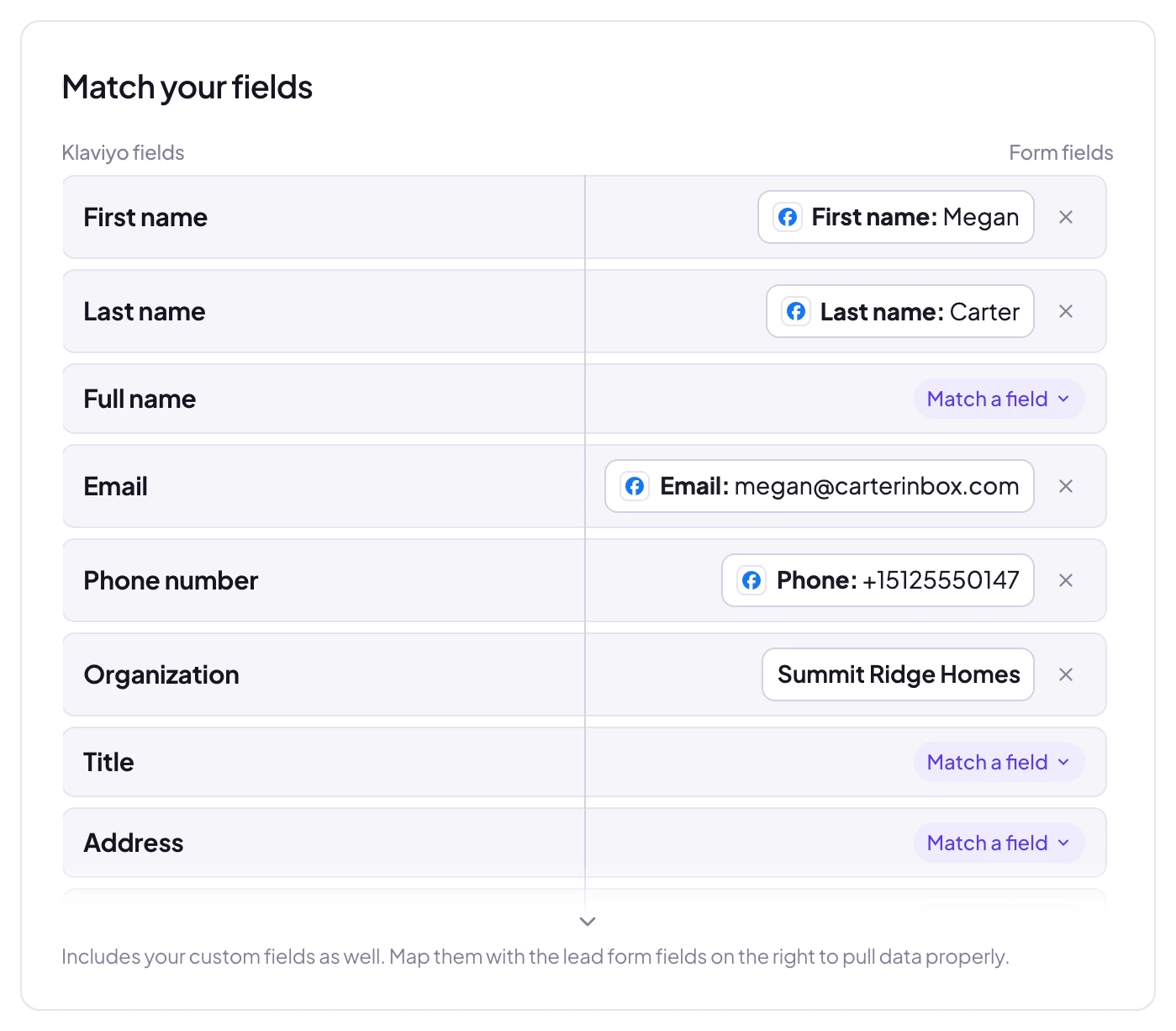 Matched for you
The test shows exactly what reached Klaviyo:
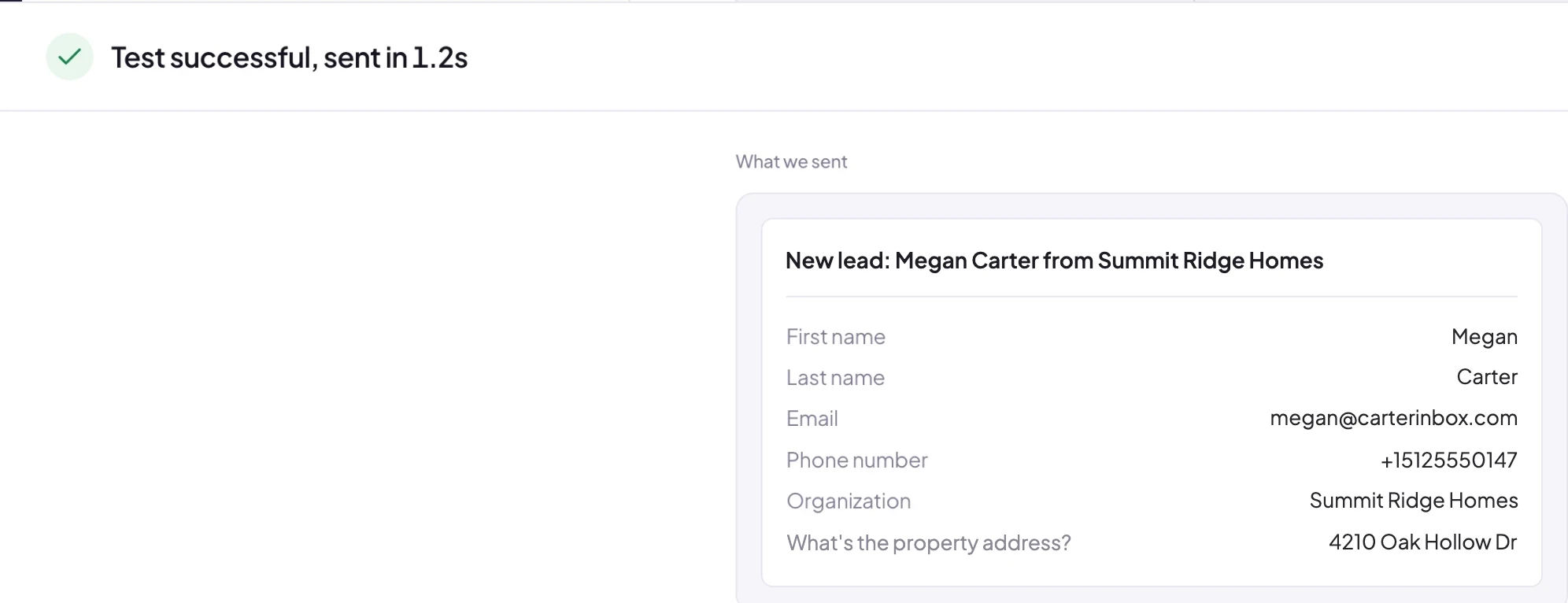 What Klaviyo received
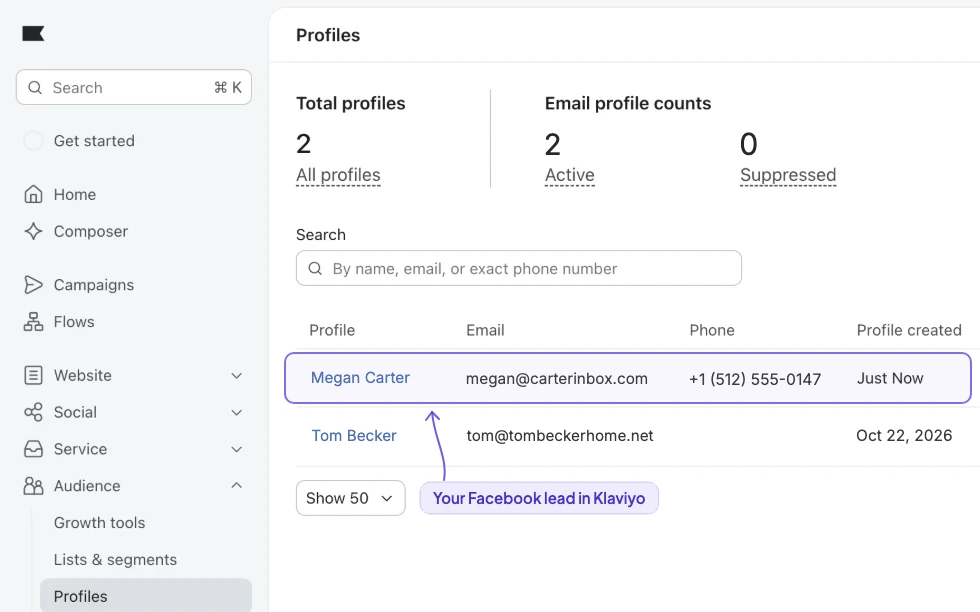
Open Audience, then Profiles in Klaviyo and the test lead is already there. When it looks right, click Turn on. From then on every new lead from that form, on Facebook or Instagram, is added to Klaviyo within seconds.
Which fields reach Klaviyo
Klaviyo's own profile fields are listed first, then one custom property for each question on your form.
| Klaviyo field | What happens |
|---|---|
| First, last or full name | The profile's name. A full name is split for you |
| Email and phone number | Used to find an existing profile, so a repeat lead never becomes a duplicate |
| Title and organization | The profile's job title and company |
| Address, city, region, zip, country | The profile's location |
| Custom properties | One per form question, named after it, for segments and personalized emails |
Klaviyo only accepts phone numbers with a country code, like +15125550147. Facebook usually sends them that way; if a number can't be used, the lead still arrives, with the number saved as the Phone (from form) property.
Lists, consent and flows
- List: every new profile joins the list you picked. You can also choose not to add them to a list.
- Email consent: with Subscribe to email marketing on, each lead is subscribed on that list. On a double opt-in list, Klaviyo first emails them to confirm, and they appear on the list once they click.
- The lead as an event: every lead is also recorded on the profile as Facebook Lead Form Submitted, with every answer and the form it came from.
- Test leads are safe: they're added to your list without being subscribed, so a test never sends anyone an opt-in email, and their event doesn't start a flow.
In Klaviyo, create a flow and pick the Facebook Lead Form Submitted metric as its trigger. The first email can use the lead's answers, like the timeline or budget they gave on your form.
LeadSender vs Zapier vs CSV imports
| LeadSender | Zapier | CSV import | |
|---|---|---|---|
| Price | From $9.99/mo | From $29.99/mo (Facebook Lead Ads is a premium app) | Free |
| Speed | ✓ Seconds | Depends on plan | ✗ Whenever you remember |
| Setup | ✓ About 3 minutes, guided | ⚠ Build and test a Zap | ⚠ Every time, by hand |
| Email consent | ✓ One switch | ⚠ Extra subscribe step | ⚠ Set on every import |
| Every answer on the profile | ✓ Properties and an event | ⚠ Mapped one by one | ⚠ Only mapped columns |
| Failed leads | ✓ Reason and resend in Run history | Zap history | None |
Short version: CSV imports are fine for a one-off list, but a lead imported tomorrow misses the moment your welcome flow matters most. Zapier works if you already pay for a premium Zapier plan. LeadSender is the simplest way to get every Facebook lead into Klaviyo the moment it comes in. More in LeadSender vs Zapier.
When a Facebook lead doesn't show up in Klaviyo
- “Klaviyo rejected this private API key”: the key was deleted or copied incompletely. Create a new one under Settings, API keys and reconnect.
- “Doesn't have the access LeadSender needs”: the key is a Custom or Read-Only key. Create a Full Access key and reconnect.
- The profile is there but not on the list: the list uses double opt-in and the lead hasn't confirmed yet. That's Klaviyo working as set up.
- “Has no email or phone matched”: Klaviyo needs at least one of them to create a profile. Match your form's email or phone.
- Nothing at all: check the integration is turned on, then send a test lead and read the result. Every attempt is listed in Run history.
Comparing options? See how Facebook lead ads integration works, with the 5 ways to send leads to Email, SMS or your CRM compared.