

















If you run Facebook or Instagram lead ads and keep your leads in Airtable, you've probably done the download-a-CSV, import-it, fix-the-columns routine more than once. It's slow, and the leads are already hours old by the time anyone sees them.
There's a better way. Below we'll show you how to send Facebook leads to Airtable automatically, so each new lead turns up in your base a few seconds after someone fills in your form, with every answer in the right field. Setup takes about three minutes. After that, we'll cover Airtable automations, Zapier and Make, and the manual CSV route, so you can pick whatever suits you.
Airtable can't pull in Facebook lead ads by itself, so something has to send them over. With LeadSender, you connect Facebook, choose Facebook Leads to Airtable, pick your Page and form, connect Airtable, choose a base and table, match the fields, send a test lead and switch it on. From then on, every new lead shows up in Airtable a few seconds after it's submitted.
How to connect Facebook leads to Airtable with LeadSender
This is the quickest way to connect Facebook lead ads to Airtable. Each lead becomes a new record within seconds, every answer goes into the field you pick, and if a lead ever fails to arrive you get an email telling you why.
Start a free trial and connect Facebook
Start your 7-day free trial of LeadSender (no card needed) and sign in with the Facebook account that manages your Page. That lets LeadSender hear about each new lead the moment it's submitted.
Choose the Airtable template
From Integrations, pick Facebook Leads to Airtable. Then select your Facebook Page and the lead form to send. The builder previews your most recent real lead from that form, so you see real answers while you set up.
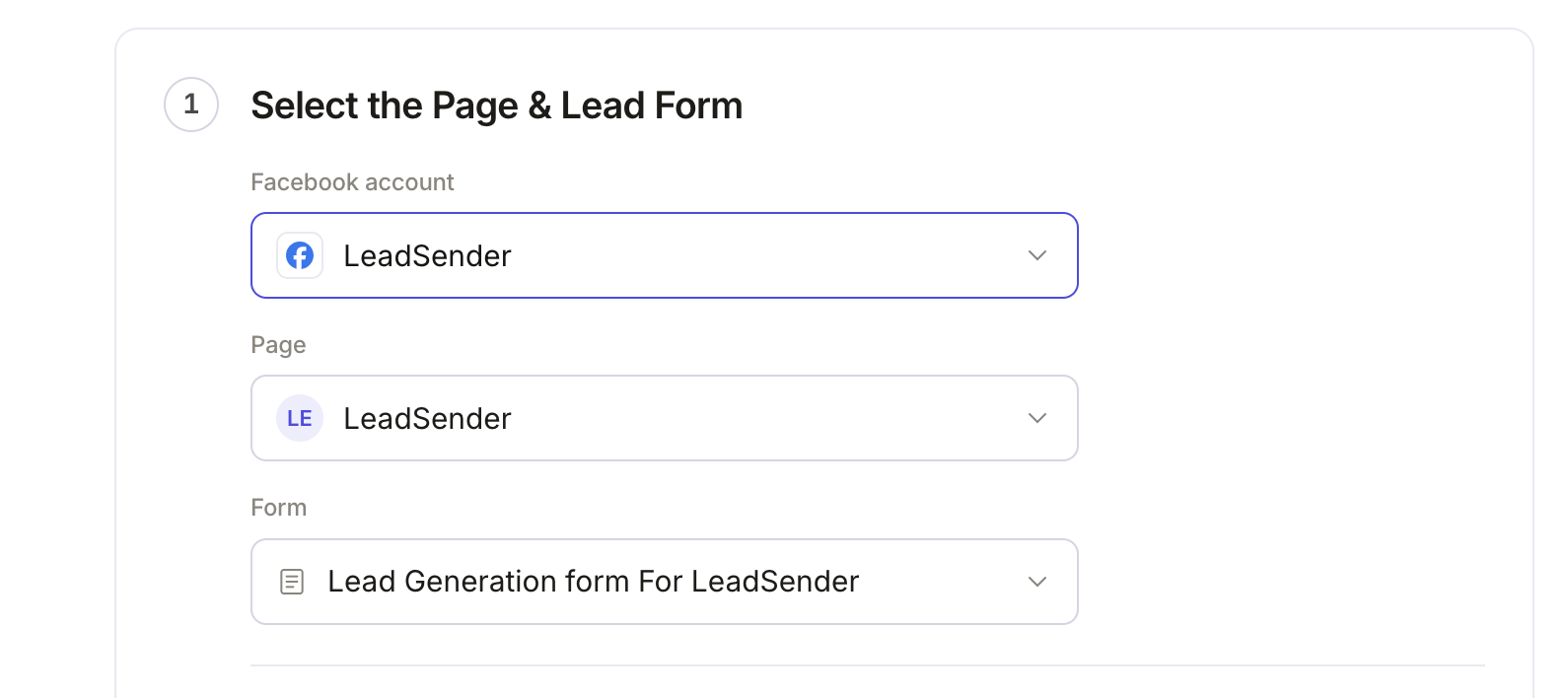 Select your Page
and lead form
Connect Airtable and pick a base and table
Click Connect and sign in to Airtable. Airtable asks which bases LeadSender may use: add the base your leads should go into (or all of them). Back in LeadSender, choose the Base and the Table. Use Change account to switch to a different Airtable account.
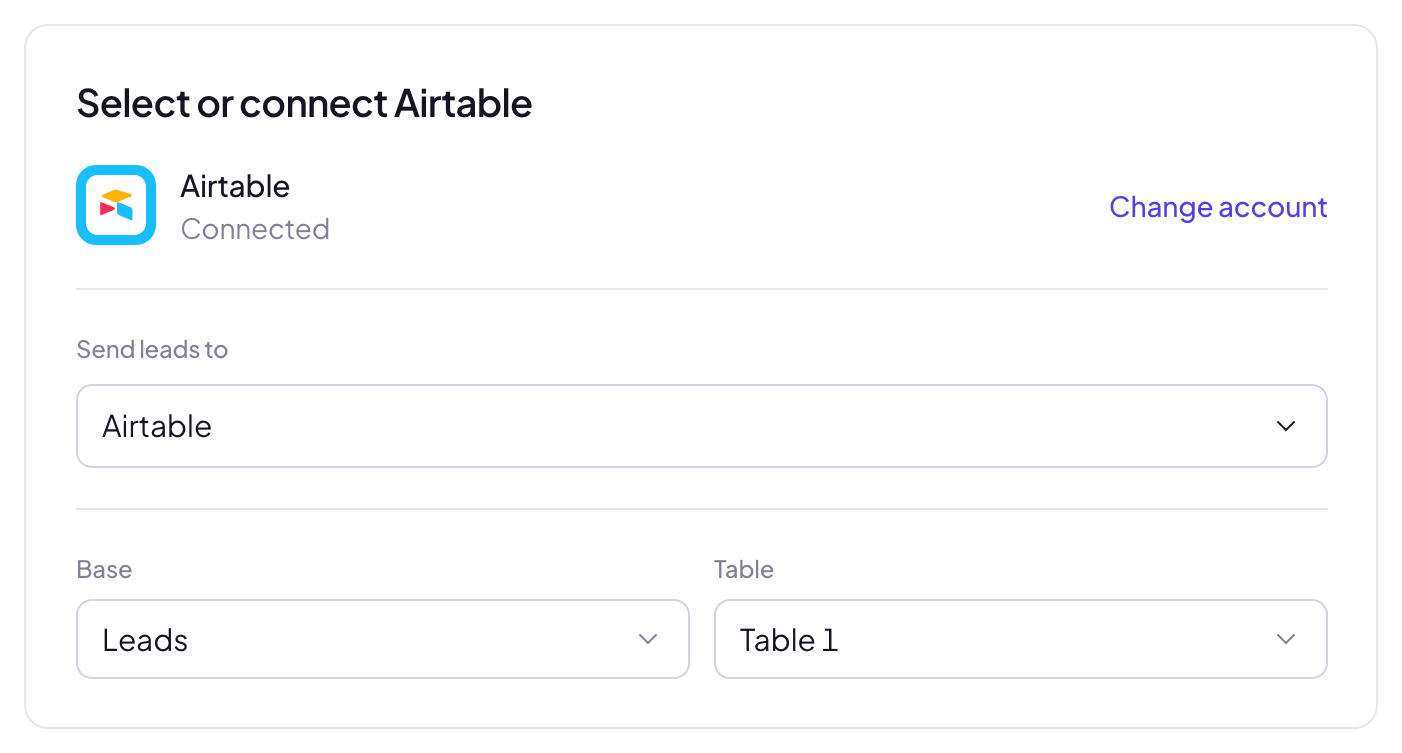 Choose the base and table
Match your fields
The left column lists the real fields in your table. Name, email and phone are matched for you, and each pill shows the Facebook question and the answer from your latest lead, so you see exactly what will land in Airtable. Match any other field with Match a field, or type a fixed value, for example Status = New on every lead.
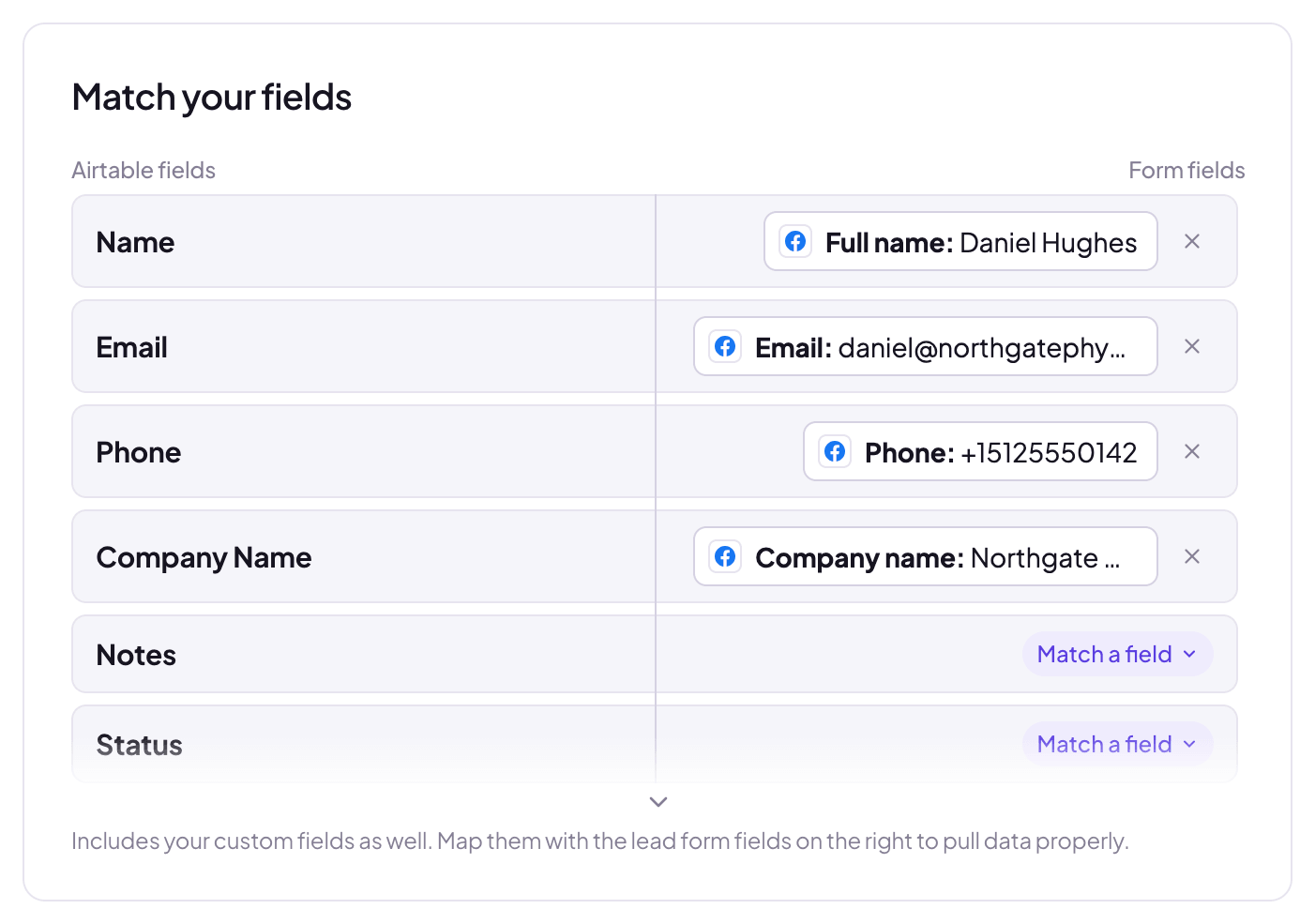 Match any other field
Send a test lead
Click Send a test lead. LeadSender sends your latest real lead to Airtable through your mapping and shows exactly what was sent. Want a brand new lead instead? Create one with our free Meta Lead Ads Testing Tool.
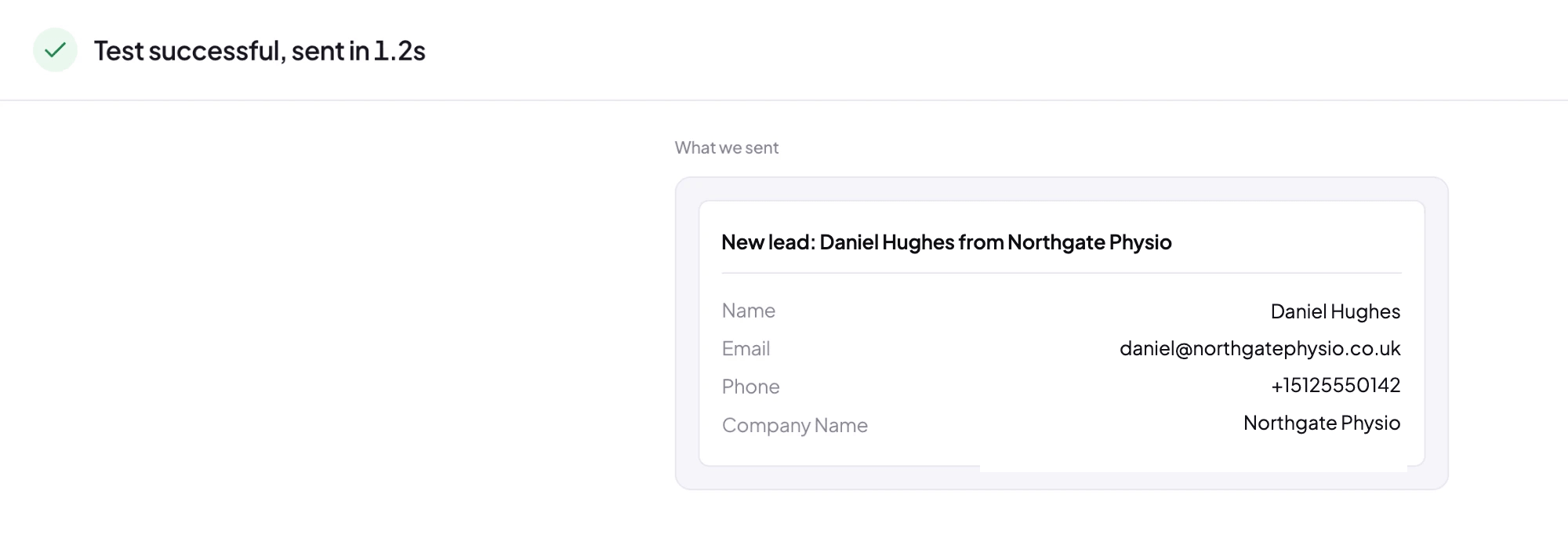 Exactly what was sent to Airtable
Then open the table in Airtable. The lead is already there as a new record, each answer in its own field.
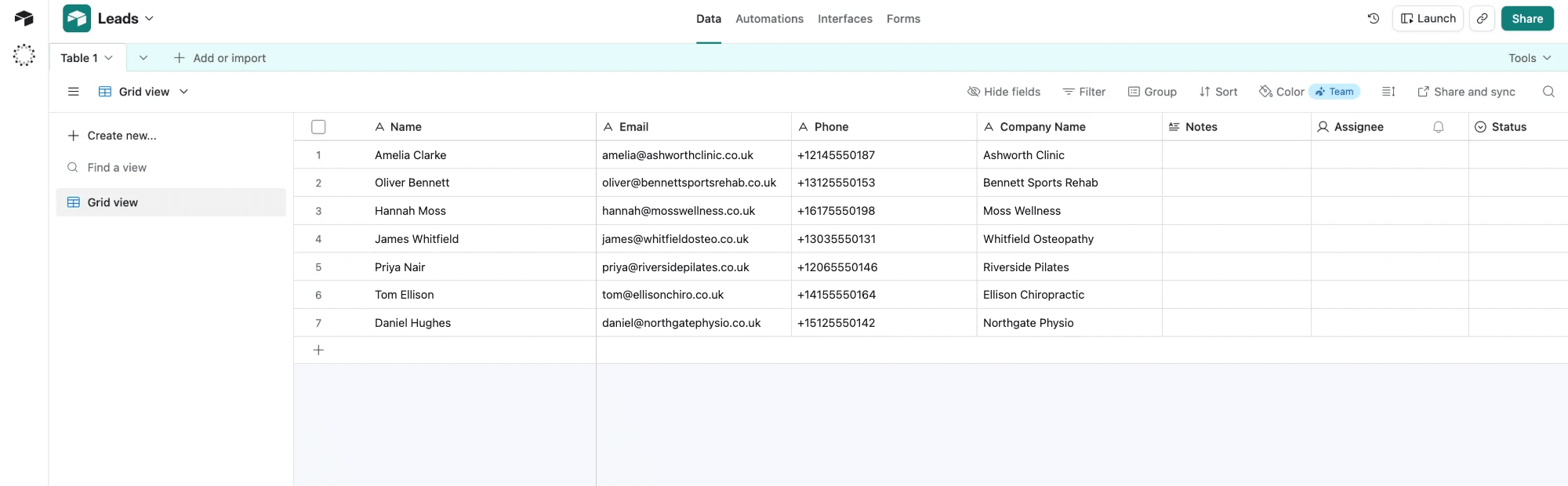 Your new Facebook lead
Turn it on
Click Turn on. From now on every new lead from that form, on Facebook or Instagram, arrives in Airtable as a new record within seconds.
Which Airtable fields can Facebook leads fill?
LeadSender reads the fields in the table you picked, so the list matches your base, not a generic template:
- Fields you can type into: single line text, long text, email, phone number, number, currency, date, URL, single select and multiple select.
- Fixed values: type a value instead of matching an answer and every record from that form gets it. Useful for a Status of
Newor a Source ofFacebook. - Not offered: fields Airtable fills itself (formula, rollup, lookup, count, autonumber, created and modified time) and fields that need a structured value (attachments, collaborators such as an Assignee, and linked records). Set those in Airtable, by hand or with an automation.
Values are sent with Airtable's typecast setting on, so Airtable converts the text into each field's type. If a single select doesn't have the answer as an option yet, Airtable adds it.
Before you connect, add a field to the table for each question you want to keep, such as Budget or Treatment. Then every answer has somewhere to go, and you can sort and filter by it in Airtable.
Follow up with Facebook leads using Airtable automations
Getting the lead into Airtable fast only matters if someone acts on it. Because each lead is a new record, you can build on it inside Airtable:
- Automations: use the When a record is created trigger to notify a teammate, set an owner, or send a first email.
- Views: a filtered view of new records with Status = New becomes your team's call list.
- An instant alert as well: send the same form to SMS or Email as a second integration, so a rep can call within minutes while Airtable keeps the record.
Every Facebook lead in Airtable, in seconds
Your own base and fields, a new record for every lead, and an email alert if a lead ever fails to deliver. Set up in about three minutes.
Facebook lead ads Airtable integration options, compared
| LeadSender | Zapier | Make | CSV import | |
|---|---|---|---|---|
| Price | From $9.99/mo, 7-day free trial | From $29.99/mo | Operations count toward your plan | Free |
| Automatic | ✓ Yes | ✓ Yes | ✓ Yes | ✕ Manual |
| Speed | ✓ Seconds | Depends on plan | Depends on schedule | Whenever you import |
| Your own fields | ✓ Pick any writable field | ✓ Yes | ✓ Yes | ⚠ Match columns each time |
| Setup | 3 steps, no workflow | A Zap per form | A scenario per form | Every time |
| Also send to Email, SMS or a CRM | ✓ Yes | ✓ With more steps | ✓ With more modules | ✕ No |
Short version: if you already run your business through Zapier or Make, adding Airtable there is reasonable. If you want Facebook leads in Airtable within seconds with nothing to maintain, and the same lead in an SMS or email alert, use LeadSender. More on that in LeadSender vs Zapier.
Using Zapier or Make to send Facebook leads to Airtable
Both connect Facebook Lead Ads to Airtable. On Zapier, Facebook Lead Ads is a premium app, so you need a paid plan and each lead uses tasks from your allowance.
- Create a Zap (or a Make scenario) with Facebook Lead Ads, New Lead as the trigger and choose your Page and form.
- Add an Airtable, Create Record action and connect your Airtable account.
- Pick the base and table, map each lead field to an Airtable field, test it and turn it on.
Every new form needs its own Zap or scenario, and the Facebook connection inside it needs looking after when Page roles or passwords change.
Importing Facebook leads into Airtable from a CSV
For leads you already have, or a one-off clean-up, download them from Meta and import the file. Here's how to download Facebook leads from Ads Manager. In Airtable, open the table, choose Add or import, then CSV file, and match each CSV column to a field. It works, but it's a snapshot: new leads won't appear until someone imports again.
When Facebook leads don't reach Airtable
| What you see | Likely cause | Fix |
|---|---|---|
| No new records at all | The integration is off, or Facebook or Airtable access was lost | Check it's turned on, then send a test lead. Reconnect Facebook or Airtable if asked. |
| The base or table isn't in the list | LeadSender wasn't given access to that base | Click Change account and sign in to Airtable again, adding that base when Airtable asks. |
| A field isn't offered to match | It's a computed, attachment, collaborator or linked record field | Use a text, select or number field for the answer instead, or fill it in Airtable. |
| Record arrives, a field is empty | That question isn't matched | Open the integration and match it. Reopen it after adding a new field in Airtable so it appears. |
| Test works, real leads don't | Your live ad uses a different form | Check the form in your ad matches the one in the integration. |
| A lead failed to deliver | Airtable rejected the record or was unreachable | Check the reason in Run history, fix it, then resend the lead from there. |
The fastest way to find where it breaks is a test lead. Our free Meta Lead Ads Testing Tool creates one on your real form, and this guide explains the errors you might see. Prefer a plain spreadsheet? Here's how to send Facebook lead ads to Google Sheets.
Facebook Leads to Airtable: FAQs
How do I send Facebook leads to Airtable automatically?
Use a lead delivery tool such as LeadSender, or an automation tool such as Zapier or Make. In LeadSender: connect Facebook, choose Facebook Leads to Airtable, pick your Page and form, connect Airtable, choose the base and table, match the fields, send a test lead and turn it on. It takes about three minutes.
Is there a Facebook Lead Ads and Airtable integration?
Not a built-in one. Airtable has no native connection for Facebook lead ads, so you need an integration tool such as LeadSender, Zapier or Make, or you import a CSV downloaded from Meta by hand.
How fast do Facebook leads reach Airtable?
Within seconds. Meta notifies LeadSender the moment the form is submitted, and the record is created in Airtable straight away. There is no polling interval.
Can I choose which Airtable base and table leads go into?
Yes. After connecting Airtable you pick the base and table for each integration, so different lead forms can go to different tables or bases.
Which Airtable fields can Facebook leads fill?
Any field you can type into: single line text, long text, email, phone, number, date, URL, and single or multiple select. Fields Airtable fills itself (formulas, rollups, lookups, autonumber, created time) and ones that need a structured value (attachments, collaborators, linked records) aren't offered.
What happens if a single select field doesn't have the answer as an option?
LeadSender sends values with Airtable's typecast setting on, so Airtable converts the text into the field's type and adds the answer as a new select option if it doesn't exist yet.
Will a repeat Facebook lead create a duplicate record?
Yes, each submission is a new record, because Airtable has no built-in unique field to match on. If the same person submits twice, you can merge them with Airtable's Dedupe extension or spot them by sorting on Email.
Can LeadSender read my existing Airtable records?
No. LeadSender asks Airtable only for permission to create records and read your bases' structure (table and field names), so it can map fields. It can't read the records already in your base.
Can I start an Airtable automation when a Facebook lead arrives?
Yes. Each lead is a new record, so an automation with the When a record is created trigger runs on every new Facebook lead. Use it to notify a teammate, assign an owner or send a follow-up email.
Does this work for Instagram lead ads?
Yes. Instagram lead ads use the same instant forms on your Facebook Page, so the same setup sends Instagram leads to Airtable too.
Can I use Zapier to send Facebook leads to Airtable?
Yes, with a Zap from Facebook Lead Ads to Airtable's Create Record action. Facebook Lead Ads is a premium app on Zapier, so you need a paid plan, and each lead uses tasks from your allowance.
Will my old Facebook leads be sent to Airtable?
LeadSender sends new leads from the moment you turn it on. For earlier ones, download them from Meta as a CSV and import it into the same table once.
Getting started
If you're importing CSVs by hand today, this saves the whole step. Set up the Facebook Lead Ads & Airtable integration in LeadSender and the free trial is long enough to watch real leads land in your base before you decide.
Comparing options? See how Facebook lead ads integration works, with the 5 ways to send leads to Email, SMS or your CRM compared.