














HubSpot is where a lot of teams keep every contact, deal and conversation. Facebook and Instagram lead ads are where many of those contacts start. Getting Facebook leads to HubSpot fast and complete means your rep sees the lead while the person still remembers filling in the form, not hours later.
This guide shows how to send Facebook lead ads to HubSpot step by step, in about three minutes, with every answer in the right contact property. Then it covers HubSpot's own lead syncing and Zapier, so you can pick the option that fits.
To send Facebook leads to HubSpot automatically, connect your lead form to HubSpot with a lead delivery tool or HubSpot's own lead syncing. In LeadSender: connect Facebook, choose Facebook Leads to HubSpot, pick your Page and form, connect HubSpot, match the fields, send a test lead and turn it on. Each lead becomes a HubSpot contact within seconds. HubSpot's free lead syncing also works, but HubSpot says new leads can take up to two hours to arrive.
How to connect Facebook leads to HubSpot with LeadSender
This is the quickest way to connect Facebook lead ads to HubSpot, and the setup for teams that want speed: a HubSpot contact within seconds, every answer in your own properties, no duplicates when someone submits twice, and an email if a lead ever fails to deliver.
Start a free trial and connect Facebook
Start your 7-day free trial (no card needed) and sign in with the Facebook account that manages your Page. That lets LeadSender hear about each new lead the moment it's submitted.
Choose the HubSpot template
From Integrations, pick Facebook Leads to HubSpot. Then select your Facebook Page and the lead form to send. The builder previews your most recent real lead from that form, so you see real answers while you set up.
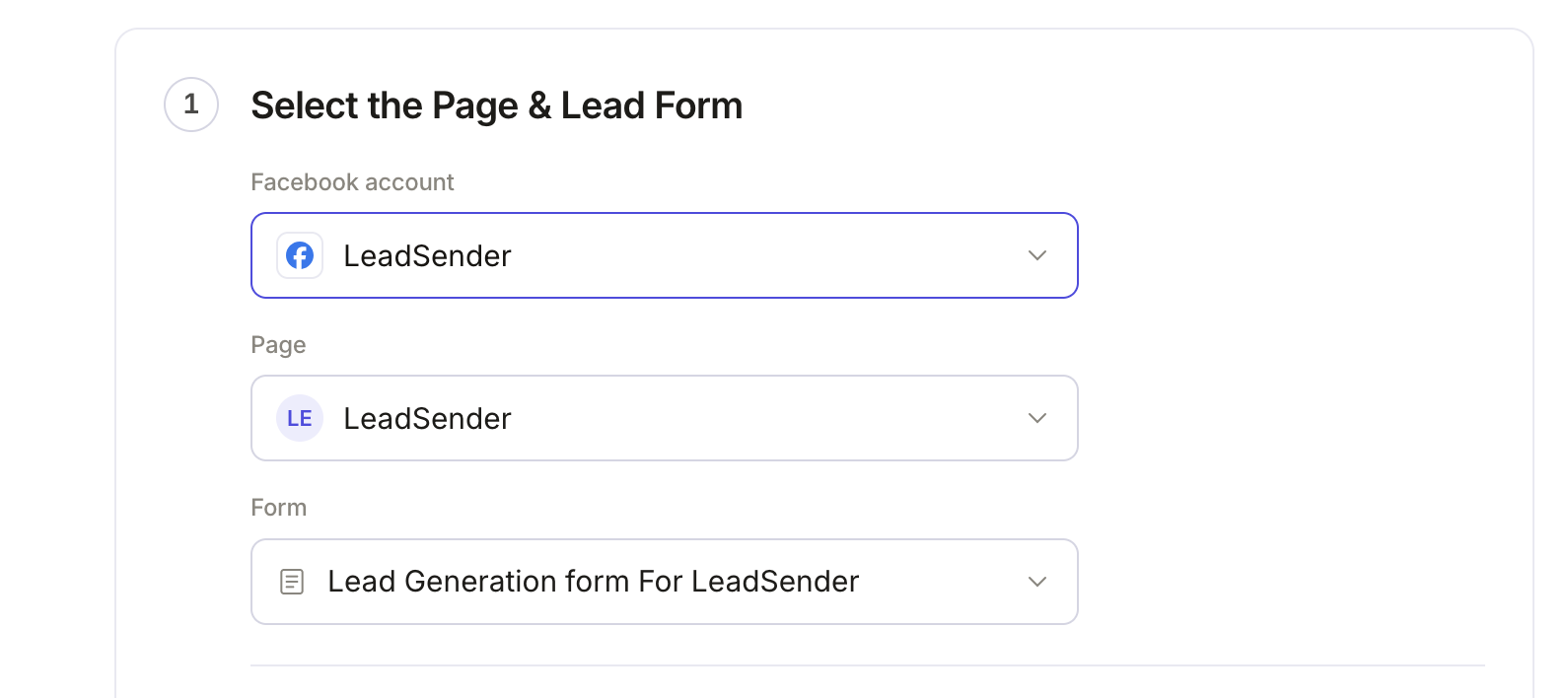 Select your Page
and lead form
Connect HubSpot
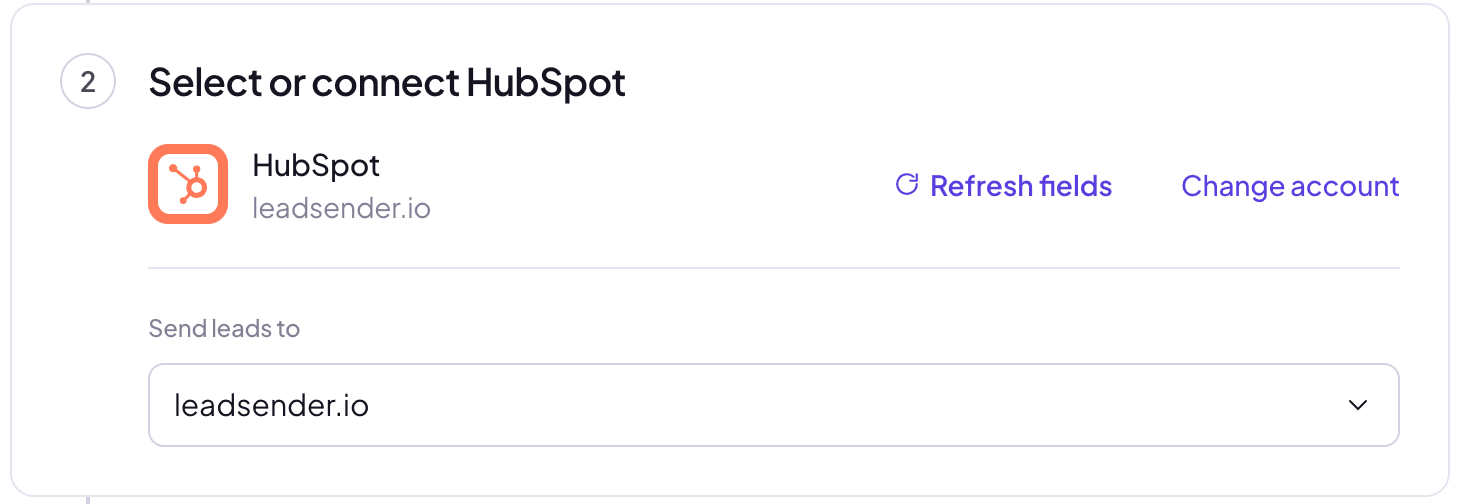
Click Connect, sign in to HubSpot and approve access. Back in LeadSender, the account shows under Send leads to. Manage more than one HubSpot account? Use Change account to switch or add another.
 Your HubSpot account
Match your fields
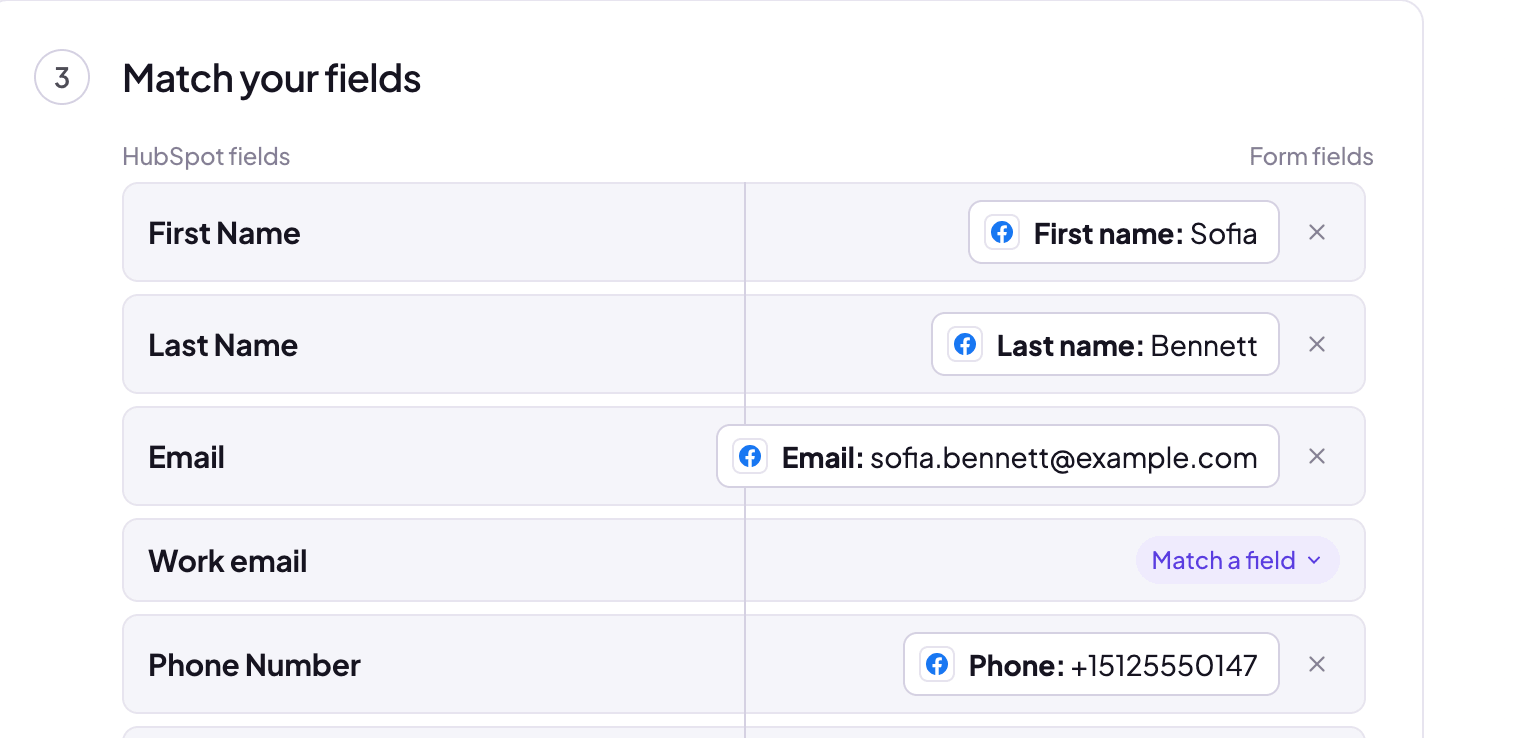
First name, last name, email and phone are matched for you, based on the questions your form really asks. Each pill shows the Facebook field and the answer from your latest lead, so you can see exactly what will land in HubSpot. Match any other question to a HubSpot property with Match a field.
Email has to be matched: HubSpot uses it to find an existing contact or create a new one. Facebook's standard email question is matched automatically.
 Match any other property
Send a test lead
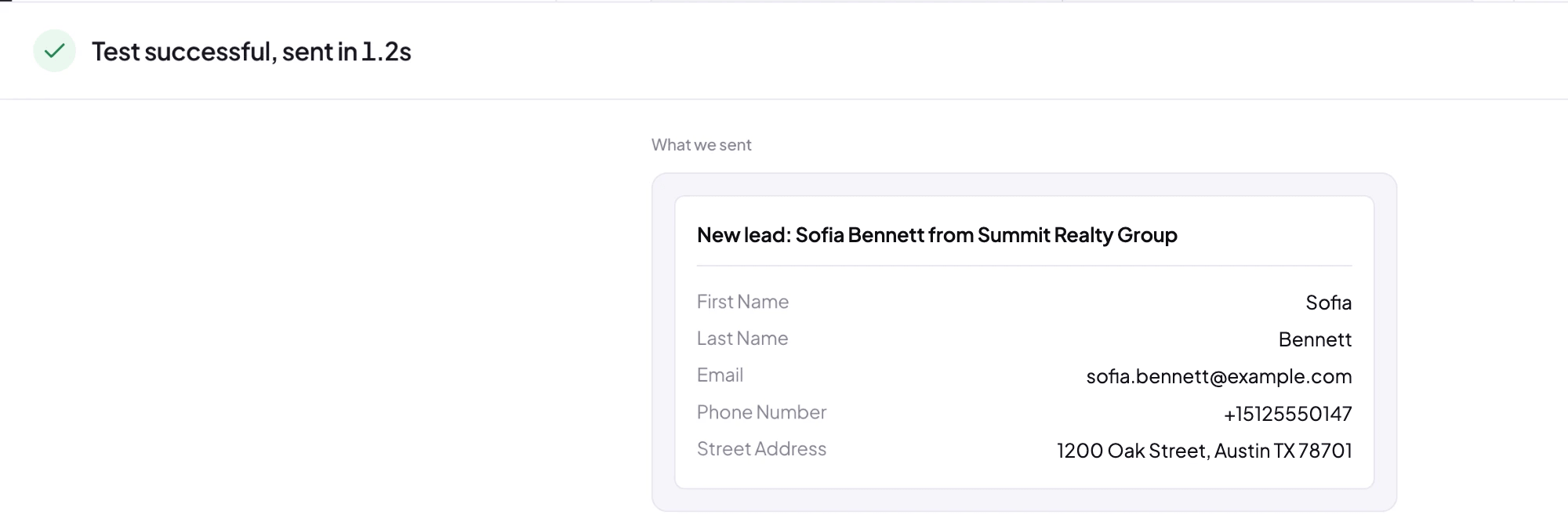
Click Send a test lead. LeadSender sends your latest real lead to HubSpot through your mapping and shows exactly what was sent. Want a brand new lead instead? Create one with our free Meta Lead Ads Testing Tool.
 Exactly what was sent to HubSpot
“What we sent” lists every property you matched with the lead's answer. Then open Contacts in HubSpot. The lead is already there, with name, email and phone filled in.
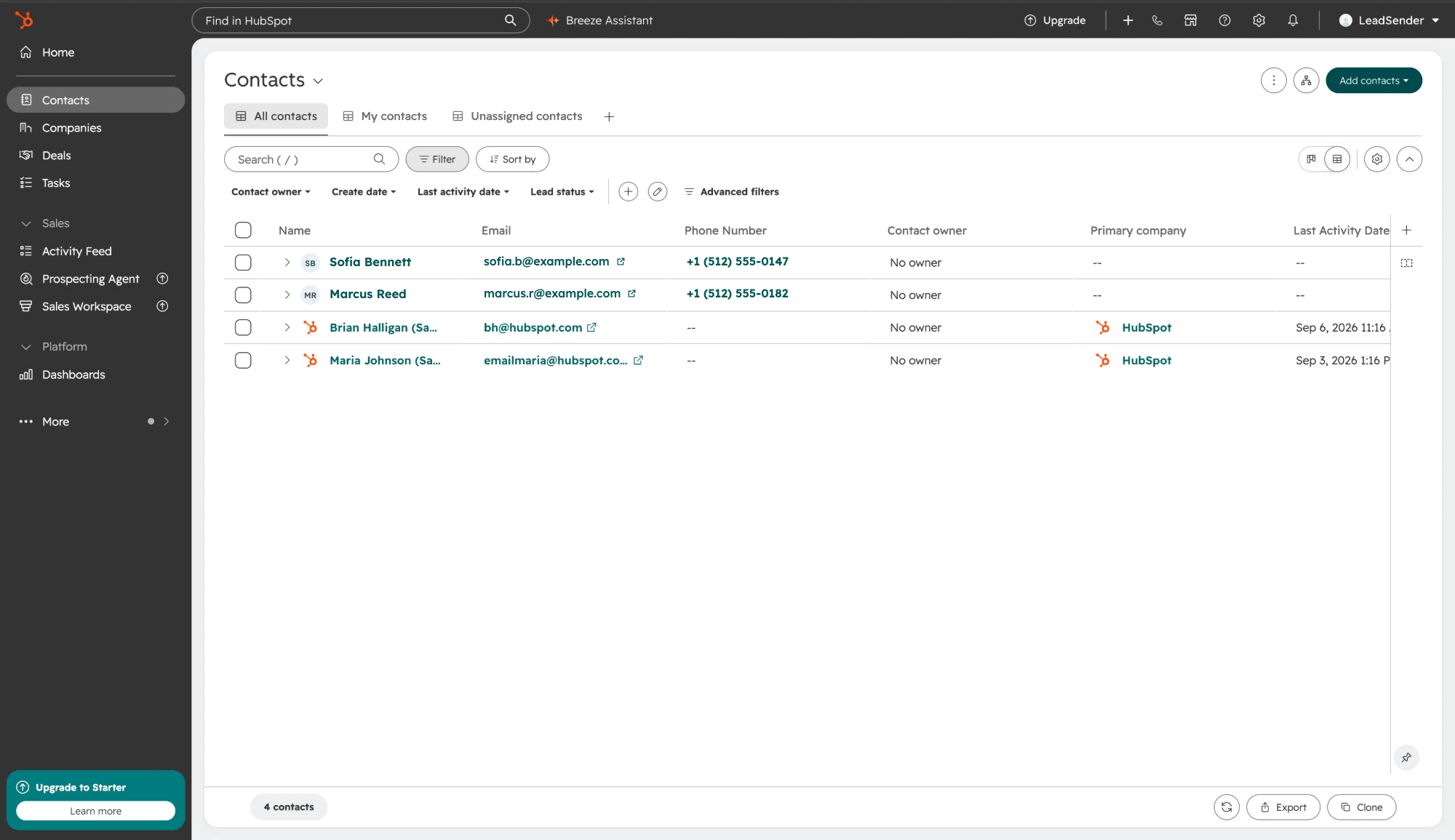 Your new Facebook lead
Click the contact to see the full record: name, email and phone from the form, ready for notes, tasks, calls and emails from HubSpot.
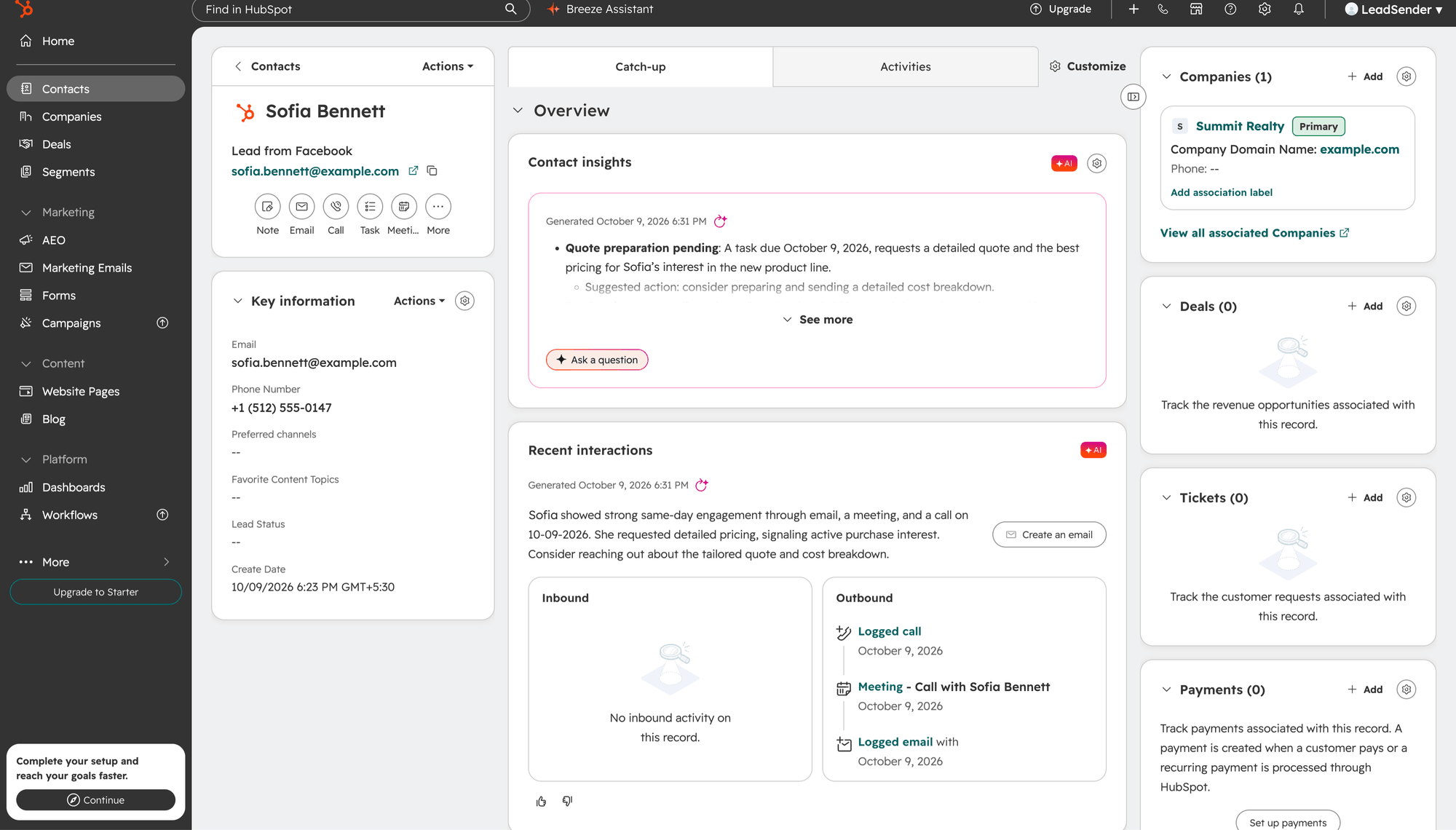 Filled in from the Facebook form
Turn it on
Click Turn on. From now on every new lead from that form, on Facebook or Instagram, arrives in HubSpot as a contact within seconds. If the same person submits again, their contact is updated, not duplicated.
Which HubSpot properties can Facebook leads fill?
LeadSender reads the contact properties that exist in your HubSpot account, so the list matches what you see in HubSpot, not a generic template:
- The basics: First Name, Last Name, Email and Phone Number, matched automatically.
- HubSpot's standard properties you can write to, such as Job Title, Company Name, Website, Street Address, City, State, Postal Code, Country and Lifecycle Stage.
- Your own custom properties, like Budget, Timeline or Property Type. Create the property in HubSpot first, then click Refresh fields in LeadSender.
- Fixed values: type a value instead of matching an answer, and every contact from that form gets it. Handy for a lead source property, or setting Lifecycle Stage to
lead.
HubSpot's internal and calculated properties (the ones HubSpot fills itself, such as analytics and hs_ system fields) aren't offered, because HubSpot manages them.
If a HubSpot property is a dropdown, the value you send must match one of its options' internal values. Either make your Facebook question's answers match those options, or use a single-line text property for free-form answers.
Follow up with Facebook leads automatically in HubSpot
Getting the lead in fast only matters if someone acts on it. A few ways teams work their HubSpot Facebook leads once they arrive as contacts:
- Workflows (on HubSpot plans that include them): enroll contacts when they're created, or when your lead source property equals Facebook, then assign an owner, create a task and send a first email.
- Saved views and lists: filter Contacts by your Facebook lead source and create date so the team works new leads first.
- An instant alert alongside HubSpot: send the same form to SMS or Email as a second integration, so a rep can call within minutes even before anyone opens HubSpot.
Every Facebook lead in HubSpot, in seconds
Your own properties, no duplicate contacts, and an email alert if a lead ever fails to deliver. Set up in about three minutes.
Facebook lead ads HubSpot integration options, compared
| LeadSender | HubSpot lead syncing | Zapier | CSV import | |
|---|---|---|---|---|
| Price | From $9.99/mo, 7-day free trial | Included with HubSpot | Paid plan needed | Free |
| Speed | ✓ Seconds | ⚠ Up to 2 hours, per HubSpot | Depends on plan | Whenever you import |
| Your own HubSpot properties | ✓ Pick any writable property | ⚠ Custom questions become new text properties; edit mapping per form | ✓ Yes | ⚠ By hand |
| Duplicates | ✓ Updates by email | ✓ Deduplicates by email | ⚠ Use Create or Update | ⚠ Depends on import |
| Who can connect | Anyone with Leads Access to the Page | ⚠ Ad account admin, Page admin and leads access, in the same Business Manager | Anyone with Leads Access to the Page | n/a |
| Older leads | New leads only | ✓ Last 90 days | New leads only | ✓ Any you download |
| Also send to Email, SMS or Sheets | ✓ Yes | ✕ HubSpot only | ✓ With more steps | ✕ No |
HubSpot details from its knowledge base: sync leads from your lead ad forms and connect your Facebook ad account, checked 9 October 2026.
Short version: if a two-hour delay is fine and the right admin can connect your ad account, HubSpot's free lead syncing works. If you want leads in seconds, mapped to the properties you already use, and the same lead in HubSpot plus an SMS or email alert, use LeadSender. Zapier works too, but you pay per task. More on that in LeadSender vs Zapier.
HubSpot Facebook lead syncing: the built-in option
HubSpot can pull Facebook lead ads in by itself, on every HubSpot plan. Here's the HubSpot Facebook lead ads integration in brief, per HubSpot's own help center:
- In HubSpot, click the settings icon, then go to Marketing, Ads.
- On the Ad Accounts tab, click Connect account, choose Facebook, log in and select the ad account.
- Open the Lead syncing tab, click Connect, choose Facebook and tick your Page.
- Choose whether to sync new leads only or the last 90 days as well.
- Review how each form's questions map to HubSpot properties with Edit mapping.
What HubSpot's documentation says to watch for:
- Up to two hours. HubSpot says it can take up to two hours for new leads to sync. Fine for a newsletter list, slow for a lead you want to call now.
- Pages don't connect themselves. A Page isn't synced just because its ad account is connected; you have to tick it in Lead syncing.
- Strict permissions. The person connecting needs to be an ad account admin and a Page admin with leads access, and HubSpot notes the ad account and Page should sit in the same Business Manager. Disabled ad accounts can't connect.
- New text properties. Custom questions on your form are created as single-line text properties in a Lead Ad Properties group, instead of filling properties you already have, unless you change each mapping.
Using Zapier to send Facebook leads to HubSpot
Zapier connects Facebook Lead Ads to HubSpot. Facebook Lead Ads is a premium app on Zapier, so you need a paid plan, and each lead uses tasks from your monthly allowance.
- Create a Zap with Facebook Lead Ads, New Lead as the trigger and choose your Page and form.
- Add a HubSpot, Create or Update Contact action and connect your HubSpot account.
- Map each lead field to a HubSpot property, test the step and publish the Zap.
If you already run a lot through Zapier, that's reasonable. For Facebook leads into HubSpot, and maybe an SMS alert too, a dedicated tool is simpler and usually cheaper.
When Facebook leads don't reach HubSpot
| What you see | Likely cause | Fix |
|---|---|---|
| No new contacts at all | The integration is off, or Facebook or HubSpot access was lost | Check it's turned on, then send a test lead. Reconnect Facebook or HubSpot if asked. |
| “Map a field to Email” | No answer is matched to Email | Match Facebook's email question to HubSpot's Email property. |
| Test works, real leads don't | Your live ad uses a different form | Check the form in your ad matches the one in the integration. |
| Contact arrives, a property is empty | That question isn't matched | Match it. Click Refresh fields if you just created the property in HubSpot. |
| HubSpot rejects a value | The property is a dropdown and the answer isn't one of its options | Use matching option values, or a single-line text property. |
| Using HubSpot's own sync and leads are missing | Page not ticked in Lead syncing, missing leads access, or still inside the two-hour window | See HubSpot's lead syncing troubleshooting guide. |
The fastest way to see where it breaks is a test lead. Our free Meta Lead Ads Testing Tool creates one on your real form, and this guide explains the errors you might see. Running GoHighLevel as well? Here's how to send Facebook leads to GoHighLevel.
Facebook Leads to HubSpot: FAQs
How do I send Facebook leads to HubSpot automatically?
Use HubSpot's own lead syncing, a lead delivery tool, or Zapier. In LeadSender: connect Facebook, choose Facebook Leads to HubSpot, pick your Page and form, connect HubSpot, match the fields, send a test lead and turn it on. It takes about three minutes and each lead arrives as a HubSpot contact within seconds.
Does HubSpot have a free Facebook lead ads integration?
Yes. HubSpot's lead syncing is available on all HubSpot products and plans. Connect your Facebook ad account in Settings, Marketing, Ads, then turn on the Page in the Lead syncing tab. HubSpot says new leads can take up to two hours to sync.
How long does it take for Facebook leads to reach HubSpot?
With HubSpot's own lead syncing, HubSpot says it can take up to two hours. With LeadSender, Meta notifies LeadSender the moment the form is submitted and the contact is created in HubSpot within seconds.
Why are my Facebook leads not syncing to HubSpot?
The usual causes are a Page that was never turned on in the Lead syncing tab (Pages don't connect automatically), missing Leads Access in Business Manager, the ad account and Page belonging to different Business Managers, a disabled ad account, or simply the two-hour delay. With LeadSender, check the integration is on, then send a test lead and read the result.
Will repeat Facebook leads create duplicate HubSpot contacts?
No. LeadSender creates or updates the contact using the email address, so if the same person submits again their existing contact is updated instead of a duplicate being created.
Do I have to map the email field?
Yes. HubSpot identifies contacts by email, so LeadSender needs a Facebook answer matched to Email to create or update the contact. Facebook's standard email question is matched for you.
Can I map Facebook answers to my own HubSpot custom properties?
Yes. LeadSender reads the contact properties in your HubSpot account, so your own custom properties appear next to standard ones like Job Title, Company Name, City and Lifecycle Stage. If you add a property in HubSpot, click Refresh fields and it appears.
Can I set the same value on every Facebook lead?
Yes. Instead of matching a property to a form answer, type a fixed value, so every contact from that form gets it. For example, set a lead source property to Facebook, or Lifecycle Stage to lead.
Does this work with HubSpot's free CRM?
Yes. LeadSender creates contacts through HubSpot's standard Contacts API, which works on the free CRM as well as paid Hubs.
Can I send Facebook leads to HubSpot and get a text alert too?
Yes. Add a second integration for the same form to SMS or Email, so a rep is alerted the moment the lead arrives while HubSpot keeps the record.
Does this work for Instagram lead ads?
Yes. Instagram lead ads use the same instant forms on your Facebook Page, so the same setup sends Instagram leads to HubSpot too.
Can I use Zapier to send Facebook leads to HubSpot?
Yes, with a Zap from Facebook Lead Ads to HubSpot's Create or Update Contact action. Facebook Lead Ads is a premium app on Zapier, so you need a paid plan, and each lead uses tasks from your allowance.
Will my old Facebook leads be sent to HubSpot?
LeadSender sends new leads from the moment you turn it on. HubSpot's own lead syncing can also bring in leads from the last 90 days, or download older leads from Meta as a CSV and import them once.
Getting started
If HubSpot's own lead syncing is fast enough for you, keep it. If you want every Facebook lead in HubSpot within seconds, in the properties you already use, set up Facebook Lead Ads to HubSpot in LeadSender. The free trial is long enough to watch real leads land in HubSpot before you decide.