












Your app, your database or your client's system has no Facebook Lead Ads integration, but it can receive a webhook. Sending Facebook leads to a webhook is the universal way in: every new lead arrives as a JSON POST to a URL you choose, seconds after the form is submitted.
This guide shows how to send Facebook lead ads to a webhook step by step, what the JSON looks like, how to verify each request, and how it compares with building Meta's own lead webhooks yourself.
Meta's own lead webhooks only send an ID, and reading the answers needs a Meta app that passed App Review. In LeadSender: connect Facebook, choose Facebook Leads to Webhook, pick your Page and form, paste your https URL, name your JSON keys, send a test lead and turn it on. Every new lead is then POSTed to your URL as JSON within seconds, signed with HMAC-SHA256 if you add a secret.
How to send Facebook leads to a webhook with LeadSender
This is the quickest way to get a Facebook lead ads webhook working: no Meta app to build, no tokens to refresh, and every attempt logged with your server's answer.
Start a free trial and connect Facebook
Start your 7-day free trial of LeadSender (no card needed) and sign in with the Facebook account that manages your Page. That lets LeadSender hear about each new lead the moment it's submitted.
Choose the Webhook template
From Integrations, pick Facebook Leads to Webhook. Then select your Facebook Page and the lead form to send.
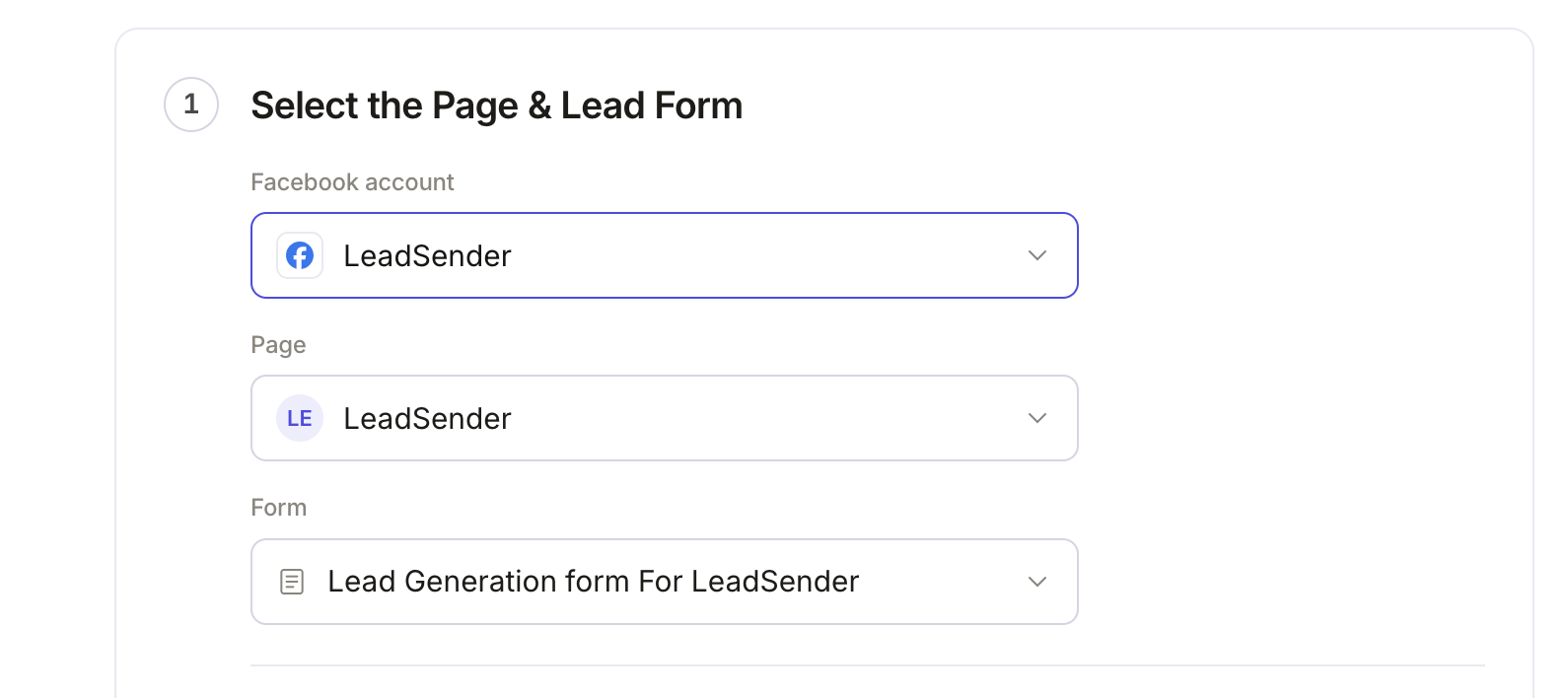 Select your Page
and lead form
Paste your webhook URL
In Send leads to your webhook, paste the https address that should receive each lead into Webhook URL. Leave Signing secret blank, or paste a secret if your server will check that requests really came from LeadSender (see verifying requests below).
Name your JSON keys
Under Payload fields, each label becomes a key in the JSON: Full name is sent as full_name. Rename a label to change its key, remove answers you don't need, or click Add a field to send another form answer.
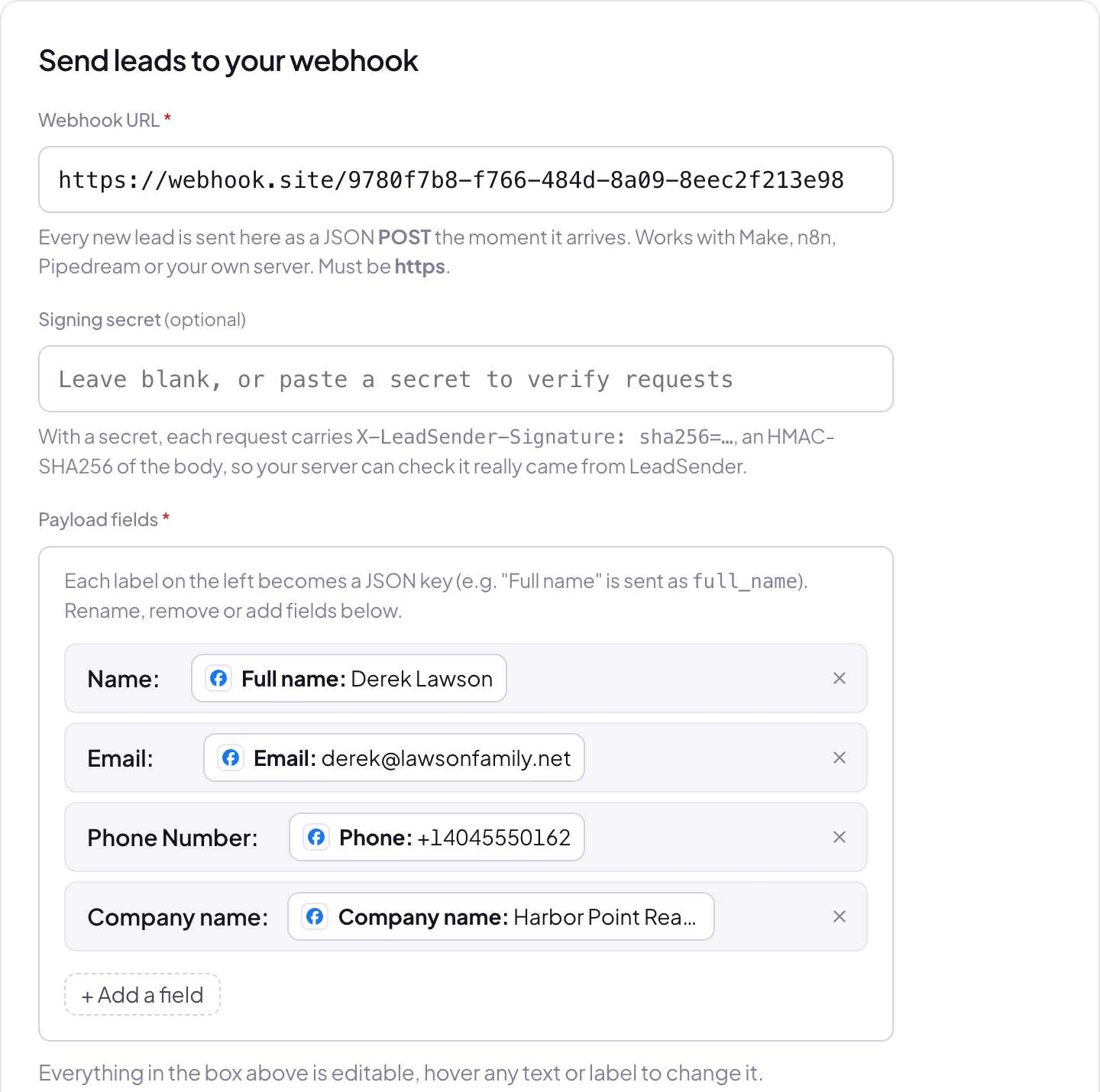 Paste the
URL hereLabels are
JSON keys
Under the fields, LeadSender shows the exact JSON it will POST, built from your latest real lead. Click Copy JSON to paste a real sample into your code or your automation tool.
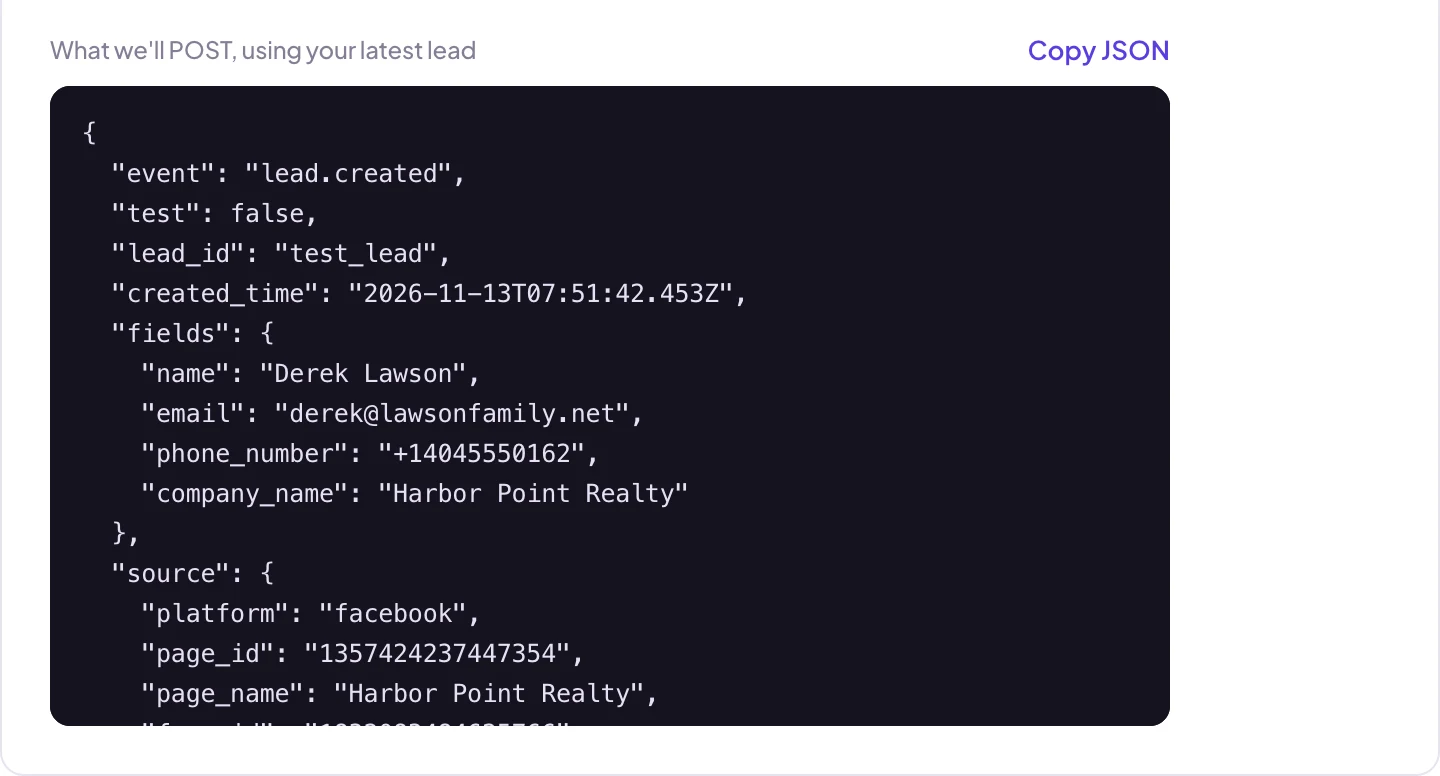 A real sample
for your code
Send a test lead and turn it on
Click Send a test lead. LeadSender POSTs your latest real lead to the URL, with "test": true, and shows your server's HTTP status and exactly what was sent. Want a brand new lead instead? Create one with our free Meta Lead Ads Testing Tool.
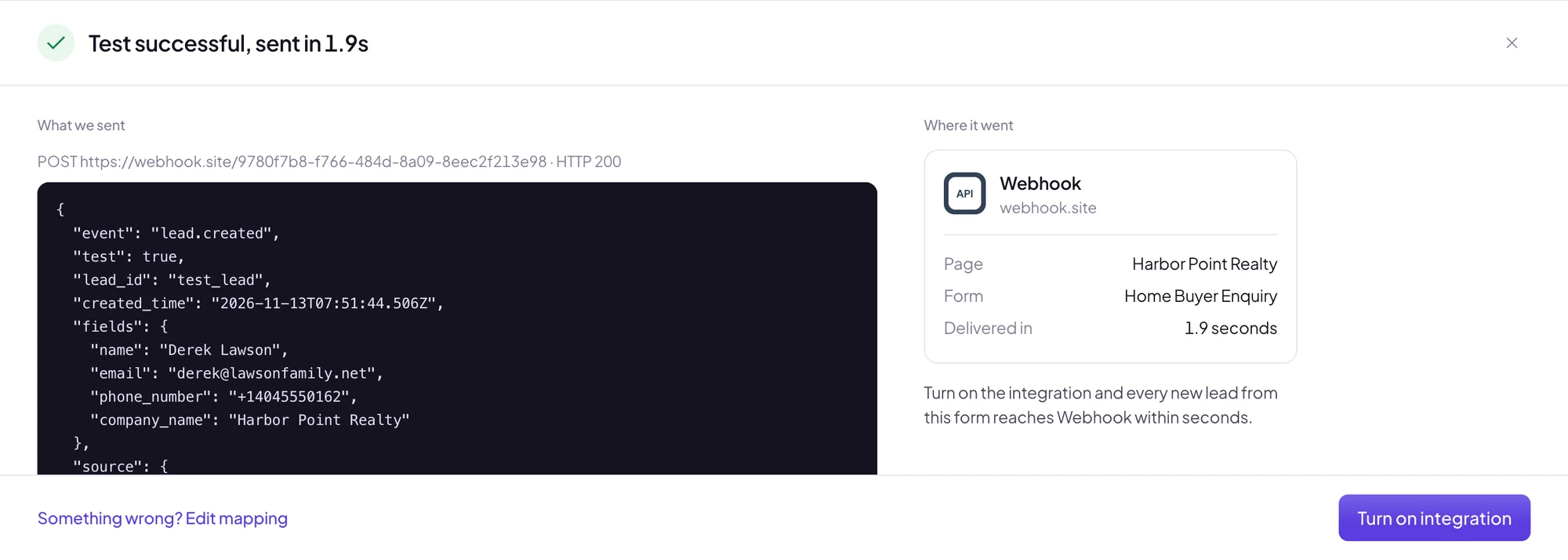 Your webhook answered HTTP 200
On your side, the request is already there. Here it is in a request inspector: the same JSON, with Derek's answers under fields. When it looks right, click Turn on. From then on every new lead from that form, on Facebook or Instagram, is POSTed within seconds.
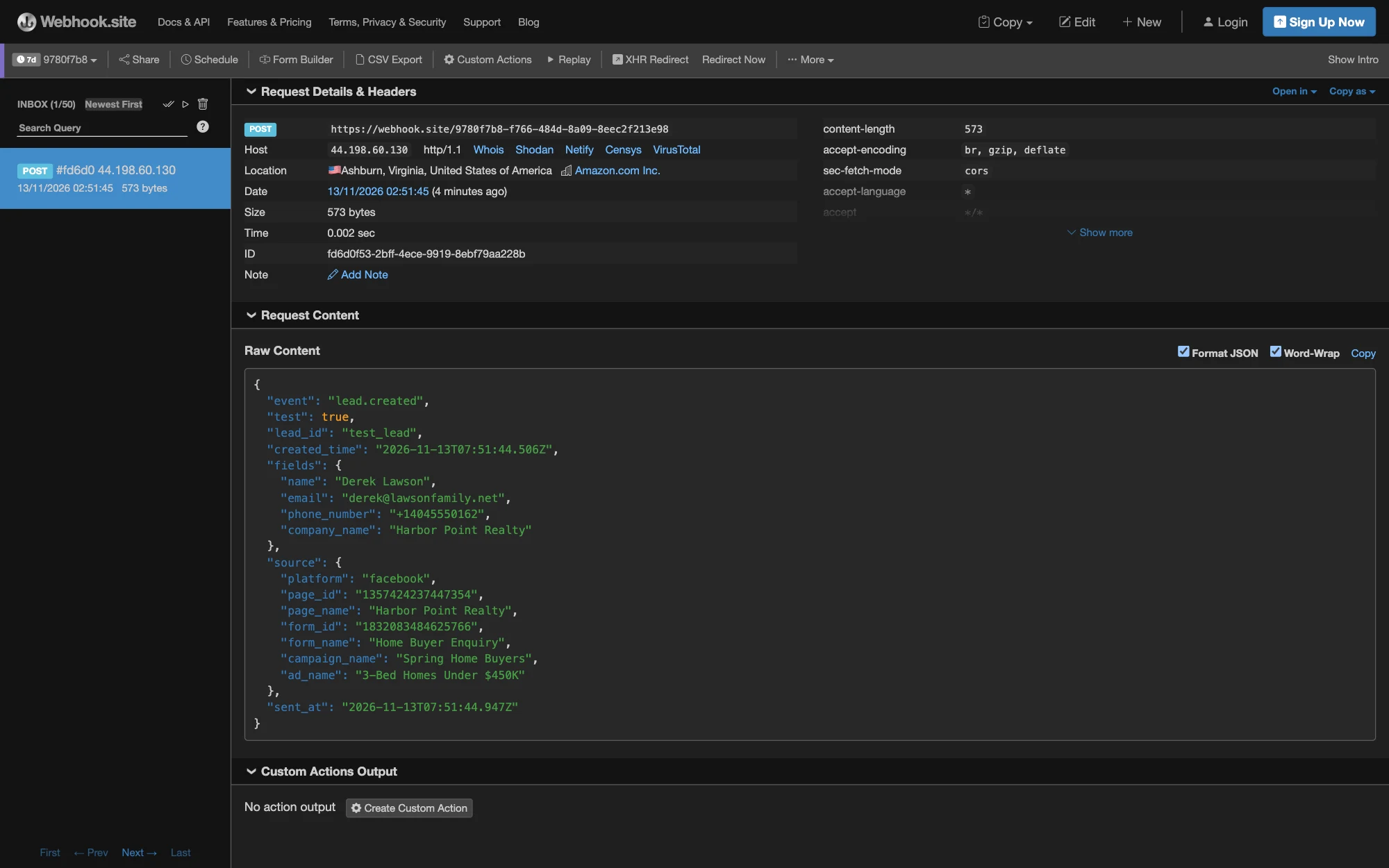 Your Facebook lead, as JSON
The JSON your webhook receives
Every lead is one POST with Content-Type: application/json and a body like this:
{
  "event": "lead.created",
  "test": false,
  "lead_id": "1873192757439347",
  "created_time": "2026-11-13T07:51:44.506Z",
  "fields": {
    "name": "Derek Lawson",
    "email": "derek@lawsonfamily.net",
    "phone_number": "+14045550162",
    "company_name": "Harbor Point Realty"
  },
  "source": {
    "platform": "facebook",
    "page_id": "1357424237447354",
    "page_name": "Harbor Point Realty",
    "form_id": "1832083484625766",
    "form_name": "Home Buyer Enquiry",
    "campaign_name": "Spring Home Buyers",
    "ad_name": "3-Bed Homes Under $450K"
  },
  "sent_at": "2026-11-13T07:51:44.947Z"
}- event is always
lead.created, so one endpoint can tell lead POSTs apart from anything else it receives. - test is
trueonly when you click Send a test lead. Skip those in production if you like. - lead_id is Meta's own lead ID. Store it to ignore a lead you have already processed.
- fields holds every answer under the key you named in the builder.
- source tells you which Page, form, campaign and ad the lead came from, for routing and reporting.
Verify each request is from LeadSender
Your webhook URL is public, so anyone who learns it could POST to it. Add a Signing secret in the builder and LeadSender signs every request: the X-LeadSender-Signature header holds sha256= followed by an HMAC-SHA256 of the raw request body, using your secret. Compute the same on your side and compare. In Node.js:
import crypto from "node:crypto";

// rawBody: the request body exactly as received, before JSON parsing.
function isFromLeadSender(rawBody, signatureHeader, secret) {
  const expected = "sha256=" + crypto.createHmac("sha256", secret).update(rawBody).digest("hex");
  const a = Buffer.from(signatureHeader || "");
  const b = Buffer.from(expected);
  return a.length === b.length && crypto.timingSafeEqual(a, b);
}Most frameworks parse JSON before your code runs, and re-serializing it changes spacing and key order. Read the raw body for the HMAC, then parse it. And answer with a 2xx as soon as the lead is saved: anything slow can run after you reply.
Make, n8n or your own server
Anything that gives you a public https URL can receive Facebook leads this way:
- Make: add a Webhooks module with a Custom webhook, copy its address into LeadSender and click Send a test lead so Make learns the data structure.
- n8n: add a Webhook node set to POST, use its production URL in LeadSender, and activate the workflow.
- Pipedream: start a workflow with an HTTP trigger and paste its URL.
- Your own server: any endpoint that accepts a JSON POST and answers 2xx within 10 seconds.
Either way, LeadSender handles the Meta side: the Page connection, reading each lead's answers and keeping access working, so your workflow only deals with clean JSON.
LeadSender vs Meta's own webhooks vs Zapier
You can also build the Meta side yourself. Meta's Webhooks product notifies a Meta app when a Page gets a lead, but the notification only carries IDs (leadgen_id, form_id, page_id). To read the answers, your server calls the Graph API with a Page token and the leads_retrieval permission, which needs App Review.
| LeadSender | Meta's own webhooks | Zapier | |
|---|---|---|---|
| Price | From $9.99/mo, 7-day free trial | Free, plus your development time | From $29.99/mo (Facebook Lead Ads is a premium app) |
| Setup | ✓ About 3 minutes, guided | ✗ Meta app, App Review, Page subscription | ⚠ Build and test a Zap yourself |
| What you receive | ✓ Every answer, as JSON | ⚠ An ID, then you fetch the answers | ✓ Answers, mapped by hand |
| Tokens to maintain | ✓ None | ✗ Page tokens, permissions | ✓ None |
| Signed requests | ✓ HMAC-SHA256 with your secret | ✓ Signed with your app secret | Depends on the Zap |
| Failed deliveries | ✓ Email alert, status shown, one-click resend | Your own code | Zap history |
Short version: build Meta's webhooks yourself if you have developers and want full control. Use Zapier if you already pay for it and the lead goes to an app it supports. If you want clean JSON at your own URL in minutes, use LeadSender. More in LeadSender vs Zapier.
When Facebook leads don't reach your webhook
- “Use an https:// URL”: LeadSender only sends over an encrypted connection. Use the https version of your address.
- “That URL points to a private network”: localhost and private addresses are refused. Use a public https URL, or a tunnel to test on your own machine.
- “Your webhook answered with a redirect”: redirects aren't followed. Paste the final URL, often the one with or without a trailing slash or www.
- “Your webhook answered HTTP 401” (or 403, 404, 500): your server refused the request. The start of its answer is shown next to the status, so check the URL path and any authentication on your side.
- No answer within 10 seconds: reply with a 2xx as soon as the lead is saved, and do slow work afterwards.
- Nothing at all: check the integration is turned on, then send a test lead and read the result. Every attempt is listed in Run history with the reason, and you can resend from there.
Comparing options? See how Facebook lead ads integration works, with the 5 ways to send leads to Email, SMS or your CRM compared.