















Someone who fills in your Facebook lead form just asked for your guide, your freebie or your newsletter. If your welcome emails live in Kit, the lead needs to be a subscriber the moment they submit. Sending Facebook leads to Kit means your first email lands while they still remember your ad.
This guide shows how to send Facebook lead ads to Kit (formerly ConvertKit) step by step, in about three minutes, with each lead tagged so your sequence starts on its own. It also covers the one thing that trips most people up, which API key to use, and compares Zapier and CSV imports.
Kit has no built-in Facebook Lead Ads integration, so you connect the two with a lead delivery tool. In LeadSender: connect Facebook, choose Facebook Leads to Kit, pick your Page and form, paste a Kit V4 API key (not the V3 one), add a tag, match your fields, send a test lead and turn it on. Every new lead then becomes a Kit subscriber within seconds.
How to send Facebook leads to Kit with LeadSender
This is the quickest way to connect Facebook lead ads to Kit: no Zap to maintain, a new subscriber in seconds, and an email if a lead ever fails to arrive.
Start a free trial and connect Facebook
Start your 7-day free trial of LeadSender (no card needed) and sign in with the Facebook account that manages your Page. That lets LeadSender hear about each new lead the moment it's submitted.
Choose the Kit template
From Integrations, search for Kit and pick Facebook Leads to Kit. Then select your Facebook Page and the lead form to send.
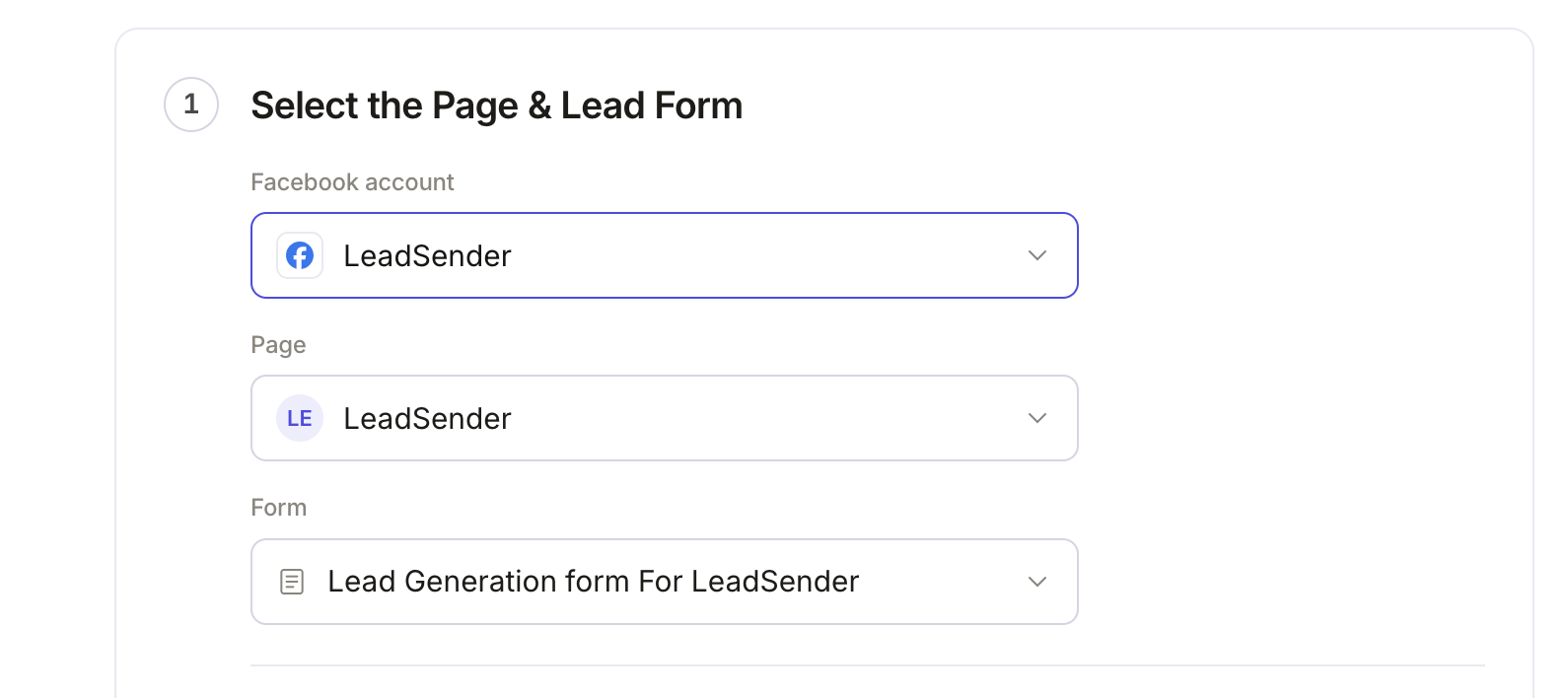 Select your Page
and lead form
Create a V4 API key in Kit
In another tab, open Kit and go to Settings, then Developer. Under V4 Keys, click Add a new key, name it LeadSender and copy it.
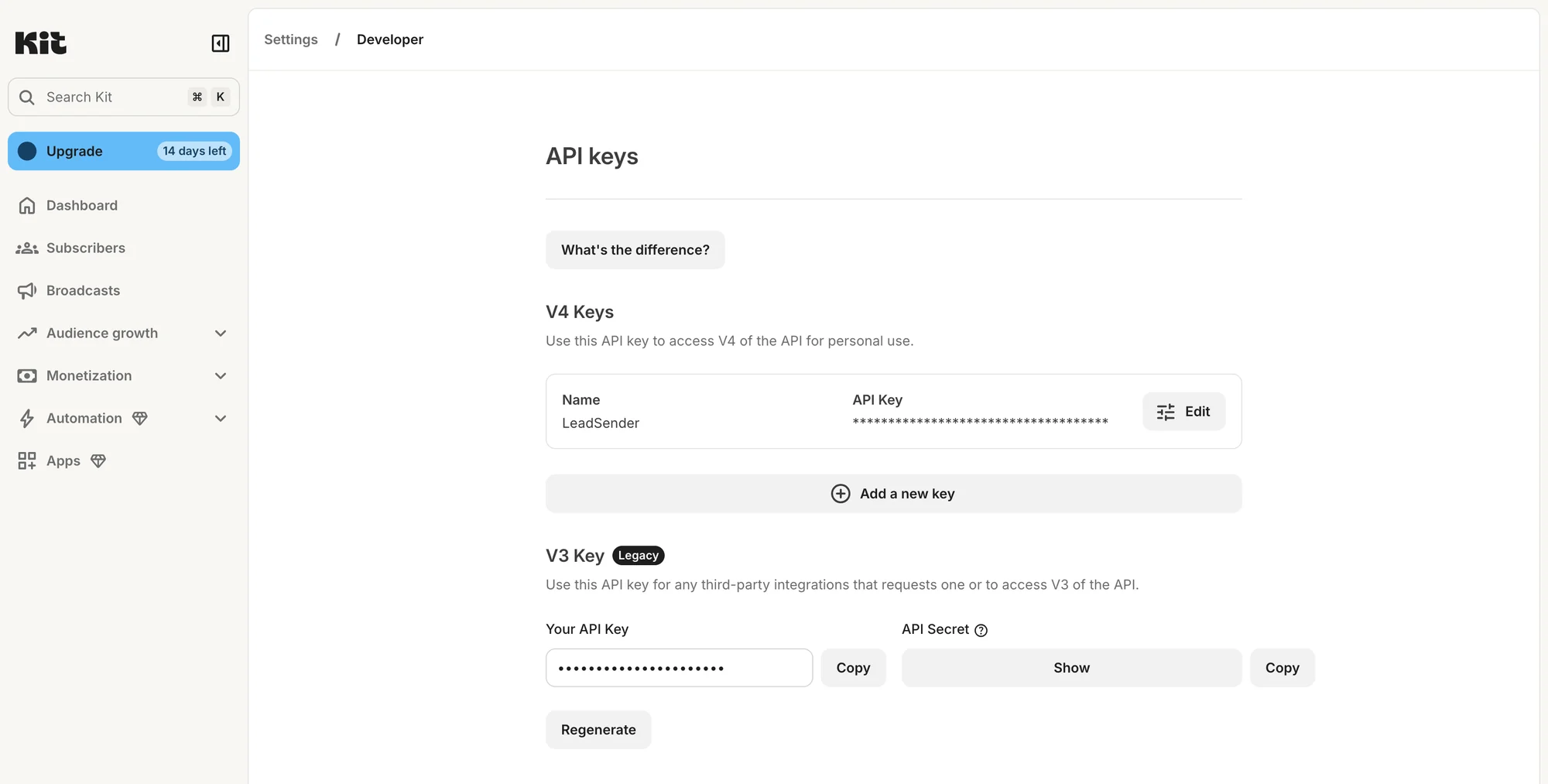 Click
Add a new keyNot this
V3 key
Connect Kit in LeadSender
Back in the builder's Select or connect Kit step, click Connect, paste the key and click Connect V4 key. LeadSender checks the key with Kit before saving it, and keeps it on its servers.
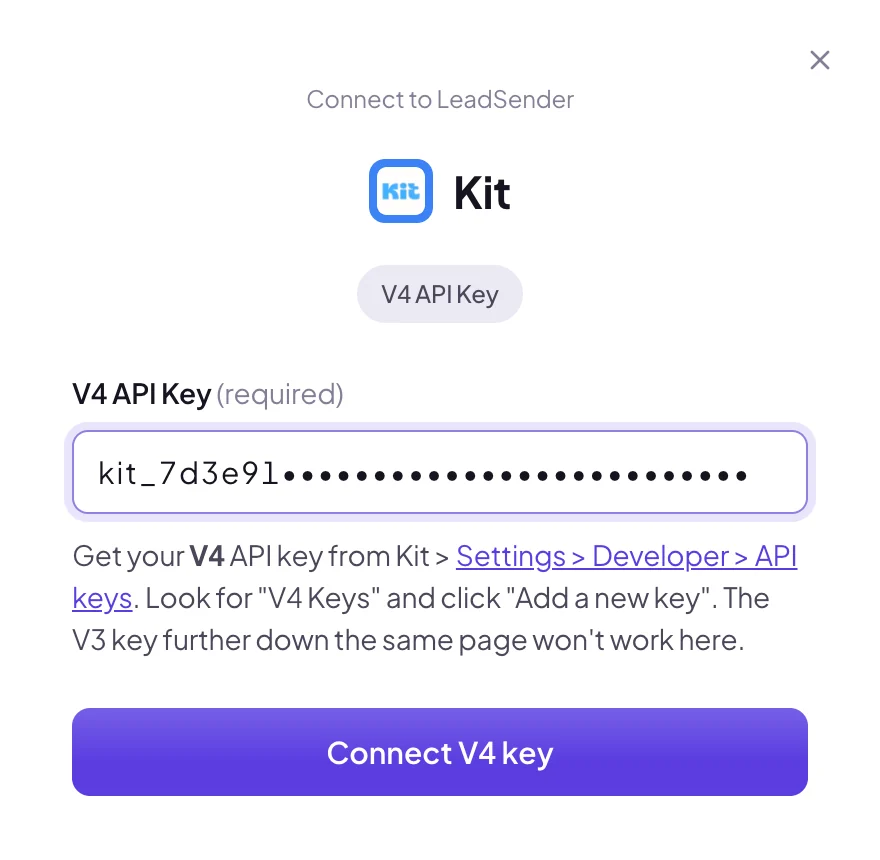 Paste your V4 key
Add a tag
Once connected, open Tags to apply and pick a tag, like FB Leads, or type a new one to create it in Kit. Every subscriber this integration adds or updates gets it, which is what starts your automation. Made a new tag or field in Kit? Click Refresh fields.
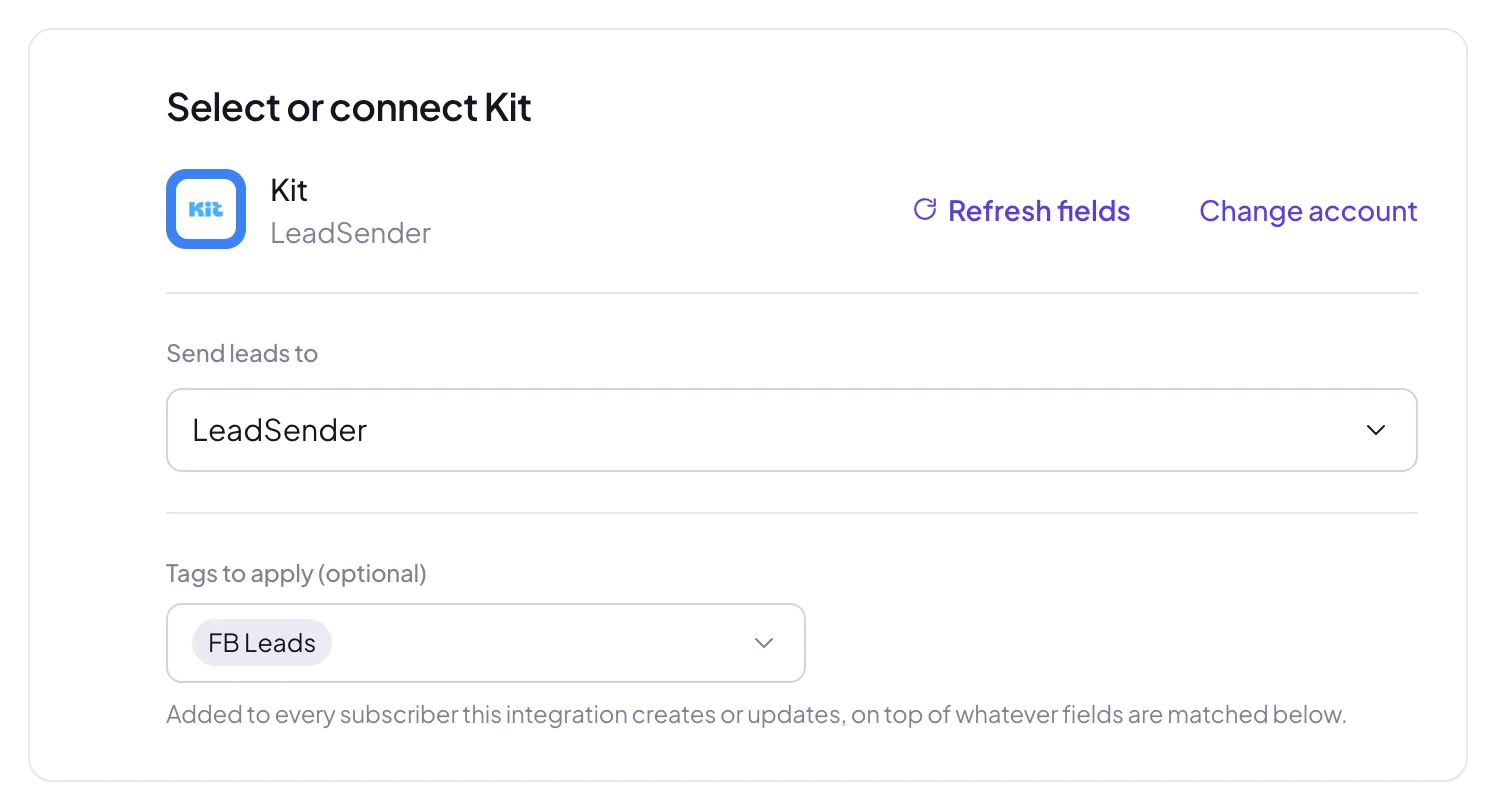 Add a tag, like FB LeadsNew tag or field? Refresh
Match your fields
In Match your fields, Kit's First name and Email come first, already matched to your form's answers, then every custom field in your Kit account. Click the arrow under the list to see them and pick the form answer that belongs in each.
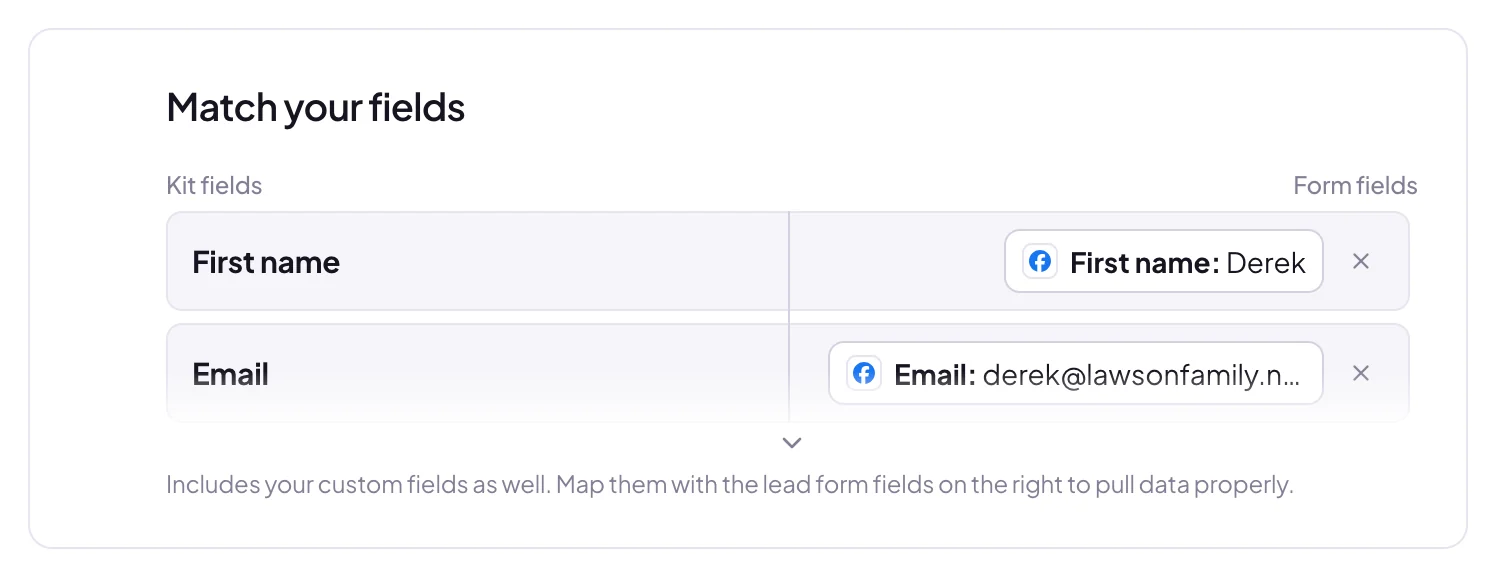 Matched for you
Send a test lead and turn it on
Click Send a test lead. LeadSender adds your latest real lead to Kit and shows exactly what was sent. Want a brand new lead instead? Create one with our free Meta Lead Ads Testing Tool.
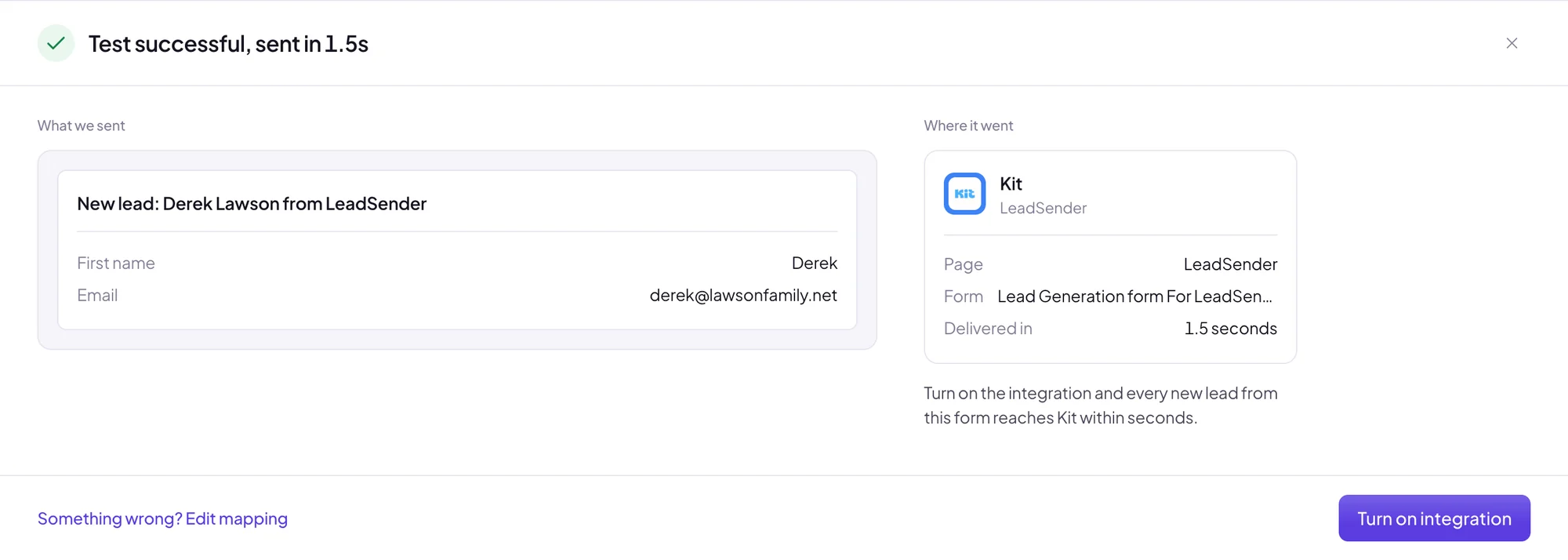
Open Subscribers in Kit: the lead is already there as a Confirmed subscriber, with the tag on their profile. When it looks right, click Turn on. From then on every new lead from that form, on Facebook or Instagram, is added within seconds.
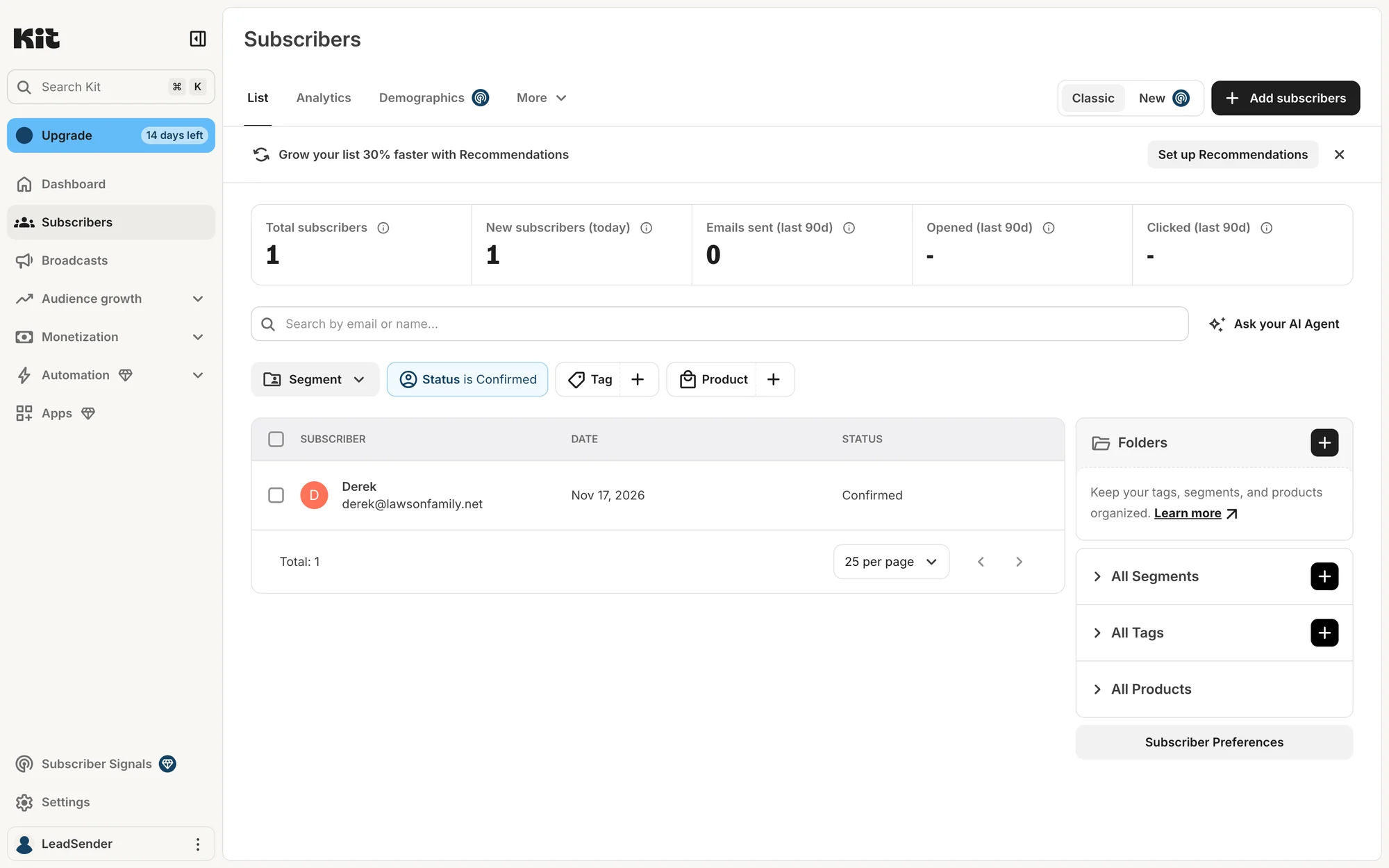 Your Facebook lead, in Kit
Which Kit API key to use: V4, not V3
Kit's Developer page shows two kinds of key. V4 Keys sit at the top, and a V3 Key marked Legacy, with an API secret, sits below it. LeadSender uses Kit's current V4 API, so only a V4 key connects. If Kit or LeadSender says the key was rejected, check you copied it from under V4 Keys.
- One key per tool. Name it LeadSender so you know what it's for.
- Deleting the key stops delivery. If you remove it in Kit, LeadSender emails you and the builder asks you to reconnect with a new key.
- The key stays private. It's checked with Kit when you connect and kept on LeadSender's servers, never in your browser.
Start a Kit sequence for every Facebook lead
Getting the lead into Kit is step one. The real win is the welcome email that goes out by itself a minute later. In Kit that runs on tags:
- Pick a tag in LeadSender, like
FB Leads. Every new subscriber from the form gets it. - In Kit, create a Visual Automation with a Tag is added entry point for that tag, then add your sequence or emails after it.
- Turn the automation on first. Kit only starts the automation for people tagged after the entry point exists, so subscribers who already had the tag don't go through it.
Running a free guide ad and a webinar ad? Create one integration per form with a different tag on each. Every lead then gets the emails written for the thing they actually asked for.
How your Facebook answers fill Kit fields
Email is the one detail Kit needs to add a subscriber, so every form you send should ask for it. The rest of the answers go into fields:
- First name is Kit's only built-in name field. Match your first name answer to it, or your full name answer if that's all the form asks.
- Your own custom fields, like
phone,business_typeorgoal, are listed too. Create them in Kit from any subscriber's profile, then click Refresh fields. - Repeat leads update the same subscriber with the new answers, and the tag is applied again.
Agencies can connect several Kit accounts and switch with Change account. Each one is named after its Kit account and shows on the Destinations page.
LeadSender vs Zapier vs CSV import for Kit
Kit has no built-in way to receive Facebook lead ads, so the real choice is a dedicated tool, a general automation platform, or importing by hand:
| LeadSender | Zapier | CSV import | |
|---|---|---|---|
| Price | From $9.99/mo, 7-day free trial | From $29.99/mo (Facebook Lead Ads is a premium app) | Free |
| Speed | ✓ Seconds | Depends on plan | ✗ Whenever you import |
| Setup | ✓ About 3 minutes, guided | ⚠ Build and test a Zap yourself | ⚠ Download, clean and upload every time |
| Tags and custom fields | ✓ Read live from your account | ✓ Mapped by hand | ⚠ Columns matched on each import |
| Sequence starts instantly | ✓ Tag applied on arrival | ⚠ If you add a tag step | ✗ Days late |
| Failed deliveries | ✓ Email alert, reason shown, one-click resend | Zap history | None |
Short version: Zapier works if you already pay for it and don't mind building the Zap. CSV imports cost nothing but leave every lead waiting. If you want each lead in Kit within seconds without maintaining anything, use LeadSender. More in LeadSender vs Zapier.
Using Zapier
With Zapier you create a Zap with Facebook Lead Ads (New Lead) as the trigger and a Kit subscriber action, then map each field and add a tag. It works, but Facebook Lead Ads is a premium app, so you need a paid Zapier plan, and every lead uses tasks from your allowance.
Importing a CSV
You can download your Facebook leads as a CSV and import it from Subscribers, then Add subscribers in Kit. It's fine for a one-off backfill of older leads, but nobody gets an email until you remember to do it.
When Facebook leads don't reach Kit
- “Kit rejected that key” when connecting: it's usually the V3 key, or the key was copied with a missing character. Create a V4 key under V4 Keys and paste it again.
- “Kit no longer accepts this API key”: the key was deleted in Kit. Create a new V4 key and reconnect with Change account.
- A lead is missing from Kit: Kit needs an email for every subscriber, so check your form asks for one and that the email answer is matched to Email.
- The automation didn't start: check the tag in LeadSender matches the tag in your Tag is added entry point, and that the automation is turned on in Kit.
- A new tag or field is missing: click Refresh fields in the Select or connect Kit step.
- Nothing at all: check the integration is turned on, then send a test lead and read the result. Every attempt is listed in Run history with the reason.
Comparing options? See how Facebook lead ads integration works, with the 5 ways to send leads to Email, SMS or your CRM compared.