














Few things stop a business faster than “Ad account disabled” or “Your Facebook account has been restricted from advertising”. Campaigns stop, leads stop, and the message rarely tells you what to do next.
The good news: most restrictions follow a few clear patterns, and the fix depends on which account Meta restricted and why. This guide shows you how to find both, resolve the real cause, and submit a Facebook ad account disabled appeal that a reviewer can actually act on. It covers Facebook, Instagram and anything Meta now calls a Meta ad account.
If your Facebook ad account is disabled, open Meta Business Support Home, select the restricted asset and read the exact reason. Fix what it names (a failed payment, a security issue, a verification request or a policy problem), then select Request review if it is offered. If the notice says your account is restricted from advertising, the restriction is on your personal profile, so fix it there, not in the ad account.
Take a screenshot of the restriction and write down the account ID. Do not create a new ad account, profile or business to work around it, and never give your password or login codes to anyone promising to “recover” your account. Both can turn a fixable restriction into a permanent one.
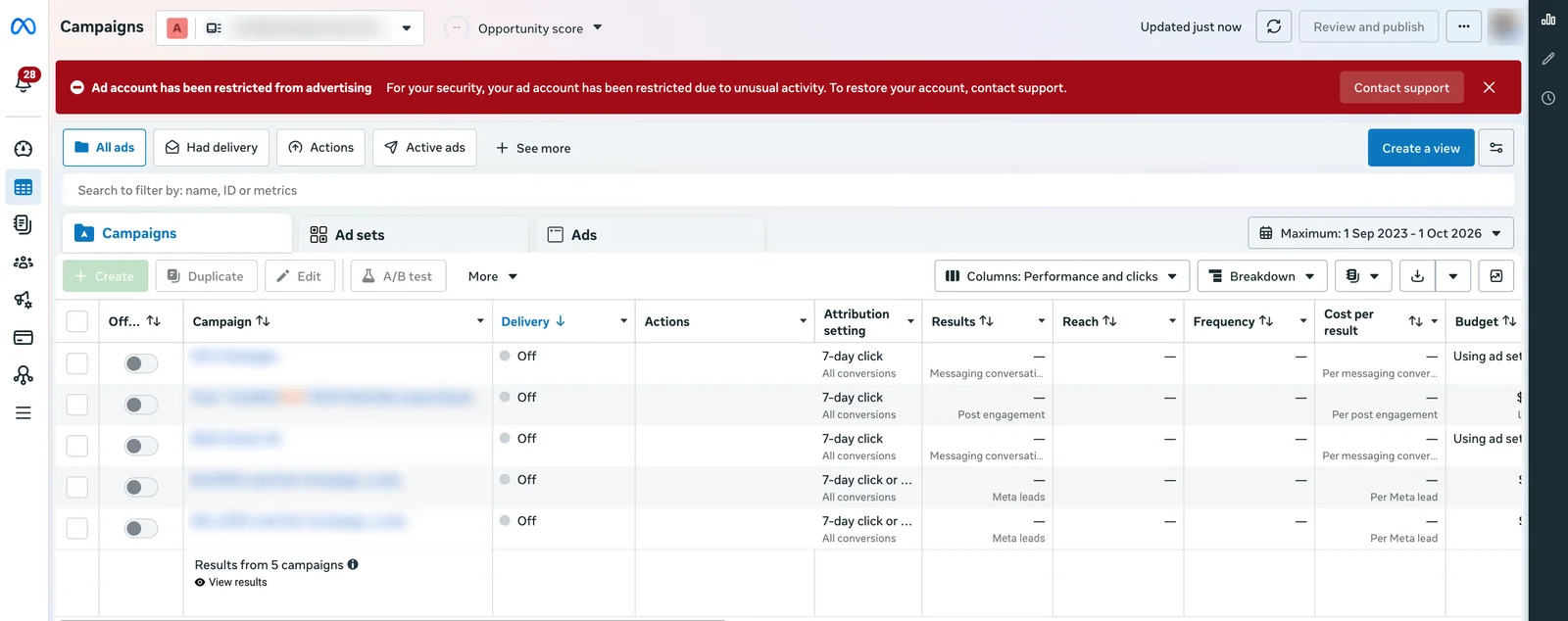
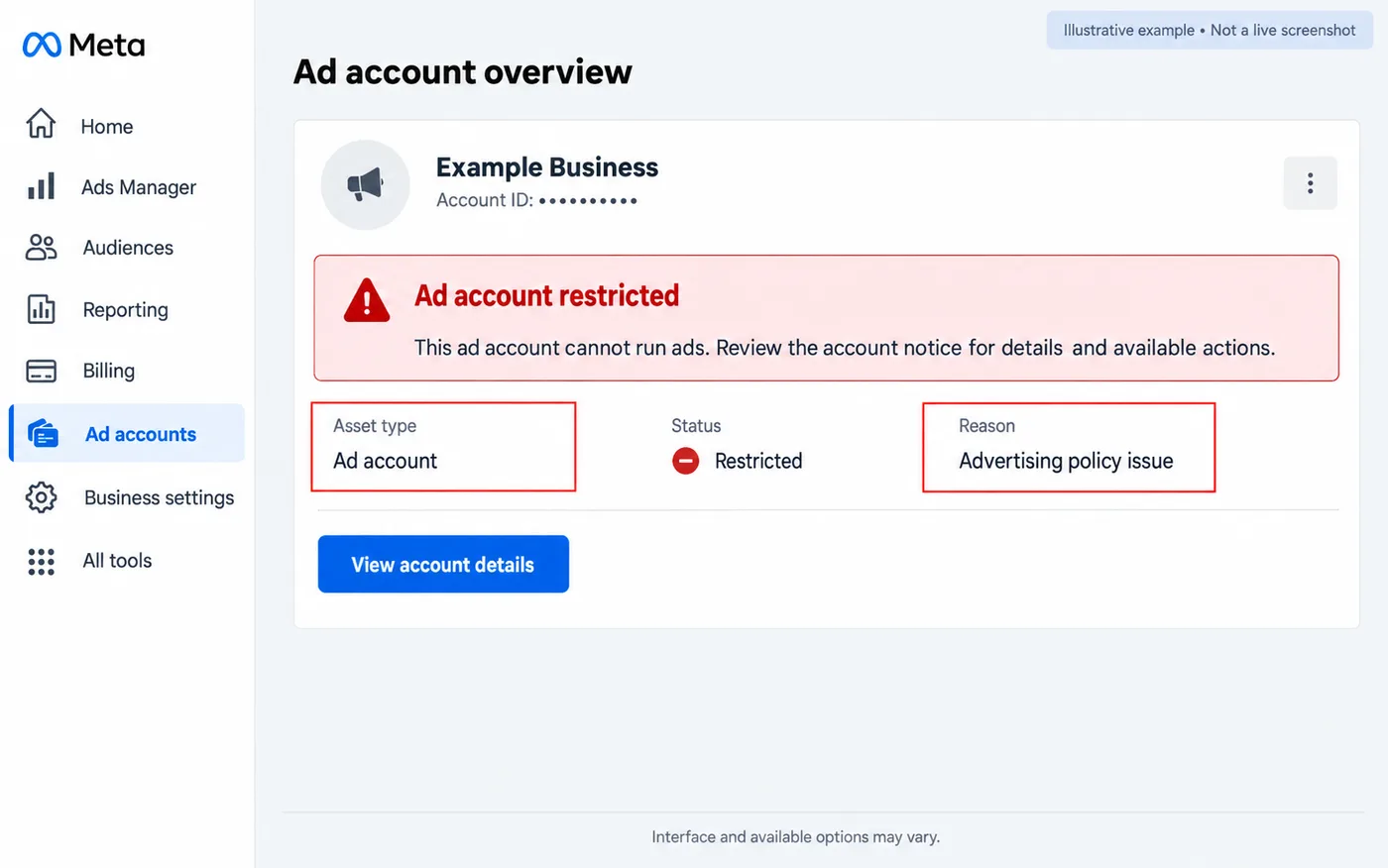
This is what a real restriction looks like at the top of Ads Manager:
Disabled vs restricted vs banned: what each one means
People use these words interchangeably, but they point to different problems and different fixes. Knowing which one you have saves hours.
| What you see | What it usually means | Can it be fixed? |
|---|---|---|
| Ad account restricted | Some advertising is limited: running ads, a payment method, or spending. | Usually, by resolving the stated reason or requesting review. |
| Ad account disabled | The ad account cannot run ads at all right now. | Often, through the fix or review offered on the account. |
| Restricted from advertising | Your personal profile cannot advertise on any ad account. | Yes, by fixing the restriction on your own account. |
| Business portfolio restricted | The whole business and its assets are limited. | Follow the requirements on the business restriction. |
| “Banned” | Not a Meta term. Usually a restriction that is final after review. | Only if Meta explicitly offers another review. |
A single rejected ad is not the same thing either. One ad failing review does not mean your whole ad account is disabled, and rewriting an ad will not lift a restriction on the person or business advertising.
Which notice do you have? Start here
Match what you see to the right recovery path before you change any settings.
| What you see | What to check | Your first action |
|---|---|---|
| One ad is rejected | That ad and its rejection reason | Fix the ad or destination; use the ad's review option |
| Ad account disabled with a payment notice | Billing for that exact ad account | Check the failed charge and any amount due |
| Ad account restricted for policy reasons | The restricted ad account | Read the policy cited and the review options |
| Your Facebook account is restricted from advertising | Your personal advertising access | Open the restriction on your own profile |
| Business portfolio restricted | The business and its listed assets | Follow the requirements on the business restriction |
| Instagram promotion cannot run | The promotion error and connected ad account | Find whether it is the promotion, billing or access |
| Facebook or Instagram login suspended | The social account itself | Follow the recovery or appeal shown at login |
Why Facebook ad accounts get disabled
Most disabled ad accounts trace back to one of a handful of causes:
- A failed or disputed payment. A declined card, an unpaid balance or a chargeback is one of the most common reasons an ad account stops.
- Unusual activity or a compromised login. Logins from new places, unfamiliar people with access, or spending you did not start.
- Advertising policy issues. Claims you cannot back up, misleading offers, landing pages that do not match the ad, or restricted products and services.
- Identity or business verification. Meta asks you to confirm who you are or that your business is real, and ads pause until you do.
- Linked restricted assets. A restricted profile, Page or business portfolio connected to the ad account.
- Repeated rejected ads. Many ads rejected in a short time can lead to wider limits on the account.
The notice on your account tells you which one applies. That is why step 1 matters more than any other.
Step 1: Find which account Meta has restricted
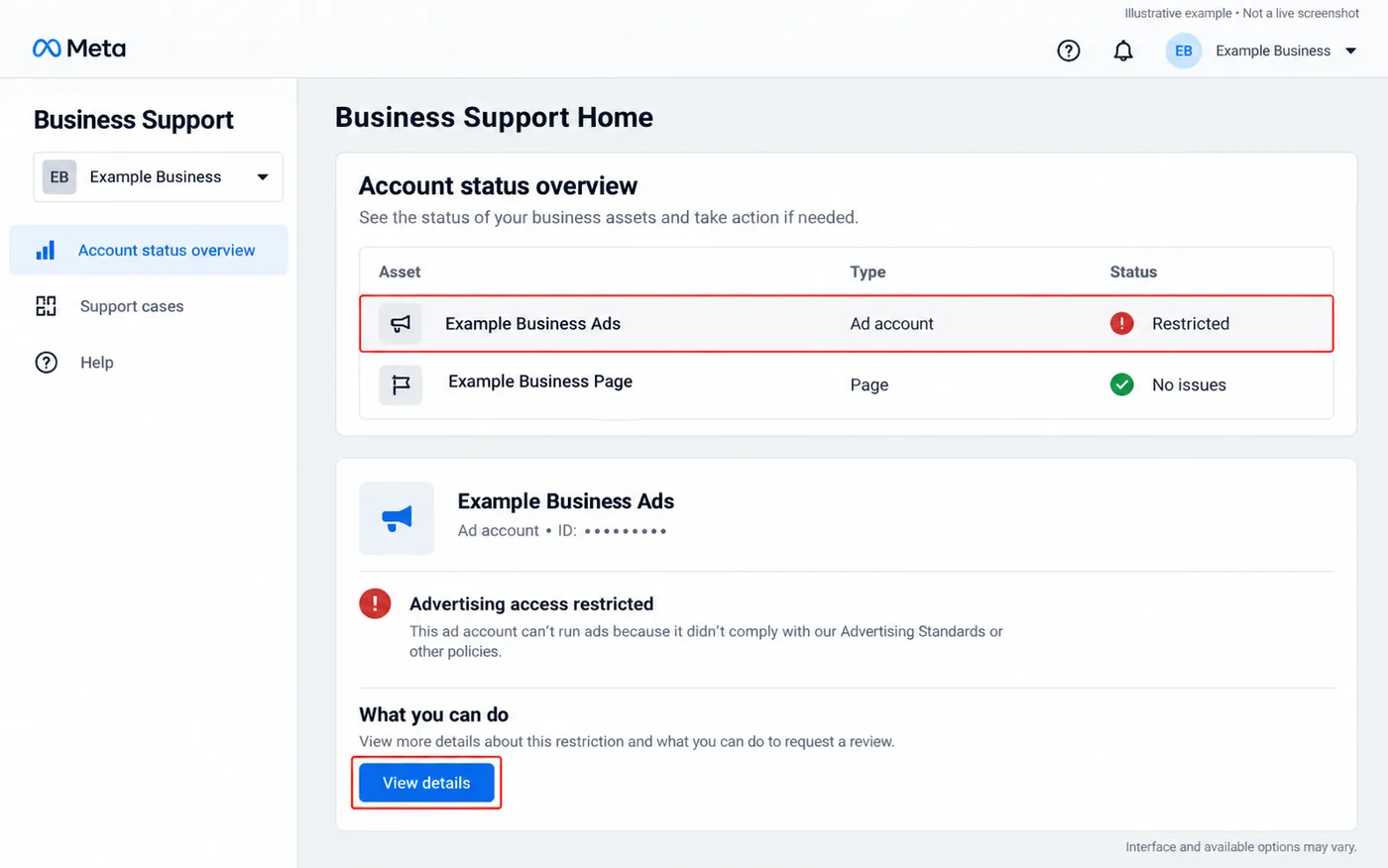
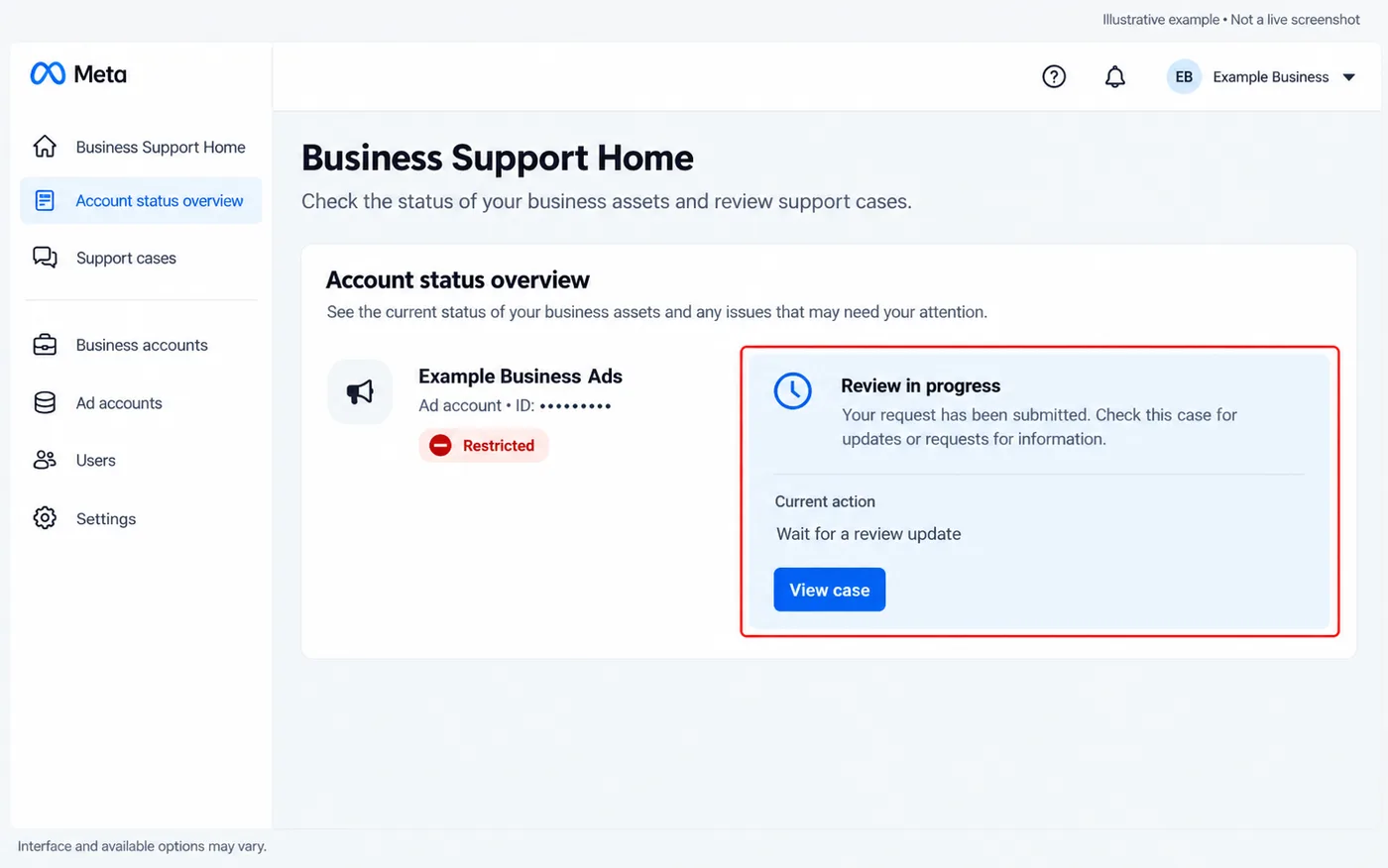
Open Meta Business Support Home while signed in to the profile you use to manage the business. Find the account status or overview area, select the correct business, and open the asset marked as restricted. If you manage several clients, check the account ID matches the one in Ads Manager before you continue.
Write down:
- The affected asset: an ad account, Page, your profile, or a business portfolio.
- The account name and ID.
- The exact restriction reason and any policy it mentions.
- Any tasks, deadlines or review options shown.
- Whether a review is already pending or a decision has been made.
Restrictions can apply at different levels. A restriction on a person affects that person's advertising access; it does not automatically mean every business asset they manage is restricted. If you are an agency or freelancer and cannot see the asset, ask its owner or an admin to check it from their own login. Never ask for their password.
Step 2: Fix the problem named in the notice
Work through the section that matches your notice. Changing every setting at once makes it harder to show a reviewer what you fixed.
If the notice mentions a failed payment
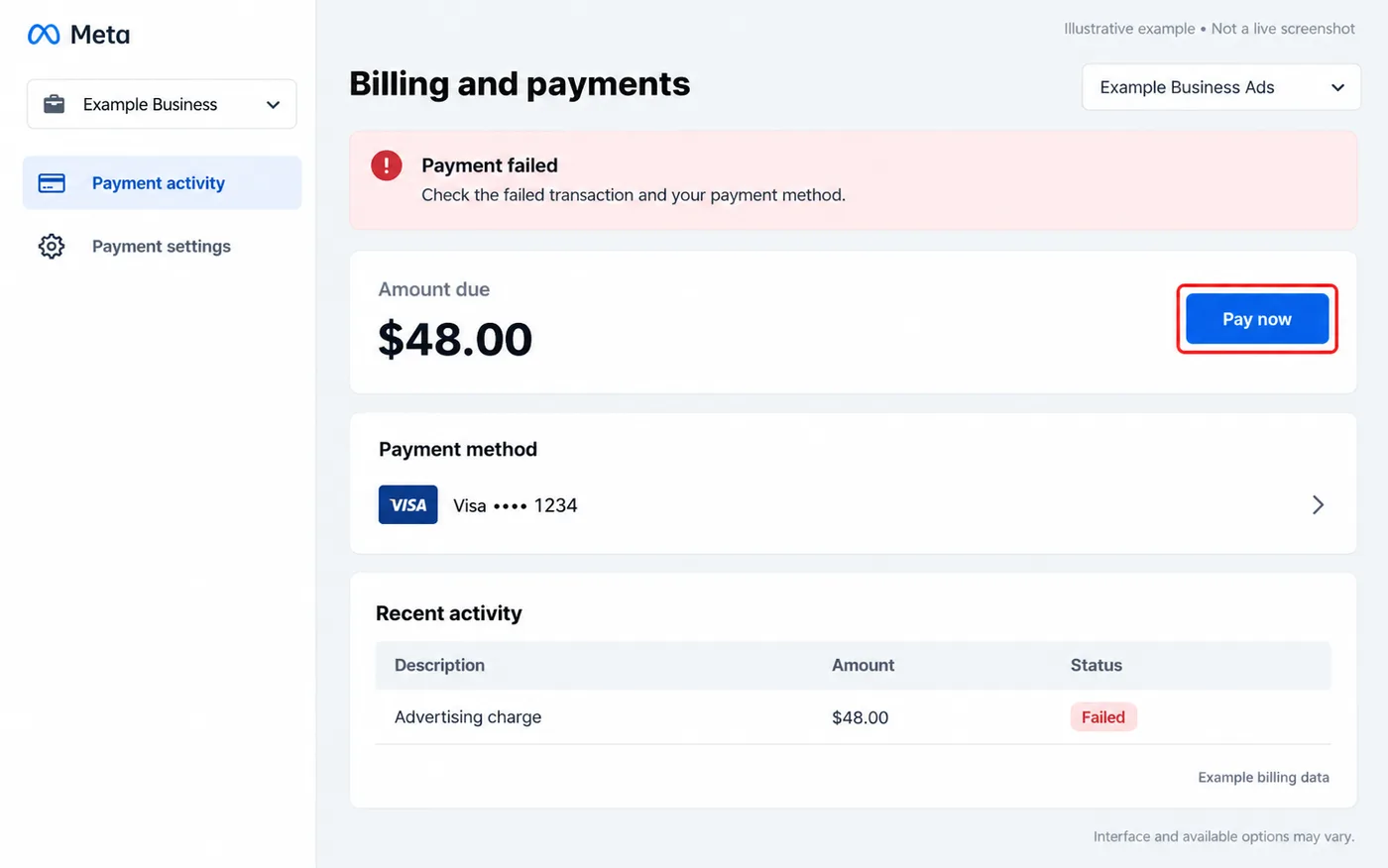
Open Billing and payments for the affected ad account and check for an amount due, a failed charge or a payment verification request.
- Confirm you are looking at the right ad account and currency.
- Check the transaction status and outstanding balance.
- If a real charge failed, check the card details, available funds and any bank approval request.
- Use the pay or retry option Meta shows once the cause is fixed.
- Confirm the payment went through before trying another charge.
- Go back to the account notice and check for anything still required.
If your bank shows a charge but Meta still shows a balance, gather the date, amount, currency and reference and use the billing support route on your account. Avoid paying repeatedly while the status is unclear. If you do not recognise the spending, treat it as a possible security issue first. Meta's failed payment guide covers the account-specific steps.
If the notice mentions unusual activity or account security
Look for unfamiliar ads, unknown people with access, unexpected spending or security alerts you did not trigger. Then:
- Change your password if it may have been exposed, and secure the email address on the account.
- Turn on two-factor authentication and log out of sessions you do not recognise.
- Review the people and partners with access to your business and its assets.
- Screenshot suspicious changes before you remove any confirmed unauthorised access.
- Check recent campaigns, payment changes and spending.
- Complete any security tasks in Meta's notice.
For a hacked Facebook login, start at facebook.com/hacked; for Instagram, instagram.com/hacked. Securing your login does not automatically clear a separate advertising restriction, so describe the incident in your review request: when you noticed it, what changed, and what you did.
If Meta asks you to confirm your identity or business
Open the verification request attached to the restriction. Confirming your identity and verifying your business are different processes, so submit exactly what is asked for and make sure your business details match your documents. Only upload documents through Meta's official flow; never send ID to a message or email claiming to be Meta support. Verification can be a required step, but it does not lift a restriction on its own.
If the notice cites an advertising policy
Open the specific policy linked in the restriction and check it against the Meta Advertising Standards. Then review the ad, the image or video, the offer, the lead form and the landing page:
- Does the ad describe the product or service accurately?
- Can you back up every claim it makes?
- Does the landing page match the offer in the ad?
- Are prices, conditions and business details clear?
- Does the page work on mobile, with no broken links or surprise redirects?
- Does the offer need a special ad category, authorisation or other condition?
Record each correction precisely. “Removed the unsupported earnings claim from ad ID 1234 and updated the same claim on example.com/offer” gives a reviewer something to check. If you believe the restriction is a mistake, explain exactly what was misunderstood and provide evidence. Do not admit to a violation you have not identified.
Step 3: Prepare your Facebook ad account appeal
A useful appeal connects the restriction to specific facts. Before you open the review, collect:
- The affected account or asset ID.
- The restriction message and the date you first saw it.
- Relevant ad IDs, landing page URLs or payment references.
- A short description of your business and the advertising involved.
- The corrections you made, with dates.
- Evidence for those corrections, or for why the restriction is a mistake.
Keep sensitive documents out of a general text box unless the official process asks for them; use the upload option when one is provided.
Facebook ad account appeal template
Use this only where Meta gives you a text box or a support agent asks for a written explanation. Replace every bracket and delete anything that does not apply.
Hello Meta Review Team,

Please review the restriction on [asset type and ID]. The notice states [exact reason], which I first saw on [date].

Our business provides [brief description], and the affected advertising promotes [specific offer or service].

After reviewing the notice, we [describe the corrections you completed]. These changes relate to [ad IDs, page URLs, payment reference or security incident, as applicable].

[If you believe this was a mistake: explain the specific mismatch between the restriction and the facts.]

Supporting information: [brief summary of your evidence]. Please review the affected asset and let us know if you need anything else.

Thank you,
[Your name], [Business name]
Keep it factual and short. “We have spent thousands on ads for years” does not explain the issue, and neither does a long list of unrelated changes. If the review only offers multiple-choice answers, answer those accurately; a written appeal is not always available.
Step 4: Request a review on the restricted asset
- Open Meta Business Support Home on a computer.
- Select the affected business and the restricted asset in the account status overview.
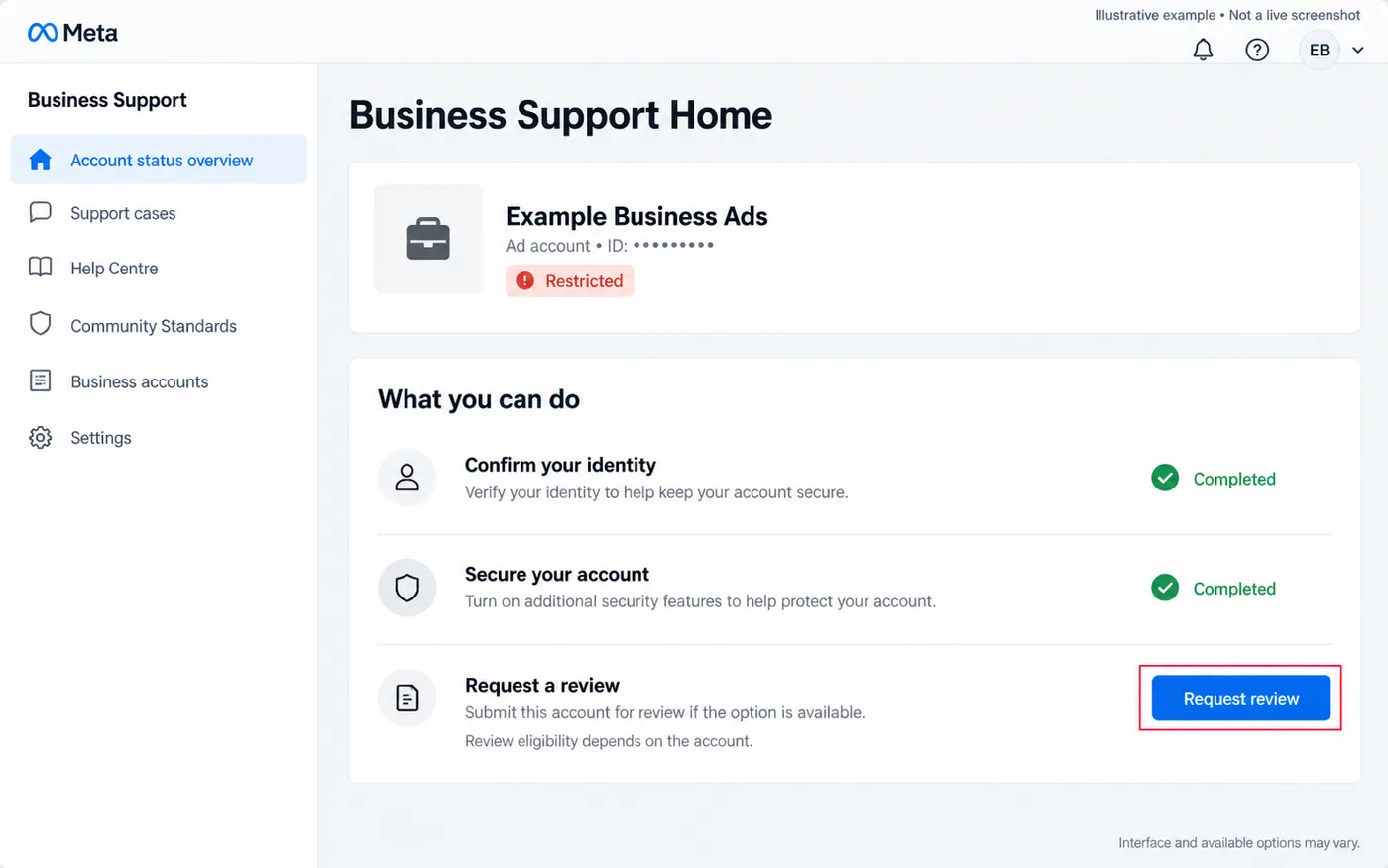
- Read the available actions, which may appear under What you can do.
- Complete any listed tasks, such as security or verification steps.
- Select Request review and follow the prompts.
- Save the confirmation and any case reference.
If you cannot submit, check that you have admin access to the asset; the owner may need to do it. Meta's guide to requesting a review explains the current flow alongside what your account shows.
What to do when Request review is missing
A missing button does not tell you the cause by itself. Check these before looking for another form:
| Possible cause | What to do next |
|---|---|
| Wrong business or asset selected | Match the ID to the original restriction notice. |
| Not enough access | Ask the asset owner or an admin to open the restriction. |
| A security or verification task is shown | Complete it, then revisit the notice. |
| A review is already pending | Open the existing case and check for requests for more information. |
| The decision says no further review | Read the final decision and any other options it explicitly gives. |
| The page will not load or shows an error | Try an up-to-date desktop browser, note the error, and contact official support. |
If a contact option is offered for the account, send the asset ID, a screenshot of the restriction and details of the missing or broken review button, and ask which requirement is blocking it. Support options vary by account, so a chat button in someone else's tutorial may not appear in yours, and an old appeal form that still loads may not apply to your restriction.
“Your Facebook account has been restricted from advertising”
This message is about your personal profile's advertising access, not one ad account. While it is in place you cannot run ads on any ad account, even healthy ones. Open the restriction on your own account, check the reason and complete any identity or security steps. Editing ad text or paying an unrelated balance will not fix it.
Agencies should record whether the restriction is on their own access, the client's ad account or the client's business, and tell the client exactly which, so everyone works on the same problem. Each person should use their own login; borrowing credentials or creating a new profile to get around the restriction can make it permanent.
Instagram ad account disabled
First, check whether you can still sign in to Instagram at all.
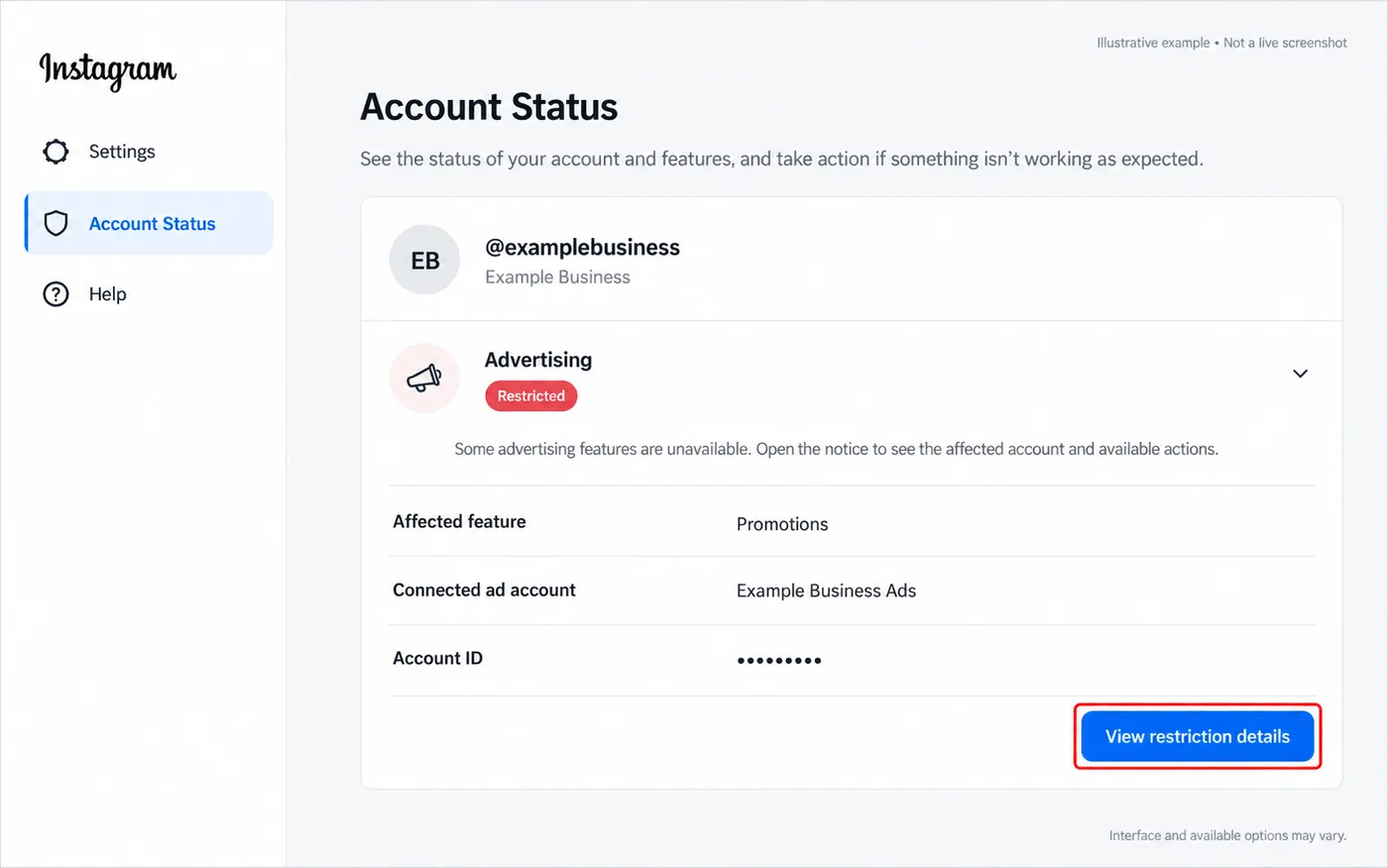
- You can sign in but cannot boost or promote: open the promotion error, then check the connected ad account's billing and status in Meta's business tools, and Instagram's Account Status.
- Only one promotion was rejected: fix that promotion using its rejection reason.
- The connected ad account is restricted: follow the ad account steps above. Instagram ads run through a Meta ad account.
- The Instagram account itself is suspended: follow the appeal instructions shown when you sign in.
Save both the Instagram error and the connected ad account ID. “Instagram ads disabled” is too vague to fix without them.
After you submit your appeal
Check the case status and your notifications for requests for more information, and use any time estimate shown in your case. Meta does not publish a standard turnaround, so do not plan a launch around an assumed 24 or 48 hour reply. Keep a simple record of the submission date, case reference, documents sent and responses.
While you wait, audit the ads and landing pages involved, prepare corrected creative, and download the leads you already have so you can keep following up with people who opted in.
If the appeal is rejected
Read the decision for that specific asset. If another review is explicitly offered, fix the unresolved issue or add genuinely new evidence. If no further review is offered, repeated submissions or a different form will not reverse it, and anyone promising guaranteed reinstatement, or asking for your password, login codes or payment outside Meta, is not legitimate. Do not create, buy or borrow accounts to get around the decision.
When your ad account is restored
- Check campaign, ad set and ad status in Ads Manager.
- Confirm budgets, schedules, offers and landing pages are still right.
- Check billing and any remaining notices.
- Turn eligible campaigns back on gradually and watch delivery.
- For lead campaigns, send a test lead and confirm it reaches your inbox or CRM.
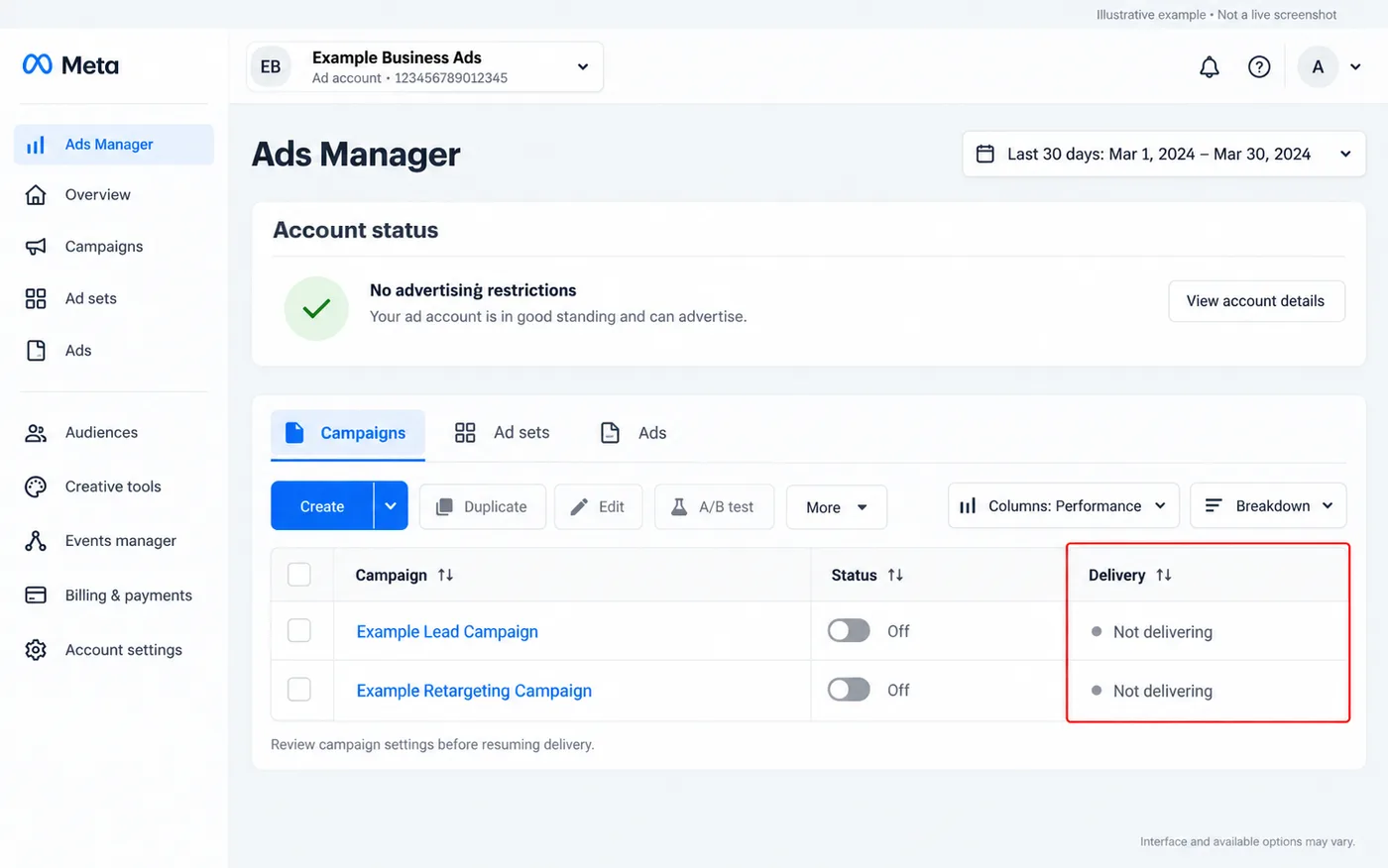
A restriction can quietly break the path from your lead form to your CRM. Before spending again, send a test lead with our free Facebook Lead Ads Testing Tool (or see how to create a test lead) and confirm it lands where your team works. If you use LeadSender, your integration's Send a test lead shows exactly what was delivered. Lead delivery tools cannot lift a restriction; they help you check everything works once you are back.
How to avoid your ad account being disabled again
- Keep billing healthy: use a payment method in the business's name, keep a backup card, and fix failed charges quickly.
- Secure every login: two-factor authentication for everyone with access, and remove people who no longer need it.
- Grow spend gradually on a new ad account instead of jumping straight to large budgets.
- Match your ads and landing pages: the same offer, price and claims in both places.
- Only claim what you can prove, and avoid personal-attribute wording such as “Are you struggling with debt?”.
- Use the right special ad category for housing, employment, credit, financial products and social or political ads.
- Act on warnings early: a rejected ad or a request for verification is the cheapest moment to fix things.
How to disable your own Facebook ads account
If you searched for how to disable a Facebook ads account yourself, that is a different situation from a restriction. You can deactivate an ad account you manage from its settings in Ads Manager or your business settings; Meta asks you to pay any outstanding balance first. Deactivating stops all ads on that account, and you can usually reactivate it later from the same settings. Removing yourself from an ad account or business is different again, and does not stop its ads.
Facebook ad account disabled: FAQs
Why was my Facebook ad account disabled for no reason?
There is almost always a reason; it just is not always on the screen you are looking at. Open Meta Business Support Home, select the restricted asset and read its status, billing messages and any security or verification requests. If the reason is still unclear, save the exact message and ask Meta support to identify it. Avoid guessing that a recent budget or creative change caused it.
How do I fix a disabled Facebook ad account?
Find the restricted asset in Meta Business Support Home, read the reason, fix what it names (a failed payment, a security issue, a verification request or a policy problem), then select Request review if it is offered. Fixing the wrong thing, such as editing ads when the restriction is on your personal profile, does not help.
Can I recover a disabled Facebook ad account?
Often, yes, but it depends on the reason and the options Meta offers for that account. Payment and security restrictions are usually lifted once the issue is resolved. Policy restrictions need a review. If a decision says no further review is available, that decision is final. No appeal template can guarantee reinstatement.
How long does a Facebook ad account appeal take?
Meta does not publish a fixed time, and it varies. Use the status and any estimate shown in your case, and answer requests for more information quickly. Do not plan campaigns around an assumed 24 or 48 hour turnaround.
Is a restricted ad account the same as a disabled one?
Not exactly. Restricted means some advertising is limited, such as running ads, a payment option or spending. Disabled usually means the ad account cannot run ads at all. Banned is not a Meta term, but people use it for a restriction that is final after review. Read the actual notice to see what is blocked.
What does 'Your Facebook account has been restricted from advertising' mean?
It means your personal profile has lost advertising access, not just one ad account. You cannot run ads on any ad account until it is resolved. Open the restriction on your own account in Business Support Home and follow its steps. Editing ads or paying an unrelated balance does not fix it.
Why is my Instagram ad account disabled?
Instagram ads run through a Meta ad account, so an 'Instagram ad account disabled' message usually means the connected ad account, or your advertising access, is restricted. Check the promotion error, then the connected ad account's billing and status in Meta's business tools, and your Instagram Account Status. If the Instagram login itself is suspended, follow the appeal shown when you sign in.
Can I create a new ad account after mine is disabled or banned?
Do not use a new account to get around a restriction. Meta treats that as circumvention, which can lead to wider restrictions on your profile and business. Find out what was restricted and use the official review process. A new account does not fix a problem with your identity, business, offer or ads.
Will paying the balance remove the restriction?
Only if the restriction was about that balance. Settle a legitimate unpaid amount through Billing and payments, then recheck the account. Payment does not resolve a separate policy, security or identity issue on the same account.
Where is the Facebook ad account disabled appeal form?
There is no single public form. Start at Meta Business Support Home, select the restricted asset, and use the Request review option shown there. Whether it appears depends on the account's status. Be wary of older appeal form links and anyone offering to recover accounts for a fee.
Does Meta Verified or business verification fix a disabled ad account?
Not automatically. Complete identity or business verification when your restriction asks for it, because it can be a required step. A paid badge or verification on its own does not lift a restriction.
Why does Request review not appear?
Common causes: the wrong business or asset is selected, you do not have enough access to that asset, a security or verification task must be finished first, a review is already pending, or the decision says no further review is available. Work through each before looking for another route.
Does disabling my own ad account mean it was banned?
No. Deactivating an ad account yourself is different from Meta restricting it. A deactivated account can usually be reactivated from its settings once any balance is paid. A restricted one needs the cause fixed and, where offered, a review.
What happens to my leads while my ad account is disabled?
New ads stop delivering, so new leads stop coming in, but leads you already received remain yours. You can still download them from Ads Manager or Leads Center if you have access, and follow up with people who opted in.
Official resources
- Meta Business Support Home
- Troubleshoot a disabled or restricted account
- Request a review of an advertising restriction
- Fix a failed payment
- Meta Advertising Standards
Meta changes its menus and shows different options to different accounts. When the steps here differ from what your restricted account shows, follow your account.